How to Tell if Your Phone Has Spyware and Remove It in Australia
If your phone battery suddenly drains fast, your data usage spikes for no clear reason, or your phone feels hot when you are not using it, spyware could be one possible cause. It is not the most likely explanation in most cases, since a faulty app or an ageing battery can cause the same symptoms. But it is worth knowing the warning signs and the safe steps to check, because spyware is designed to hide and quietly collect information.
This guide covers the signs to look for, how to check your phone, and how to remove suspicious software safely. It also covers what to do if you think someone you know installed it, where safety planning matters as much as the technical fix.
Step 1: Look for the warning signs
Start by noticing patterns rather than panicking over a single glitch. A cluster of signs over days or weeks is more telling than one odd day.
Common warning signs include a battery that drains much faster than usual, a phone that feels warm while idle, and mobile data usage that jumps without a change in your habits. You might also see apps you do not remember installing, settings that change on their own, strange pop-ups, or your phone restarting or lighting up at odd times.
Another red flag is someone knowing things they should only know from your private messages, photos or location. Spyware, often sold as parental control or monitoring software, can in some cases read messages, track location and record calls. If that knowledge lines up with phone behaviour that has changed, take the possibility seriously and work through the checks below calmly.
Step 2: Check your apps and permissions
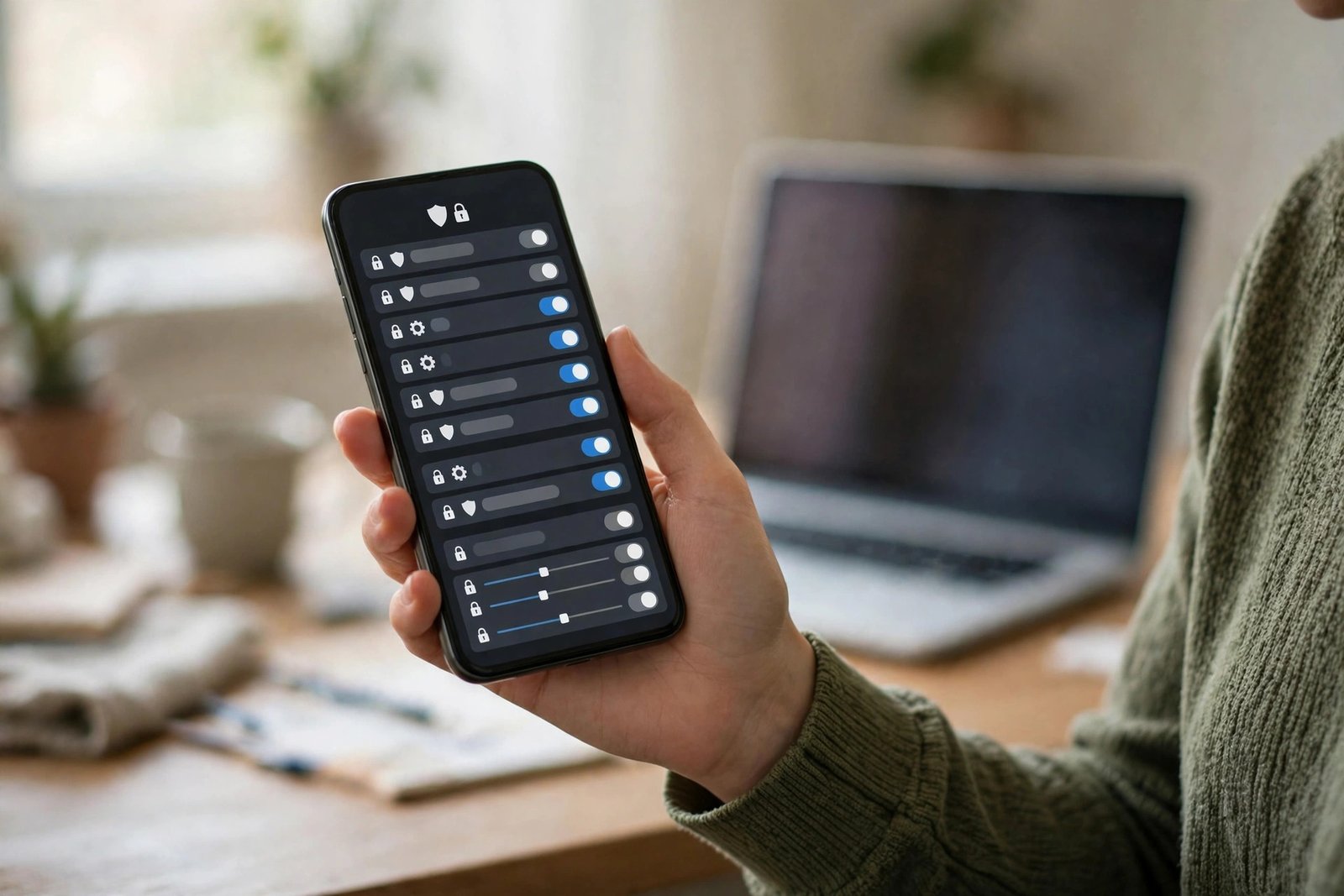
On iPhone, go to Settings, then General, then iPhone Storage, and scroll through the full app list. Look for anything unfamiliar, especially apps with vague names or no clear purpose. Then check Settings, then Privacy and Security, and review which apps can access your location, microphone, camera, photos and contacts. Remove access for anything that does not need it.
On Android, open Settings, then Apps, then See all apps, and look for unfamiliar entries. In most recent versions, you can also open Settings, then Security and privacy, then Privacy, then Permission manager, to see which apps hold sensitive permissions. Pay attention to apps with device admin access or accessibility access, since spyware often relies on those powerful permissions to keep running.
Uninstall anything you do not recognise and do not need. On Android, if an app refuses to uninstall, check Settings, then Security, then Device admin apps, and turn off admin access for it first, then try again. Never install a random "spyware remover" from an ad or a link, since some of those apps are themselves harmful.
Step 3: Update your phone and run a security scan
Install any pending software updates before doing anything else. Updates often close the security holes that spyware relies on, and they also keep your phone's built-in protections current. On iPhone, check Settings, then General, then Software Update. On Android, check Settings, then System, then Software update, though the exact menu names vary slightly by brand.
Both iPhone and Android include built-in security features. Android phones can use Google Play Protect, which scans installed apps for harmful behaviour. Open the Play Store, tap your profile icon, then Play Protect, and run a scan. If you want a second opinion, install a well-known security app only from the official Play Store or App Store.
Step 4: Change your passwords and turn on two-factor authentication
If you suspect spyware, assume your passwords may have been seen. Change the passwords for your most important accounts first: email, banking, Apple ID or Google account, and social media. Use a different, strong password for each one, and do not reuse the old ones.
Turn on two-factor authentication wherever it is offered. This usually means a code from an authenticator app or a prompt on a trusted device, in addition to your password. Even if someone has your password, that second step makes it much harder for them to sign in.
Step 5: Reset the phone if the problem persists
If you have removed suspicious apps, tightened permissions and updated your software, but the warning signs continue, a factory reset is the most reliable clean-up. Back up your photos, contacts and important files first, ideally to a cloud account or a computer you trust.
On iPhone, go to Settings, then General, then Transfer or Reset iPhone, then Erase All Content and Settings. On Android, go to Settings, then System, then Reset options, then Erase all data. After the reset, set the phone up as a new device rather than restoring from a backup made while the phone was suspicious, since a backup can carry the problem back.
Step 6: Get help if someone may be monitoring you
If you believe a partner, ex-partner or someone else installed spyware to monitor you, your safety comes first. In Australia, the eSafety Commissioner provides guidance on technology-facilitated abuse, and support services can help you make a safety plan before you remove the software, since removal can alert the person monitoring you.
You can also report concerns to police if you feel unsafe, and keep a record of anything suspicious, including dates, messages and unusual phone behaviour. Do not confront someone you believe is monitoring you if that could put you at risk. Get advice first, and consider using a trusted friend's phone or a public computer to seek help until your own phone is clean.
Frequently Asked Questions
Can spyware hide on both iPhone and Android?
Yes, though it is harder to install on an iPhone that has not been jailbroken, since Apple restricts app installation to the App Store. Android phones allow more flexibility, which also gives harmful apps more room to operate, so permission checks matter even more on Android.
Will antivirus apps remove spyware from my phone?
Built-in tools like Google Play Protect can catch many harmful apps, and reputable security apps from official stores can help. But no scanner catches everything, so combine a scan with manual app and permission checks, and use a factory reset if suspicious behaviour continues.
Should I factory reset my phone straight away?
Not usually as a first step. Check apps, permissions and updates first, back up your important files, and keep a reset as the reliable fallback if the problem persists. Setting up as a new device after a reset avoids restoring the problem from an old backup.



Post Comment