How to Set Up Emergency Alerts on Your Phone in Canada: Alert Ready Explained
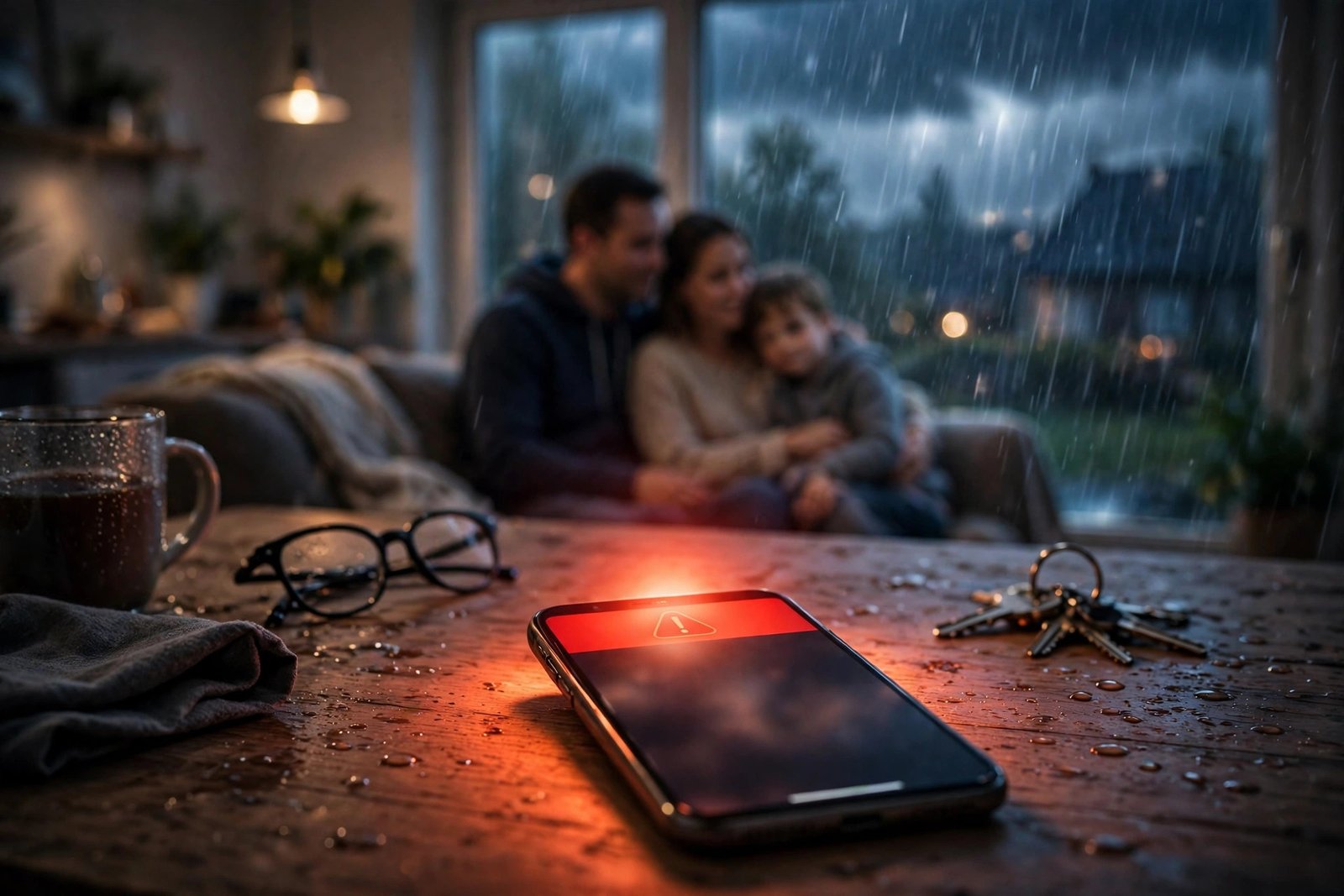
When a tornado warning, a flood alert or an Amber Alert goes out in Canada, it can reach your phone in seconds, even if you never signed up for anything. That system is called Alert Ready, and it is built into most recent phones sold in Canada. The trick is knowing where the settings live, what the alert will look like, and what to do if you think you missed one.
This guide explains Alert Ready in plain language, walks through the iPhone and Android steps, and covers the common reasons an alert does not appear.
Step 1: Understand what Alert Ready is
Alert Ready is Canada's national public alerting system. Government officials issue alerts for life-threatening situations, and wireless providers distribute them to compatible phones in the affected area. The system is run in partnership with federal, provincial and territorial emergency management officials, and the alerts cover events such as severe weather, floods, wildfires and Amber Alerts.
You do not need to download an app or subscribe to receive these alerts on a compatible phone. If your phone is connected to an LTE or 5G network in Canada and is in the alert area, it should receive the alert automatically. That is by design: in an emergency, officials want to reach people who may not follow news or weather apps.
Alerts use a distinct tone and vibration pattern so you notice them even if the phone is on silent in some cases. The message itself is short, in English and French in most cases, and it tells you what is happening, where it applies and what action to take.
Step 2: Check emergency alert settings on iPhone
On a recent iPhone, open Settings, then Notifications, then scroll to the very bottom of the list. In most recent versions, you will see Government Alerts or Emergency Alerts, with toggles for alerts such as Amber Alerts and Emergency Alerts.
Make sure those toggles are on. If a toggle is off, turn it on and leave it on. Apple notes that government alerts may still sound in some situations even with Do Not Disturb on, because these are safety messages, not normal notifications.
Also check two basics that affect delivery. First, make sure the phone is connected to a mobile network, not only Wi-Fi, since wireless emergency alerts are delivered over the mobile network. Second, make sure the phone is running a recent version of iOS through Settings, then General, then Software Update. Older software on older phones may not support the current alert format.
Step 3: Check emergency alert settings on Android
Android menus vary by maker, so use the path that matches your phone and search Settings if the wording differs.
On a Google Pixel, open Settings, then Notifications, then Wireless emergency alerts in most recent versions. Check that the alert categories are on.
On a Samsung Galaxy phone, open Settings, then Notifications, then Advanced settings, then Wireless emergency alerts. In most recent versions, you will find toggles for emergency alerts there.
On other Android phones, open Settings and search for "emergency alerts" or "wireless emergency alerts" in the Settings search bar. Turn on the categories shown, and leave them on. If your phone shows a test alert option, do not confuse a test with a real alert: test messages are clearly labelled and are used to check the system.
Step 4: Know what to do when an alert arrives
When an alert sounds, stop and read it before you dismiss it. The message will name the hazard and the area, and it will give a short instruction such as seek shelter, avoid an area or watch for updates. Follow that instruction first, then look for more detail from local officials, radio or a trusted weather source.
Do not call 911 to ask about an alert unless you have an emergency. Emergency lines can become overloaded during a major event, and the alert itself usually points to official sources for updates.
If you are driving, pull over safely before reading the full message. The alert tone is designed to get your attention, not to be read at highway speed.
Step 5: Fix it if you did not receive an alert
Missing an alert does not always mean your phone is broken. Start with the simple checks. Was the phone connected to a mobile network at the time, or only Wi-Fi? Was it in the alert area? Was it a compatible device on LTE or 5G? Older phones on older networks may not receive wireless alerts.
Next, check the settings from Steps 2 and 3 and confirm the alert toggles are on. Restart the phone after changing a setting, since some Android phones only apply notification changes after a restart.
Also check that Do Not Disturb or a Focus mode is not blocking the category on your phone, and check whether a third-party app or a carrier setting changed the defaults. If alerts still do not arrive after those checks, contact your wireless provider and ask whether your device and plan support Alert Ready wireless alerts.
For extra coverage, add a second channel, such as a weather app or local radio. A second source helps if your phone is off or out of coverage.
Frequently Asked Questions
Do I need to sign up for Alert Ready on my phone?
No, in most cases you do not need to sign up. Alert Ready wireless alerts are sent automatically to compatible phones connected to an LTE or 5G network in the affected area. You should still check that the emergency alert toggles in your phone settings are on, since a toggle switched off can stop alerts from showing.
Why did my phone not get an alert my neighbour received?
The most common reasons are different network connections, different models or software versions, or different alert settings. A phone on Wi-Fi only, an older phone without current alert support, or a phone with emergency alerts switched off may miss a message that a neighbour on the mobile network receives.
What is the difference between an Alert Ready alert and a weather app notification?
An Alert Ready alert is an official public alert issued by government officials for a life-threatening situation in a specific area. A weather app notification is a product feature from an app maker and may cover a wider range of conditions. Treat an Alert Ready alert as the official warning, and use weather apps and local officials for extra detail and updates.


Post Comment