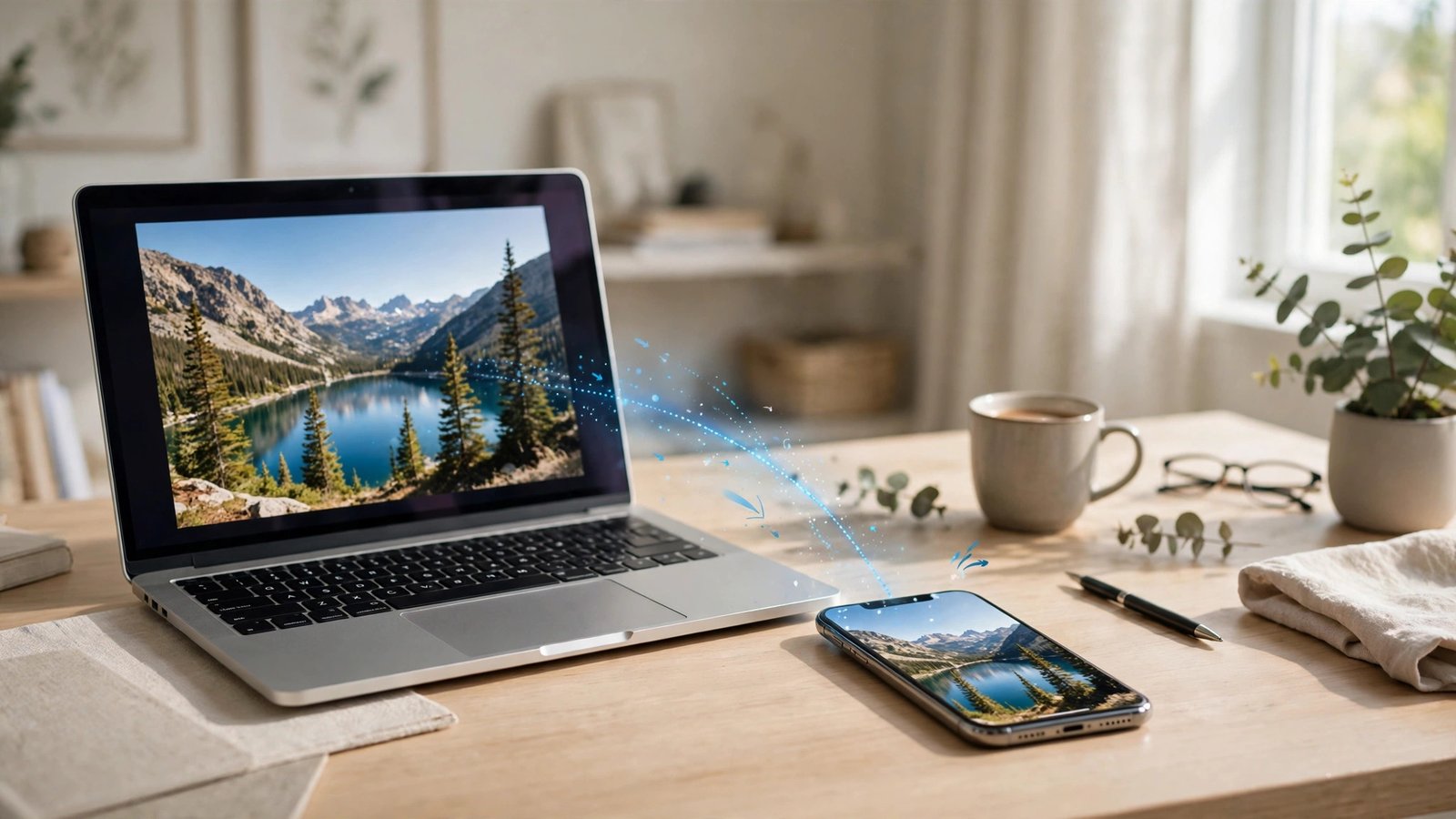
How to Share Files Between Your Phone and Computer Without a Cable in Australia
You take a photo on your phone and want it on your computer, but the cable is in another room or simply missing. Wireless transfer has become fast and reliable enough that a cable is now the backup, not the main method. The right option depends on your devices: Apple, Android, Windows or a mix of all three.
This guide covers the main wireless methods that work in Australia, step by step, so you can move photos, videos and documents without plugging anything in. All of them work over your home Wi-Fi or a direct device connection, and none of them require you to buy extra hardware.
Step 1: iPhone to Mac with AirDrop
AirDrop is the simplest option if both devices are made by Apple. It sends files directly between devices, so it works even when your internet connection is slow, as long as both devices have Wi-Fi and Bluetooth turned on.
On your iPhone, open the photo, video or file you want to send, tap the Share button, then tap AirDrop. Your Mac should appear in the list if it is nearby and signed in to the same Apple ID, or if its AirDrop receiving setting allows contacts or everyone. On your Mac, accept the transfer if asked, and the file will land in Downloads by default, or in the app you sent it from.
If your Mac does not appear, check both devices have Wi-Fi and Bluetooth on, that AirDrop is not set to Receiving Off, and that neither device is in a personal hotspot session. Moving the devices closer together usually fixes a missing device. For larger video files, keep both devices awake until the transfer finishes.
Step 2: Android to Windows with Quick Share and Phone Link
Android phones in most recent versions include Quick Share, previously called Nearby Share. It works much like AirDrop but for Android and Windows. On your Android phone, open the file, tap Share, then Quick Share, and choose your Windows computer if it appears. On a Windows computer, Quick Share may already be installed, or you can install it from the Microsoft Store.
Windows also offers Phone Link, which connects your Android phone to your PC over Wi-Fi. After pairing once through the Phone Link app on your computer and the Link to Windows app on your phone, you can browse recent photos on your phone from your computer and drag them across. This is handy for grabbing a handful of photos without picking through menus on the phone.
For either method, make sure both devices are on the same Wi-Fi network for the smoothest transfer, and accept the pairing prompt on both screens the first time you connect. Later transfers usually need no pairing step at all.
Step 3: Android to Android, or Android to Chromebook, with Quick Share
Quick Share also works between Android phones and tablets, and with Chromebooks. The steps are the same: open the file, tap Share, tap Quick Share, and pick the receiving device. Both devices need Bluetooth and Wi-Fi on, and the receiving device needs to be set to accept shares from your contacts or from everyone nearby.
Step 4: Any phone to any computer with a cloud service
When your phone and computer are different brands, a cloud service is the most flexible option. Google Drive, iCloud, OneDrive and Dropbox all let you upload a file from your phone and download it on your computer, from anywhere with an internet connection.
On your phone, open the cloud app, upload the file or turn on automatic photo backup, then open the same account on your computer and download it. This method is slower than a direct transfer for very large videos, and it uses your internet data, so it suits documents and photos best, or large files when you are on home Wi-Fi.
Watch your free storage limit. Google, Apple and Microsoft each offer a limited amount of free space, and photo backups can fill it quickly. If you hit the limit, move older files to your computer and delete them from the cloud, or turn off automatic backup for videos and keep it for photos only.
Step 5: Use messaging apps and email for quick one-off files
For a single document or a couple of photos, sending the file to yourself can be the fastest option. Email it to your own address, send it to yourself in WhatsApp or Telegram, or use a notes app that syncs across your devices.
This method is convenient but has limits. Email providers cap attachment sizes, and messaging apps often compress photos and videos, reducing their quality. Use it for documents and quick sharing, and use AirDrop, Quick Share or a cloud service when you need the full-quality original.
Step 6: Fix it when a transfer fails
If a device does not appear, work through a short checklist before giving up. Turn Wi-Fi and Bluetooth off and on again on both devices, move them closer together, and check that neither is in aeroplane mode or a hotspot session. Restarting both devices fixes a surprising number of transfer problems.
If a transfer starts but stalls, try a smaller file first to test the connection, then retry the large file. Very large videos transfer better over home Wi-Fi than over a mobile connection, and keeping both screens awake helps avoid interruptions. If one method keeps failing, switch to another: a cloud upload rarely fails at the same point as a direct transfer.
Frequently Asked Questions
Do I need internet to share files wirelessly?
Not always. AirDrop and Quick Share send files directly between nearby devices, so they work without a fast internet connection. Cloud services and email do need internet, since the file travels through a server first.
Is wireless transfer safe on public Wi-Fi?
Direct transfers like AirDrop and Quick Share do not send your file over the public network, but you should still set receiving to contacts only on public networks. For cloud uploads on public Wi-Fi, your account password and two-factor authentication protect your files.
Why does my computer not appear in the share list?
The most common causes are Bluetooth or Wi-Fi being off, a receiving setting set to hidden, or the devices being too far apart. Check those settings on both devices, move them closer, and try again.


Post Comment