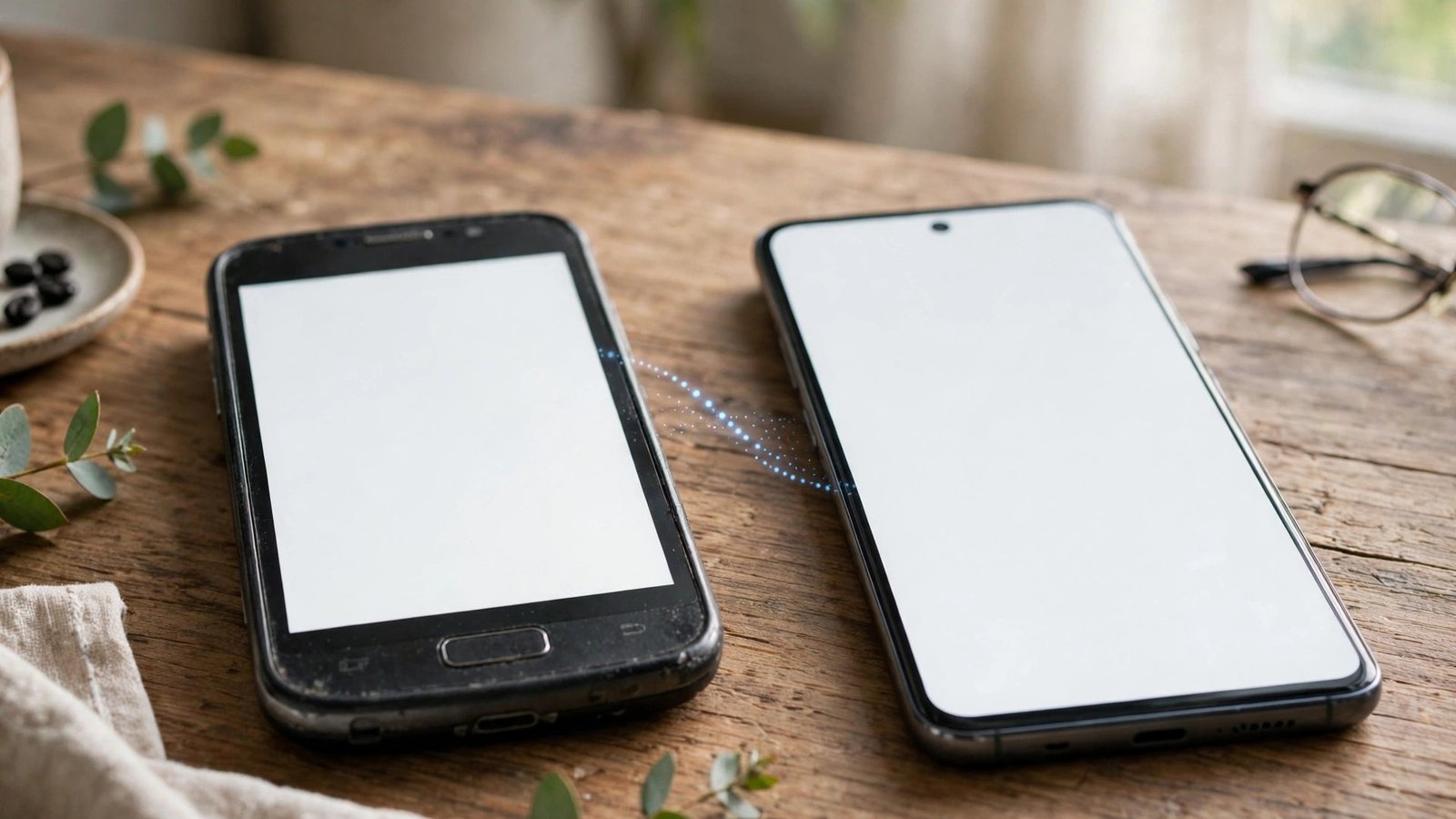
How to Transfer Your Contacts to a New Phone in the US: iPhone and Android
A new phone feels exciting until you open the contacts app and wonder where everyone went. The good news is that contacts rarely live only on the phone itself. In most cases they already sit in a cloud account, and moving them is a matter of signing in to the right account on the new phone and letting it sync. This guide covers iPhone to iPhone, Android to Android, and moves between the two, plus what to do when a few names go missing.
Start with a quick check on the old phone. Open Contacts and see which account a familiar contact belongs to. On iPhone, a contact may sit in iCloud, Gmail or Outlook. On Android, contacts often sit in your Google account, but some phones also store them on the device or SIM card. If your contacts are in a cloud account, signing in to that account on the new phone will bring them over. If they are only on the device or SIM, you need an extra export step first.
Before you switch phones
Charge both phones and connect them to Wi-Fi. On the old phone, make sure contacts sync is on: on iPhone, check Settings, then your name, then iCloud, and confirm Contacts is on. On Android, check your Google account sync for Contacts. Give it a few minutes, then sign in to the same account on the new phone during setup. Do not skip that sign-in step, since that is how most transfer problems start.
Move contacts from iPhone to iPhone
The simplest iPhone to iPhone move uses iCloud. On the old iPhone, confirm Contacts is on in iCloud settings and that the phone has backed up recently, either over Wi-Fi or by plugging it in. On the new iPhone, sign in with the same Apple Account during setup and choose to restore from your iCloud backup, or simply turn on iCloud Contacts after setup. Your contacts will appear as they download. This can take a few minutes on a slow connection, so do not panic if the list looks empty at first.
If you set the new iPhone up as a new device instead of restoring a backup, you can still turn on iCloud Contacts afterward in Settings, then your name, then iCloud. Apple also offers Quick Start: place the phones near each other, follow the prompts, and transfer data over Wi-Fi or a cable. Either way, keep the old phone until you have checked the new one, just in case.
Move contacts from Android to Android
On Android, Google Contacts does most of the work. On the old phone, confirm contacts are saved to your Google account rather than only to the device. In the Contacts app, check the account shown for a contact, and in Settings, confirm Google account sync for Contacts is on. On the new Android phone, sign in with the same Google account during setup. Contacts will sync automatically, usually within minutes.
Google also offers a cable or Wi-Fi transfer during setup on many phones, including Pixel and Samsung models. If you see a prompt to copy data from your old phone, accept it and follow the steps. That copy can bring contacts, photos, messages and apps in one pass. If you skip it, you can still get contacts by adding the Google account later in Settings, then Accounts, then Google, and turning Contacts sync on. Samsung users can also use Smart Switch, which moves contacts from an old Android phone or even an iPhone, over a cable or Wi-Fi.
Move contacts between iPhone and Android
Cross-platform moves need one extra step, because iCloud and Google do not sync with each other directly. The cleanest method is to export from one account and import into the other on a computer. For iPhone to Android, sign in to iCloud on the web, open Contacts, select all contacts, and export them as a vCard file. Then sign in to Google Contacts on the web and import that file. Once imported, sign in to the same Google account on the Android phone and turn Contacts sync on.
For Android to iPhone, reverse the process. In Google Contacts on the web, export your contacts as a vCard file. Then, on a computer, sign in to iCloud on the web, open Contacts, and import the file. On the iPhone, make sure iCloud Contacts is on, and the imported contacts will sync down. In most recent versions, you can also move contacts during setup: Android setup can pull data from an iPhone with a cable or through Google's transfer tool, and Apple's Move to iOS app can move contacts from Android to iPhone over Wi-Fi. Use whichever setup prompt your new phone offers, then verify the count before wiping the old phone.
Check the result and clean up duplicates
After syncing, open Contacts on the new phone and check three things: the total count, a few important names, and whether numbers look complete. Search for a contact you call often and confirm the number, email and photo are there. Scroll through the list for obvious duplicates, which happen when the same person exists in two accounts. On iPhone, Contacts can suggest merging duplicates in some versions. On Android, Google Contacts on the web has a merge option that combines contacts with the same name and details.
Once you are satisfied, back up the new phone. A fresh backup turns a successful transfer into a safety net for the next move.


Post Comment