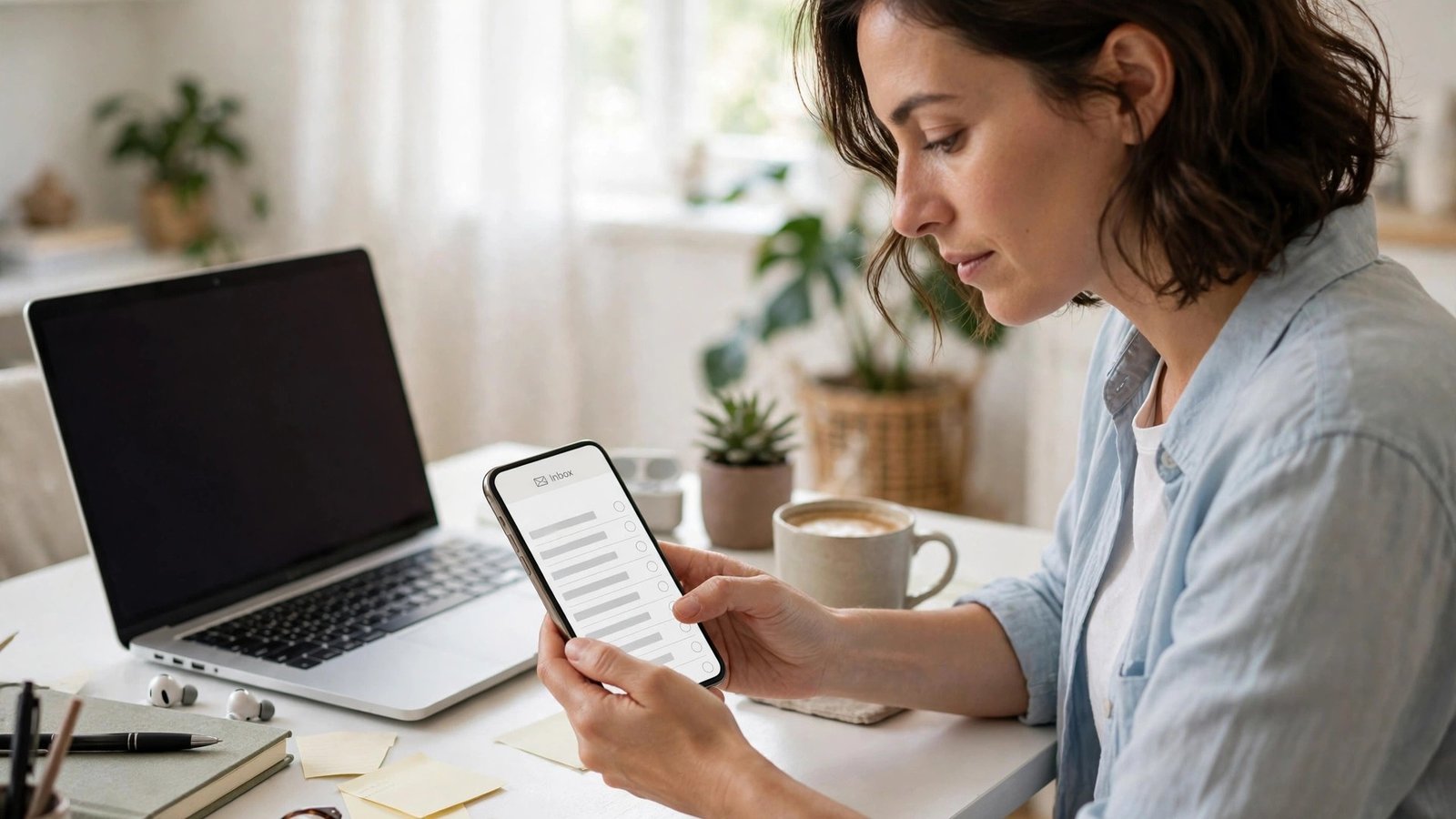
How to Set Up Email on Your Phone in the US: Gmail, Apple Mail and Outlook
Setting up email on a new phone should take a few minutes, but it often turns into a hunt for passwords, verification codes and settings that do not look familiar. The good news is that the process is mostly the same across phones. You add an account, sign in, let the phone check the settings, and choose what to sync. This guide walks through Gmail, Apple Mail and Outlook on iPhone and Android, with the fixes for the problems that come up most often in the US.
Before you start, gather three things: the full email address, the current password, and a second device or phone number that can receive a verification code. Many accounts now ask for two-step verification, so a code may arrive by text, an authenticator app or a prompt on another device. If you do not remember the password, reset it on a computer before you start.
Add a Gmail account on iPhone and Android
On Android, Gmail is usually built in. Open the Gmail app, tap your profile picture, then Add another account, then Google. Enter your Gmail address and password, complete any verification step, and agree to the prompts. Your mail, and usually your contacts and calendar if you leave those toggles on, will start syncing. On a Samsung phone, the steps are the same inside the Gmail app, even if Samsung also offers its own email app. Stick with Gmail for a Google account, since it handles Google sign-in most smoothly.
On iPhone, you have two good choices. The Gmail app works just like it does on Android: download it from the App Store, sign in with Google, and complete verification. If you prefer Apple Mail, go to Settings, then Apps, then Mail, then Mail Accounts, then Add Account, then Google. Sign in, then choose what to sync: Mail, Contacts, Calendars and Notes are the usual options. Apple Mail will then fetch your Gmail through Google's modern sign-in, so you should not need to enter server settings by hand. In most recent versions, if Mail asks for a server name, you have picked the wrong account type. Go back and choose Google instead.
Set up Apple Mail with an iCloud account
If your address ends in icloud.com, me.com or mac.com, Apple Mail is the natural home for it. On iPhone, this account is often already there if you signed in with your Apple Account during setup. To check, go to Settings, then Apps, then Mail, then Mail Accounts, and look for iCloud. Make sure Mail is switched on. If it is missing, tap Add Account, then iCloud, and sign in with your Apple Account email and password, completing any two-factor prompt on a trusted device.
On Android, iCloud Mail takes one extra step. Apple requires an app-specific password for third-party mail apps, which you create in your Apple Account settings on the web. Sign in at your Apple Account page, look for app-specific passwords, generate one for mail, and copy it carefully. Then, in Gmail or another Android mail app, add an account manually as an IMAP account, using your iCloud address and that app-specific password. Use imap.mail.me.com as the incoming server and smtp.mail.me.com as the outgoing server in most recent versions. Keep that app-specific password private, and revoke it if you stop using that phone.
Set up Outlook on iPhone and Android
Outlook covers Outlook.com, Hotmail, Live and Microsoft 365 work or school accounts. The simplest route is the Outlook app itself, which is free on both iPhone and Android. Download Outlook, tap Add Account, enter your email address, then your password, and complete any Microsoft verification step. The app will configure itself, and you can add more accounts from the same menu later. Outlook also handles calendars and contacts from the same account, which is handy if your work calendar lives in Microsoft 365.
You can also use Apple Mail on iPhone or Gmail on Android for an Outlook address. On iPhone, go to Mail Accounts, then Add Account, then Outlook.com, and sign in with Microsoft. On Android, add the account in Gmail as an Outlook account and sign in the same way. The Outlook app is still the better choice for work accounts, because it supports the extra security policies some employers require, such as a PIN or device management, more cleanly than a general mail app.
Fix the most common sign-in problems
The most common failure is a password that works on a computer but fails on the phone. First, check for a simple typo, a capital letter, or an extra space. Second, check whether the account needs two-step verification: the phone may be waiting for a code you have not entered yet. Third, check whether you are using an app-specific password where one is required, as with iCloud Mail on Android or a Google account in an older app. Fourth, turn Wi-Fi off and try mobile data, or the other way around, since a weak or filtered network can block the sign-in check even when browsing works.
Email setup is one of those jobs that feels harder than it is, mainly because every provider uses slightly different names for the same steps. Add the account, sign in through the provider, choose what to sync, and test by sending yourself a message. If the test arrives, you are done. If it does not, work through the fixes above before changing server settings by hand, since modern sign-in handles those settings for you in most cases.



Post Comment