How to Measure Rooms and Objects With Your Phone in the US
Your phone can work as a rough tape measure, which is handy when you are shopping for furniture, hanging a picture, or checking whether a sofa will fit through a door. On iPhone, the built in Measure app uses the camera and augmented reality to estimate lengths. On Android, similar tools are available through Google's Measure app on supported phones, or through measurement features inside other camera and AR apps. The results are good enough for planning, but they are not a replacement for a tape measure when exact sizing matters.
The key to a good result is light, distance, and steady hands. Measure in a well lit room, stand back far enough to see the whole object in the frame, and move slowly. If the app struggles, it is usually because the surface is too dark, too shiny, or too plain for the camera to track. A few simple habits, covered below, make a big difference.
Step 1: Open the right app on your phone
On iPhone, open the Measure app. If you cannot find it, swipe down on the home screen and search for "Measure." The app opens to a camera view with a dot in the center. On many Android phones, search the Play Store for "Measure" by Google and install it if your phone supports it. Some Android makers also include their own measurement tool, so check your phone's app list or search for "measure" before installing anything extra.
Before you start, make sure the camera lens is clean and the room is well lit. Turn on the lights and open curtains if you can. The app needs to see edges and textures to track distance, so a dark room or a blank white wall can confuse it. If you are measuring outdoors, avoid harsh direct sunlight on the phone screen, which makes it hard to see the points you are placing.
Step 2: Measure a straight length
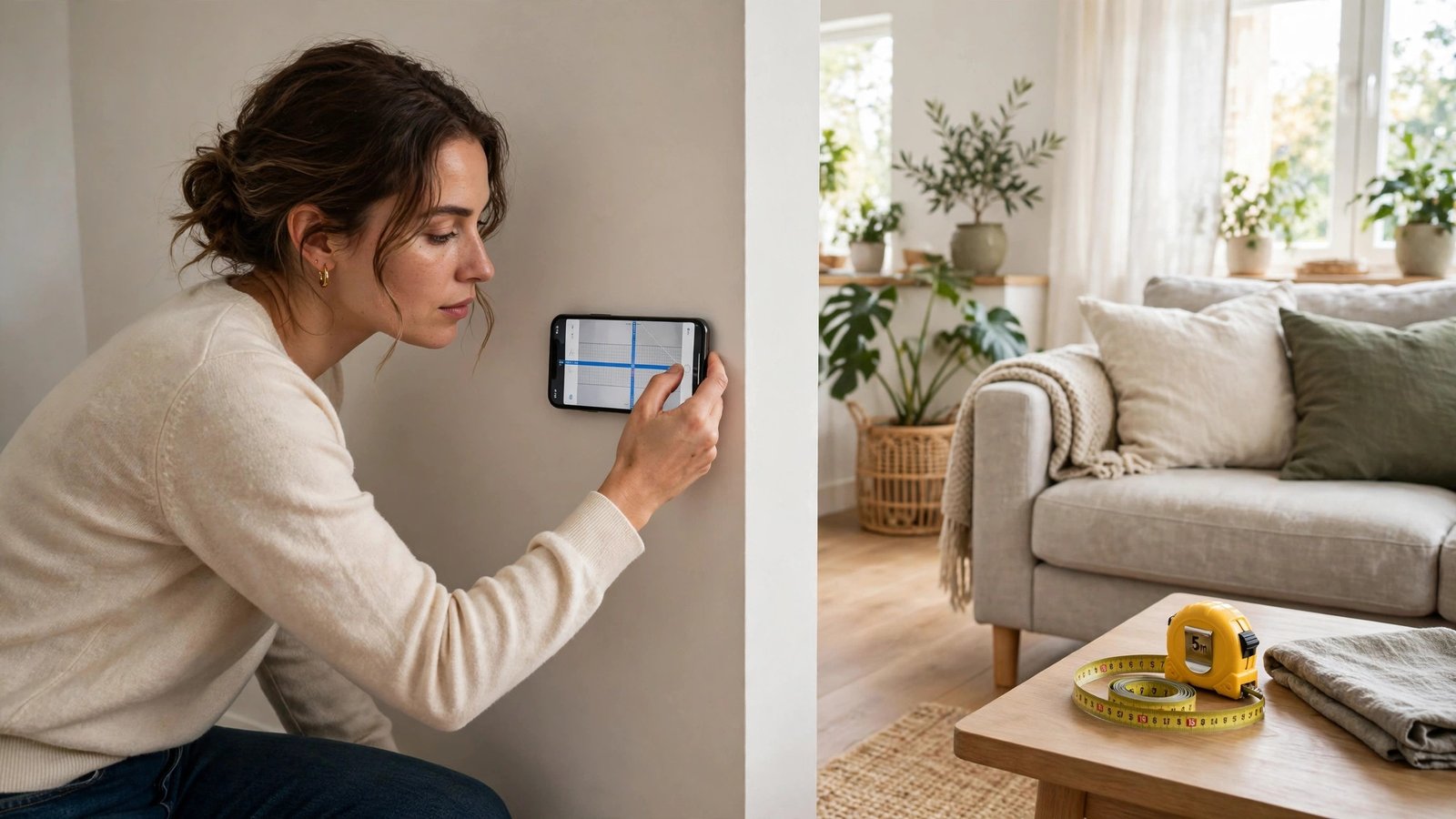
Point the camera at one end of the object or wall you want to measure. Move the phone slowly until the app shows a dot on the surface. Tap the plus button to set the starting point. Then move the phone slowly toward the other end, keeping the object in view, until the dot reaches the far end. Tap the plus button again to set the end point. The app will show the distance between the two points.
For longer walls, keep the phone steady and move in a straight line. If the line drifts, delete the last point and try again. It helps to place a small piece of tape or a book at each end as a visual marker, especially on a plain wall with no clear edge. Once you have a measurement you trust, tap it to copy the number, or take a screenshot so you do not lose it.
Step 3: Measure a rectangle and estimate area
Many measurement apps can also estimate the area of a rectangle, such as a rug space or a wall. On iPhone, after you measure one side of a rectangle, the app may prompt you to measure the next side. Follow the on screen guide and tap to set each corner in turn. When the shape closes, the app shows the area as well as the side lengths.
This feature works best on flat, clear surfaces. Move furniture out of the way if you can, and measure the floor space rather than the top of a rug. For a wall, measure width first, then height, and write both numbers down. If the app gives a very different number on a second try, measure a third time and use the middle value, or switch to a tape measure for that wall.
Step 4: Measure furniture and check if it will fit
To check a sofa, table, or appliance, measure its width, depth, and height. Start with width across the front, then depth from front to back, then height from floor to top. Write all three numbers down with labels, so you do not mix them up later. Then measure the space where the item will go, including doorways and hallways it must pass through.
Doorways are the most common surprise. Measure the narrowest point of each doorway, including the door frame, not just the open door. Also check ceiling height in stairwells if the item must go upstairs. If the phone measurement is close to the doorway width, within an inch or two, use a tape measure before you buy. Phone measurements can be off by a small amount, and that small amount matters when clearance is tight.
Step 5: Improve accuracy and know the limits
Phone measurements are estimates, and their accuracy depends on the phone model, the lighting, and how steadily you move. In most recent versions, results for short, clear distances are usually within a small margin, while long or awkward measurements can drift more. To improve accuracy, measure the same length twice, measure in good light, and avoid measuring reflective surfaces like mirrors or glossy floors.
Do not rely on a phone measurement for work where exact sizing is critical, such as cutting lumber, ordering custom cabinets, or fitting a window. For those jobs, use a tape measure or a laser measure and double check the numbers. For everyday planning, such as choosing a rug size, spacing picture frames, or checking if a bookshelf fits, a phone measurement is fast and good enough.
Frequently Asked Questions
How accurate is the Measure app on a phone?
It is accurate enough for everyday planning, such as furniture shopping and room layout, but it is an estimate. Short, well lit measurements tend to be closer, while long or tricky surfaces can drift. Use a tape measure when exact sizing matters.
Does Android have a Measure app?
Some Android phones support Google's Measure app from the Play Store, and some makers include their own measurement tool. If neither is available on your phone, check for AR measurement features in your camera app or use a tape measure for that job.
Why does my phone struggle to measure a blank wall?
The camera needs visible texture and edges to track distance. A blank white wall gives it little to lock onto. Try adding a visual marker at each end, turning on more light, or measuring from a corner where two surfaces meet.


Post Comment