How to Set Up a Shared Grocery List on Your Phone in the US
A shared grocery list can end a very common household problem: two people buying the same milk, while nobody buys the bread. When the list lives on everyone's phone, anyone can add an item the moment they notice it is running low, and anyone at the store can check items off as they go. Setting one up takes only a few minutes, and it works with apps most people already have.
The best tool depends on your household. If everyone uses an iPhone, Apple Notes or Reminders works well. If your household mixes iPhone and Android, Google Keep or a shared shopping app is a better fit. The steps below cover the most reliable options, so you can pick one and stick with it. The key is to use a single list, not three different lists in three different apps.
Step 1: Pick one app for the whole household
Start by choosing the app everyone will actually open. For iPhone only households, open the Notes app and create a new note, or open Reminders and create a new list. For mixed households, Google Keep is a strong choice because it works on iPhone, Android, and the web with a free Google account. Dedicated grocery apps can also work, but they add another account to manage, so only pick one if your household wants features like aisle sorting or recipe imports.
Once you have picked the app, name the list clearly, for example "Grocery List" or "Household Shopping." A clear name avoids confusion later, especially if you also keep personal notes or reminders in the same app. Tell everyone in the household that this is the one list to use, and that items should go here instead of in a text message that gets buried.
Step 2: Create the list and turn on sharing
In Apple Notes, create a new note, type "Grocery List" at the top, then tap the share button and add the people you want to share with. They will need an Apple ID to edit the note, and they will see changes in real time. In Apple Reminders, create a new list, tap the share icon, and add family members in the same way.
In Google Keep, create a new note, tap the collaborator icon, and add each person's email address. Everyone you add can view and edit the note, add items, and check them off. Make sure each person accepts the share invitation. If someone cannot see the list, check that you used the email address tied to their Google account, not a work address they rarely check.
Step 3: Set up the list so it is easy to use at the store
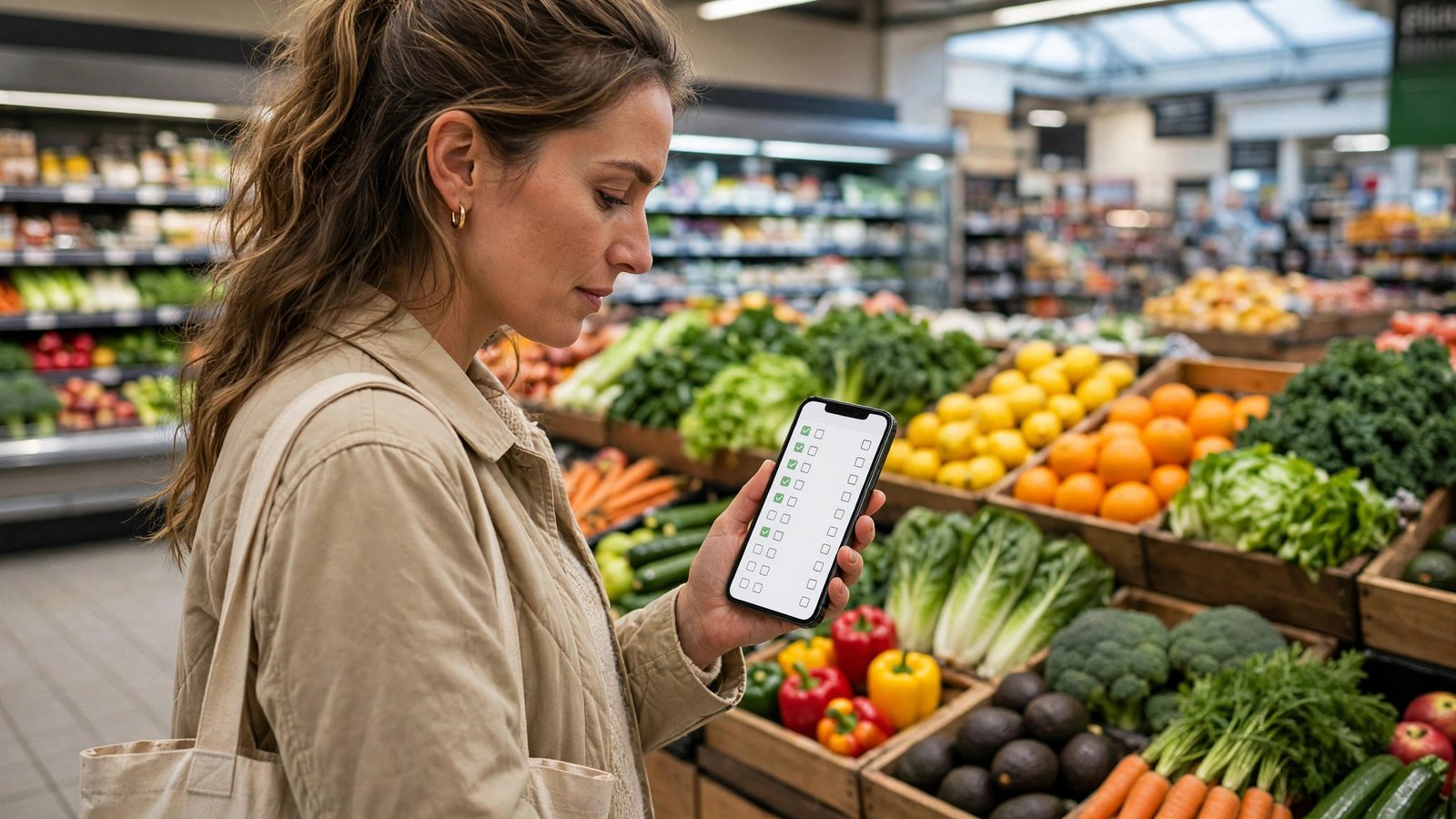
A grocery list only helps if it is easy to read while you are walking the aisles. Use one item per line, and keep the wording short: "milk," "eggs," "whole wheat bread," rather than long sentences. In Notes, you can turn lines into a checklist by tapping the checklist button, which adds a circle you can tap to check off. In Reminders, each entry is already a task you can check off. In Google Keep, tap the checkbox option to turn the note into a checklist.
Add quantities and sizes where they matter, such as "milk, 1 gallon" or "pasta, 2 boxes." That detail prevents a second trip for the wrong size. If someone in your household has a brand preference or an allergy note, add it in brackets after the item, for example "peanut butter (no added sugar)." Keep the list tidy by deleting checked items after each shop, or by unchecking them only when they need to be bought again.
Step 4: Agree on a few simple household rules
A shared list works best with a few ground rules. First, add items as soon as you notice them, not the night before a shop. Second, check the list before you leave for the store, and check items off as you put them in the cart, so a second shopper does not buy the same thing. Third, do not delete items added by someone else unless you are sure they are no longer needed. If you are unsure, ask in the household group chat.
It also helps to decide who does the weekly shop and when. Some households rotate the job, while others have one main shopper. Either way, the list should be ready before shopping day. A quick habit helps: when you finish the last of something, add it to the list right away. That one habit alone removes most "we forgot it" trips.
Step 5: Use extras that save time
Once the basic list works, you can add small extras. In most apps, you can pin the list to the top so it is easy to find. In Google Keep, you can set a reminder on the note for shopping day. In Apple Reminders, you can set a location reminder that pings you when you arrive at your usual grocery store, though location reminders work best when the store address is saved correctly.
Some households also keep a second shared note for pantry staples, such as spices, cleaning supplies, and paper goods. That keeps the weekly grocery list short and focused on fresh items. If you shop online, many grocery apps in the US let you import a list or paste items into a cart, but check the items one by one, since sizes and brands can differ from what you wrote.
Frequently Asked Questions
What is the best app for a shared grocery list?
For iPhone only households, Apple Notes or Reminders works well. For mixed iPhone and Android households, Google Keep is a good choice because it works on both systems and on the web with a free Google account.
Can everyone edit the list at the same time?
Yes, in most recent versions of Notes, Reminders, and Google Keep, shared lists update in real time. If two people edit at once, changes usually merge, but it helps to check items off as you shop so no one buys a duplicate.
Why can someone not see the shared list?
The most common cause is an invitation sent to the wrong email address or Apple ID. Check that you shared with the address the person actually uses for that app, and ask them to accept the invitation and update the app if needed.




Post Comment