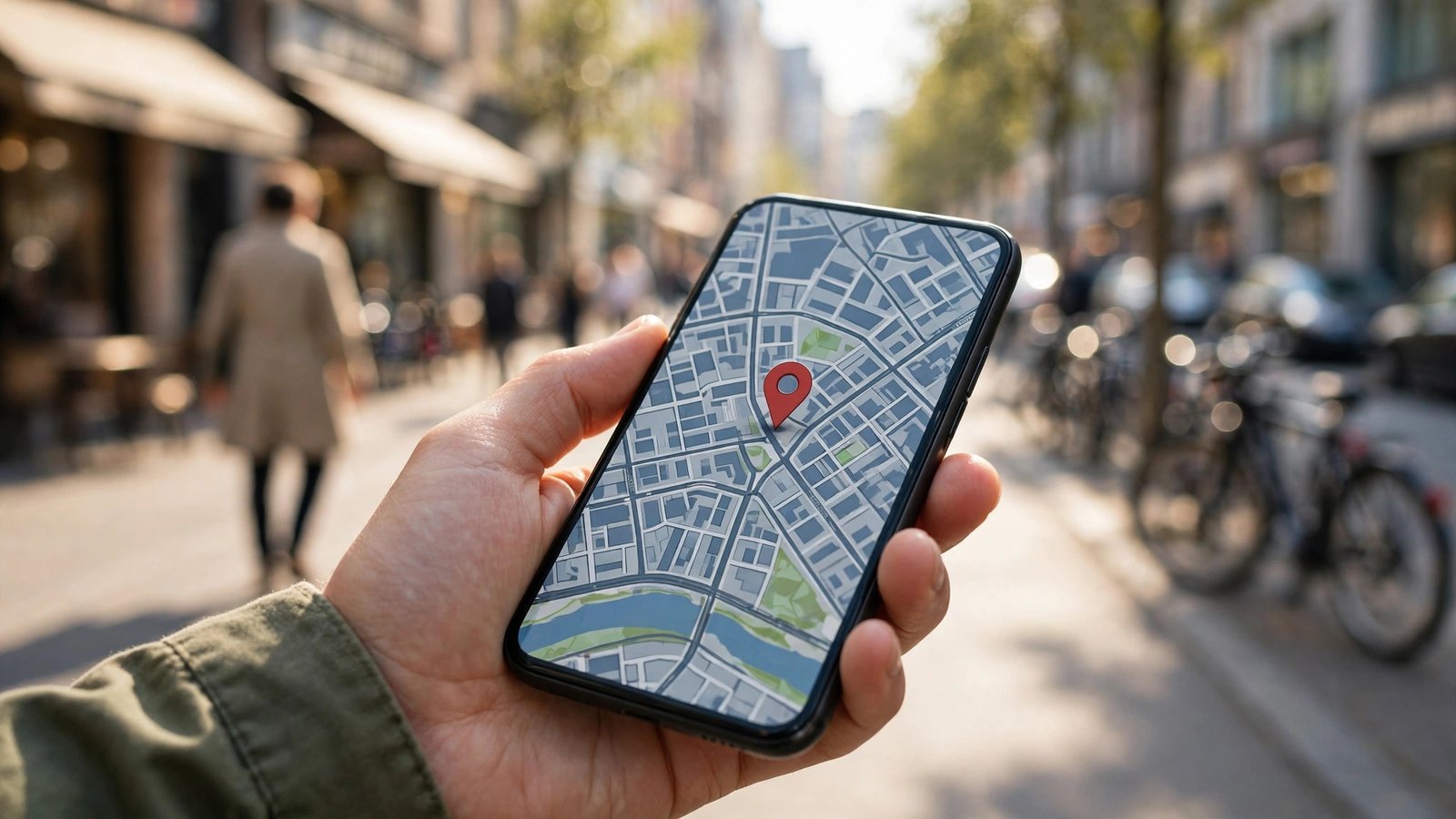
How to Share Your Location Safely on iPhone and Android in the US
Sharing your location with family or friends can be genuinely useful. It lets someone know you got home safely, helps a friend find you in a crowd, or lets a parent keep track of a teenager on the way to school. It can also be risky if the wrong person gets access, or if you forget to turn it off. Here is how to share your location on iPhone and Android, and how to keep control of who sees it.
Before you share: think about who and how long
Location sharing is powerful, so treat it as something you switch on for a reason and switch off when the reason ends. Share your real-time location only with people you trust, and prefer sharing for a limited time rather than indefinitely. A one-hour share for meeting a friend is very different from an always-on share with an acquaintance.
It is also worth knowing the difference between sharing your live location and sending a single location pin. A live share updates as you move, while a pin is a one-time snapshot of where you were when you sent it. For most everyday needs, a pin is enough and safer.
Step 1: share your location on iPhone
On iPhone, the main tool is the Find My app. Open Find My, tap the People tab at the bottom, then tap the plus button and choose Share My Location. Pick a contact and choose how long to share for: one hour, until the end of the day, or indefinitely. The person will get a notification and can see your location in their own Find My app.
You can also share from Messages. Open a conversation, tap the contact's name at the top, and choose Share My Location, with the same time options. To stop sharing, go back to Find My, tap the person's name under People, and choose Stop Sharing My Location.
Step 2: share your location on Android
On Android, the main tool is Google Maps. Open Google Maps, tap your profile picture in the top right, and choose Location sharing. Tap Share location, pick how long to share for, then choose the people you want to share with from your contacts. They will get a link they can open in Google Maps to see where you are.
You can also share from a specific conversation in Google Messages in some versions, by tapping the plus button and choosing Location. If you use WhatsApp, you can share your live location from inside a chat by tapping the attach button and choosing Location, then Share live location, with a time limit of 15 minutes, one hour, or eight hours.
To stop sharing, go back to Google Maps, tap your profile picture, choose Location sharing, tap the person's name, and choose Stop. Review this screen regularly, because it is easy to forget a share you set up weeks ago.
Step 3: share a one-time location pin instead
When you only need someone to find you once, a pin is the safer choice. In Google Maps on either phone, press and hold on the map at your spot, tap the address that appears at the bottom, then tap Share and send it through any messaging app. In Apple Maps on iPhone, tap the blue dot for your current location, then tap Share My Location and send it as a message.
In WhatsApp, you can send your current location without live tracking by tapping the attach button, choosing Location, and then Send your current location. That sends a single map pin, and it does not update as you move. This is the right option for telling a delivery driver where you are or showing a friend which entrance to use.
Step 4: share location with family and kids
For families, both platforms offer built-in family sharing. On iPhone, Family Sharing lets you share your location with family members through Find My, and parents can see a child's location when the child is part of the family group. Set it up in Settings, then Family, then Location Sharing, and choose which members share with each other.
On Android, Google Family Link lets a parent see a child's location when the child's account is supervised. Open Family Link, choose the child's profile, and check the location tab. A parent can also set up location sharing in Google Maps with the same steps as above.
Talk with your kids about location sharing before you set it up. Explain who can see their location and why, and agree on when it stays on. A child who understands the reason is far more likely to keep the setting on than one who feels watched without explanation.
Warning signs to watch for
If your battery drains unusually fast, your phone feels warm while idle, or you notice apps you do not remember installing, someone may have access to your location without your knowledge. Check the sharing screens above first, then check your app permissions. If you share a phone plan or an account with someone, remember that they may be able to see location history through the carrier or the account's family settings.
If you ever feel unsafe because someone is tracking you, stop sharing your location immediately, turn off location services, and talk to someone you trust. In the US, the National Domestic Violence Hotline can help you make a safety plan, and you can reach it by calling 1-800-799-7233 or by texting START to 88788.
Frequently Asked Questions
How do I stop sharing my location with someone?
On iPhone, open Find My, tap People, tap the person's name, and choose Stop Sharing My Location. On Android, open Google Maps, tap your profile picture, choose Location sharing, tap the person's name, and choose Stop. The other person will not be notified when you stop.
Can someone see my location without me knowing?
They can only see it if you have shared it with them or if they have access to your account or device. Check Find My on iPhone or Location sharing in Google Maps on Android to see exactly who has access, and review your app permissions regularly.
Is it safe to share my live location on WhatsApp?
It is safe when shared with someone you trust, because WhatsApp location sharing is end-to-end encrypted and only the people in that chat can see it. Always set a time limit, and remember that anyone in a group chat can see a live location shared there, so share it in a one-to-one chat instead.


Post Comment