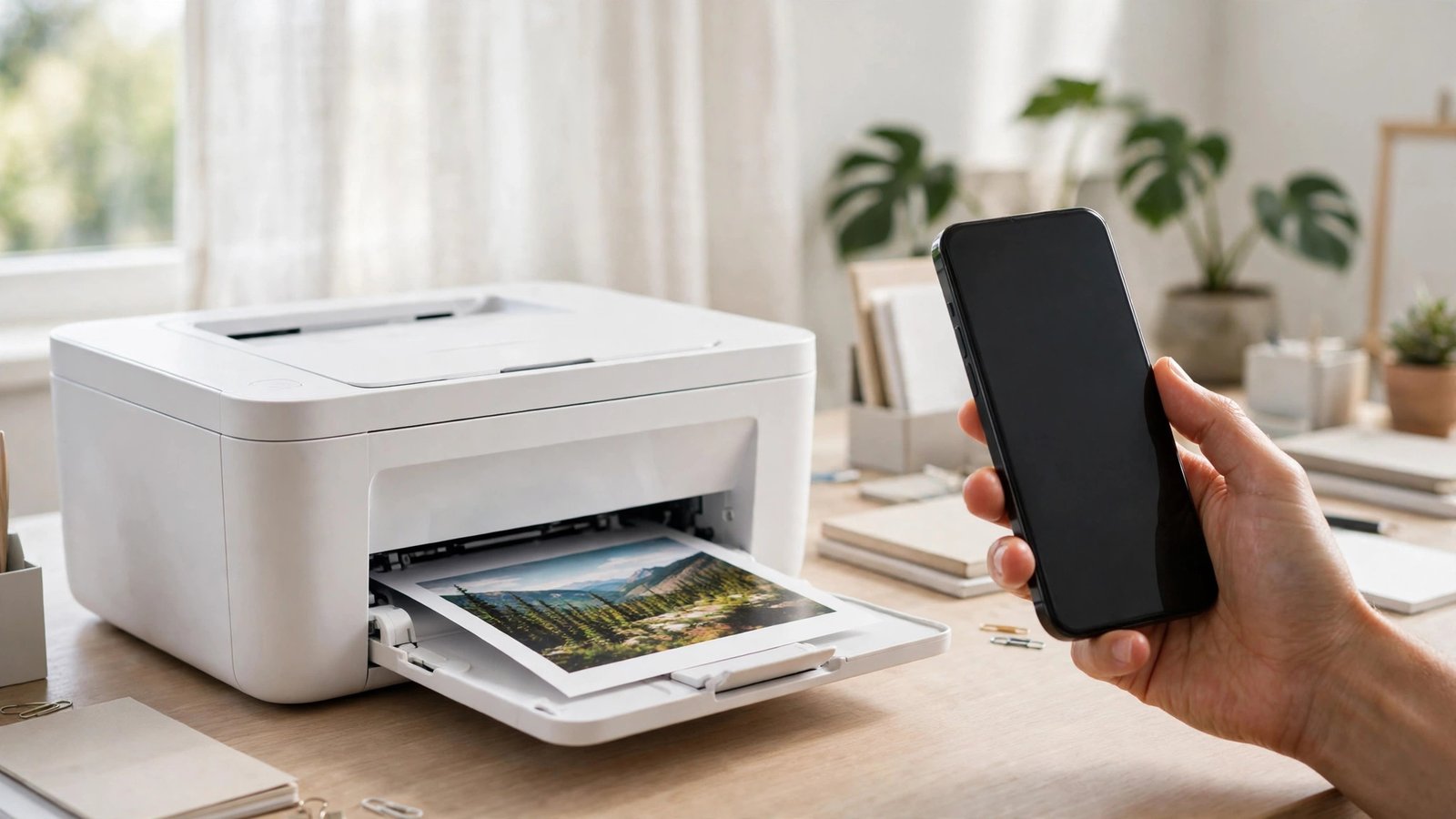
How to Print From Your Phone in the US: iPhone and Android Made Simple
You do not need a computer to print a document, a photo, or a boarding pass. Your iPhone or Android phone can send files straight to a printer over Wi-Fi, and in most cases the setup takes less than a minute. Whether you are printing a form for school, a return label for an online order, or a photo for the fridge, here is how to do it.
Before you start: check your printer
Most printers sold in the last several years support wireless printing, but it helps to know what yours can do. If your printer has Wi-Fi built in, your phone can usually find it on the same network with no extra software. Printers with an AirPrint logo work directly with iPhones, while most Wi-Fi printers work with Android through the Default Print Service or the printer maker's app.
Make sure the printer is switched on and connected to the same Wi-Fi network as your phone. This is the step people forget most often. If your phone is on mobile data or a different network, it will not see the printer. If the printer has been sitting idle, wake it up and give it a few seconds to reconnect to the network before you try.
Step 1: print from an iPhone with AirPrint
On an iPhone, printing is built into iOS, so there is nothing to install for most printers. Open the document, photo, web page, or email you want to print. Tap the Share button, the square with an arrow pointing up, and scroll down until you see Print. Tap it.
Your iPhone will show a list of nearby AirPrint printers. Pick yours. If it does not appear, check that the printer is on and on the same Wi-Fi network, then try again. On the print screen, you can choose how many copies you want and which pages to print. Tap Print in the top right corner and the job should start within seconds.
Step 2: print from Android with the Default Print Service
Android phones also have printing built in. Open the file or photo you want to print, tap the three dots in the top corner, and choose Print. Your phone will search for printers on the same Wi-Fi network. Select yours, adjust the number of copies and the page range, then tap the print button.
If your printer does not show up, open Settings, then Connected devices, then Connection preferences, then Printing, and check that the Default Print Service is switched on. You can also add your printer maker's plugin here, such as HP Print Service or Canon Print Service, which often finds printers the default service misses. These plugins are free in the Google Play Store.
Step 3: use the printer maker's app for more options
For fancier jobs, the app from your printer's maker gives you more control. HP Smart, Canon PRINT, Epson iPrint, and Brother iPrint and Scan are the most common, and all are free. Download the app, follow the setup prompts to connect it to your printer, and you can print photos, scan documents straight to your phone, check ink levels, and order new cartridges.
These apps are handy for photos, because they let you pick paper sizes and print quality that the built-in print screen may not offer. They also work when you are away from home in some cases, since many let you send a print job over the internet to your home printer.
Step 4: print a photo from your phone
Photos print best when you use the right settings. In the Photos app on iPhone, open the photo, tap Share, then Print, and choose your printer. The default settings will print the photo at the size of the paper loaded in the printer, so load photo paper first if you want a glossy print.
On Android, open the photo in Google Photos or your gallery app, tap the three dots, and choose Print. If your printer supports borderless printing, the printer app will usually offer it as an option. For the best results, print the original photo rather than a compressed copy sent through a messaging app, since compression lowers the quality.
Step 5: print a PDF, email, or web page
PDFs print cleanly from either phone. On iPhone, open the PDF, tap Share, then Print. On Android, open the PDF, tap the three dots, and choose Print. If the PDF is an attachment in your email, download it first so the print option appears.
To print a web page, use the browser's print option. On iPhone Safari, tap Share and then Print. On Android Chrome, tap the three dots and choose Print. You can usually choose to print only certain pages, which saves paper when a page is long.
When printing fails: quick fixes
If nothing happens when you tap Print, work through the basics. Restart your phone and your printer. Check that both are on the same Wi-Fi network. Make sure the printer has paper and ink. If the printer shows an error light, clear any paper jam and close the printer cover fully.
If the printer still does not appear, try removing it and adding it again. On iPhone, there is no manual add step, so restarting the printer and the phone usually fixes it. On Android, go to Settings, then Printing, and tap your printer to refresh it.
Frequently Asked Questions
Do I need an app to print from my phone?
Usually not. iPhones print through AirPrint, which is built into iOS, and Android phones print through the Default Print Service, which is built into Android. You only need the printer maker's app for extra features like scanning, photo paper settings, or checking ink levels.
Why can't my phone find my printer?
The most common reason is that the phone and the printer are on different Wi-Fi networks. Connect both to the same network and restart the printer. If it still does not appear, check that the printer's Wi-Fi is switched on and that the printer supports AirPrint or the Android print service.
Can I print from my phone without Wi-Fi?
Yes, in some cases. Many newer printers support Wi-Fi Direct, which lets your phone connect straight to the printer without a router. Some printers also accept print jobs over Bluetooth or through a USB cable with an adapter. Check your printer's manual for the options it supports.



Post Comment