How to Scan QR Codes Safely on iPhone and Android in the UK
QR codes are now part of everyday life in the UK. You see them on restaurant tables, parcel lockers, parking machines, train posters and even letters through the door. Most of them are harmless shortcuts to a menu or a tracking page. A small number, though, are fakes designed to send you to a scam website or trick you into handing over personal details. The good news is that scanning safely takes only a few seconds once you know what to check.
How to scan a QR code on iPhone
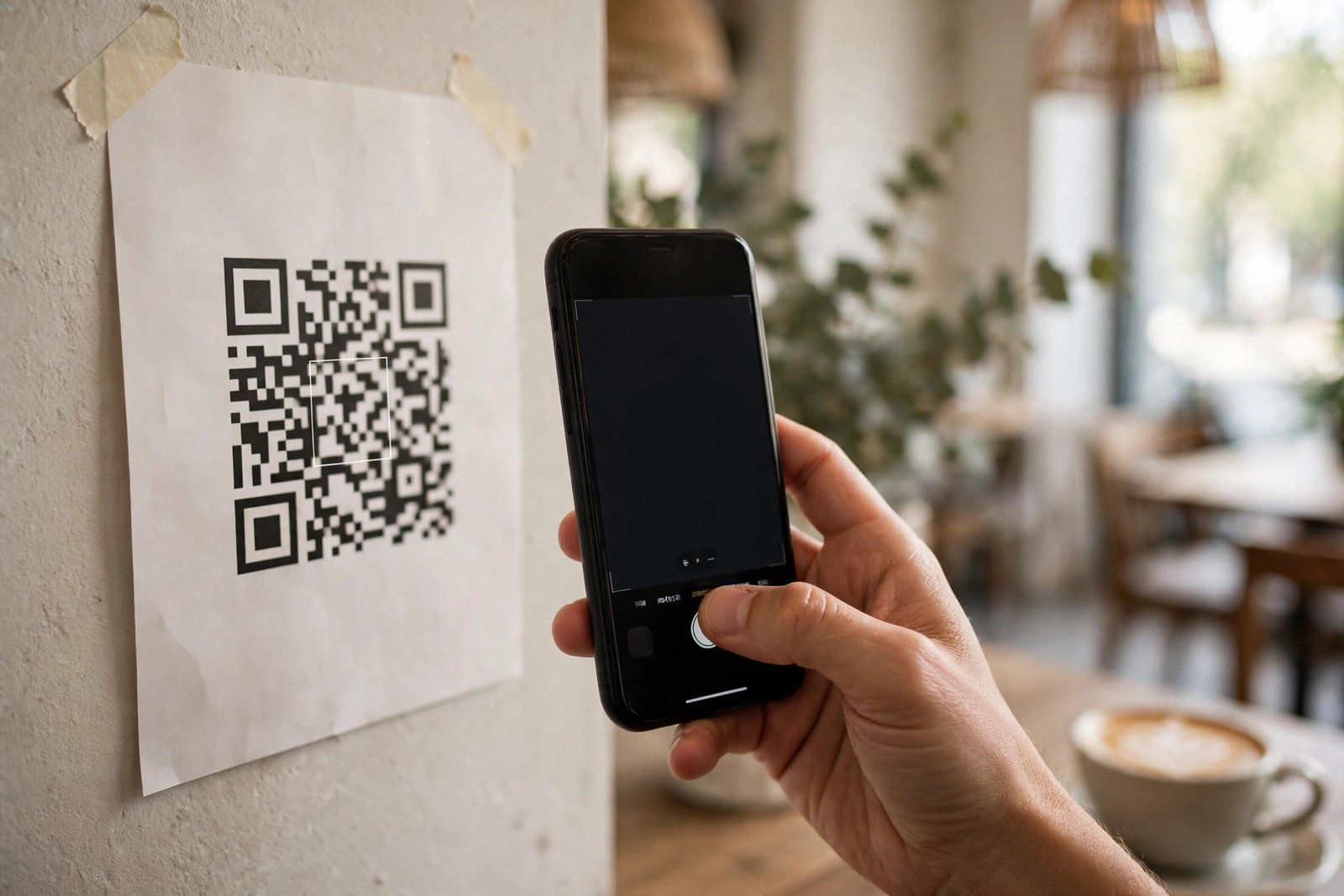
On iPhone, you do not need a separate app. Open the Camera app and point it at the QR code, holding the phone steady for a second or two. A small notification banner should appear at the top or bottom of the screen showing the link or action behind the code. Do not tap it straight away. Read the address first.
If the link looks like the business you expect, for example a restaurant name you recognise or a well known delivery company, you can tap it. If the address looks odd, shortened in a way that hides where it goes, or full of random letters, stop and think. You can also use the Code Scanner from Control Centre, which works in a similar way and shows the link before you open it.
Scammers rely on speed. Slowing down by two seconds removes most of their advantage.
How to scan a QR code on Android
Android phones also scan QR codes with the built in camera in most recent versions. Open Camera, point it at the code, and wait for a pop up link to appear. As with iPhone, read the link before you tap it. If your camera does not recognise the code, check your camera settings for a QR code scanning option, or use Google Lens, which can read codes and show you the destination first.
Whichever route you use, the rule stays the same: preview first, tap second. Avoid downloading a random QR scanner app just to scan one code, since some of those apps collect more data than they need. The built in camera is usually the safest option.
Five warning signs of a fake QR code
First, look at where the code is placed. A sticker placed over another QR code, especially on a parking machine, a poster or a parcel locker, is a classic warning sign. If the code looks like it has been stuck on top of the original, do not scan it. Use the official app or website for that service instead, or type the address yourself.
Second, check the link preview. A genuine code for a UK business will usually lead to a recognisable domain. Be cautious with links that use heavy URL shortening, misspell a brand name, or add extra words that a real company would not use. If you cannot tell where a link goes, do not open it.
Third, be wary of codes that arrive unexpectedly. A QR code in an unsolicited text, email or letter asking you to pay a fine, confirm a delivery or update your bank details deserves extra scepticism. Real delivery companies and banks in the UK rarely ask you to act through a QR code in a cold message. Go to the official app or website directly instead.
Fourth, never enter passwords, bank details or card numbers on a page you reached only through a QR code unless you are completely sure it is genuine. A legitimate menu, timetable or tracking page should not ask for that kind of information. If a page asks you to log in or pay right after scanning, close it and check through a route you trust.
Fifth, watch for pressure. Messages such as “scan now or lose your parcel” or “account will close today” are designed to rush you. A real service will give you another way to check, such as a tracking number you can enter yourself or a customer service number on its official site.
What to do if you scanned a suspicious code
If you already tapped a link and something feels wrong, do not panic, but act quickly. Close the page and do not enter any personal details. If you did enter a password, change it straight away from the official app or website, not through any link in the suspicious message, and turn on two factor authentication if you have not already.
If you entered card details, contact your bank as soon as possible using the number on the back of your card or in your banking app. Banks deal with this every day and can block a card or watch for suspicious transactions. You can also report a scam in the UK through Action Fraud, and forward suspicious texts to 7726, which helps mobile networks investigate.
Avoid installing apps or profiles from a website you reached via a QR code. Apps should come from the official App Store or Google Play, and a genuine business will not ask you to sideload an app to view a menu or track a parcel.
A simple routine that keeps you safe
In practice, safe scanning comes down to a short routine. Check the code for stickers or tampering. Scan with your built in camera. Read the link preview fully. Only tap when the destination matches what you expect. Never enter sensitive details on a page you reached by QR code alone.
QR codes are convenient, and most of the ones you meet will be perfectly fine. Treating every code with a quick preview check keeps that convenience without handing scammers an easy opening.
Frequently Asked Questions
Do I need an app to scan a QR code?
No, in most recent versions both iPhone and Android can scan QR codes with the built in Camera app. Open Camera, point it at the code, and read the link preview before tapping it.
How can I tell if a QR code is fake?
Look for a sticker placed over the original code, a link preview that hides its destination or misspells a brand name, and any unexpected request to pay, log in or share personal details. If anything looks off, use the official app or website instead.
What should I do after scanning a suspicious QR code?
Close the page without entering details. If you entered a password, change it through the official app or website and turn on two factor authentication. If you shared card details, contact your bank promptly, and report the scam to Action Fraud.


Post Comment