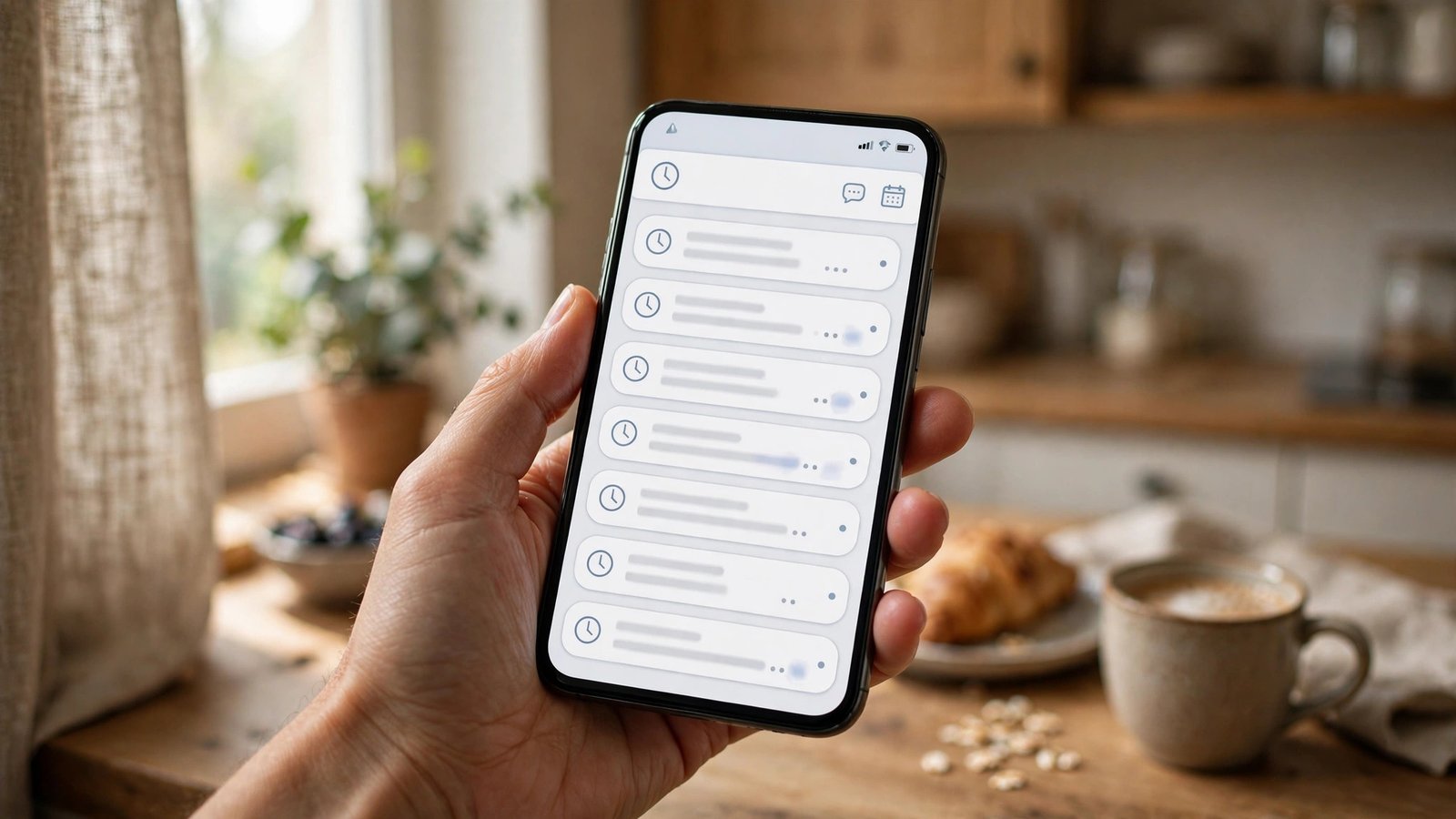
How to Schedule a Text Message on iPhone and Android in the UK
We have all had the same thought at midnight: this message would be perfect to send in the morning, but not right now. Maybe it is a birthday wish, a reminder to a colleague, or a quick note to a family member who keeps early hours. Both iPhone and Android now let you schedule a text so it goes out at the time you choose, without you having to remember it later. Here is how to do it on each phone, and what to watch out for.
Schedule a message on iPhone
On a recent iPhone, the Messages app has a built in Send Later option. It works for iMessage conversations and, in most recent versions, for compatible text conversations too. Your phone needs to be switched on and connected at the scheduled time for the message to send, so keep that in mind if you set a message for the middle of the night.
First, open Messages and go to the conversation you want, or start a new one. Type your message as normal, but do not press send yet. Tap the plus button next to the text box, then look for Send Later in the list of options. If you do not see it, check that your iPhone software is up to date, since older versions may not include it.
Next, pick the date and time you want. You can choose a time later today, tomorrow, or a date further ahead. When you are happy, tap the send arrow. The message will appear in the conversation with a note showing when it is scheduled to go out, and it will sit above the text box as a kind of draft waiting for its moment.
If you change your mind, you can edit or cancel it before it sends. Long press the scheduled message, then choose Edit Time to move it, Edit Message to change the wording, or Delete Message to cancel it completely. Once the scheduled time arrives, the message sends automatically and looks like a normal message in the thread.
One limit to know: scheduled messages are tied to that conversation, so if you delete the conversation before the send time, the message may not go out. It is also worth double checking the time, especially around clock changes in the UK, so a birthday message does not land an hour early or late.
Schedule a message on Android
On Android, the steps depend slightly on which messaging app your phone uses, but most recent Android phones use Google Messages, and it has scheduling built in. Samsung phones may use Samsung Messages or Google Messages, and both offer a similar feature, though the buttons can look a little different.
Open your messaging app and go to the conversation, or start a new one. Type your message, then long press the send button instead of tapping it once. A scheduling menu should pop up. Choose one of the suggested times, such as tomorrow morning, or tap to pick your own date and time.
Once you confirm, the message will appear in the conversation with a small clock icon and the scheduled time next to it. As with iPhone, your phone needs to be on and connected when the time comes. If your phone is off, out of signal, or in aeroplane mode, the message will wait and try again once you are back online, but it may arrive later than planned.
To change or cancel a scheduled message on Android, tap the message in the thread. You should see options to update the time, edit the text, or delete it. Deleting it before it sends stops it completely, which is handy if plans change or you spot a typo.
When scheduling is genuinely useful
Scheduling shines for messages that need to land at a specific moment. Birthday wishes at 9am rather than midnight, a reminder to a tradesperson during working hours, or a note to a colleague that you write on Sunday evening but want to arrive on Monday morning.
It is less useful for anything urgent or sensitive. If a message really matters, send it when you know the other person is awake and reachable, and check that it was delivered. A scheduled message can also feel odd if circumstances change before it sends, so avoid scheduling anything that depends on news you do not yet have, such as confirming a plan that might still move.
Tips to avoid mistakes
First, read the message once more before you schedule it. A typo in a scheduled message is easy to miss because you are not sending it in the moment. Second, check the recipient. It is surprisingly easy to schedule a message in the wrong thread when you are tired. Third, remember that the other person will see the time it actually sends, not the time you wrote it, so a message scheduled for 8am will look like an 8am message, which is usually what you want.
Finally, if you use a third party messaging app such as WhatsApp, the rules are different. WhatsApp does not offer a built in schedule feature in its main app in most recent versions, so you would need to rely on a reminder or a separate app, and those can be unreliable. For texts and iMessages, though, the built in tools on iPhone and Android cover most everyday needs without any extra downloads.
Scheduling a text takes about thirty seconds once you know where the option lives. After that, your phone does the remembering for you, and your message arrives at the time you actually meant it to.
Frequently Asked Questions
Can I schedule a text message on iPhone?
Yes, in most recent versions of iOS you can use Send Later in the Messages app. Tap the plus button, choose Send Later, pick a date and time, then send. You can edit or cancel the message before it goes out.
How do I schedule a text on Android?
In Google Messages, type your message and long press the send button, then choose a date and time. Samsung Messages offers a similar scheduling option, though the exact button placement can vary by model.
Will a scheduled message send if my phone is off?
No, your phone generally needs to be switched on and connected at the scheduled time. If it is off or out of signal, the message may be delayed until the phone is back online.


Post Comment