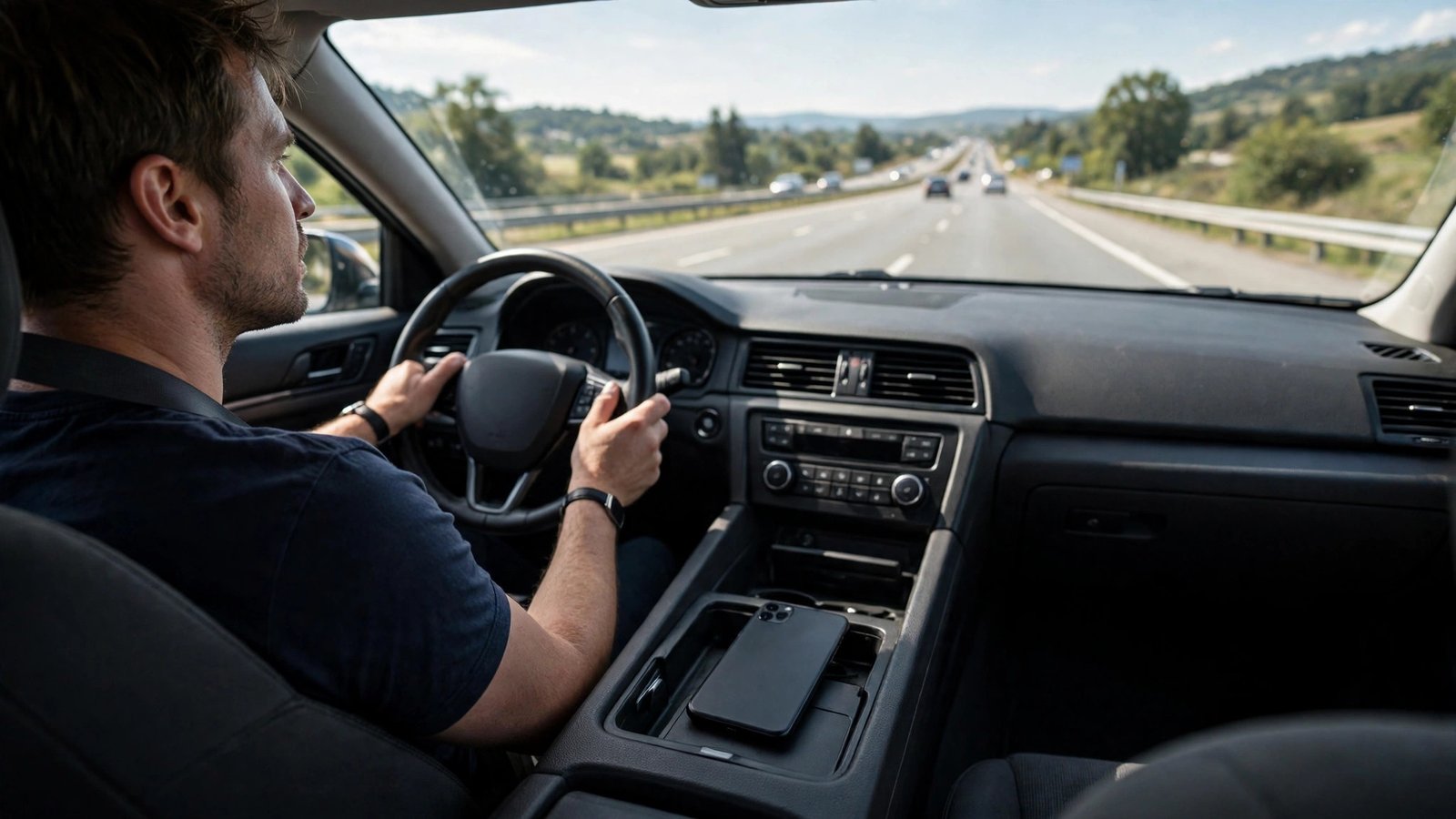
How to Use Driving Focus on iPhone and Android in the US
A buzzing phone is hard to ignore behind the wheel, even when you know you should leave it alone. Driving Focus exists for exactly that moment. On iPhone it is a Focus mode that quiets calls and texts while you drive, and on Android a similar setup uses Do Not Disturb with driving rules. Set it up once, and your phone does the sensible thing for you: it stays quiet, it can send a short auto-reply, and it still lets truly urgent contacts through if you choose.
This guide walks through both platforms step by step, with the US settings that trip people up, such as auto-activation when your phone connects to car Bluetooth. You do not need any extra app for the basic setup, and you can change or turn it off at any time.
Step 1: Turn on Driving Focus on iPhone
On iPhone, open Settings, then tap Focus, then Driving. If you do not see Driving listed, tap the plus button in the top right and add it. Toggle Driving on to test it right away, or leave it off for now and set up activation first.
Inside the Driving Focus screen, look for the People and Apps sections. Under People, choose who can still reach you. A good starting point is to allow calls from Favorites only, and to turn on Allow Repeated Calls, so a second call from the same person within three minutes still comes through. That keeps the door open for a real emergency without letting every call break through.
Under Apps, leave notifications silenced by default. You can allow a navigation app such as Apple Maps or Google Maps if you rely on spoken directions, since those are the kind of alerts that help rather than distract while driving.
Step 2: Set Driving Focus to start automatically on iPhone
Manual toggling works, but automatic activation is what makes Driving Focus reliable. In the Driving Focus screen, tap the option for auto-activation, usually shown as While Driving or Turn On Automatically. You can choose When Connected to Car Bluetooth, which starts the mode when your phone pairs with your car, or Automatically, which uses motion detection to guess when you are driving.
Car Bluetooth is the more accurate choice if your car supports it, because motion detection can sometimes trigger when you are a passenger on a bus or train. If you often ride as a passenger, dismiss it from the Lock Screen with "I am not driving" when it starts by mistake.
Also check Auto-Reply in the same screen. Set a short message such as "I am driving and will reply when I arrive," sent to Favorites. People who matter most get a quick explanation, while strangers and spam callers get silence.
Step 3: Turn on Do Not Disturb driving rules on Android
Android does not use the name Driving Focus, but the tools are similar. Open Settings, then Sound and vibration or Notifications, then Do Not Disturb. The exact path varies by phone maker, so use the Settings search bar and search for "Do Not Disturb" if you cannot find it quickly.
In Do Not Disturb, look for Schedules or Driving, or a section for automatic rules. On Google Pixel phones, you will find Driving under Do Not Disturb schedules, with an option to turn it on when connected to car Bluetooth or when driving is detected. On Samsung phones, look in Settings, then Modes and Routines, then Driving, where you can set similar triggers and choose which notifications still come through.
As with iPhone, allow starred or repeated callers if offered, and keep other notifications silenced. Not every Android phone has a built-in auto-reply, and that is fine: silence alone removes the main temptation.
Step 4: Make navigation and music still work
A common worry is that silencing the phone will also silence directions or music. In most recent versions, it will not, as long as you set it up right. Navigation apps keep giving spoken directions, and music or podcasts keep playing, because those are media and navigation audio rather than incoming notifications.
Before your next long drive, do a quick driveway test: start driving mode and navigation, then ask someone to text you. You should hear route guidance but get no banner or sound for the text. If directions go quiet too, add your navigation app to the allowed apps list.
The same logic applies to hands-free calls: you can still answer through your car's speakers, often from a steering wheel button. Driving Focus stops new distractions, it does not lock you out of your car system.
Step 5: Handle passengers, carpools, and exceptions
Life is messier than one driver and one phone. If you carpool, you may not want driving mode to start every time you get in someone else's car. On iPhone, use the Car Bluetooth trigger only with your own car, or switch to manual activation and turn it on from Control Center when you are the driver. On Android, you can turn off automatic driving detection and start Do Not Disturb by hand instead.
For work phones, check whether your employer already manages Focus or Do Not Disturb settings, since a work profile can override some of these choices.
If an urgent call must get through, the repeated caller rule is your safety net. Tell close family that calling twice in a row will break through. That single tip often settles the worry that silencing the phone means missing an emergency.


Post Comment