How to Find and Cancel App Subscriptions on iPhone and Android in the US
Most of us have at least one subscription we forgot about: a photo app from a holiday project, a fitness app from January, a game a child tried once. Deleting the app does not cancel the subscription. The charge keeps coming because the subscription lives in your Apple or Google account, not in the app icon. The fix takes about five minutes once you know where to look, and it is worth doing every few months.
This guide shows you how to find all your active subscriptions on iPhone and Android, cancel the ones you no longer want, and check the details that matter, such as when access ends and whether a refund is possible.
Step 1: Find your subscriptions on iPhone
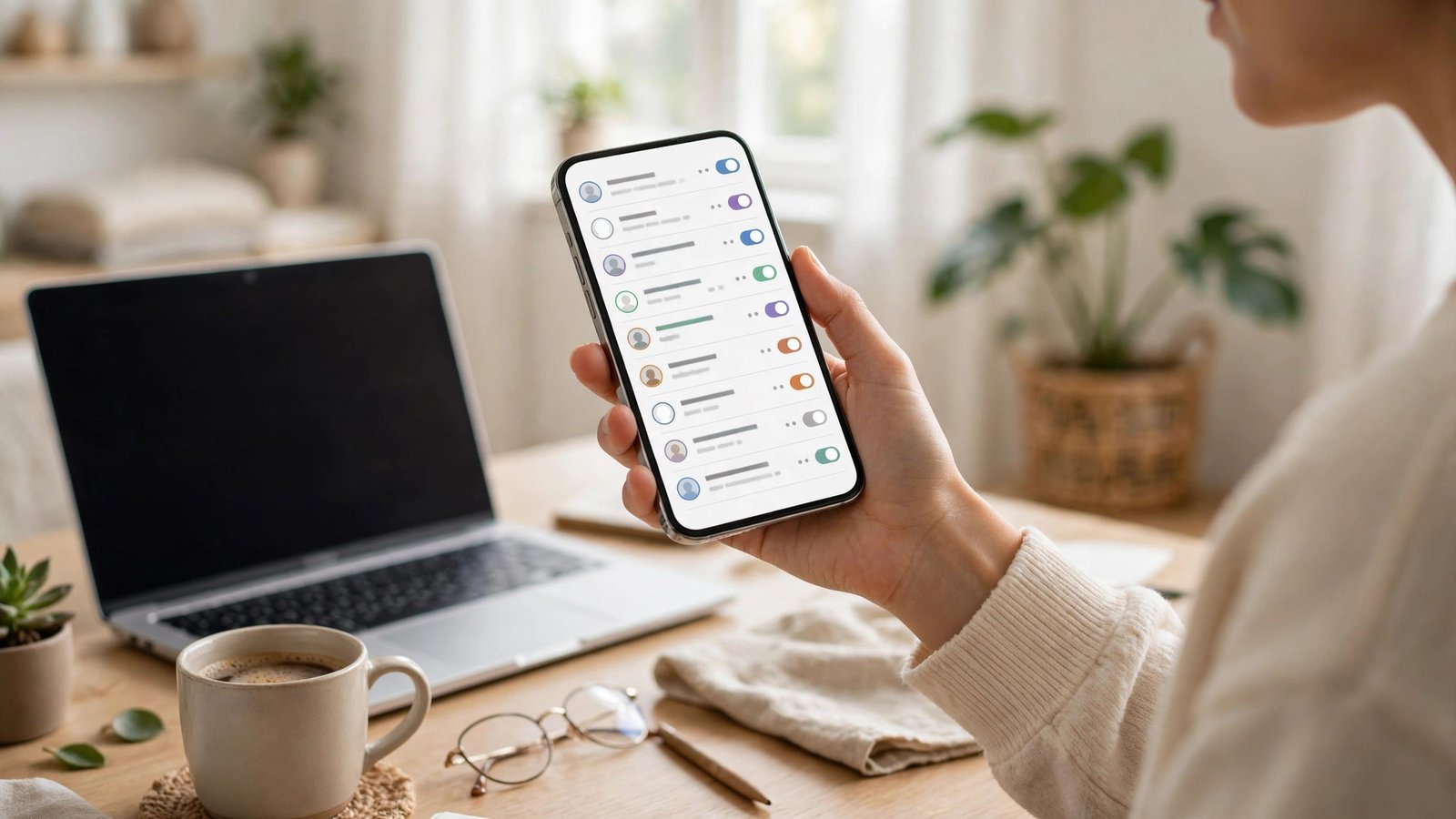
On iPhone, open Settings and tap your name at the top. Then tap Subscriptions. You will see a list of active subscriptions, plus expired ones below. This is the master list for anything billed through Apple, including App Store apps and some Apple services.
Tap any subscription to see its price, billing period, and renewal date. If you see something you do not recognize, tap it and check the app name carefully before you cancel. Some apps have similar names, and you do not want to cancel a service you still use, such as cloud storage or a music plan shared with family.
To cancel, tap Cancel Subscription and confirm. In most cases you keep access until the end of the current billing period, so canceling today does not cut you off mid-month. If the button says Cancel Free Trial instead, the same rule applies: you keep trial access until the trial ends, unless the app says otherwise.
Step 2: Find your subscriptions on Android
On Android, open the Google Play Store app and tap your profile icon in the top right. Then tap Payments and subscriptions, then Subscriptions. You will see every subscription billed through Google Play, with its price and next renewal date.
Tap a subscription to see its details, then tap Cancel subscription and follow the prompts. Google Play may ask for a reason and may offer a pause or a cheaper plan instead. You can ignore those offers and confirm the cancel if you are sure. As with Apple, you usually keep access until the end of the period you already paid for.
If you use a Samsung phone, also check the Galaxy Store, since a few apps bill through Samsung rather than Google Play. Open the Galaxy Store, tap the menu, then Subscriptions, and repeat the same check. It takes an extra minute, but it catches the subscriptions that never show up in Google Play.
Step 3: Check subscriptions billed outside the app stores
Not every subscription goes through Apple or Google. Some services bill you directly when you sign up on their website, and those will not appear in the lists above. Think of streaming services, news apps, and fitness platforms where you created an account in a browser.
For those, search your email for words like "receipt," "subscription," and "renewal," and check your bank or card statements for recurring charges. When you find a direct subscription, log in on the service website, go to Account or Billing, and cancel there. Keep the confirmation email, since direct billing support teams often ask for it if a charge appears later.
A simple habit helps here. When you start a new trial, set a phone reminder for two days before it ends. That one reminder has saved more money than any budgeting app, because it catches the trial right before it turns into a paid plan.
Step 4: Understand refunds and end dates
Canceling stops future charges, but it does not always refund the current period. Apple and Google both handle refund requests case by case. On iPhone, go to reportaproblem.apple.com, sign in, find the charge, and request a refund with a short explanation. On Android, open Google Play, find the purchase in your order history, and tap Refund or Request a refund where offered.
Be honest and brief in refund requests. A mistaken renewal or a subscription you canceled too late is a common, believable reason. A refund is not guaranteed, and repeated requests for the same service are less likely to succeed. If a charge came from a child or a family member by mistake, say so plainly, and check your purchase approval settings afterward so it does not happen again.
Also note the end date shown after you cancel. If you cancel a yearly plan in March and it runs until December, you can keep using it until December. There is no need to cancel again, and you will not be charged at the next renewal date unless you resubscribe.
Step 5: Do a quick subscription audit every few months
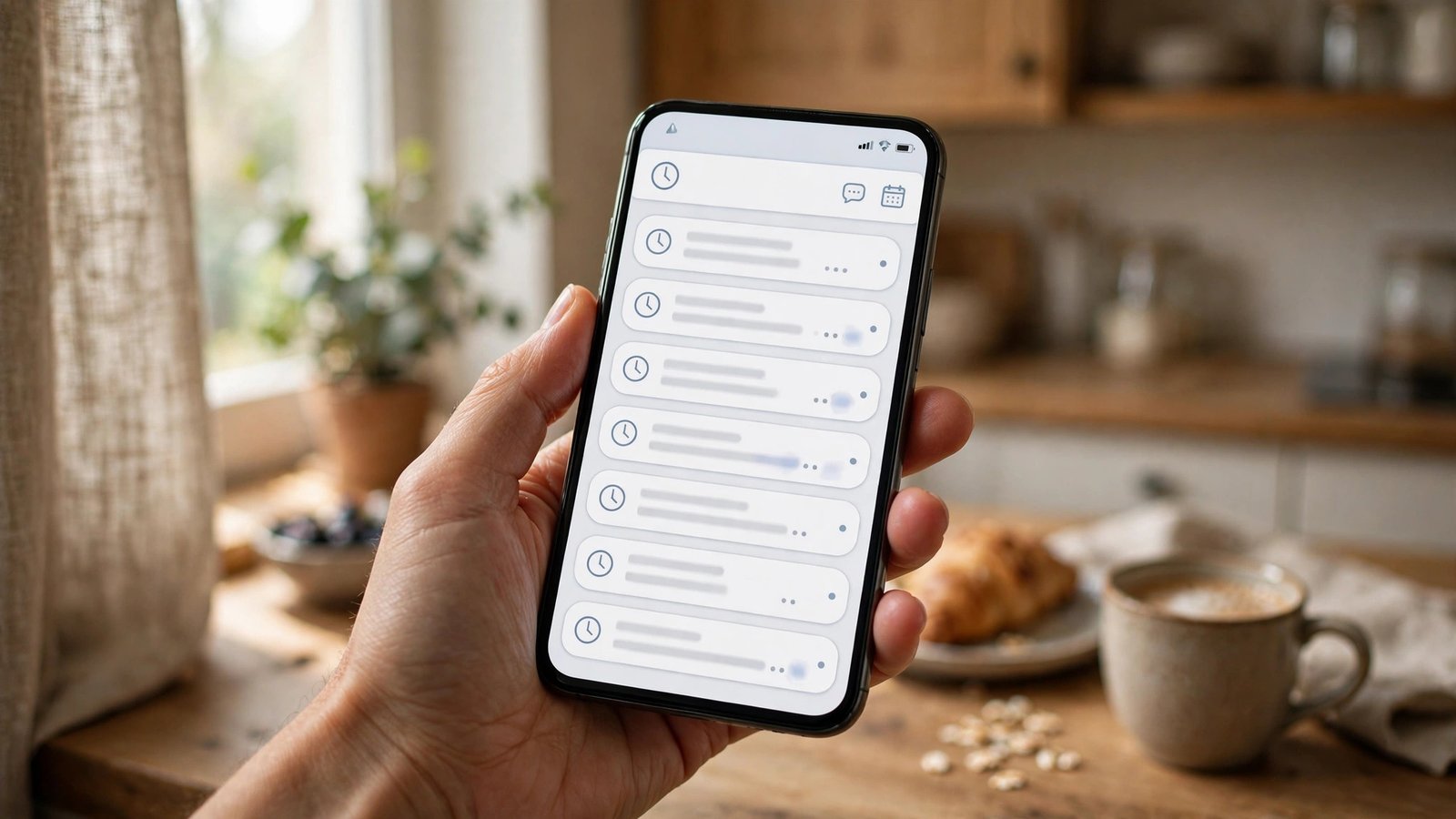
Once you have cleaned up the list, make it a habit. Every three months, open the same Subscriptions screens and ask three questions about each item: Did I use it in the last month? Would I pay for it again today? Is there a cheaper plan that fits how I actually use it?
Many apps offer monthly plans that cost more over a year than yearly plans, but monthly is cheaper for a short project. Downgrading, rather than canceling, can suit an app you use a few times a year, and you can switch plans from the same subscription detail screen.
Finally, turn on purchase approval for family accounts if children use your phone. On iPhone, use Ask to Buy in Family Sharing. On Android, use purchase approval in Google Play family settings. Those controls stop most surprise subscriptions before they start.



Post Comment