How to Scan QR Codes Safely on iPhone and Android in the US
QR codes are everywhere in the US now. You see them on restaurant tables, parking meters, packages, posters, and bills. They are handy because one quick scan opens a menu, a payment page, or a tracking link without typing a long address. That convenience is also the risk. A QR code is just a shortcut to a web address, and you cannot tell where it leads by looking at the black squares. Scammers know this, and they use fake codes to send people to phishing sites that steal passwords or payment details.
The good news is that safe scanning takes only a few seconds once you know what to check. You do not need a special app, and you do not need to stop using QR codes. You just need to slow down for one beat before you tap, and learn the warning signs that mark a code as untrustworthy.
Step 1: Use your phone camera, not a random scanner app
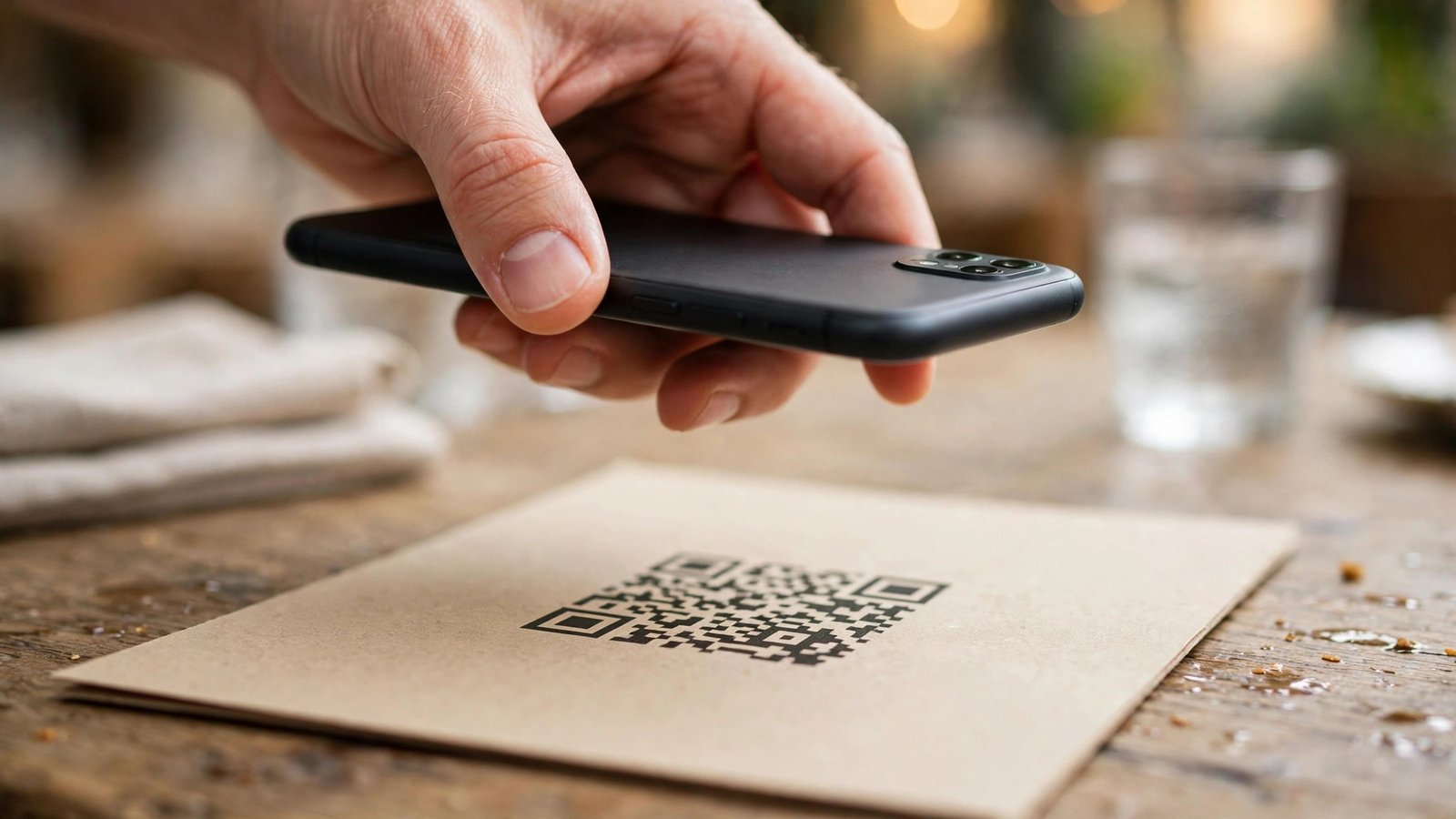
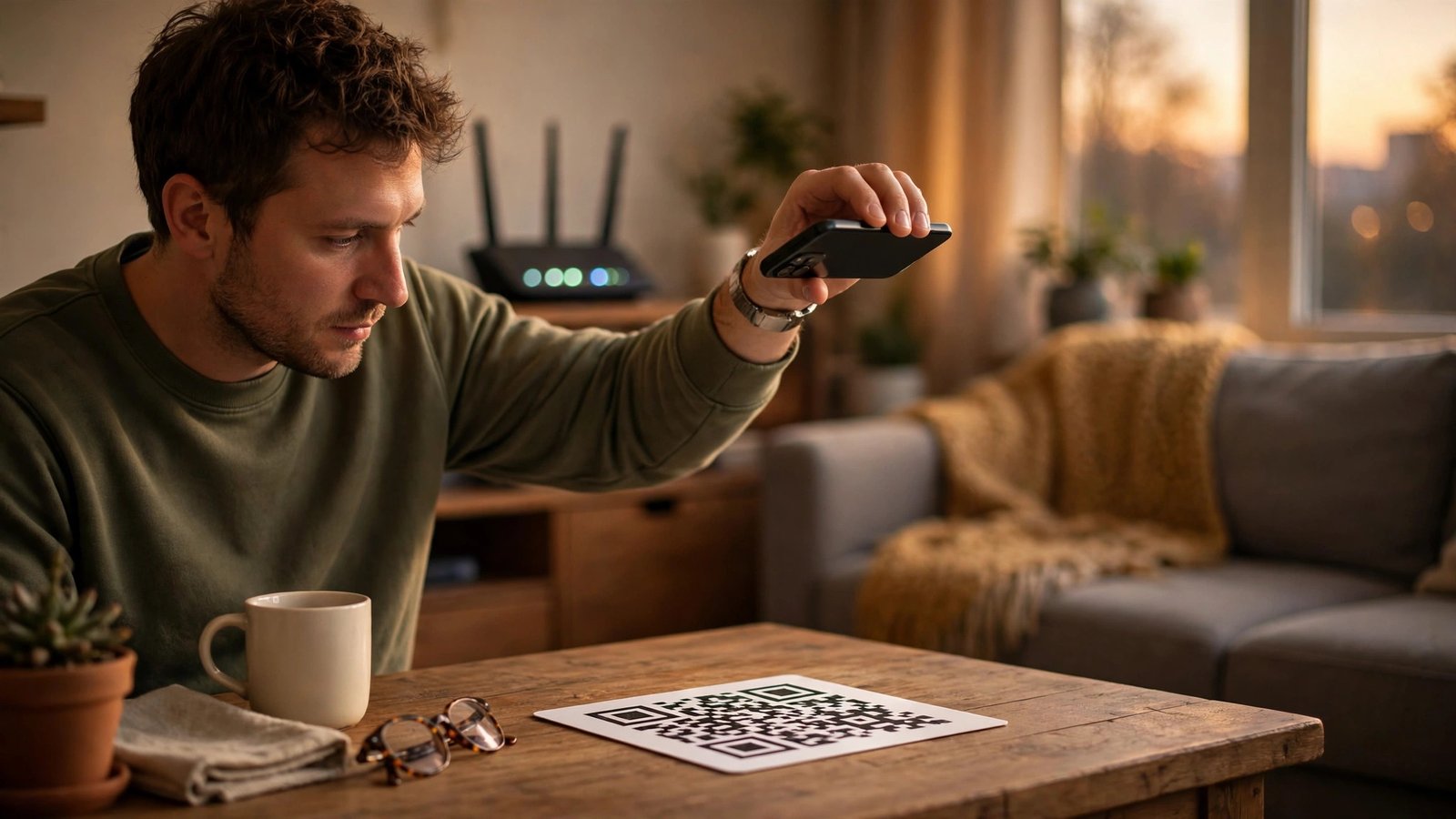
On most recent iPhones and Android phones, the built-in camera app can scan QR codes with no extra download. On iPhone, open Camera and point it at the code. A yellow banner appears with the link. On Android, open Camera and point it at the code, then tap the link preview that appears. Google Lens can also scan codes if your camera app does not.
Avoid downloading a free QR scanner app from an ad, because many of those apps exist mainly to show ads or collect data. Your phone already has what you need. If your camera does not scan codes, check the camera settings for a QR or scan option, or use Google Lens on Android and the Code Scanner in Control Center on iPhone. One trusted built-in tool beats five unknown apps.
Step 2: Read the link preview before you tap
This is the single most important habit. When you scan a code, your phone shows a preview of the web address. Read it slowly before you tap it. Ask three questions. Does the address match the business or service you expect? Does the domain name look correct, with no odd spelling? Does it use https, with a padlock, for any page that asks you to sign in or pay?
Step 3: Check the code itself for tampering
Fake codes are often stickers placed over real ones. This is common on parking meters, restaurant tables, and public posters. Before you scan, look at the code. Is it a sticker stuck on top of a printed code? Does it look newer, glossier, or slightly crooked compared with the rest of the sign? Is the sign itself damaged or covered?
If something looks off, do not scan it. Go to the official app or website yourself instead. For a restaurant menu, search for the restaurant name. For parking, use the official city parking app or the number printed on the meter. For a package, open the carrier app directly rather than following a code on a flyer. Typing the address yourself takes a few seconds longer, and it removes the sticker scam completely.
Step 4: Never enter sensitive details from a QR code you did not expect
A real business will rarely ask you to scan a code and then enter your full bank login, your Social Security number, or your complete card details on the spot. Treat any unexpected request for that kind of detail as a red flag. The same applies to codes that arrive by text, email, or social media from an unknown sender. This trick, sometimes called quishing, works because people trust a code more than a plain link.
If a code leads to a login page, stop and think. Did you expect to sign in? Is this an account you already have? Could you open the service app yourself and sign in there instead? Signing in through the official app is almost always safer than signing in through a page reached by a code. If a page asks you to download an app, get that app from the Apple App Store or Google Play Store yourself, not from the link in the code.
Step 5: Turn on the safety settings that help
A few phone settings make safe scanning easier. Keep your phone software up to date, because updates patch security flaws that phishing sites try to exploit. On iPhone, make sure Safari fraud warnings are on under Settings, then Safari, then Fraudulent Website Warning. On Android, Chrome has a Safe Browsing setting that warns you about dangerous sites. Turn it on if it is not already on.
Use a password manager and passkeys where they are offered. A password manager will not fill your login on a fake domain that only looks like the real one, which gives you a useful warning that something is wrong. Two-factor authentication adds another layer, so even if a password leaks, an attacker still needs your second factor. These tools do not replace careful checking, but they catch mistakes that anyone can make in a hurry.
Step 6: What to do if you already scanned a bad code
Do not panic, and act quickly. If you entered a password on a suspicious page, change that password right away from the official app or website, and change it anywhere else you used the same password. Turn on two-factor authentication if you have not already. If you entered card details, contact your bank or card issuer, explain what happened, and ask about freezing the card or watching for fraud.
Frequently Asked Questions
Is it safe to scan any QR code with my phone camera?
Scanning itself is usually safe, because your phone only reads the code and shows a link preview. The risk comes from tapping the link and entering details on a fake site. Always read the preview and check the address before you tap.
How can I tell if a QR code is fake?
Look for a sticker placed over a printed code, a sign that looks tampered with, or a link preview that does not match the business you expect. Be wary of shortened links, misspelled domains, and unexpected requests to sign in or pay.
What should I do if I scanned a QR code and entered my password on a fake site?
Change the password immediately through the official app or website, and change it on any other service where you reused it. Turn on two-factor authentication, check your accounts for unusual activity, and contact your bank if you shared payment details.


Post Comment