How to Check a Link or Website for Scams Before You Click in Canada
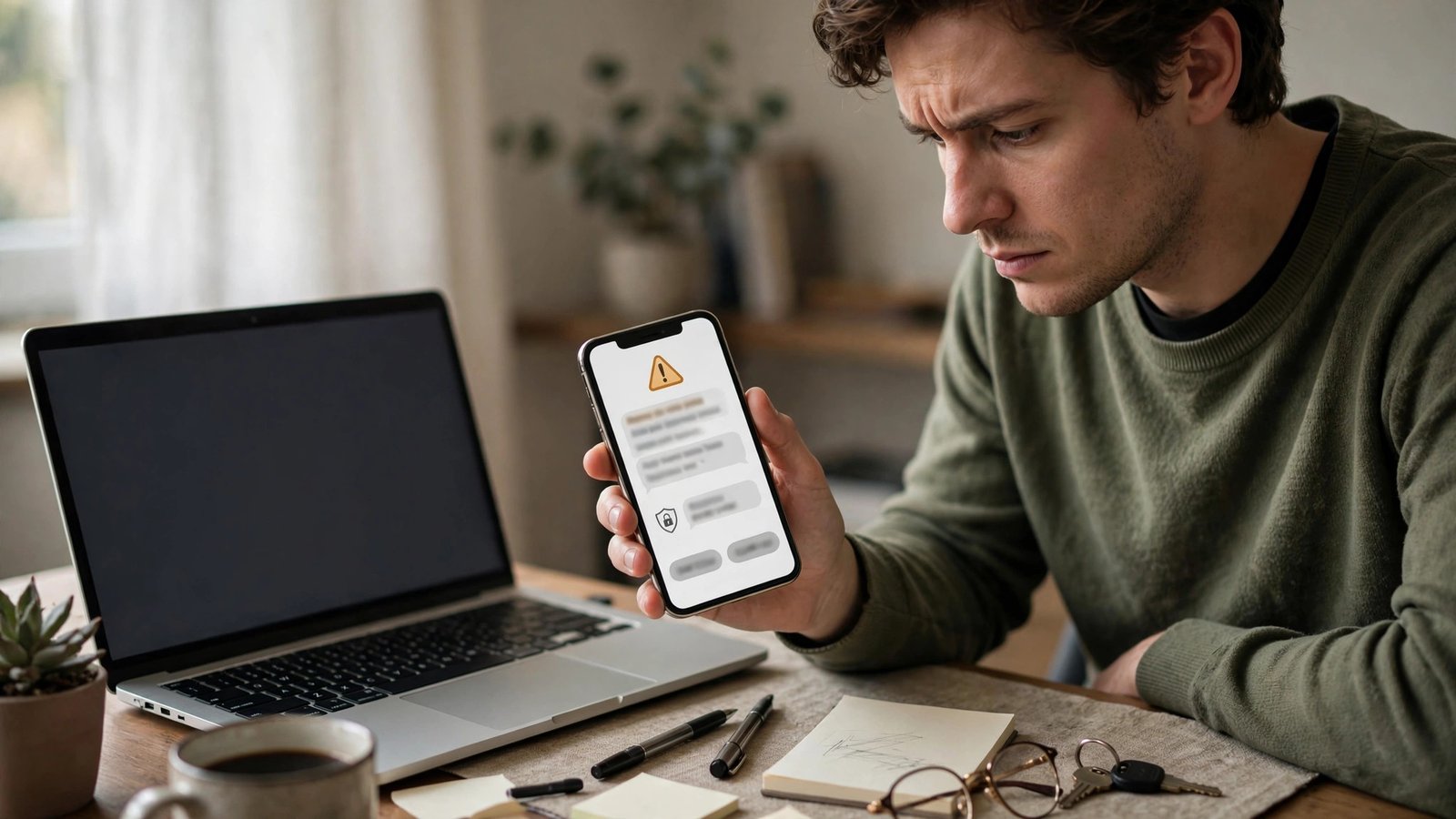
A scam link rarely looks dangerous at first. It can arrive as a parcel delivery text, a bank warning, a prize notice or a message that appears to come from a friend. One tap can open a fake login page that is designed to steal your password, your banking details or your personal information. Most scam links give themselves away if you pause for a few seconds and check a few details before you click.
Step 1: Pause and read the message like a sceptic
Scammers rely on urgency. Messages that say your account will be closed today, your parcel will be returned, you owe a toll, or you have won a prize are designed to make you act before you think. If a message creates pressure, treat that pressure itself as a warning sign.
Read the message slowly. Look for odd phrasing, spelling mistakes, a greeting that does not use your name when the real company normally would, or a sender name that looks close to a real brand but not quite right. None of these details alone proves a scam, since real companies also send short texts, but several small oddities together should make you stop. Ask one simple question: did I expect this message? If you did not order a parcel, enter a contest or request a password reset, be extra careful.
Step 2: Inspect the link without tapping it
On a phone, you can usually preview a link by pressing and holding it, without opening it. On a computer, hover your mouse over the link and read the address shown at the bottom of the browser. Do this before you tap or click anything.
Look at the domain, which is the main part of the address, such as example.ca or example.com. Ignore long strings of text before or after it, since scammers hide the real domain in a long address. A link that starts with a trusted brand name but ends in a different domain does not belong to that brand. Watch for small tricks: a misspelled brand name, an extra word such as secure, support or verify added to a brand name, a hyphen where the real site uses none, or an unfamiliar ending instead of the company's usual domain. Be careful with shortened links, which hide the final address, and stop if a link uses only a string of numbers instead of a domain name.
Step 3: Check the website itself if you already opened it
If you opened a page by mistake, do not enter any details yet. First, check the address bar again. Does it match the official site you expected? Does it use https, with a padlock icon in most browsers? A padlock means the connection is encrypted, but it does not prove the site is genuine, since scammers can also use https. Treat the padlock as a basic check, not a guarantee.
Look at the page design with fresh eyes. Fake login pages often copy a real brand's colours and logo, but they may have blurry images, broken links, missing footer pages, or a login form that appears before any other content. Try tapping a footer link such as Contact or Privacy. On a fake site, those links often go nowhere or reload the same page. If a page asks for more than the situation needs, such as a full card number and password together from a text link, close it.
Step 4: Verify through the official app or website instead
The safest way to check a message is to ignore the link and reach the company yourself. Open the official app on your phone, type the company's official web address yourself, or call the number on the back of your card or on the company's official site. Then check your account, parcel status or bill there.
If the message claimed a parcel problem, check the tracking number in the courier's official app. If it claimed a bank problem, check your account in your banking app. If it claimed an unpaid toll or fine, go to the official provincial or municipal site you already know, not the link in the message. This step takes under a minute in most cases, and it settles the question without risk. If the official app shows no problem, the message was almost certainly a scam.
Step 5: Use warnings, report the scam, and act fast if you clicked
Modern browsers and phones can warn you about known phishing sites, but those warnings only help if you listen to them. If your browser shows a red warning page or a message that a site may be deceptive, do not tap through to continue. Close the tab and use the official route from Step 4 instead.
On iPhone and Android, you can report junk texts and phishing emails. In most messaging apps, you can report a message as junk or spam, which helps carriers and phone makers block similar messages. In Canada, you can report phishing and fraud attempts to the Canadian Anti-Fraud Centre, and you can forward a suspicious text to 7726, which spells SPAM on a phone keypad, if your carrier supports that service.
If you did enter details on a suspicious site, act quickly. Change that password from a clean device, and change any other account that used the same password. If you entered banking or card details, contact your bank or card provider at once using the official number, and ask what extra protection they can add.
Frequently Asked Questions
Does a padlock icon mean a website is safe?
No. A padlock means the connection to that site is encrypted, but a scam site can also use encryption. Always check that the domain matches the official company, and reach the company through its official app or typed address when you are unsure.
What should I do with a suspicious link in a text?
Do not tap it. Preview the address by pressing and holding it, check the domain carefully, and verify the claim through the official app or website instead. You can report the text as junk in your messaging app, and in Canada you can also report it to the Canadian Anti-Fraud Centre.
I already clicked a scam link. What now?
Close the page and do not enter any details. If you did enter a password, change it from a clean device, and change the same password anywhere else you used it. If you entered banking or card details, contact your bank or card provider at once using an official number.




Post Comment