
How to Set Up and Use Passkeys on iPhone and Android in Canada
Passwords are easy to forget, easy to reuse and easy to steal in a phishing message. Passkeys solve a large part of that problem by letting your phone prove who you are with a fingerprint, a face scan or your screen lock, instead of a typed secret. If you live in Canada and use an iPhone or an Android phone, you can start using passkeys today for many major accounts, including Google and Apple. The steps below follow the layouts used in most recent versions of iOS and Android, so a button label on your phone may differ slightly.
Step 1: Understand what a passkey does
A passkey is a pair of linked keys. One key stays private on your device and never leaves it. The other key, the public key, is stored by the website or app you sign in to. When you sign in, your phone checks the private key and confirms your identity with your fingerprint, face scan or PIN.
That design has two benefits. There is no password for a scammer to trick you into typing on a fake site, because the passkey only works for the real site it was created for. You also do not need to remember a long string of characters for every account. Passkeys are usually saved in your phone's built in password system: iCloud Keychain on iPhone, and your Google account on Android. That syncing lets you sign in on a new phone without starting from scratch, as long as you use the same Apple or Google account.
Step 2: Get your phone ready
Before you create passkeys, check three basics. First, update your phone software to a recent version, since passkey support improves with each release. On iPhone, open Settings, then General, then Software Update. On Android, open Settings, then System, then Software update, although the exact menu can vary by brand.
Second, turn on a screen lock you trust, such as a fingerprint, face unlock or a strong PIN. A passkey is only as safe as the lock that protects it, so avoid a short and obvious code. Third, sign in to your Apple account on iPhone or your Google account on Android, and turn on password syncing. On iPhone, check Settings, then your name, then iCloud, and make sure Passwords is on.
Step 3: Create a passkey for Google and Apple
Google is a good first account, because it protects your email, photos and many app sign ins. Open a browser and go to your Google account security settings, or open the Google app and open Manage your Google Account, then Security. Look for Passkeys, tap Create a passkey, and confirm with your fingerprint, face scan or screen lock. Google may ask you to confirm on a second device the first time, which is normal. Then test it: sign out in a browser, sign in again, and choose the passkey option.
On iPhone, check your Apple account settings by opening Settings, tapping your name, then Sign-In and Security, and following the passkey prompts. When you sign in to a supported site in Safari, your iPhone may offer to save a passkey instead of a password. Tap Continue, confirm with Face ID or Touch ID, and the passkey will be saved to iCloud Keychain. To review saved passkeys later, open Settings, then Passwords, and search for the site name.
Step 4: Add passkeys to your other important accounts
After Google and Apple, add passkeys to the accounts that matter most to you, such as your bank app if it supports passkeys, your email provider, your password manager and major shopping or social apps. Open each account's security settings in a browser or in the app, look for Passkeys or Passwordless sign in, and follow the on screen steps.
Work through one account at a time. For each one, create the passkey, sign out, and sign back in with the passkey to confirm it works. If a site does not offer passkeys yet, keep a strong and unique password for it in your password manager, and turn on two step verification where it is available. Passkeys are spreading quickly, but not every service supports them yet, so a mixed approach is normal for now.
Step 5: Protect your recovery options
Passkeys reduce password stress, but recovery planning still matters. Make sure your Apple or Google account has a current recovery email and phone number. Those details help you regain access if you lose your phone or forget your screen lock. Turn on a backup method for your most important accounts where one is offered, such as backup codes saved in a safe place, or a second trusted device. Store backup codes on paper or in a secure note, not in a photo album on your phone that anyone with the phone could open.
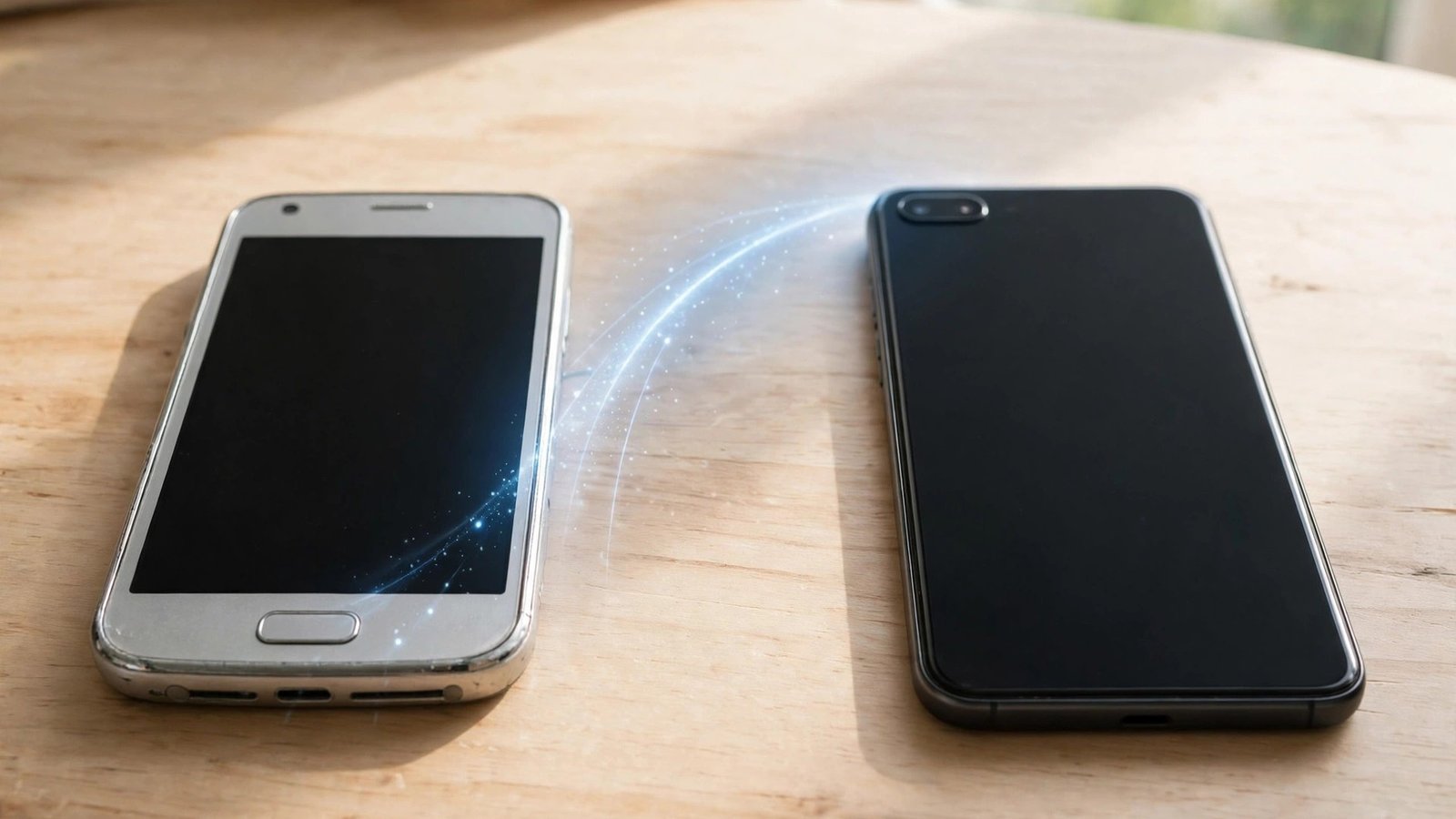
If you change phones, sign in to your Apple or Google account on the new phone first, and let your saved passwords and passkeys sync before you wipe the old phone. Test a few key sign ins on the new phone, and only erase the old device once you are sure the new one can sign in without it. If you lose your phone, use another trusted device or a computer to sign in, review your devices, and remove the lost phone from your account.
Frequently Asked Questions
Do passkeys replace my password completely?
Not always yet. Many sites let you sign in with a passkey as the main method, but they may still keep your password for older apps, account recovery or customer support. Use the passkey when it is offered, and keep your password safe until the service says it is no longer needed.
What happens if I lose my phone?
If your passkeys are synced to your Apple or Google account, you can restore them on a new phone by signing in to that account. That is why keeping your recovery email and phone number current matters. If a passkey was saved only on one device and not synced, you will need that account's recovery process instead.
Are passkeys safe if someone steals my phone?
A thief still needs to pass your screen lock, fingerprint or face scan to use a passkey, which makes theft much less useful than stealing a written password list. To stay safer, use a strong screen lock, keep remote find and erase features on, and remove a lost phone from your accounts as soon as you can.



Post Comment