How to Check Mobile Data Usage and Avoid Overage Charges in the US
Most US phone plans now include a generous data allowance, but overage charges, slowed speeds, and surprise add on data still catch people out. The usual cause is not one big download. It is a month of video streaming, automatic app updates, cloud photo uploads, and hotspot use adding up in the background. Checking your usage early in the billing cycle gives you time to change a setting before the bill arrives.
This guide shows how to check data usage on iPhone and Android, how to read your carrier app, and which settings actually help in the United States. You do not need a new plan to start. A few checks and limits can be enough.
Step 1: Check usage on your iPhone
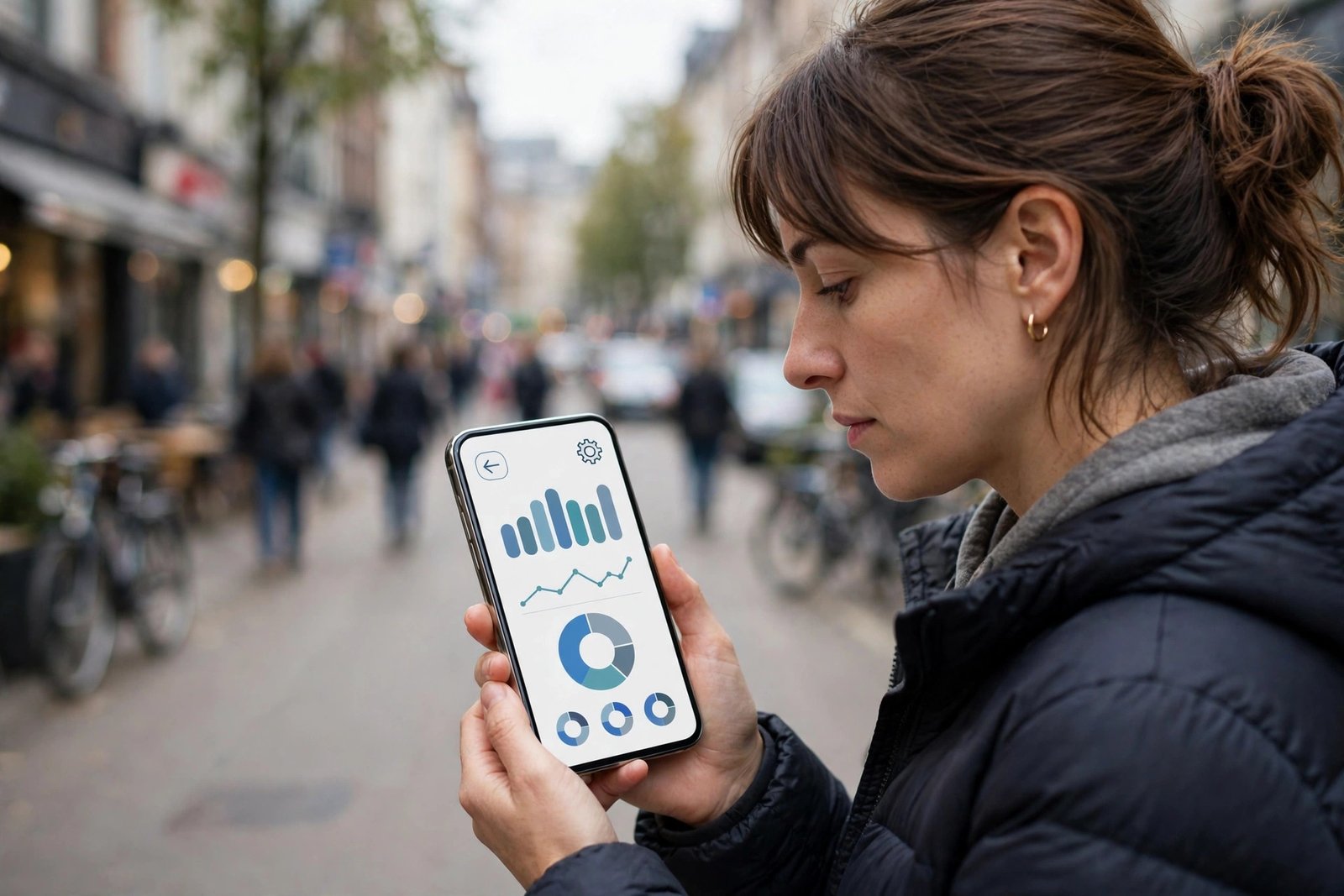
On iPhone, go to Settings, then Cellular or Mobile Data, depending on your iOS version and region wording. At the top you will see your current period usage, followed by a list of apps and how much cellular data each one has used. This list is useful because it shows the real culprits, which are often video apps, social apps, and cloud backup rather than email or messaging.
Note that the iPhone current period does not always match your carrier billing cycle. Tap Reset Statistics on the first day of your cycle to make it useful.
You can also turn off cellular data for individual apps here. If a video app is eating data, switch it off for cellular so it only works on Wi-Fi.
Step 2: Check usage on your Android phone
On Android, go to Settings, then Network and Internet, then SIMs or Data Usage, depending on your phone maker. Look for App Data Usage or Mobile Data Usage to see a total for the current cycle and a per app breakdown. On Samsung phones, the path is usually Settings, then Connections, then Data Usage. On Google Pixel phones, it is Settings, then Network and Internet, then SIMs, then App Data Usage.
Android lets you set billing cycle dates to match your carrier. Set the cycle start date to your renewal day, plus a warning at a chosen amount and a limit where offered.
Check the per app list for video streaming, cloud backup, and app store updates, and restrict background data for apps you rarely open.
Step 3: Check your carrier app for the official total
Your phone settings are helpful, but your carrier is the source of truth for billing. Open your carrier app, such as Verizon, AT and T, or T-Mobile, and look for the usage section on the home screen or account tab. It should show data used, data remaining, days left in the cycle, and any hotspot allowance, which is often separate from your main data allowance.
Carrier apps also show whether you are on a capped plan, where extra data can cost money, or an unlimited plan, where speeds may slow after a threshold instead.
If you share a plan, check each line and set alerts per line where offered.
Step 4: Set warnings, limits, and alerts before you need them
Do not wait until you are near your limit to set a warning. On Android, set a data warning at about 75 percent of your allowance and a limit just below the cap, if your plan charges for overages. On iPhone, there is no built in data limit, so use your carrier app alerts instead. Most US carriers let you set text or app alerts at 50 percent, 75 percent, and 90 percent, and those alerts are worth turning on.
Also turn on Low Data Mode on iPhone or Data Saver on Android. These reduce background data and lower video quality in some apps.
Set app store updates and cloud photo backup to Wi-Fi only. Uploads over cellular are a common hidden drain after a trip.
Step 5: Cut the biggest data drains without giving up your phone
Video is the largest drain for most people. In Netflix, YouTube, and other streaming apps, set video quality to standard or data saver for cellular, and save high quality for Wi-Fi. Download shows and music on Wi-Fi before a trip, rather than streaming them on the road. Most streaming apps have a download button on the show or episode page, and downloads do not use mobile data when you play them later.
Hotspot use is the second drain to watch. A laptop can use gigabytes in one video call or update, and hotspot data is often capped separately.
Finally, turn off auto play video in social apps and restrict background data for apps you do not need on the move.
Frequently Asked Questions
Why does my phone usage differ from my carrier usage?
Your phone counts data from its own reset date, which may not match your billing cycle, and it may count Wi-Fi assisted data differently. Your carrier total is the billing figure, so use the carrier app for charges and your phone settings for per app detail.
Does Low Data Mode or Data Saver stop all mobile data use?
No. These modes reduce background use and lower quality in some apps, but apps you actively use can still use data. For a hard stop, turn off cellular data for specific apps, or turn off mobile data entirely until you reach Wi-Fi.
What should I do if I am already over my data limit?
Switch video and cloud backup to Wi-Fi only, turn off cellular data for the heaviest apps, and avoid hotspot use for the rest of the cycle. Check your carrier app for a one time data add on, which can sometimes cost less than per gigabyte overage charges, and set alerts for next month.


Post Comment