How to Move Photos and Videos From Your Phone to Your Computer in the US
Phone storage fills up fast, and the photos you care about most are often the ones at risk when a phone is lost, broken, or traded in. Moving photos and videos to a computer gives you a second copy, frees space, and makes editing and printing far easier. You do not need special software to start. In most cases a cable, a wireless transfer, or a cloud service you already use will do the job.
This guide covers the main methods for iPhone and Android in the United States, with the steps in plain order. Pick the method that fits your phone and computer, then check that the files actually arrived before you delete anything from your phone.
Step 1: Decide what to move and check your space
Before you transfer anything, open your phone gallery and get a sense of scale. A few hundred photos will move quickly. Several years of 4K video can run into tens of gigabytes and will take longer, especially over Wi-Fi. Check free space on your computer first, in Finder on a Mac or File Explorer on Windows, so you do not run out halfway through a large transfer.
Create one folder for the transfer, with a clear name and date, such as Photos 2026. Keeping originals in one place makes backup simpler.
If storage is almost full, move the largest videos first.
Step 2: Use a USB cable for the fastest large transfer
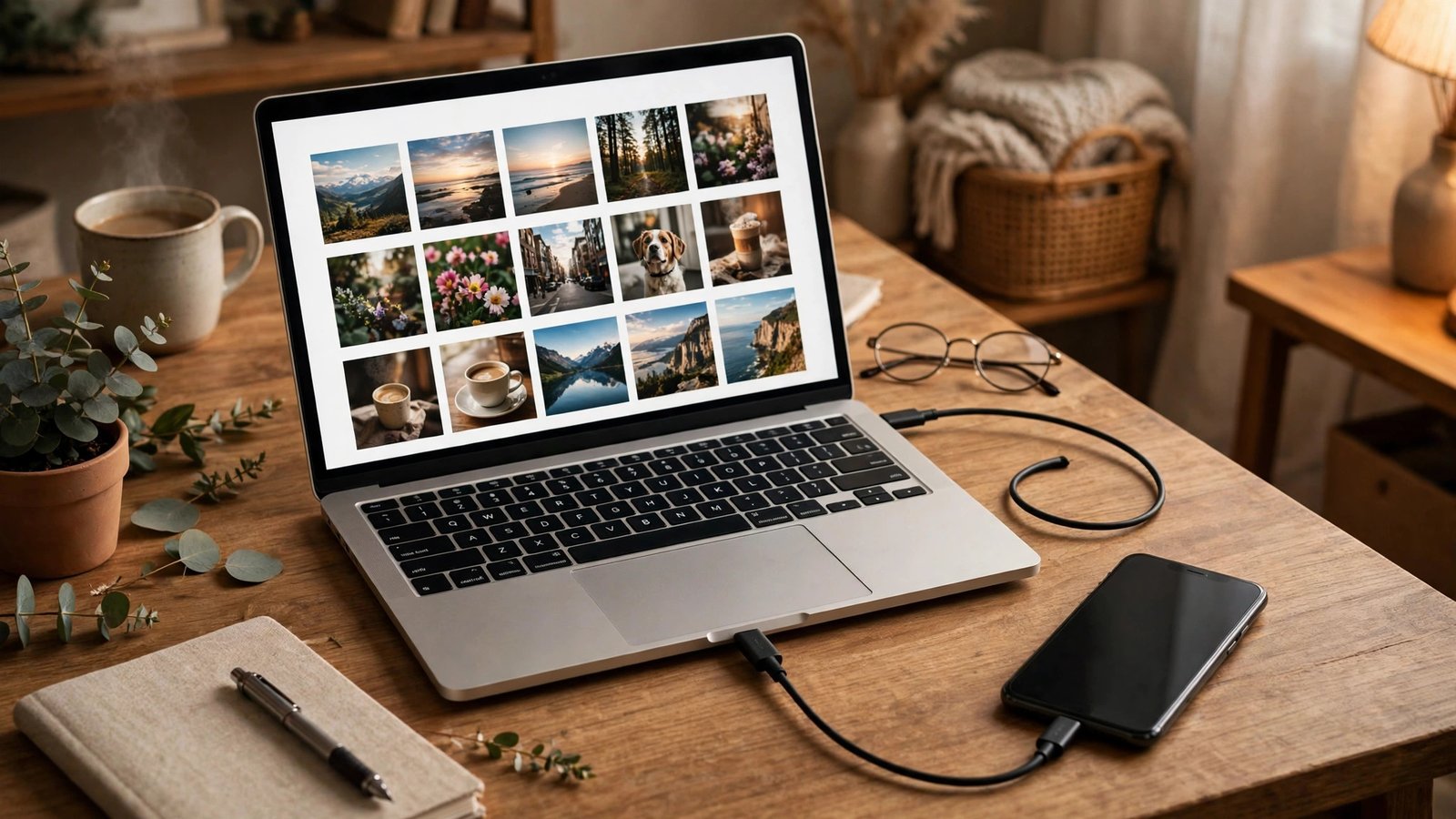
A cable transfer is still the most reliable option for large libraries. For an iPhone, connect the phone to your computer with a USB cable, unlock the phone, and tap Trust This Computer if asked. On a Mac, Photos usually opens and offers to import. On Windows, open File Explorer, find your iPhone under devices, then open the DCIM folder and copy the photos and videos to your folder.
For an Android phone, connect with a USB cable, unlock the phone, and look for the USB notification. Tap it and choose File Transfer or Transfer Files, rather than charging only. Your phone should then appear in Finder or File Explorer. Open the DCIM folder for camera photos, and check Pictures and Movies for screenshots and other saved media.
If the phone does not appear, try a different cable and port, and restart both devices. Some cables only charge and do not carry data.
Step 3: Use AirDrop on iPhone and Mac
If you have an iPhone and a Mac, AirDrop is a simple wireless option for smaller batches. Turn on Wi-Fi and Bluetooth on both devices, and make sure they are near each other. On your iPhone, open Photos, tap Select, choose the photos and videos you want, then tap the Share button and choose AirDrop. Tap your Mac name, then accept the transfer on the Mac.
AirDrop works well for a few dozen files. For thousands, a cable is faster. If AirDrop does not find your Mac, check that receiving is set to Contacts Only or Everyone for a short period.
Step 4: Use Nearby Share or Quick Share on Android
Android phones offer a similar wireless option. On many recent Android phones, open Photos or your gallery, select files, tap Share, then choose Quick Share, which replaced Nearby Share on newer devices. Choose your Windows computer or another Android device nearby, and accept the transfer. On Windows, you may need to install the Quick Share app from Google if it is not already present.
For a phone to computer move, check both devices are on the same Wi-Fi network and Bluetooth is on. Very large videos are better moved by cable.
Step 5: Use Google Photos or iCloud to sync, then download
Cloud services can move photos without a cable, but they work best as a backup route rather than a one time copy. On iPhone, iCloud Photos can sync your library to a Mac through the Photos app, or to a Windows computer through iCloud for Windows. On Android, Google Photos can back up your library, and you can then download selected photos from photos.google.com on your computer.
This method depends on internet speed and cloud storage limits. After downloading, play a few videos to confirm they arrived in full quality.
Step 6: Check the transfer before you delete anything
This step is the one people skip, and it is the one that matters most. Open your new computer folder and count files, or at least spot check the oldest and newest photos, a few videos, and any burst or live photos you care about. Play one long video from start to finish, or scrub through it, to confirm it copied fully and did not stop halfway.
Check for missing formats too. Live Photos on iPhone may arrive as a still plus a short video file.
Only after that check should you free space on your phone, in small batches, keeping a second backup for photos you cannot replace.
Frequently Asked Questions
What is the fastest way to move a lot of photos to a computer?
A USB cable is usually fastest for a large library, especially for 4K video. Wireless options are convenient for small batches, but they slow down and stall more often with thousands of files.
Why does my computer not see my phone when I plug it in?
Check that you chose File Transfer on Android or tapped Trust This Computer on iPhone, that the phone is unlocked, and that you are using a data cable rather than a charge only cable. Try another port and restart both devices if it still does not appear.
Should I delete photos from my phone right after copying them?
No, not right away. Open the computer folder, spot check photos and videos, and confirm a few long videos play fully. Once you are sure the copy is complete, delete in batches and keep a second backup for photos you cannot replace.



Post Comment