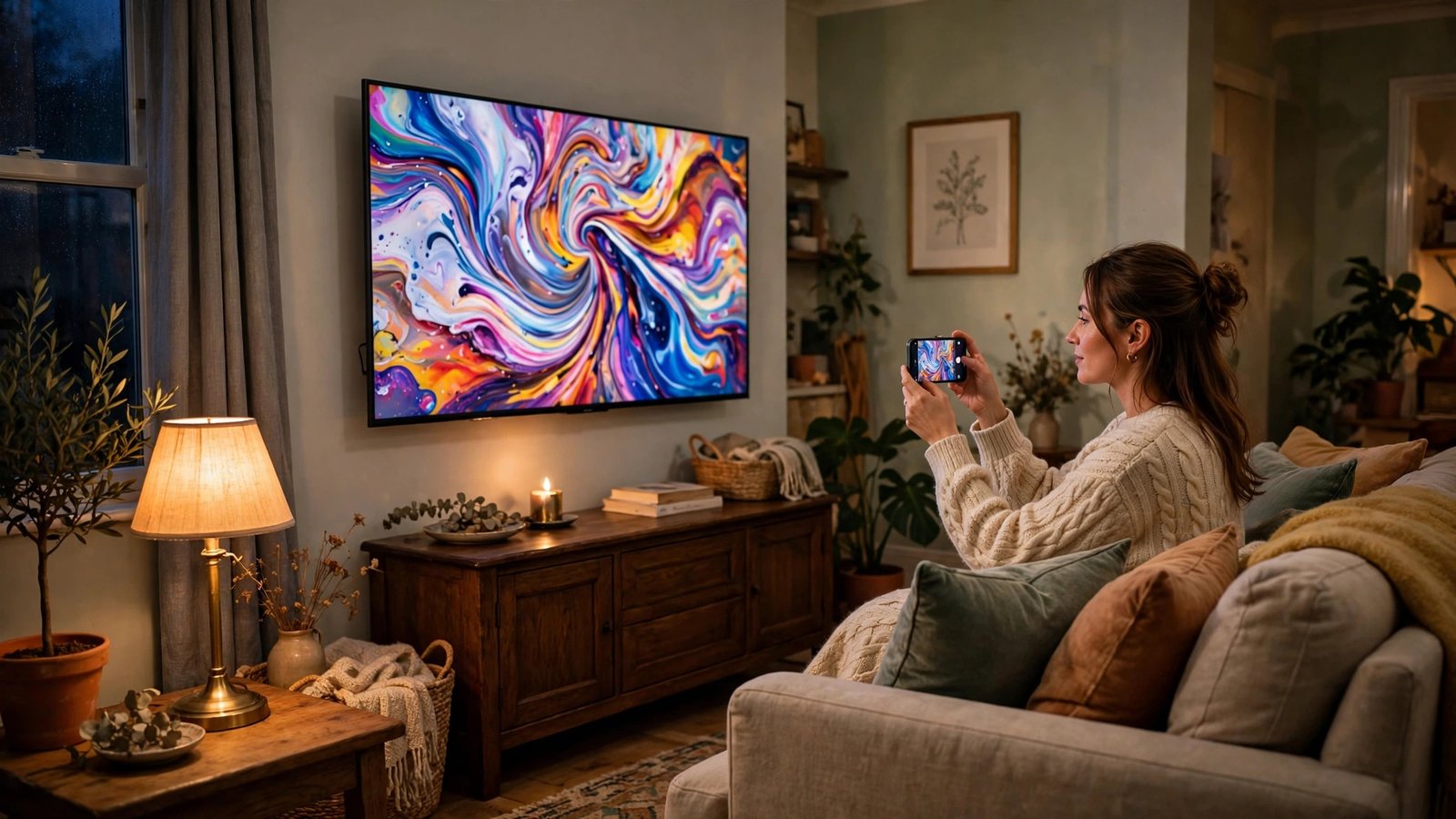
How to Use Your Phone as a TV Remote in the UK
Losing the TV remote down the side of the sofa is a familiar problem, and your phone can often fill in while you look for it. In the UK, most modern smart TVs can be controlled from a phone over your home Wi-Fi network, and both iPhone and Android offer built-in or free app options. This guide explains how to set it up, which method fits your TV, and what to do when the phone and TV refuse to talk to each other.
Step 1: Check what your TV supports
Before you install anything, check two things: your TV model and your Wi-Fi network. Your phone and TV usually need to be on the same Wi-Fi network for remote apps to find each other. If your phone is on mobile data, or on a guest network while the TV is on the main network, the app may not see the TV at all.
Next, look at your TV brand and age. Samsung, LG, Sony, Panasonic and other major brands sold in the UK all offer their own remote apps. Google TV and Android TV sets work with the Google TV app, while Apple TV boxes work with the remote built into iPhone. If your TV is a few years old but still connects to Wi-Fi, there is a good chance one of these options will work. Very old TVs without Wi-Fi cannot be controlled this way, unless you add a streaming device such as a Chromecast, Fire TV Stick or Apple TV.
Step 2: Use the Google TV app on Android and iPhone
If you have a Google TV, Android TV, or a Chromecast device, the Google TV app is a good first choice. It is free on Android and iPhone, and it includes a remote control feature. Install the app, sign in with your Google account if asked, and make sure your phone is on the same Wi-Fi network as your TV.
Open the Google TV app and look for the remote icon, usually in the bottom right corner or near the top of the screen. The app should list nearby TVs and streaming devices. Tap your TV name, then enter the pairing code shown on your TV screen, if one appears. Once paired, you will see a simple remote layout with a navigation pad, back button, home button, volume controls and a power button.
Step 3: Use the Apple TV Remote on iPhone
If you have an Apple TV box, your iPhone already has a remote built in. Open Control Centre by swiping down from the top right corner on newer iPhones, or up from the bottom on older models with a home button. Look for the Apple TV Remote icon, which looks like a small remote control. If you cannot see it, go to Settings, then Control Centre, and add Apple TV Remote to the included controls.
Tap the remote icon and choose your Apple TV from the list. Your iPhone may ask for a four digit code shown on the TV screen. Enter the code, and the remote layout will appear. You can swipe on the touch area to navigate, tap to select, and use the on-screen buttons for play, pause, menu and volume, depending on your setup.
Step 4: Try your TV maker's own app
Most major TV brands offer a free remote app, and these apps often give you the fullest control, including power, volume, input selection and settings. Samsung owners can use SmartThings, LG owners can use LG ThinQ, and Sony owners can use the relevant Sony remote or Google TV option for Android TV models. Search your TV brand name plus remote in the App Store or Google Play, and check that the app is published by the TV maker itself.
Install the maker's app, sign in or create an account if it asks, and follow the on-screen steps to add your TV. The app will usually scan your Wi-Fi network for compatible TVs. Tap your TV, confirm any code on the screen, and you should see a remote layout that mirrors your physical remote. Some maker apps also let you browse TV channels, launch apps and share photos from your phone to the TV, which can be handy for family viewing.
Step 5: What if your phone has an infrared blaster?
A small number of Android phones still include an infrared blaster, a tiny sensor that sends the same signals as a traditional remote. Most phones sold in the UK in recent years do not have one, including all iPhones and most Samsung, Google and Sony models. If your phone does have one, usually a small dark dot on the top edge, you can use a universal remote app to control TVs that do not connect to Wi-Fi.
Step 6: Fix it when the remote stops working
If your phone remote suddenly stops finding the TV, start with the simplest checks. Make sure both devices are on the same Wi-Fi network, and that Wi-Fi is switched on for both. Restart the TV app or the phone app, and if that fails, restart the TV itself by switching it off at the wall for 30 seconds and switching it back on.
Frequently Asked Questions
Can I use my phone as a remote for any TV?
No, your TV needs Wi-Fi and support for a remote app, or a streaming device such as Chromecast, Fire TV Stick or Apple TV. Very old TVs without Wi-Fi cannot be controlled from a phone, unless you add one of those devices.
Do my phone and TV need to be on the same Wi-Fi network?
Yes, in most cases. Remote apps find your TV over your home Wi-Fi network, so if your phone is on mobile data or a different network, the TV may not appear in the app.
Why does my phone remote work for navigation but not for volume?
Volume problems often involve a soundbar, AV receiver or HDMI setting rather than the app itself. Check that the TV is set to the right audio output, and that HDMI-CEC is switched on, then try pairing the TV in the app again.


Post Comment