How to Use Two WhatsApp Accounts on One Phone in the UK
Running two WhatsApp accounts on one phone is a common need in the UK, whether you want to keep work chats separate from personal chats, or you have a second number for a side business. WhatsApp itself only allows one account per app installation, but there is a straightforward way round that limit. This guide walks through the options for iPhone and Android, what you need before you start, and how to avoid mixing up your two accounts.
Before you start: what you need
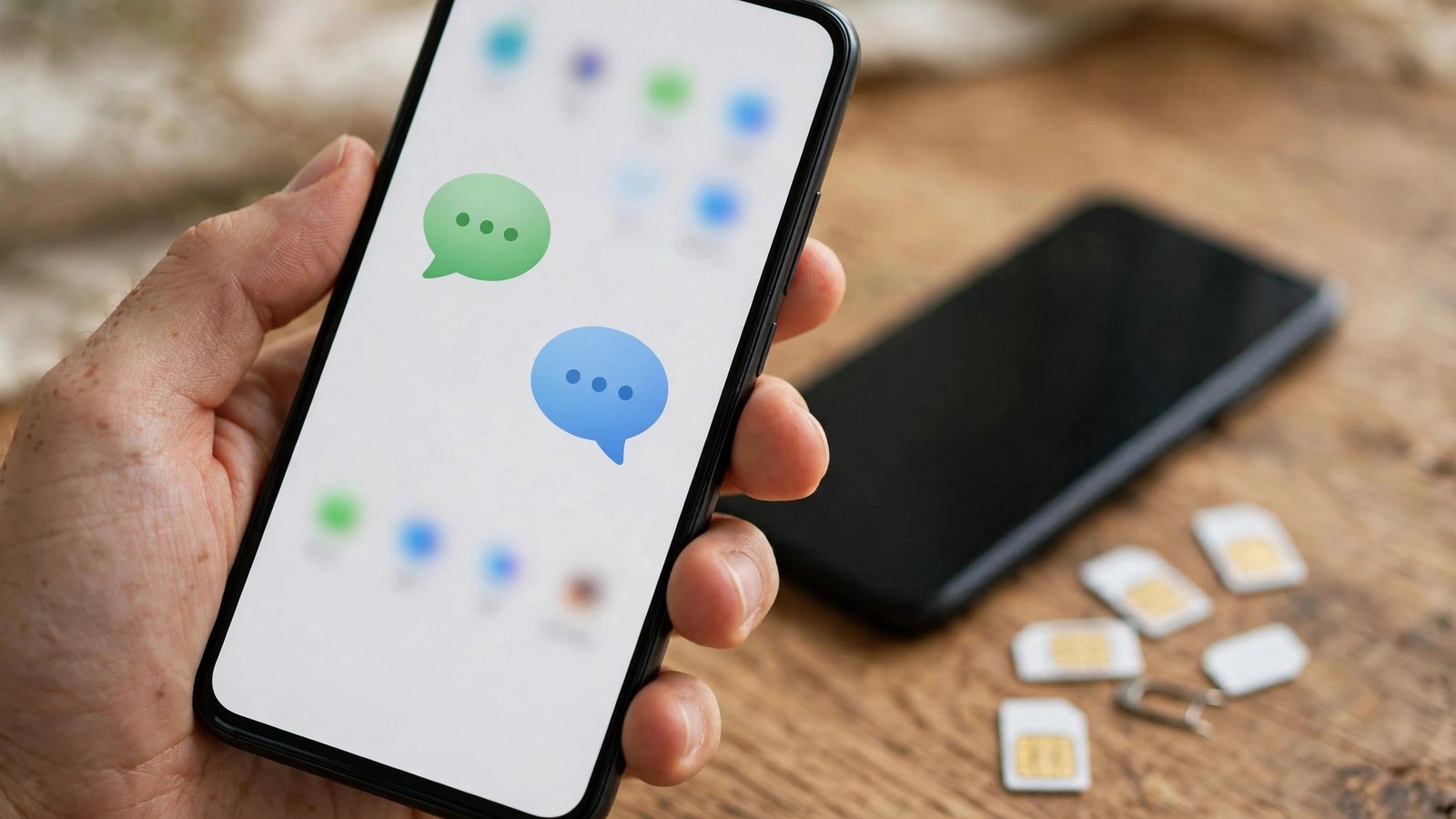
First, you need two different phone numbers. WhatsApp ties each account to one number, and you cannot register the same number twice. The second number can be a second SIM in a dual SIM phone, an eSIM, or a separate pay as you go SIM. In the UK, most modern iPhones and many Android phones support a physical SIM plus an eSIM, so you may not need a second handset.
Second, you need access to both numbers to receive a verification code. WhatsApp sends a code by SMS or voice call when you register. Make sure both SIMs are active and can receive messages before you begin. If the second number is in another phone for now, keep that phone nearby during setup.
Step 1: Set up your second number on your phone
If your phone has two SIM slots, insert the second SIM and check that it shows signal. Go to your phone settings and confirm both SIMs are switched on. On a dual SIM Android phone, you can usually choose which SIM handles calls, texts and mobile data. That choice does not affect WhatsApp registration, but it does affect which SIM receives the verification code, so check the number carefully.
Step 2: Install WhatsApp and WhatsApp Business
The simplest method on both iPhone and Android is to use the two official WhatsApp apps side by side. Install WhatsApp for your main number, if you have not already, and install WhatsApp Business for your second number. WhatsApp Business is a free official app from the same company, and it works for personal use too, not just for businesses.
Open WhatsApp Business and agree to the terms. When it asks for a phone number, enter your second number with the UK country code. WhatsApp will send a verification code to that number. Enter the code to complete registration. You can skip the business profile details, or fill in a simple name and description, depending on how you plan to use the account.
Step 3: Try dual app options on Android
Some Android phones offer a second way to run two copies of the same app. Samsung calls this Dual Messenger, and other makers use names such as App Twin, Dual Apps or Clone App. The exact name and location vary, so in most recent versions you will find it in Settings under Advanced Features or Apps, or by searching settings for Dual Messenger.
If your phone supports it, you can create a second copy of WhatsApp, marked with a small badge on its icon. Open the cloned app and register it with your second number. This keeps both accounts in the standard WhatsApp app, without needing WhatsApp Business. Not every Android phone supports this feature, and it does not exist on iPhone, so the WhatsApp Business method remains the safest option for most people.
Step 4: Tell the two accounts apart
Once both accounts are running, make them easy to distinguish. Set a different profile photo for each account, and use a clear name, such as your name for personal use and your business name for work. In WhatsApp Business, you can also set a short business description and opening hours, which helps contacts understand when you will reply.
Check your notification settings for each app separately. On Android, you can set a different notification sound for WhatsApp and WhatsApp Business, which helps you know at a glance which account received a message. On iPhone, you can use the app icon and the contact name in the notification to tell them apart, and you can keep the two apps on different home screen pages if that helps.
Step 5: Manage chats, backups and switching
Switching between accounts is simply a matter of opening the other app. There is no in-app switcher that links the two accounts, so you will move between the two icons. That separation is actually helpful, because it stops you sending a work message from your personal account by mistake, or the other way round.
Backups work separately too. On Android, each app can back up to Google Drive under its own account settings. On iPhone, each app backs up to iCloud separately. Check that backups are switched on for both accounts, especially for the account you use most for important chats. If you change phones later, you will need to restore each account in its own app, using the same phone number.
Common problems and quick fixes
If the verification code does not arrive, check that the second SIM is active, has signal, and can receive SMS. Try the voice call option if SMS fails. Make sure you entered the number with the correct UK code and without a leading zero after the country code.
If an app says the number is already registered, you may have used it for another WhatsApp account already. Each number can only belong to one WhatsApp account at a time. You will need a different number, or you will need to delete the old account first, which is worth thinking through carefully before you do it.
Frequently Asked Questions
Can I have two WhatsApp accounts on one iPhone?
Yes, by using WhatsApp for one number and WhatsApp Business for the second number. iPhone does not offer a built-in app cloning feature, so the two official apps are the reliable route.
Do I need two SIM cards to use two WhatsApp accounts?
You need two different phone numbers, but not necessarily two SIM cards in the same phone. You can use a physical SIM plus an eSIM, or register the second account with a number from another phone, as long as you can receive the verification code.
Will my chats merge if I use WhatsApp Business for the second account?
No, chats stay separate. WhatsApp and WhatsApp Business are separate apps with separate chat lists, backups and settings, even though they sit on the same phone.



Post Comment