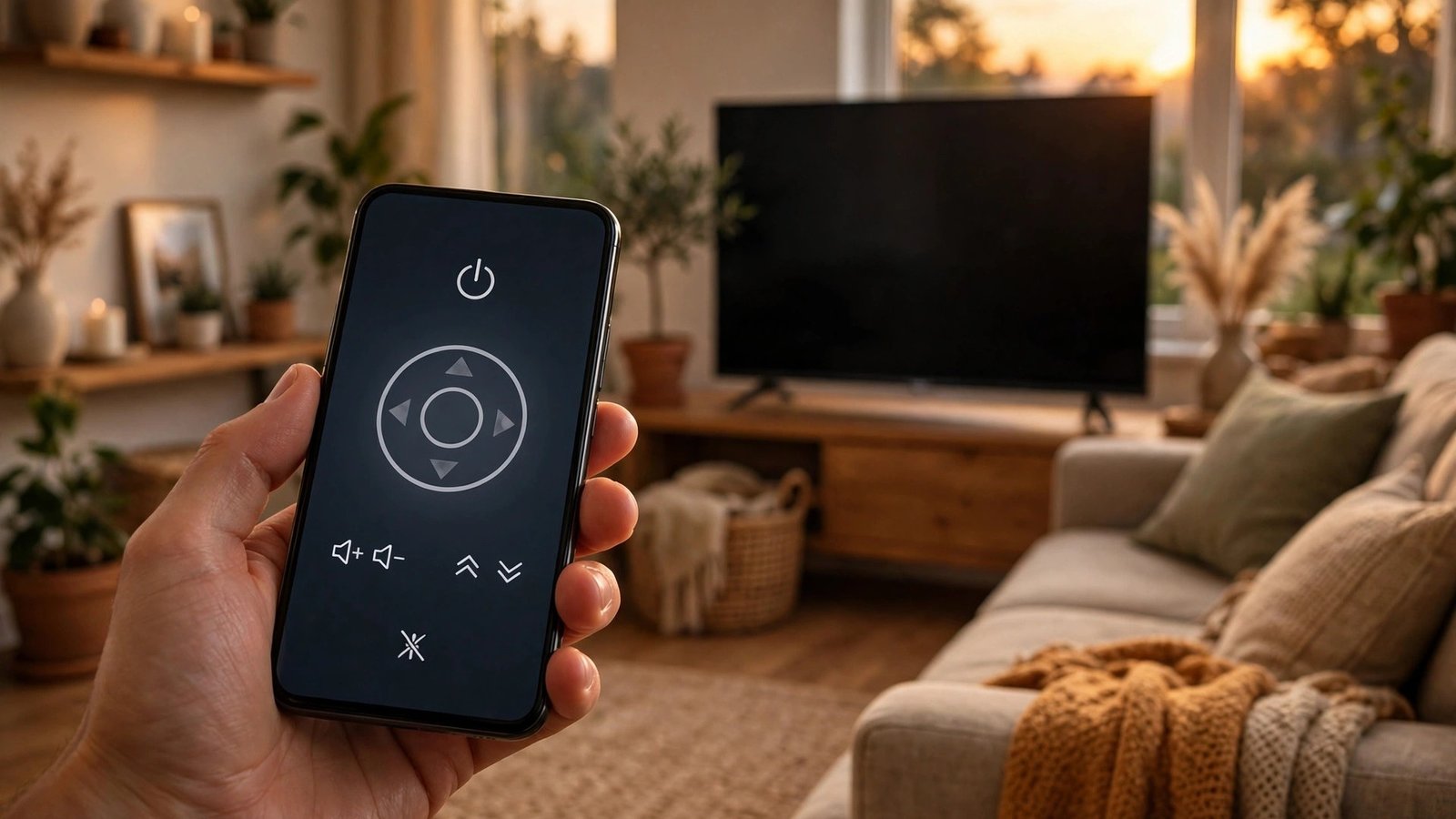
How to Use Your Phone as a TV Remote in Canada
Lost remotes are a Canadian household tradition. The good news is that the phone in your pocket can take over. Most modern TVs and streaming devices can be controlled from an iPhone or Android phone, and the setup usually takes less than five minutes. Here is how to do it in Canada, whatever TV and phone you own.
Before You Start: What Your Phone and TV Need
First, check that your phone and your TV are on the same Wi-Fi network. Almost every phone remote app talks to the TV over your home Wi-Fi, so if your phone is on mobile data or a guest network, the app will not find the TV.
Second, check what your TV supports. Smart TVs from Samsung, LG, Sony, Hisense, TCL and Roku all work with phone apps. Older TVs without Wi-Fi can still work if you have a streaming stick or box, such as a Chromecast, Apple TV, Fire TV Stick or Roku stick. If your TV has neither Wi-Fi nor a streaming device, a phone app will not help, and a universal remote is the better buy.
Use Your iPhone as a Remote for Apple TV
If you have an Apple TV box, your iPhone already has a remote built in. Open Settings, go to Control Center, and make sure Apple TV Remote is listed among the included controls. If it is not there, tap the green plus sign beside it to add it.
Then open Control Center by swiping down from the top right corner of the screen. Tap the remote icon and choose your Apple TV from the list. Your iPhone will show a touchpad you can swipe on, plus play, pause, menu and home buttons. You can also type with your iPhone keyboard when a search box appears on the TV.
Use a Samsung Phone as a Remote
Samsung phone owners have two good options. The first is SmartThings, which comes pre-installed on most recent Samsung phones. Open SmartThings, tap the plus sign to add a device, and choose TV. The app will scan for Samsung TVs on your Wi-Fi network. Tap your TV, confirm the code on the screen, and you will get a full remote with power, volume, channel and navigation buttons. The second option is the remote built into the Smart View feature on some Samsung models, though SmartThings is the more reliable route in most recent versions.
Use the Google TV or Google Home App on Android
If you have a Chromecast, a Google TV streamer, or a TV with Google TV built in, the Google TV app is the simplest remote. Install Google TV from the Play Store, open it, and tap the remote icon in the bottom right corner. Pick your TV or Chromecast from the list, enter the pairing code shown on the TV, and you are done.
The Google Home app works too. Open Google Home, tap your TV or Chromecast, and use the remote controls there. Both apps let you search with your voice and type with your phone keyboard.
Use the TV Brand's Own App
Every major TV brand has its own remote app, and these are worth trying when the generic apps do not connect. Samsung owners can use SmartThings, LG owners can use LG ThinQ, Sony owners can use the Bravia Connect app, Roku TV owners can use the Roku mobile app, and Fire TV Stick owners can use the Amazon Fire TV app. The pattern is the same in each case: install the app, make sure the phone and TV share the same Wi-Fi network, let the app find the TV, and confirm the pairing code on the screen.
What If Your Phone Has an Infrared Blaster?
A few Android phones, mostly from Xiaomi and some Huawei models sold in Canada, still have an infrared blaster, a tiny emitter that works like a real remote. If your phone has one, you can control almost any TV, even a TV with no Wi-Fi at all, using an app such as Mi Remote. Open the app, pick your TV brand, point the phone at the TV, and test the power button. Most phones sold in Canada in the last few years do not have an infrared blaster, so check your model's specifications before counting on it. iPhones have never had one.
Troubleshooting When the Remote Will Not Connect
If the app cannot find your TV, work through this list. First, confirm both devices are on the same Wi-Fi network and the same band. Second, restart the TV and the phone, since a stale network connection is the most common cause. Third, check that the TV's software is up to date, because older TV firmware sometimes blocks new app versions.
If the app finds the TV but the buttons do nothing, the pairing may have expired. Remove the TV from the app and pair it again, and accept the permission prompt on the TV screen. If volume works but power does not, that is normal for some apps: turning a TV on over Wi-Fi needs a feature called Wake on LAN, and some TVs only support it over a wired connection.
Frequently Asked Questions
Can I use my phone as a remote if I lost the TV remote?
Yes, in most cases. Install the matching app for your TV or streaming device, connect your phone to the same Wi-Fi network as the TV, and pair the app with the TV. Turning a TV on for the very first time sometimes needs the physical remote, so keep it safe until the phone is paired.
Does my phone need to be on the same Wi-Fi as the TV?
Yes, for almost every remote app. The phone and the TV talk to each other over your home Wi-Fi network, so if the phone is on mobile data or a different network, the app will not find the TV. The only exception is a phone with an infrared blaster, which does not need Wi-Fi at all.
Why does my phone remote control the volume but not the power?
Turning a TV on over Wi-Fi needs a feature called Wake on LAN, and some TVs only support it when they are connected to the router with a cable. If your TV is on Wi-Fi only, the power button in the app may do nothing. Use the physical remote or the TV's own power button to switch it on, then use the phone remote for volume, channels and navigation.


Post Comment