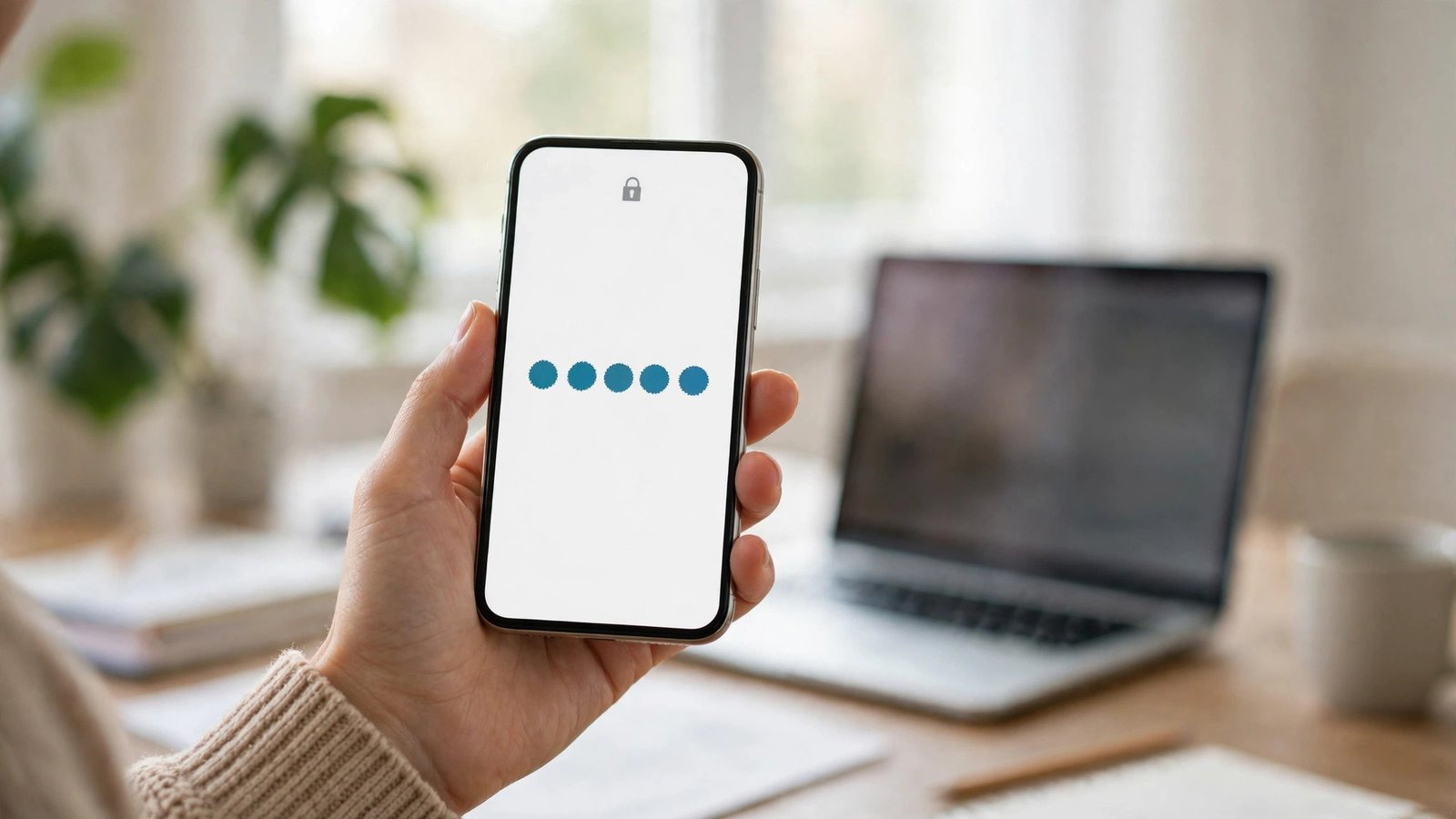
How to Set Up Two-Factor Authentication on Your Main Accounts in Canada
A password on its own is a single point of failure. If it leaks in a data breach or is guessed from a reused login, someone else can walk straight into your email, your photos or your bank app. Two-factor authentication adds a second check at sign-in, usually a code from your phone, so a stolen password alone is not enough.
This guide walks through the setup for the accounts most Canadians rely on first: Google, Apple, Microsoft and your bank. The menu names can vary slightly by app version, but the flow is the same in most recent versions.
Step 1: Pick the right second factor
Start by choosing how you want to prove it is you. An authenticator app is usually the strongest simple option. It makes a six-digit code on your phone that changes every 30 seconds, and it works even without mobile signal.
Text message codes are better than no second factor at all, but they are weaker. A SIM swap or a phone number change can put them at risk, and codes can be delayed when you travel. A hardware security key is stronger again, but it costs money and it is easy to lose, so it suits people who want top-level protection for one or two key accounts.
Step 2: Secure Google first, because it guards the rest
Your Google account often guards password resets for other services, so secure it first. On your phone or computer, open your Google Account settings, then go to Security. Look for 2-Step Verification and turn it on.
Google will ask you to sign in again, then offer a second step. Choose Authenticator app if it is offered, scan the QR code with an app such as Google Authenticator or another trusted authenticator, then type in the six-digit code to confirm. Add a backup method as well, such as a second phone number or backup codes you print and store at home.
Step 3: Turn on Apple two-factor authentication
On an iPhone, go to Settings, tap your name at the top, then tap Sign-In and Security. Tap Turn On Two-Factor Authentication and follow the prompts. Apple will verify a trusted phone number and then send codes to your trusted devices when you sign in somewhere new.
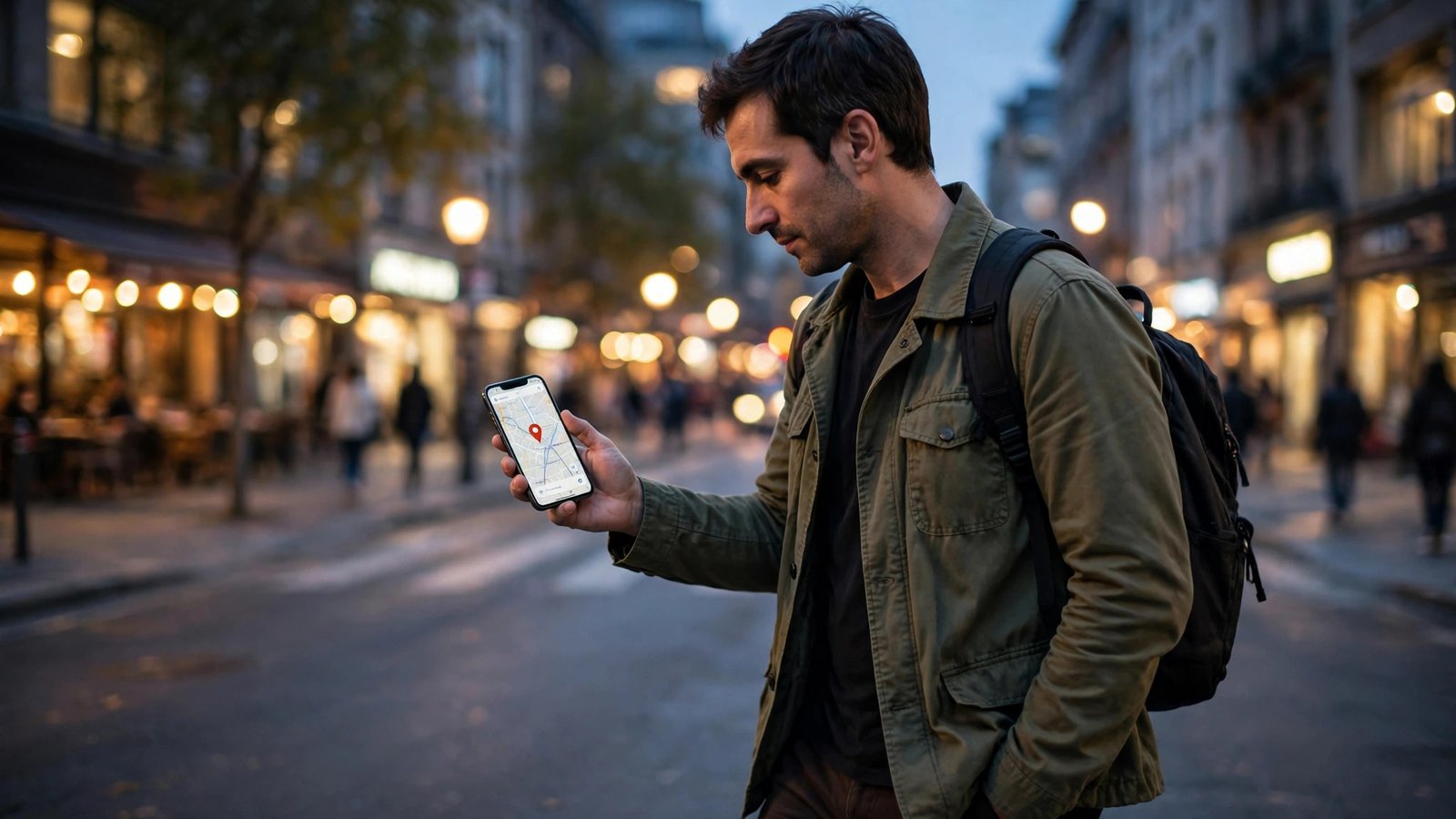
On a Mac, the same setting sits under your Apple Account in System Settings. Once it is on, a sign-in from a new device shows a map location and asks you to allow it, then shows a six-digit code on a device you already trust.
Keep at least two trusted devices or a trusted phone number if you can. If you lose your only iPhone and have no other trusted device, recovery takes longer.
Step 4: Add two-factor authentication to Microsoft
Microsoft accounts cover Outlook, OneDrive, Xbox and many work logins. Sign in at your Microsoft account security page, open Advanced security options, then turn on two-step verification.
Microsoft will walk you through an authenticator app setup, with a QR code to scan. It also offers an app password for older apps and mail programs that cannot handle a second code. Create those only if you need them, give each one a clear name, and delete any you stop using.
Save the recovery code Microsoft shows you during setup. Store it somewhere safe and separate from your phone, such as a locked drawer at home.
Step 5: Lock down your bank and CRA accounts
Canadian banks and government services each handle this a little differently, so follow the exact prompts in the app you use. In most bank apps, look under Profile, Security or Settings for two-step verification, trusted device or security alerts. Some banks send a code by text or email, some use their own app approval, and some support an authenticator app for business accounts.
Turn on every alert the bank offers: sign-in alerts, new payee alerts and large transfer alerts. Those alerts are not a replacement for a second factor, but they tell you quickly if something changes.
For a CRA My Account login, use the sign-in partner or CRA user ID route you already use, then complete the multi-factor step it asks for. Never share a bank or CRA code with anyone who calls or texts you asking for it. A real bank will not ask you to read out a code to keep your account safe.
Step 6: Save backup codes and plan for a lost phone
This step is the one most people skip, and it is the one that saves you later. When a service shows backup codes, save them offline. Print them, or write them down and keep them somewhere only you can reach. Do not store them as a photo in the same phone they protect, and do not email them to yourself in plain text.
Next, set up a second way back in. Add a second trusted device where possible, keep your recovery email current, and check that your phone number on file is the number you actually use. If you switch numbers, update every account before you give up the old SIM.
If you do lose your phone, act in this order: lock or erase it from another device if you can, sign in to your main email from a trusted computer, change that password first, then work through your bank and other accounts using backup codes. Change the second factor settings once you have a new phone, so the old device stops being trusted.
Frequently Asked Questions
Is two-factor authentication enough on its own?
It makes account takeover much harder, because a password alone is no longer enough. It does not protect you if you hand a code to a scammer, so never share codes, and stay wary of urgent messages that ask you to approve a sign-in you did not start.
What if I lose my phone and cannot get a code?
Use backup codes, a second trusted device, or the recovery options you set up in advance. That is why saving backup codes before you need them matters. Without a backup route, recovery can take days while the service checks your identity.
Should I use text codes or an authenticator app?
Use an authenticator app where it is offered, because it works offline and is harder to intercept than a text message. Use text codes only where a service offers no app option, and keep your phone number up to date so codes still reach you.



Post Comment