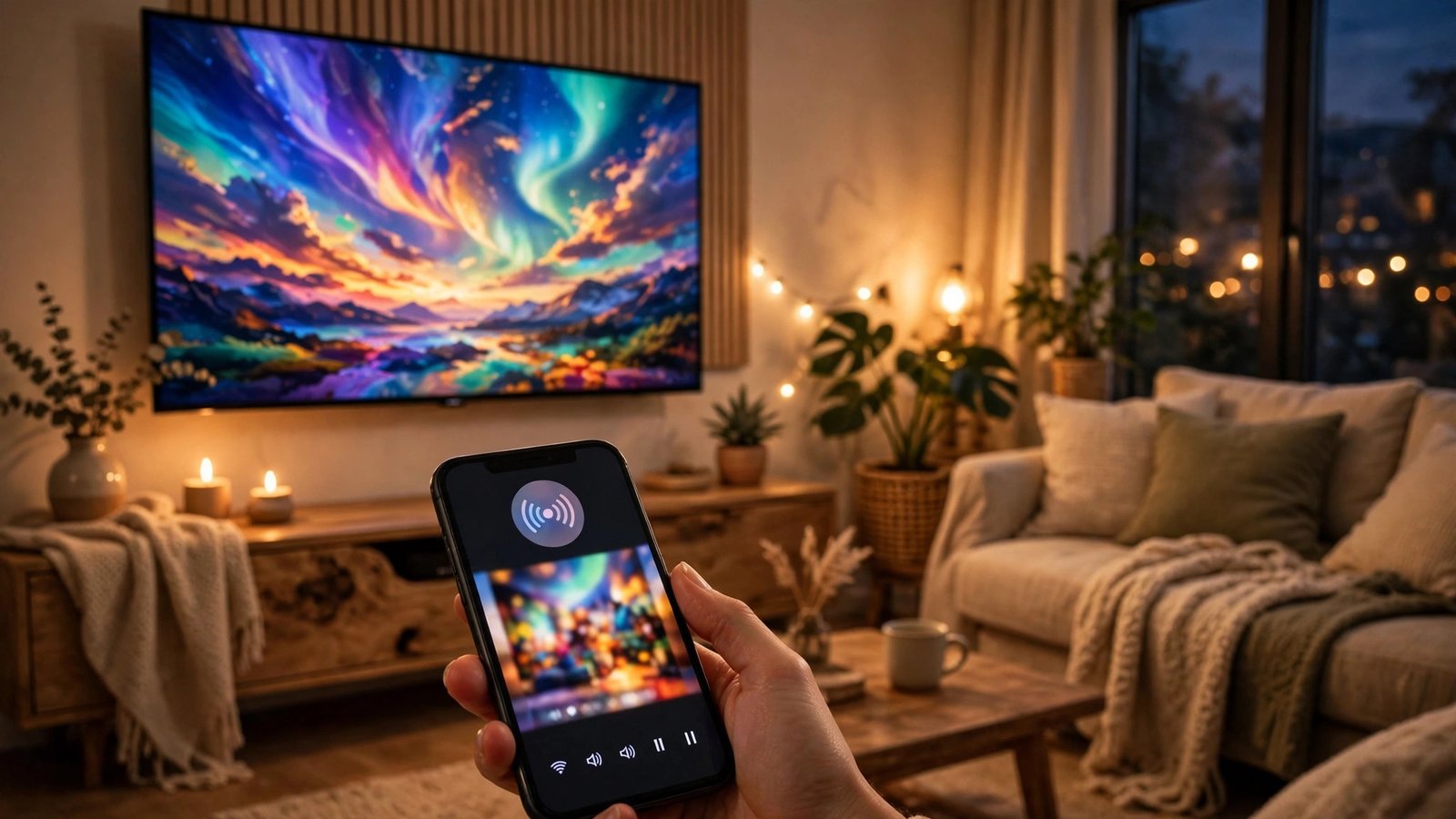
How to Cast Your Phone to Your TV in Canada: Chromecast, AirPlay and Screen Mirroring Explained
Casting puts your phone screen, a video or a photo slideshow on the big TV without hunting for cables. The catch is that iPhone and Android use different names for the same idea, and older TVs may need a small streaming device to join in. Once you know which method fits your phone and your TV, the whole thing takes under a minute.
This guide covers the three routes most Canadians will use: Chromecast and Google Cast for Android, AirPlay for iPhone, and built-in screen mirroring on Samsung and other smart TVs. It ends with a cable fallback for the times wireless casting refuses to cooperate.
Step 1: Check what your TV can already do
Before you tap anything on your phone, check your TV. Most smart TVs sold in Canada in recent years have Chromecast built in, Apple AirPlay 2, or both. Look in the TV settings under Network, Connection or AirPlay, or check the input list for a Cast option.
If your TV is older and has an HDMI port but no smart features, a Chromecast with Google TV or an Apple TV box adds casting for a modest one-time cost. You do not need a cable subscription or a new TV just to cast from a phone.
Make sure your phone and your TV are on the same Wi-Fi network. Casting usually fails at this step, not later. If your phone is on mobile data or a guest network while the TV is on your home network, the TV simply will not show up.
Step 2: Cast from Android with Chromecast or Google Cast
On Android, open the app you want to watch, such as YouTube, Netflix or a photos app. Tap the Cast icon, which looks like a small screen with signal waves in one corner. Pick your TV or Chromecast from the list that appears.
To mirror your whole screen instead of just one app, swipe down for Quick Settings and tap Screen Cast, Smart View or Cast, depending on your phone brand. Samsung phones call it Smart View, Pixel phones call it Screen Cast, and other brands use similar names. Pick your TV, tap Start, and your phone screen appears on the TV.
Keep your phone awake while you mirror, and turn the volume up on the phone if the sound is quiet. If the picture stutters, move closer to your Wi-Fi router or switch the TV to the 5 GHz band in your router settings if that option is available.
Step 3: Cast from iPhone with AirPlay
On an iPhone, AirPlay is built in. Open the video or photo you want to share, tap the Share button or the AirPlay icon, then choose your Apple TV or AirPlay-compatible smart TV. For apps such as YouTube, the AirPlay or Cast icon sits in the video player itself.
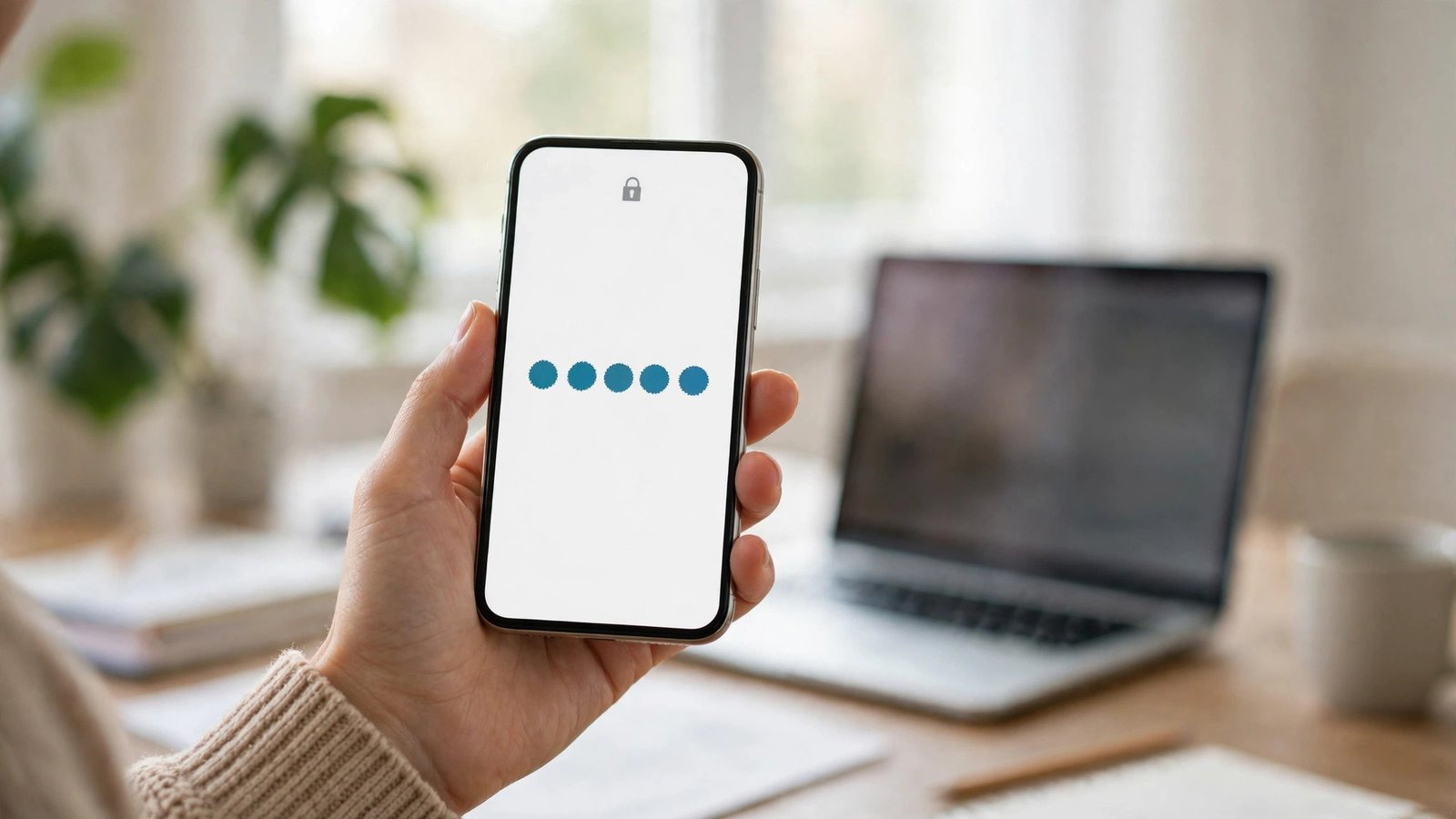
To mirror the whole iPhone screen, open Control Centre by swiping down from the top right corner, tap Screen Mirroring, then pick your TV. Enter the four-digit code on the TV screen if one appears. That code check stops a neighbour or a guest on the same network from sending video to your TV by accident.
AirPlay works best when both devices are signed in to the same home Wi-Fi and are running recent software. If your TV does not appear, check that AirPlay is switched on in the TV settings and that your iPhone is not connected to a VPN, which can hide it from the local network.
Step 4: Use screen mirroring on a smart TV
Many smart TVs also offer their own mirroring mode, often called Miracast or Screen Mirroring. On Samsung TVs, open the Source menu and choose Screen Mirroring, then start Smart View on your Samsung phone. On other brands, the option may sit under Network or Connection settings.
This route mirrors everything on your phone, including notifications, so turn on Do Not Disturb before a family slideshow or a work call. It is handy for apps that do not have a Cast button, such as a browser page or a photo folder, but video quality can be a little softer than casting from inside an app.
Step 5: Fix the common problems
Start with the simple checks. Restart your phone, your TV and your router, in that order, and give each one a full minute to come back. Confirm both devices are on the same Wi-Fi network name, and turn off any VPN on your phone for the test.
If the video plays but there is no sound, check the TV volume, the phone volume and the app volume separately. If the picture freezes, lower the video quality in the app or move the phone closer to the router. A weak Wi-Fi signal is the usual cause of a stuttering cast, not a broken TV.
Step 6: Use a cable when wireless will not work
A cable is the reliable fallback. For iPhone, you need a Lightning or USB-C to HDMI adapter made for your model, plus a standard HDMI cable. For Android, check whether your phone supports USB-C video output. Many mid-range and flagship Android phones do, while some budget models do not.
Plug the adapter into your phone, connect the HDMI cable to the TV, then switch the TV to that HDMI input. Your phone screen should appear at once. Charge the phone through the adapter if it has a charging port, because mirroring over a cable can drain the battery faster than normal use.
Frequently Asked Questions
Why does my TV not show up when I try to cast?
The usual reason is that the phone and TV are on different Wi-Fi networks, or the phone is on a VPN or mobile data. Put both on the same home Wi-Fi network, turn off the VPN, then restart both devices and try again.
Can I cast from an iPhone to a Chromecast TV?
Yes, for many apps. Open the app, tap the Cast icon, and pick the Chromecast TV. For full screen mirroring, you need an AirPlay-compatible TV or an Apple TV, because iPhone screen mirroring uses AirPlay rather than Chromecast.
Does casting use my mobile data?
No, when your phone and TV are on home Wi-Fi, the video streams over Wi-Fi. It can still count toward your home internet use, and it will use mobile data only if your phone falls back to a mobile connection, so keep Wi-Fi switched on while you cast.


Post Comment