How to Turn On Two-Step Verification for Your Amazon Account in the UK
Your Amazon account holds your payment cards, your home address, and a record of everything you have ordered. That makes it a tempting target, and a password on its own is a thin lock. Two-step verification adds a second check after your password, so even if someone guesses or steals it, they still cannot get in. It takes a few minutes to switch on, and it is one of the best security steps you can take for any online account. This guide walks through the setup on the Amazon app and on a web browser, plus what to do if you lose access.
Step 1: open your Amazon security settings
Start on a device you trust, ideally your own phone or computer. In the Amazon app, tap the menu icon, then go to Account, then Login and security. On a computer, sign in at amazon.co.uk, hover over Account and Lists, choose Account, then click Login and security.
Look for the Two-Step Verification section. If it says it is off, tap or click Edit or Turn on to begin. Amazon may ask you to sign in again or confirm a code sent to your email first. That is normal, and it stops someone else changing your settings if they pick up your unlocked phone.
Step 2: choose how you want to receive codes
Amazon gives you a few ways to receive the second-step code, and you should pick the one that fits how you use your phone.
The most reliable option is an authenticator app, which generates a new six-digit code on your phone every 30 seconds. Free options include Google Authenticator, Microsoft Authenticator, and Authy. Because the codes are generated on your phone, they work even with no mobile signal, which is handy on holiday or on the Tube.
The second option is a text message: Amazon sends a code by SMS each time you sign in from a new device. This is simple and needs no extra app, but it depends on mobile reception, and text messages can be intercepted in a SIM swap attack. A third option is a phone call, where Amazon rings you and reads the code aloud, but it is the slowest option.
For most people, the authenticator app is the best choice, but a text message is still far better than no second step at all. You can add more than one method later as a backup.
Step 3: set up your chosen method
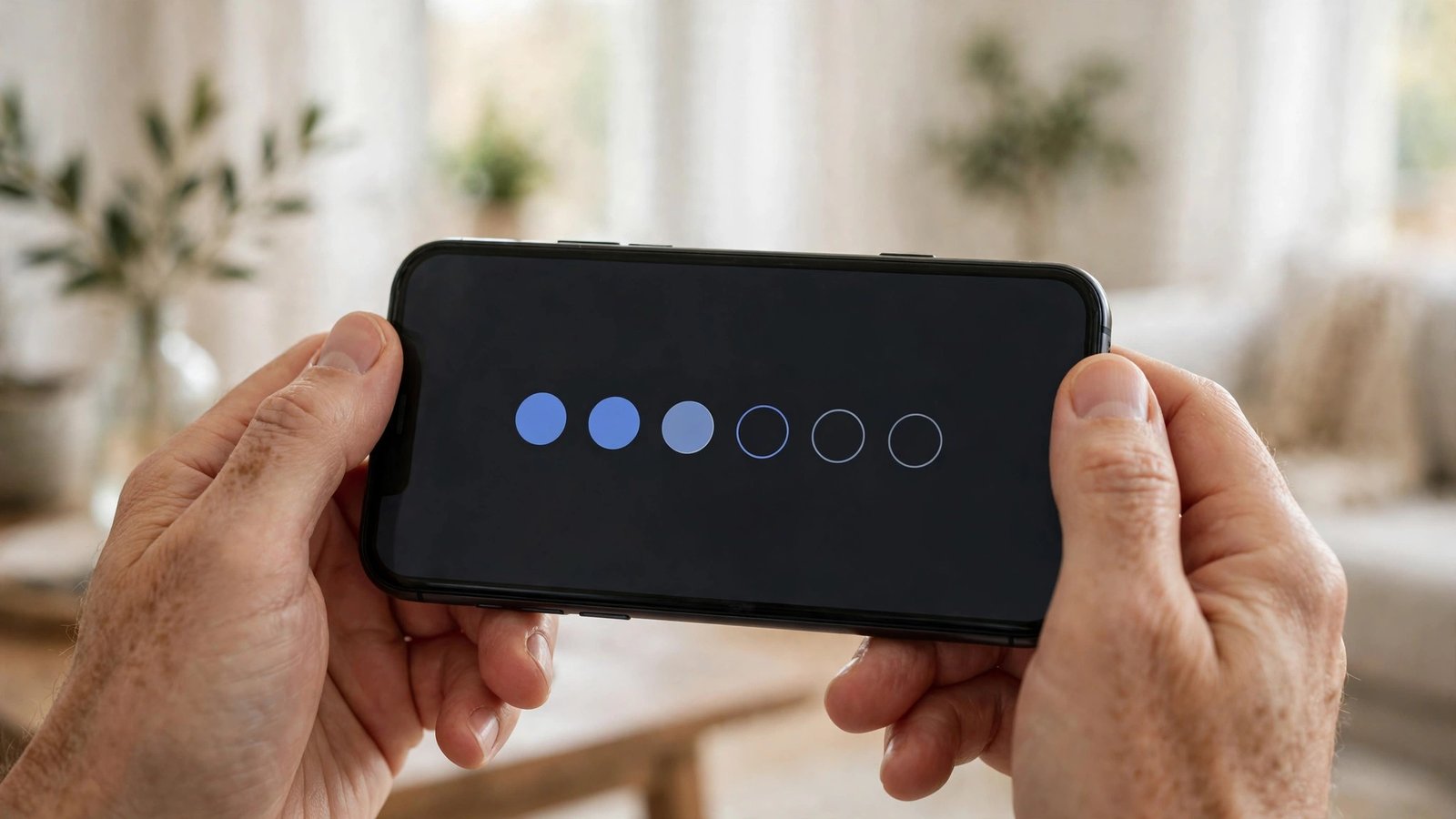
If you picked an authenticator app, Amazon will show you a QR code on screen, plus a long secret key underneath it. Open your authenticator app, choose Add account, and point your phone camera at the QR code. The app will add an entry for Amazon and start showing six-digit codes. Type the current code into the Amazon page to confirm the link works, and keep the secret key in a password manager in case you need to set it up again.
If you picked text message, Amazon will ask for your mobile number, or offer the one already on your account. Enter the number, then type the code that arrives by text. If you picked a phone call, enter the number where Amazon should ring you, then type the code you hear.
Amazon will then ask whether to skip the second step on this device. Only tick that box on a device you own and control, never on a shared or public computer.
Step 4: save your backup codes and add a backup method
This step is easy to skip and painful to regret. Go back to the Two-Step Verification settings and look for backup options. Amazon lets you add a second phone number as a backup, such as a work mobile or a family member's phone you trust.
Write down or save the backup codes if Amazon offers them, and store them somewhere separate from your phone, such as a locked drawer or a password manager. These codes are single-use passwords that let you sign in if you lose your phone or your authenticator app stops working. Without them, getting back into your account takes much longer.
Step 5: test it and check your other devices
Sign out of Amazon on your phone, then sign back in. You should be asked for your password, then for a code. If that works, two-step verification is live.
Check the other places you are signed in, such as a tablet or a smart TV. Some may ask you to sign in again with a code, which is a good sign the new check is working everywhere. Alexa devices keep working as normal: the code only appears on a new device or browser.
If you lose your phone or cannot get a code
Losing the device that holds your codes is the most common worry, and it is fixable. First, try your backup method: if you added a second phone number, Amazon can send the code there instead, and if you saved backup codes, use one to sign in, then go straight to your security settings and set up a new method.
If neither works, use the account recovery flow on the sign-in page. Amazon will ask you to confirm your identity, usually by sending a link to the email address on the account, and may ask for details only you would know, such as a recent order or the card on file. The process can take a little while. Once you are back in, set up two-step verification again straight away, and this time add a backup method too.
Frequently Asked Questions
Is two-step verification on Amazon free?
Yes, it costs nothing. The authenticator apps Amazon works with are free, and text messages and calls from Amazon for security codes are also free. There is no charge to switch it on.
Will two-step verification slow down my shopping?
On devices you mark as trusted, you will not notice it at all. You only enter a code on a new device or browser, or after clearing your cookies. On your own phone, shopping works exactly as before.
What happens if I change my phone number?
Update the number in your Amazon account before you give up the old number, if you can. Go to Login and security, then Two-Step Verification, and change it there. If you have already lost access to the old number, use a backup method or the account recovery flow, then update it once you are signed in.


Post Comment