How to Transfer Everything to a New Phone in Australia: iPhone, Android and Switching Between Them
A new phone is exciting until you think about everything on the old one: photos, chats, passwords and banking apps. Both iPhone and Android have built-in tools that copy almost everything for you, and switching between the two is a guided process too.
This guide covers every direction: iPhone to iPhone, Android to Android, and switching between the two.
Before you start: prepare both phones
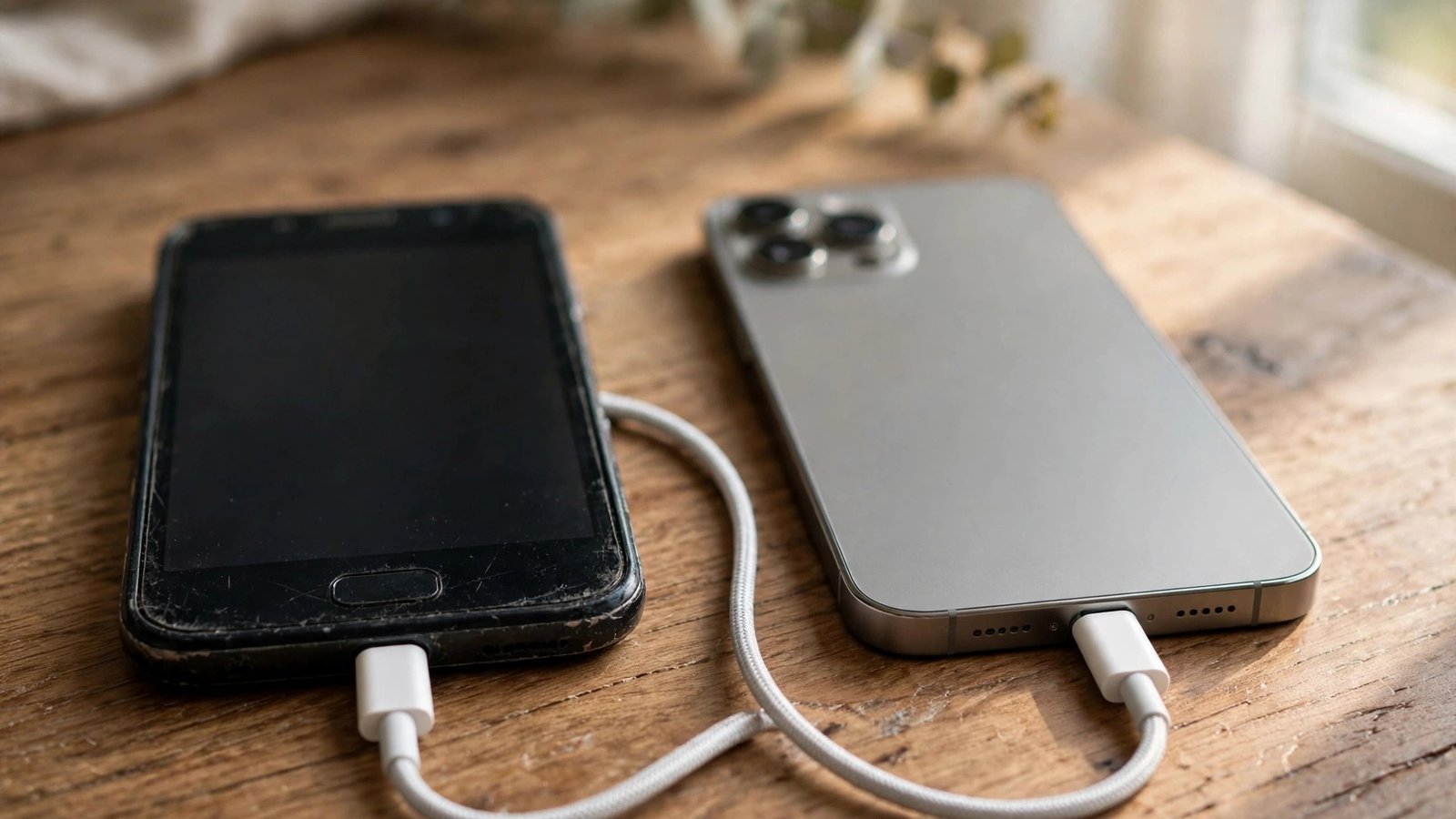
Charge both phones to at least half and keep them plugged in. Connect both to Wi-Fi and keep them close together. A transfer can take minutes or over an hour.
Back up your old phone first. On iPhone: Settings, your name, iCloud, iCloud Backup, Back Up Now. On Android: Settings, Google, Backup, Back Up Now. A backup means nothing is lost even if the transfer goes wrong halfway.
Update both phones to the latest software available. Transfers work best when both run recent software, and mismatched versions cause the most common failures. Do not reset the old phone until the new one is fully working.
iPhone to iPhone: use Quick Start
Put your new iPhone next to your old one and turn it on. The old iPhone should show a Quick Start prompt. Confirm with your Apple ID, then scan the animation with the old phone’s camera.
Choose “Transfer from iPhone” when asked. This copies apps, photos, messages, settings and most passwords over Wi-Fi. Keep both phones close and plugged in until it finishes; apps download in the background.
If Quick Start will not start, check Bluetooth is on and both phones run recent iOS versions. As a backup, restore from the iCloud backup: on the new iPhone, choose “Restore from iCloud Backup” during setup and sign in with your Apple ID.
Android to Android: use a cable or Wi-Fi
Turn on your new Android phone and tap through setup. When asked to copy apps and data, choose your old phone, then connect the two phones with a cable or pick the wireless option.
A cable transfer is faster and more reliable, especially for large photo libraries. Sign in with the same Google account, pick what to copy, and the transfer runs in the background while you finish setup.
If the wireless option stalls, move both phones closer to your Wi-Fi router and try again. The Google backup you made earlier is your safety net: during setup choose “Restore from a Google backup” instead.
Android to iPhone: use Move to iOS
Apple’s Move to iOS app handles this switch. On your new iPhone, go through setup to the Apps and Data screen, then tap “Move Data from Android”. Download Move to iOS on your old Android phone from the Play Store.
Your iPhone will show a six-digit code. Enter it in Move to iOS, then pick what to transfer. Keep both phones close and on Wi-Fi until it completes. Most Android apps do not transfer, so download their iPhone versions afterwards.
Note that WhatsApp chats need a separate step: see the WhatsApp section below before you reset the old phone.
iPhone to Android: use Android Switch
Google’s Android Switch app handles the move in the other direction. Turn on your new Android phone, follow setup until it asks to copy data, then connect the two phones with a cable or wirelessly.
Choose what to copy, then sign in with your Google account and let it run.
Turn off iMessage on the iPhone before the switch, or texts from other iPhone users may keep going to your old phone. Go to Settings, then Messages, and turn iMessage off, and do the same for FaceTime.
Move your WhatsApp chats properly
WhatsApp chats do not move with the normal phone transfer, and this is where most people lose messages. Move them separately first.
Between iPhones, WhatsApp moves with Quick Start, or back up to iCloud in WhatsApp settings and restore on the new phone. Between Android phones, back up to Google Drive in WhatsApp settings and restore on the new phone with the same number.
When switching between iPhone and Android, use the built-in transfer: on the old phone, open WhatsApp, go to Settings, then Chats, then “Move chats”, and follow the prompts with the two phones connected. Confirm the chats appear on the new phone before resetting the old one.
SIM, eSIM and banking apps
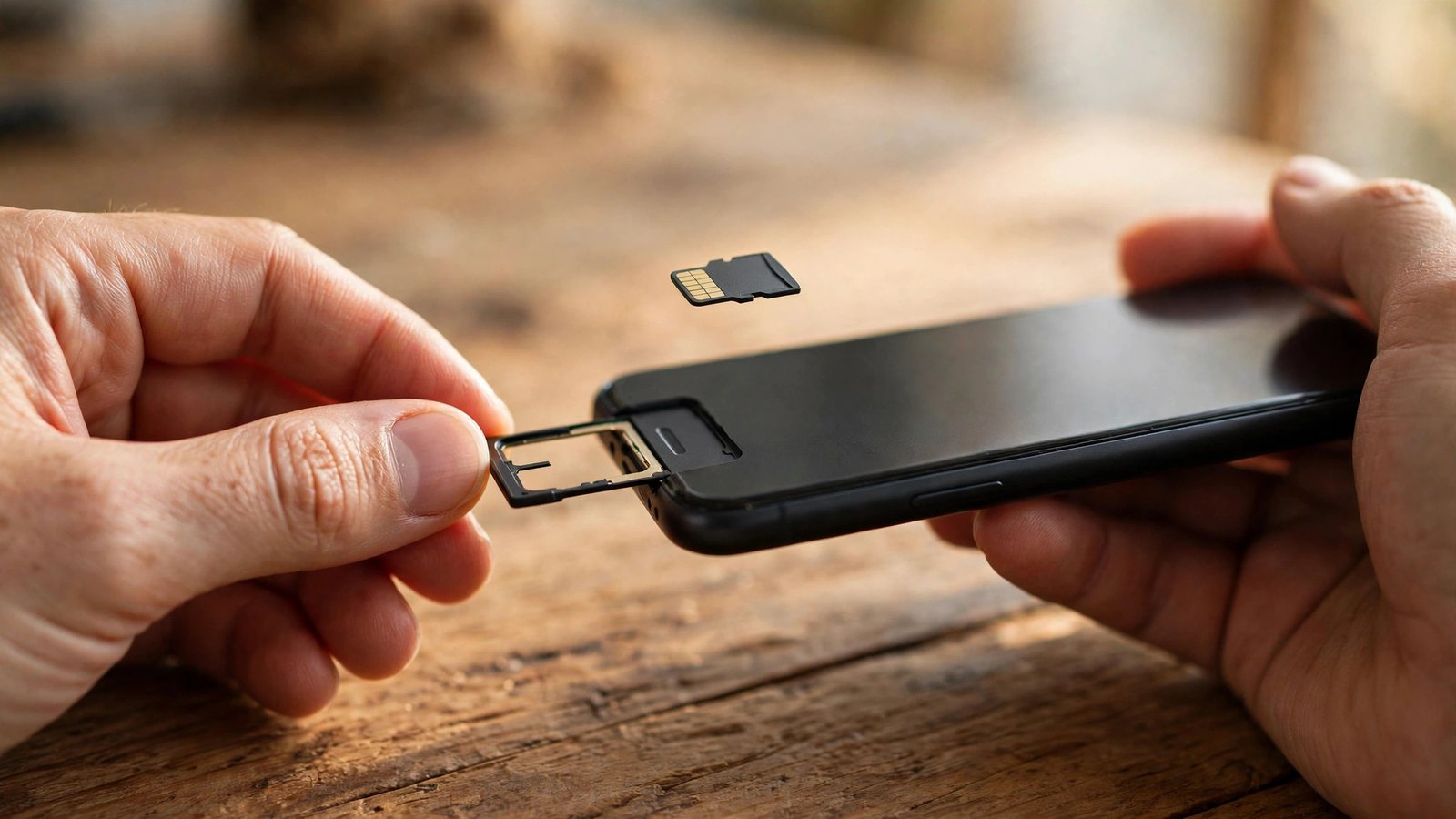
If you use a physical SIM, move the card to the new phone and check calls and mobile data work. If you use an eSIM, the transfer tool may move it automatically, or your carrier may need to issue a new one. Australian carriers handle eSIM transfers differently, so check your carrier’s app if it stalls, and keep your old phone working until the new one has signal.
Banking apps usually need setting up again on the new phone: open each one, sign in and complete its verification. Payment apps like Google Pay or Apple Pay need cards added again too.
Authenticator apps deserve special care. If you use one for two-factor codes, move the accounts across before resetting the old phone, using the export option in its settings. If you get locked out, recovery can take days.
After the move: the final checklist
Once everything looks right, run a quick check: photos, WhatsApp, messages, a test call and text, banking apps, email, contacts and calendar.
Only then reset the old phone. On iPhone: Settings, General, Transfer or Reset iPhone, Erase All Content and Settings. On Android: Settings, System, Reset options, Erase all data. If you plan to sell or trade it in, remove your Google or Apple account first, since a locked account can make the phone useless to the next owner.
Frequently Asked Questions
How long does transferring to a new phone take?
It depends on how much is on your old phone. A light phone can finish in ten minutes, while a phone full of photos and videos can take over an hour, especially over Wi-Fi. A cable transfer is usually faster.
Will my WhatsApp chats transfer automatically?
Not always. Chats move with Quick Start between iPhones and with a Google Drive backup between Android phones, but switching between iPhone and Android needs the separate “Move chats” step in WhatsApp settings. Do it before resetting the old phone.
What should I do if the transfer fails halfway?
Do not reset the old phone: your data is still on it. Try again with a cable and both phones on recent software. If it still fails, restore the new phone from your backup, then copy the most important things by hand.



Post Comment