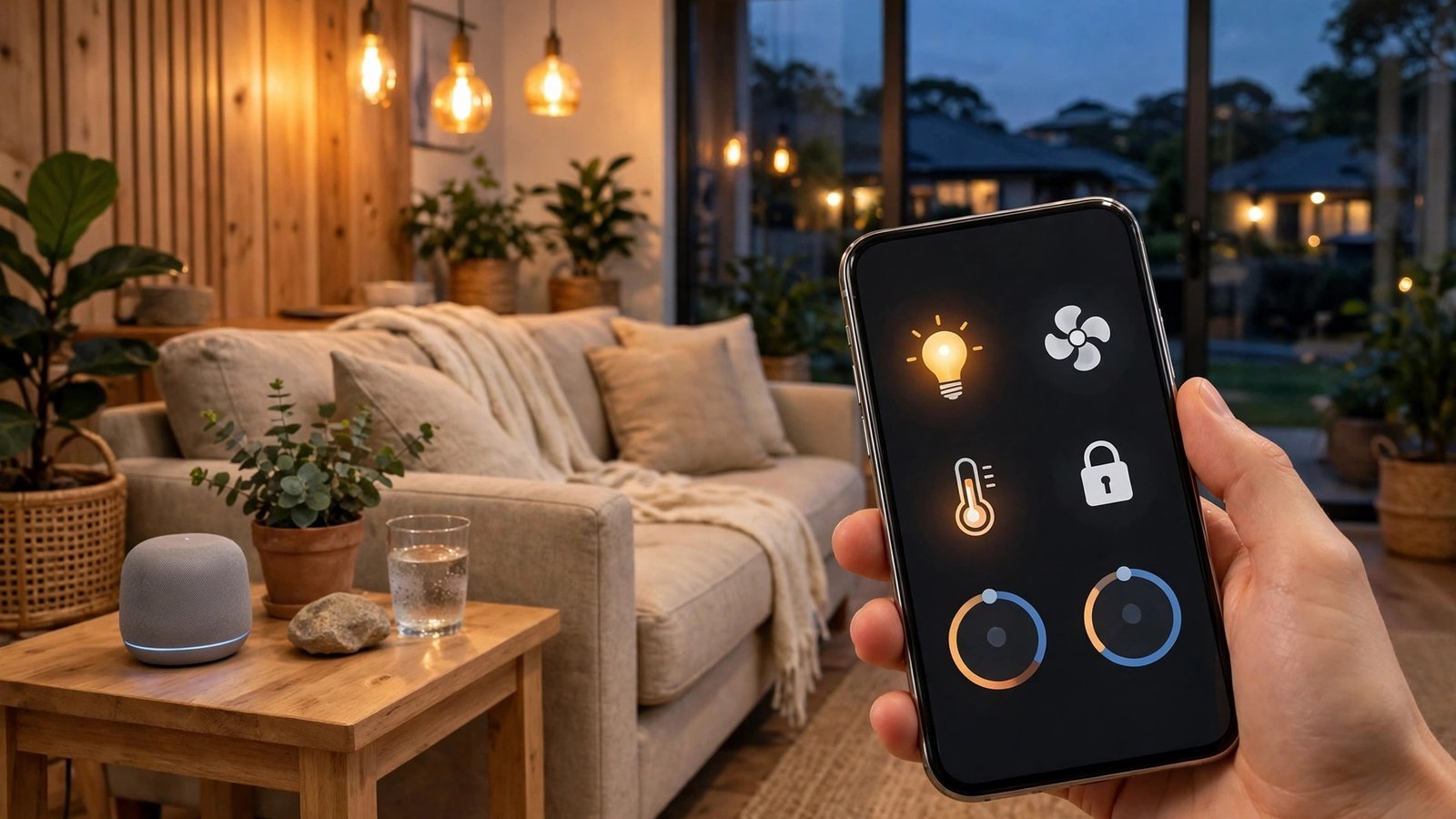
How to Set Up a Smart Home in Australia: Google Home, Alexa and Smart Devices
A smart home sounds complicated, but most people start with one speaker and one light bulb. Ask the speaker to turn the lights off from the couch, and suddenly the idea clicks. From there you can add plugs, cameras, locks and thermostats one at a time, all controlled by voice or from your phone.
This guide walks through setting up a smart home in Australia, whether you pick Google Home, Amazon Alexa or Apple Home. Pick one system, start small, and grow it as you learn what you actually use.
Step 1: pick one smart home system
The most important decision is which voice assistant runs your home. Google Home, Amazon Alexa and Apple HomeKit all do the same job, but they do not always play nicely together. Mixing systems is possible, yet life is simpler when everything answers to one assistant.
Google Home suits Android users, with the Google Home app and Nest speakers. Alexa suits people who like Amazon’s Echo speakers and the huge range of compatible devices. Apple Home suits iPhone households, with Siri control and the Home app.
Before buying, check devices work with your system: look for “Works with Google Home”, “Works with Alexa” or “Works with Apple Home” on the box. In Australia, buy devices made for the local market, with an Australian plug and the RCM compliance mark. Grey imports with overseas plugs need adaptors and can void your warranty.
Step 2: sort out your Wi-Fi first
Smart devices live on your Wi-Fi, so a weak network makes setup frustrating. Most smart bulbs, plugs and sensors connect to the 2.4 GHz band, not the faster 5 GHz band, and many Australian routers combine both bands under one network name.
If a device will not connect, split the bands in your router settings so 2.4 GHz has its own name, or move your phone onto the 2.4 GHz band during setup. A mesh Wi-Fi system helps in larger Australian homes, where brick walls eat signal.
Place your first smart speaker somewhere central, like the living room or kitchen, within easy reach of the router. You can add more speakers later for other rooms.
Step 3: set up your speaker or hub
Plug in your smart speaker and open the matching app: Google Home, Alexa, or the Home app for Apple. The app will find the speaker, connect it to your Wi-Fi and ask a few setup questions.
Give the speaker a room name, like “Living Room”, and set your home address in the app so the assistant can give local weather and sunset times. Test it with a voice command. If the speaker answers, your hub is live.
Some locks and sensors need a hub or bridge as well, though many newer speakers have one built in. Check the product page before you buy.
Step 4: add your first smart lights and plugs
Smart bulbs and smart plugs are the best place to start: cheap, easy to install and useful every day. Screw in a bulb or plug a lamp into a smart plug, then add it in your assistant’s app.
In the app, tap add device, pick the brand and follow the prompts. Name it clearly, like “Bedside Lamp” rather than “Light 1”, because you will be saying that name out loud. Test it by voice and from the app.
Once lights work, add more where they help: a plug for the fan, a bulb in the hallway. Add one device at a time and test each before moving on. If a device goes offline later, restart it and check your Wi-Fi and the 2.4 GHz band.
Step 5: group devices into rooms and routines
Group every device into its room in the app, so you can say “turn off the bedroom lights” instead of naming each lamp.
Routines run several actions from one command. A “Good morning” routine can turn on the kitchen light, read the weather and start the news. A “Goodnight” routine can lock the door and switch off every light. A sunset routine can turn the porch light on each evening.
Build one routine at a time and keep the trigger simple. Time and sunset routines are the most reliable.
Step 6: add cameras, locks and sensors carefully
Once the basics work, add security devices the same way, through the app. Place cameras where they cover entries, not neighbours’ yards, and check your state’s rules about recording other people.
Smart locks need care: choose one made for Australian doors, since local doors often use different lock types than the American models in online videos. Test the lock with the physical key as well as the app, and keep a spare key somewhere safe.
Sensors are small and useful: a door sensor can turn the hallway light on when you come home, and a leak sensor under the sink can warn you about water before it becomes a flood.
Step 7: lock down privacy and security
A smart home listens and watches, so take privacy seriously. Turn off voice recording history in the app if you do not want clips stored, use the mute switch for private conversations, and remove apps and people you no longer use.
Turn on two-factor authentication for your Google, Amazon or Apple account, since anyone who gets into that account controls your home. Keep device software updated, because updates often fix security holes.
Finally, remember most smart devices need the internet. If your NBN connection drops, voice control and remote access usually stop too, although devices keep their last setting: a light that was on stays on.
Frequently Asked Questions
Which smart home system is best in Australia?
There is no single best system. Google Home suits Android households, Alexa suits people who want the widest choice of cheap compatible devices, and Apple Home suits iPhone households that value privacy. Pick the one that matches the phones you own.
Do smart devices work on Australian Wi-Fi?
Yes, but most smart bulbs, plugs and sensors only connect to the 2.4 GHz band. If your router combines 2.4 GHz and 5 GHz under one name, you may need to split them in the router settings during setup. Buy devices made for Australia, with an Australian plug and the RCM mark.
Can I mix Google, Alexa and Apple devices in one home?
You can, but it adds friction. Some devices support more than one system, and the Matter standard is making mixing easier in recent models. For the smoothest setup, choose one main system.


Post Comment