How to Stop Apps Tracking You on iPhone and Android in Australia
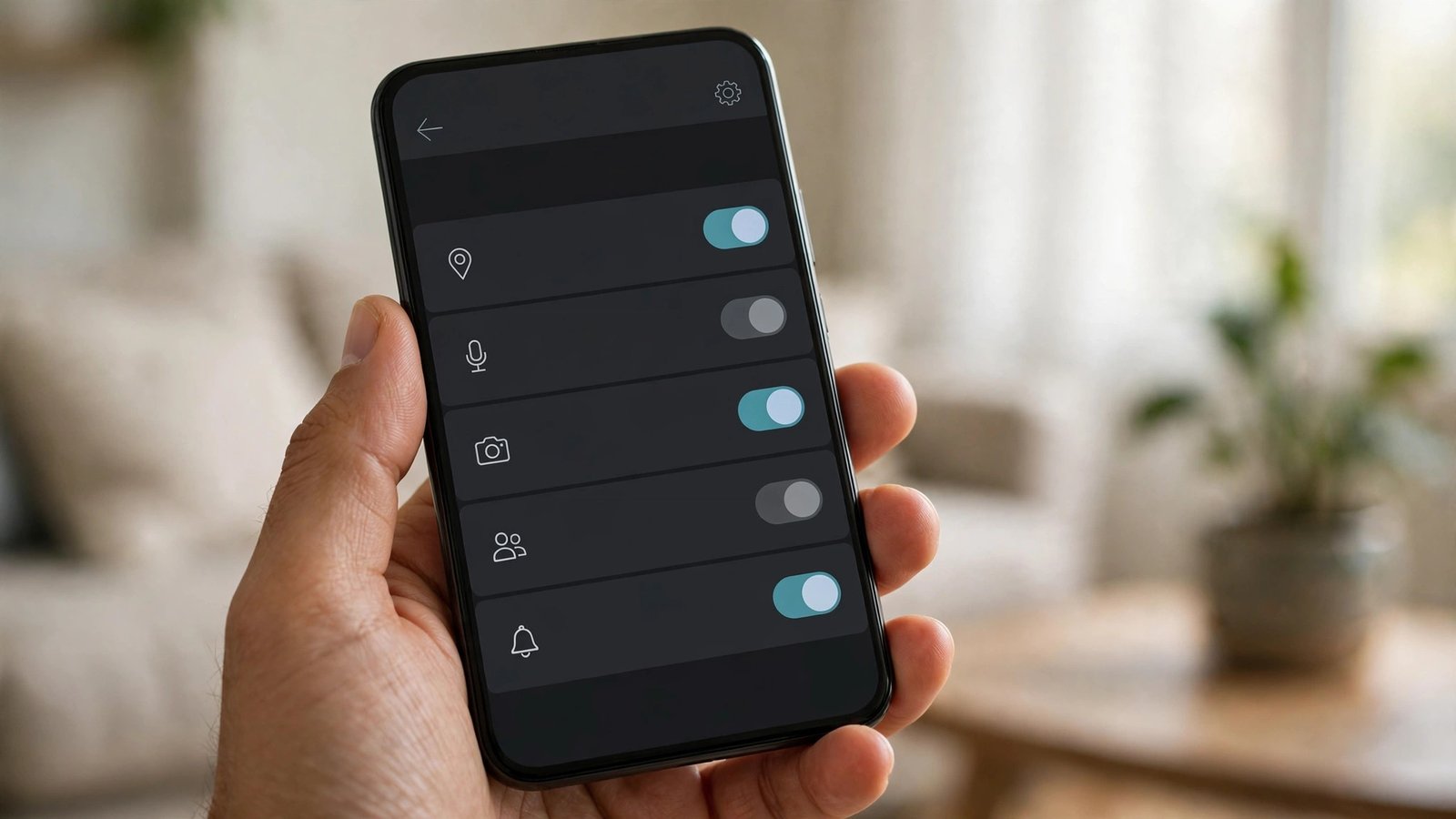
Most apps ask for more access than they need, and many keep collecting data long after you close them. Location history, advertising identifiers, and cross-app tracking can build a detailed picture of where you go, what you buy, and what you read. The good news is that both iPhone and Android now give you real controls to cut that tracking back. This guide walks through the settings that matter most, in an order that takes about ten minutes.
You do not need to delete every app to make a difference. Start with tracking permission, then tighten location and photo access, then check ad settings.
Step 1: Turn off cross-app tracking on iPhone
On iPhone, open Settings, then Privacy and Security, then Tracking. Turn off "Allow Apps to Request to Track". That stops apps from asking for permission to track you across other companies' apps and websites. If you prefer to decide app by app, leave the switch on and set each app in the list to off instead.
While you are in Privacy and Security, tap App Privacy Report. It shows which apps have accessed your location, photos, camera, microphone, and contacts in the past week, and which domains they contacted. If a rarely used app shows heavy access, remove a permission or delete it.
Step 2: Check the Android privacy dashboard
On Android, open Settings, then Privacy or Security and Privacy, depending on your phone. Tap Privacy Dashboard to see which apps used your location, camera, and microphone in the past 24 hours. Tap any permission to see the full list of apps, then change an app from "Allow all the time" to "Allow only while using the app" or "Don't allow".
Next, look for Ads settings. On most Android phones this sits under Settings, then Privacy, then Ads, or under Google settings. Turn on "Delete advertising ID" or turn off ad personalisation if your phone offers it. This resets the identifier advertisers use to build a profile, and stops it being used for personalised ads.
Samsung phones add one more useful control. Open Settings, then Privacy, then Permission Manager, and work through location, camera, and microphone. Samsung also offers an option to remove permissions from apps you have not used for a while, which is worth turning on.
Step 3: Tighten location access app by app
Location is the most revealing permission on your phone, so give it sparingly. On iPhone, go to Settings, then Privacy and Security, then Location Services. Change most apps to "While Using the App" or "Never". Only navigation, rideshare, and delivery apps usually need location while you use them, and very few need "Always".
On Android, go to Settings, then Location, then App Permissions, and apply the same rule. Watch for apps set to "Allow all the time" that have no clear reason to know where you are in the background. A torch app, a calculator, or a shopping app does not need background location.
Also turn off Precise Location where approximate location is enough. On iPhone, each app's location page has a Precise Location switch. On Android, the same choice appears when you grant location access. Weather apps and local news apps work fine with approximate location, and that alone hides your exact address.
Step 4: Limit photo, contact, and clipboard access
Photos can reveal location through embedded data, and full photo library access lets an app see far more than the one image you meant to share. On iPhone, go to Settings, then Privacy and Security, then Photos, and set apps to "Selected Photos" or "None" instead of "Full Access". Pick only the photos an app needs.
On Android, photo and video permission works in a similar way in most recent versions. Grant "Selected photos" where the option appears, and avoid "Allow all" for social and editing apps unless you use them to manage your whole library.
Check contacts and calendar access too. Many apps ask for contacts during setup out of habit rather than need. If an app does not help you message or invite people, it probably does not need your address book. Remove that permission and the app will still work for its main job.
Step 5: Review ad personalisation and browser tracking
Your phone's ad settings sit apart from individual apps. On iPhone, go to Settings, then Privacy and Security, then Apple Advertising, and turn off Personalized Ads. On Android, as covered in step 2, delete or reset the advertising ID and turn off ad personalisation.
In your browser, turn on tracking protection if it is not already on. Safari on iPhone blocks many cross-site trackers by default, and you can check this under Settings, then Safari, then Privacy and Security. In Chrome on Android, open Settings, then Privacy and Security, and turn on "Do Not Track" and block third-party cookies if your version offers it. These steps reduce tracking across websites, which is separate from tracking inside apps.
Step 6: Repeat the check every few months
Permissions creep back. App updates add new requests, new apps ask for access during setup, and settings get reset when you switch phones. Set a reminder to repeat this check every few months, or whenever you install a batch of new apps.
A simple routine works well. Open the privacy dashboard or App Privacy Report, sort by the apps you use least, and remove any permission that surprises you. Then check location settings, then ad settings. Ten minutes, four times a year, keeps tracking far lower than a one-off cleanup followed by years of neglect.
Frequently Asked Questions
Does turning off tracking stop ads completely?
No. You will still see ads, but they should be less personal. Turning off cross-app tracking and ad personalisation stops advertisers linking your activity across apps, so ads are based less on your behaviour and more on the app or page you are looking at.
Is it safe to turn off location for most apps?
Yes, for most apps. Navigation, rideshare, and delivery apps need location while you use them, but social, shopping, and utility apps usually work fine without it or with approximate location only. If an app stops working properly, you can turn its location permission back on.
How often should I review app permissions?
Every few months is a sensible rhythm, plus a quick check whenever you install a new app. Permissions change with app updates, so a setting you fixed once can quietly return. The privacy dashboard on Android and the App Privacy Report on iPhone make the review quick.




Post Comment