How to Share Your Live Location Safely on iPhone and Android in the UK
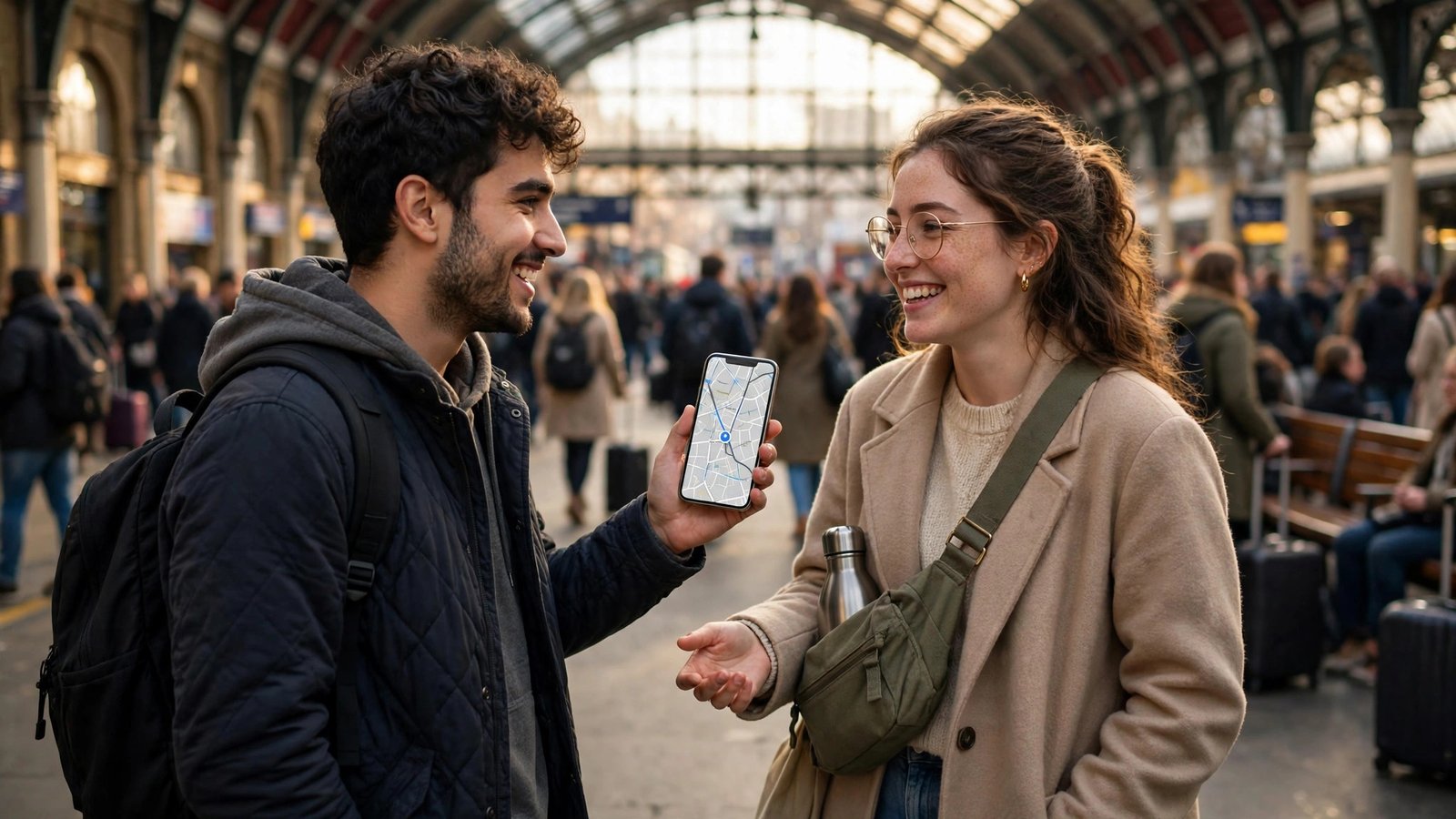
Sharing your live location can be genuinely useful. It lets a family member know you got home safely, helps friends find each other at a busy station, and gives a loved one peace of mind when you are travelling alone late at night. It can also go wrong if it is left on for too long, shared with the wrong person, or posted somewhere public. The good news is that both iPhone and Android give you fine control over who sees your location, for how long, and how to stop it.
The golden rule is simple: share with named people you trust, for a limited time, for a clear reason, and then stop sharing when the reason ends. Live location is not the same as sending a single pin for a meeting point. A pin shows where you were at one moment. Live location keeps updating as you move, so treat it with more care.
Share live location on iPhone
On iPhone, the easiest way to share live location is through the Find My app or through Messages. Open Find My, tap Share My Location, and choose a contact. You can share for one hour, until the end of the day, or indefinitely. For most everyday uses, one hour or until the end of the day is the right choice. Indefinite sharing makes sense only for a partner, parent or carer arrangement that you have both agreed to keep running, and even then it is worth reviewing it from time to time.
You can also share via Messages. Open a conversation, tap the contact name at the top, and choose Share My Location, then pick a time period. The other person will see your moving location in their Find My app or in the conversation. If you change your mind, go back to the same place and tap Stop Sharing My Location. Do not rely on remembering to do this later. If you share for an evening out, set the shortest period that still covers the trip so it stops by itself.
Share live location on Android
On Android, live location sharing usually runs through Google Maps. Open Google Maps, tap your profile picture, then Location sharing, then Share location. Choose how long to share for, from 15 minutes up to 24 hours, or until you turn it off. Then choose who to share with. You can pick a Google contact, which is the safest option, or create a link. A link can be opened by anyone who gets hold of it, so only use a link if you have no other way to share and you plan to stop sharing soon after.
Google Maps also lets you share through a message or another app, but the same care applies. Once a link is shared in a group chat, anyone in that chat can pass it on. If you must use a link, set the shortest time that works and stop sharing as soon as you arrive. You can stop at any time from the Location sharing screen in Google Maps by tapping the person or link and choosing Stop.
Share live location on WhatsApp
WhatsApp is a popular way to share live location in the UK because most people already have it. Open a chat, tap the attach button, choose Location, then Share live location. You can share for 15 minutes, 1 hour or 8 hours. The people in that chat will see your moving location on a map inside WhatsApp. If you share in a group, everyone in the group can see it, so think carefully before using a group for live sharing. A one to one chat is almost always the better choice.
WhatsApp live location is end to end encrypted, which means only the people in the chat can read it, but that does not make it private from those people. They can still screenshot the map or tell someone else where you are. Set the shortest time that covers your journey, and stop sharing from the same chat by tapping Stop sharing when you arrive. If you share regularly with a partner or family member, agree in advance when live sharing is helpful and when a simple text saying you have arrived is enough.
Stop sharing and check regularly
Make a habit of checking once every few months. On iPhone, open Find My and check the People tab. On Android, open Google Maps and check Location sharing. On WhatsApp, you cannot see a single list of all live shares across chats, so think back to recent chats where you shared and check each one. Also check your phone's main location settings. On iPhone, go to Settings, then Privacy and Security, then Location Services, and review which apps can always see your location. On Android, go to Settings, then Location, then App location permissions, and do the same. An app that can always see your location does not need to share it with other people, but it is still good to know which apps have that level of access.
Frequently Asked Questions
How long should I share my live location for?
Share for the shortest time that covers your journey, such as 15 minutes, one hour or until the end of the day. Avoid indefinite sharing unless it is an agreed arrangement with a partner, parent or carer, and review it regularly.
Is it safe to share a live location link?
A link can be opened by anyone who receives it and passed on to others, so it is less safe than sharing with a named contact. Only use a link when you have no other option, set a short time limit, and stop sharing as soon as you arrive.
How do I stop sharing my live location?
On iPhone, stop from Find My or the Messages conversation. On Android, stop from Google Maps location sharing. On WhatsApp, tap Stop sharing in the chat. Then check Find My or Location sharing to confirm that no one can still see you.


Post Comment