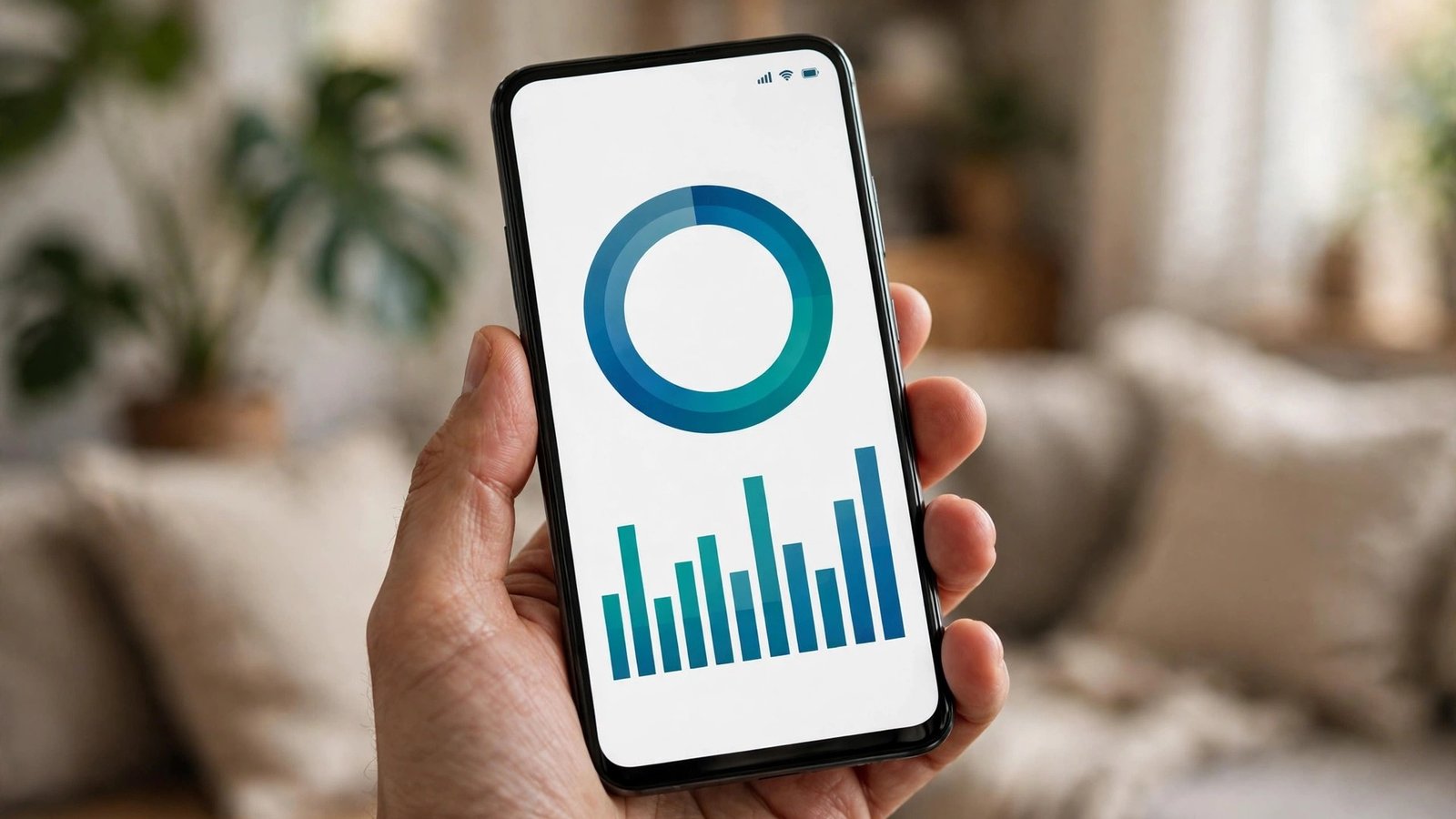
How to Check Mobile Data Usage on iPhone and Android in the UK
Most people only think about mobile data when a warning pops up or a bill looks higher than expected. By that point, the data has already been used. Checking your usage takes less than a minute once you know where to look, and it can save you from overage charges, a slowed connection or a plan that no longer fits how you actually use your phone. This guide shows you how to check mobile data usage on iPhone and Android in the UK, how to read the numbers, and how to set simple limits that keep you in control.
Phone makers measure data slightly differently, and your network provider measures it its own way too. The figures on your phone are a good guide to which apps use the most data, but your provider's figure is the one that counts for billing. Use both: your phone to understand your habits, and your provider's app or account page to check what counts against your allowance.
Check data usage on iPhone
On an iPhone, open Settings and tap Mobile Data, which may be labelled Cellular Data depending on your settings. At the top you will see a total for the current period, followed by a list of apps with the amount each one has used. Scroll through that list and you will quickly spot the usual heavy users: video apps, social apps with autoplay video, music streaming and cloud photo uploads.
The current period figure does not reset by itself each month. It keeps counting from the last time someone tapped Reset Statistics at the bottom of the screen. That means the total can look huge if it has been running for months. To make it useful, reset the statistics on the day your billing month starts, then check back a week later to see how fast you are getting through your allowance. You can also use the list to switch off mobile data for individual apps. If an app only needs to work on Wi-Fi, turn its switch off and it will wait until you are connected before it downloads or uploads anything.
Check data usage on Android
On most Android phones, open Settings and tap Network and internet, then SIMs, then App data usage. The exact wording varies by brand. Samsung phones often put it under Settings, then Connections, then Data usage. Google Pixel phones use Settings, then Network and internet, then SIMs. In most recent versions you will see a chart for the current billing cycle, a total figure, and a list of apps ranked by usage.
Tap any app in the list to see more detail, including how much it used in the foreground while you were using it and how much it used in the background while you were not. Background usage is often a surprise. Social apps, email, cloud backup and app stores can all use data quietly. From the same screen you can usually turn on a background data restriction for a single app, or set a data warning and a data limit for your SIM. A warning alerts you at a level you choose, such as 80 percent of your allowance, while a limit can switch mobile data off when you hit the cap. Set the warning first and see how it feels before you rely on a hard limit, since a hard limit can cut you off at an awkward moment.
Find the apps that use the most data
Once you can see the list, look for patterns rather than single numbers. Video is almost always at the top. Streaming a video in high quality can use several times more data than the same video in standard quality, so dropping the quality setting inside a video app is one of the fastest wins. Many video and music apps have a data saver or a download quality setting tucked into their own settings menus, separate from your phone's settings.
Social apps are next. Autoplay video, high resolution photos and stories that load in the background can add up across a day without you noticing. Turning off autoplay or setting it to Wi-Fi only inside each app can cut usage sharply. Cloud photo backup is another quiet user. If your photos upload over mobile data, a day of photos and videos can use a large chunk of allowance. Set photo backup to Wi-Fi only in your photos app settings and your phone will wait until you are home.
Set warnings and limits that actually help
A warning only helps if it arrives early enough to change what you do. Set a warning at around 75 or 80 percent of your monthly allowance, and set a second mental checkpoint halfway through the month. If you have used more than half your data by the middle of the month, you are on track to run out. At that point you can switch video quality down, turn off background data for the heaviest apps, or buy a small add on before you hit the cap, which is often cheaper than an overage charge.
Frequently Asked Questions
Why does my phone show a different data total from my provider?
Phones and networks count data slightly differently and reset on different dates, so small differences are normal. Your provider's figure is the one used for billing. To line them up, reset your phone's statistics or set its billing cycle to match your provider's billing date.
Which apps usually use the most mobile data?
Video streaming, social apps with autoplay video, music streaming, cloud photo backup and app updates tend to use the most. Check the per app list on your phone, then set video quality lower, turn autoplay to Wi-Fi only, and set photo backup and app updates to Wi-Fi only.
How can I stop going over my allowance?
Set a warning at about 75 to 80 percent of your allowance, check usage once a week, and switch heavy apps to Wi-Fi only. On Android you can also set a data limit. If you run out every month, compare your average usage with the next plan up before buying repeated add ons.




Post Comment