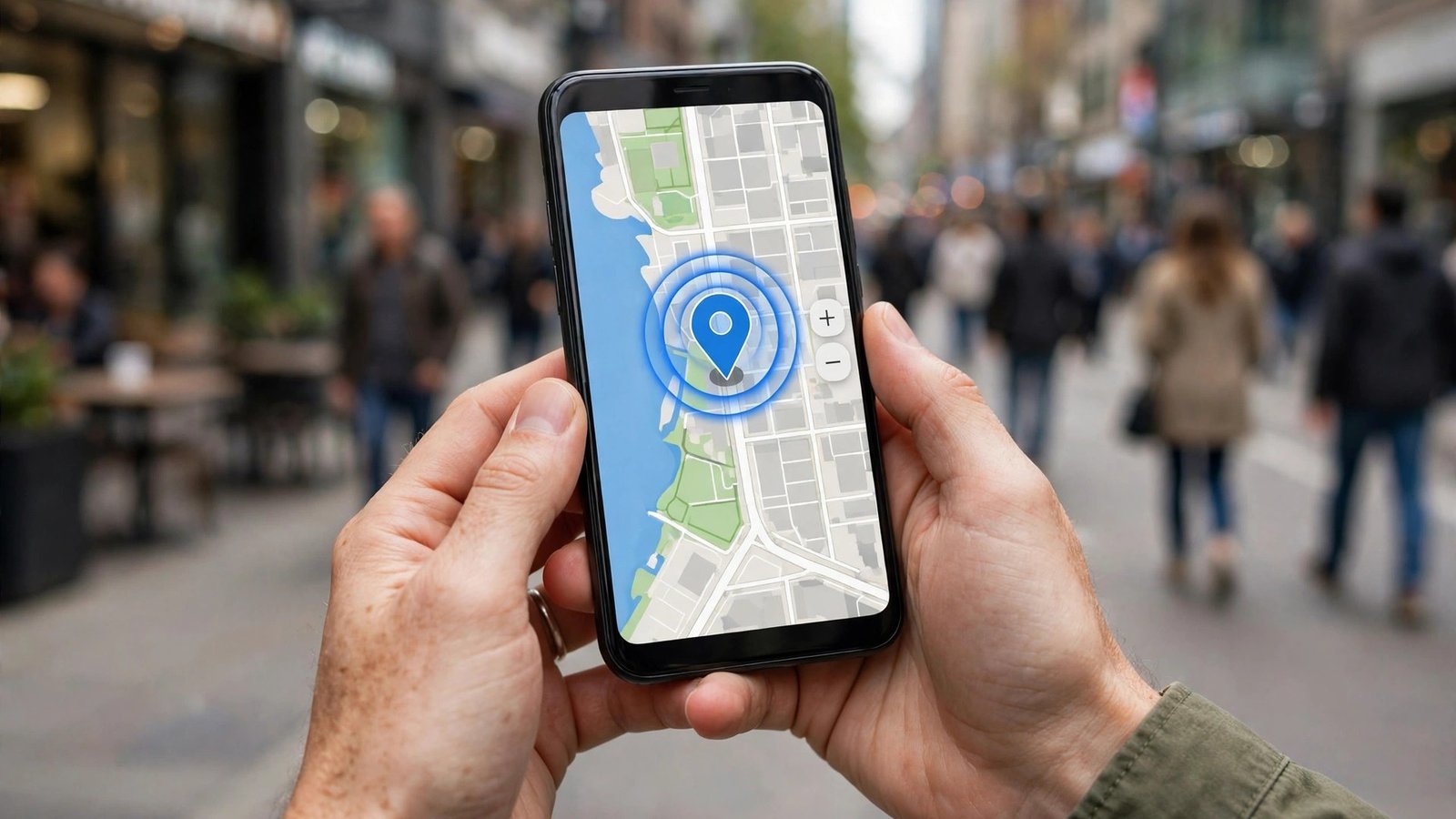
How to Share Your Live Location Safely on iPhone and Android in Canada
Sharing your live location can be genuinely useful. It lets a friend see when you are on your way, helps family know you got home safely after a late shift, and makes meeting up in a busy place far easier. It can also be risky if you share with the wrong person or leave it running longer than you meant to. Both iPhone and Android give you clear controls to keep it safe.
Step 1: Decide who should see your location, and for how long
Before you open any app, decide two things: who gets to see where you are, and how long they get to see it. Share only with people you trust, such as close family or a friend you are meeting. Never share your live location with someone you barely know, in a group chat you do not control, or on a public post.
Set a time limit whenever the app offers one. A one-hour share is enough for most meetups. If you are driving a longer route, such as Toronto to Ottawa, pick a window that covers the trip and ends soon after you arrive.
Step 2: Share your location on iPhone
On iPhone, the simplest way is through the Messages app or the Find My app. Both use the same location sharing, so a share started in one place shows up in the other.
To share in Messages, open the conversation with the person, tap their name or photo at the top, then tap Share My Location. Choose Share for One Hour, Share Until End of Day, or Share Indefinitely. Pick one hour or until end of day.
To share in Find My, open the Find My app, tap the People tab at the bottom, then tap the plus sign and choose Share My Location. Type the person’s name or phone number, tap Send, and pick how long to share. You can also see everyone you are currently sharing with on this screen.
Step 3: Share your location on Android
On Android, the main options are Google Maps and WhatsApp. Google Maps works well because almost every Android phone in Canada has it installed.
In Google Maps, tap your profile photo in the top right, then tap Location sharing. Tap Share location, choose how long to share, then pick the person from your contacts or copy the link to send in a message. A link is easier to forward, so only send it to someone you trust. Google Maps shows a small notification while sharing is active, so you can see at a glance that it is still running.
In WhatsApp, open the chat with the person, tap the plus sign or the paperclip icon, then tap Location and choose Share live location. Pick 15 minutes, 1 hour or 8 hours. WhatsApp shows a live location message in the chat, and you can tap Stop sharing in the same chat at any time.
Step 4: Share safely when you are travelling alone
Live location sharing is at its most useful when you are travelling alone, walking home late, or taking a rideshare. Share with a trusted person before the trip starts, not after something goes wrong. Tell them your route and when you expect to arrive, so they know when to check in. If you are taking a taxi or rideshare, share your trip from inside the rideshare app as well, since that shows the driver and the vehicle details too.
Keep your phone charged. Live location uses GPS, which drains the battery faster than usual, and a dead phone ends the share. On a long trip, bring a power bank or a car charger.
Step 5: Check who can see you, and stop sharing
Review your shares regularly, ideally once a month. On iPhone, open Find My, tap People, and look at the list. Anyone listed there can see your live location right now. Tap a name, then tap Stop Sharing My Location to end it. On Android, open Google Maps, tap your profile photo, tap Location sharing, and stop any share you no longer need. In WhatsApp, open the chat and tap Stop sharing.
Also check your phone’s location settings. On iPhone, go to Settings, then Privacy and Security, then Location Services, and look at which apps can use your location. On Android, go to Settings, then Location, then App location permissions. Set apps you do not trust to While using the app or Ask every time, rather than All the time.
If you share your location with someone and the relationship changes, stop the share right away. You do not need to explain why. It is your location, and you control who sees it.
Step 6: What to do if someone shares your location without asking
If you find out someone is tracking your phone without your permission, take it seriously. Check your location sharing lists using the steps above, and remove anyone you do not recognize. Check for unfamiliar apps on your phone, especially ones that ask for location permission.
Change the passwords for your Apple ID or Google account, and turn on two-factor authentication if it is not already on. On iPhone, you can also open Settings, then Privacy and Security, then Safety Check, which shows who can see your location and lets you reset it quickly.
If you believe someone is stalking or harassing you, contact your local police non-emergency line, or call 911 in an emergency. In Canada, you can also report online harassment to Cybertip.ca if a child is involved.
Frequently Asked Questions
Can someone see my live location without me knowing?
Not through the normal sharing features. Sharing your location always needs your action first, and both systems show a visible indicator while a share is active. If you are worried someone set it up on your phone, check Find My on iPhone or Location sharing in Google Maps on Android.
Does sharing my live location drain my battery?
Yes, a little. Live location uses GPS, which uses more power than usual, especially on a long share. Short shares of an hour or less have a small effect. For a long trip, keep a charger handy and end the share as soon as you arrive.
How do I stop sharing my location with one person?
On iPhone, open Find My, tap People, tap the person’s name, then tap Stop Sharing My Location. On Android in Google Maps, tap your profile photo, tap Location sharing, tap the person’s name, then tap Stop.


Post Comment