How to Set Up and Use AirPods with iPhone and Android in the US
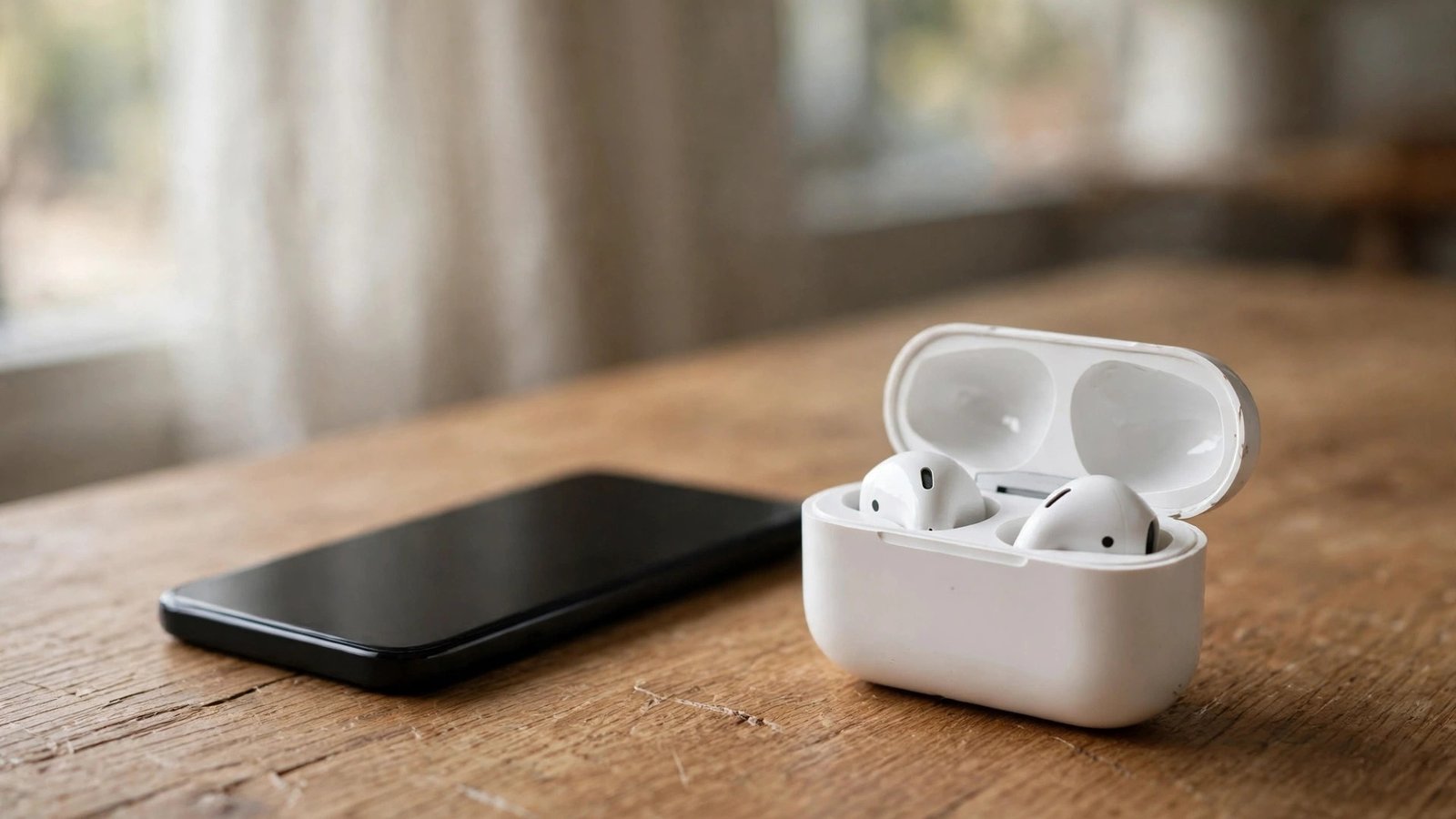
AirPods are best known as Apple's wireless earbuds, but they are useful well beyond the iPhone. They pair in seconds with Apple devices, and they also work as ordinary Bluetooth earbuds with Android phones. The setup is quick either way, and a few settings make a big difference to sound and battery life. This guide covers both.
Step 1: pair AirPods with an iPhone
Make sure Bluetooth is on and your iPhone is unlocked and near the AirPods case. Open the lid of the charging case with the AirPods inside. A setup card should appear on your iPhone screen within a few seconds. Tap Connect, then follow the prompts. In most recent versions the phone will offer to set up features such as Siri, spatial audio, and Find My during the same flow.
If the card does not appear, press and hold the setup button on the back of the case until the light flashes white, then try again. The first pairing also signs the AirPods into your Apple account, so they will show up on your other Apple devices, such as an iPad or a Mac, signed into the same account. You can switch to them from the Bluetooth menu or Control Center on those devices.
Step 2: pair AirPods with an Android phone
AirPods work with Android as standard Bluetooth earbuds. Open the lid of the case, then press and hold the setup button on the back until the status light flashes white. On your Android phone, go to Settings, then Connected devices or Bluetooth, and tap Pair new device. Choose your AirPods from the list.
Once paired, they will play music, calls, and video audio like any Bluetooth earbuds. Some Apple-only features do not carry over. Automatic ear detection, Siri, and on-device controls behave differently, and you cannot check the battery level or update the firmware from the Android phone itself. You need an iPhone, iPad, or Mac nearby to install a firmware update when one is released. The sound quality and the microphones still work well for everyday use.
Step 3: learn the controls
AirPods have no buttons on the earbuds themselves. On most recent models you press the stem to control playback. One press plays or pauses, two presses skip forward, and three presses go back. Press and hold to switch between noise cancelling and transparency mode, if your model supports it. In most recent versions you can change what a press and hold does in Settings on an iPhone, under Bluetooth, then the info button next to your AirPods.
Step 4: use noise cancelling and transparency
AirPods Pro and AirPods Max offer active noise cancelling, which uses microphones to cut down steady background noise such as engines, fans, and office hum. It works best on constant sounds. Sudden noises, like a door slamming, still get through.
Transparency mode does the opposite. It lets outside sound in, so you can hear traffic, announcements, or someone talking to you without taking the earbuds out. Use it when you are walking near traffic, waiting at an airport gate, or talking to a cashier. Switch between modes by pressing and holding the stem, or from Control Center on an iPhone by pressing and holding the volume slider.
Step 5: check the battery and charge the case
To check the battery on an iPhone, open the case lid near the phone and a card shows the charge of each AirPod and the case. You can also add the Batteries widget to your home screen for a quick look. On Android, some phones show the battery level in the Bluetooth settings, but many do not. A third-party battery app can fill the gap, though results vary.
Step 6: turn on Find My
On an iPhone, AirPods are added to Find My during setup, which is worth keeping on. Open the Find My app, tap Devices, and choose your AirPods. You can see their last known location on a map, play a sound to find a single earbud lost in a room, and turn on Notify When Left Behind, which warns you if you walk away without them.
Step 7: keep them clean and fix common problems
Earwax and dust build up on the speaker mesh and in the case, and they muffle the sound over time. Wipe the outside with a dry, soft cloth. For the mesh, use a dry cotton swab and brush gently. Do not use water, soap, or sharp objects, and do not push dirt further into the mesh.
Try the different ear tip sizes that come with AirPods Pro. A good seal matters more than most people expect. It improves the bass, keeps the earbuds from slipping, and makes noise cancelling work better. In most recent versions the iPhone can run an Ear Tip Fit Test in the AirPods settings, which plays a sound and tells you if the seal is good.
When nothing else works, reset the AirPods. Put them in the case, close the lid for about 30 seconds, open it, then press and hold the setup button until the light flashes amber and then white. Pair them again as if they were new. This fixes most stubborn pairing and sound problems.
Frequently Asked Questions
Do AirPods work with Android phones?
Yes. AirPods pair with Android as standard Bluetooth earbuds and play music, calls, and video audio normally. Some Apple-only features, such as Siri, automatic switching, and firmware updates from the phone, do not work on Android. You need an Apple device nearby to install firmware updates.
How do I check the AirPods battery level?
On an iPhone, open the case lid near the phone and a card shows the charge of each AirPod and the case, or add the Batteries widget to your home screen. On Android, the battery level may show in Bluetooth settings, but many phones do not display it, so a third-party battery app is the usual workaround.
How do I reset AirPods that will not connect?
Put both AirPods in the case, close the lid for about 30 seconds, open it, then press and hold the setup button until the status light flashes amber and then white. Then pair them again as if they were new. This clears the pairing and fixes most connection problems.


Post Comment