How to Set Up a New iPhone or Android in the UK: Transfer, Backups and First Settings
A new phone should feel like an upgrade, not a weekend of lost photos and forgotten passwords. Back up the old phone first, move everything across, then sort out the SIM and the first settings. Here is the whole process, step by step, for iPhone and Android.
Before you switch anything on
A little preparation saves most of the trouble people run into. Charge both phones to at least half, and keep a charger nearby. A transfer can take a while, and a phone that dies halfway through often ruins the move.
Connect both phones to Wi-Fi. Transfers are faster and more reliable on Wi-Fi than on mobile data, and some steps need both phones on the same network. Make sure you know the passwords for your Apple ID or Google account.
Back up the old phone. On iPhone, go to Settings, tap your name, tap iCloud, then iCloud Backup, and tap Back Up Now. On Android, open Settings, look for System and then Backup in most recent versions, and make sure Google backup is on.
iPhone to iPhone: Quick Start
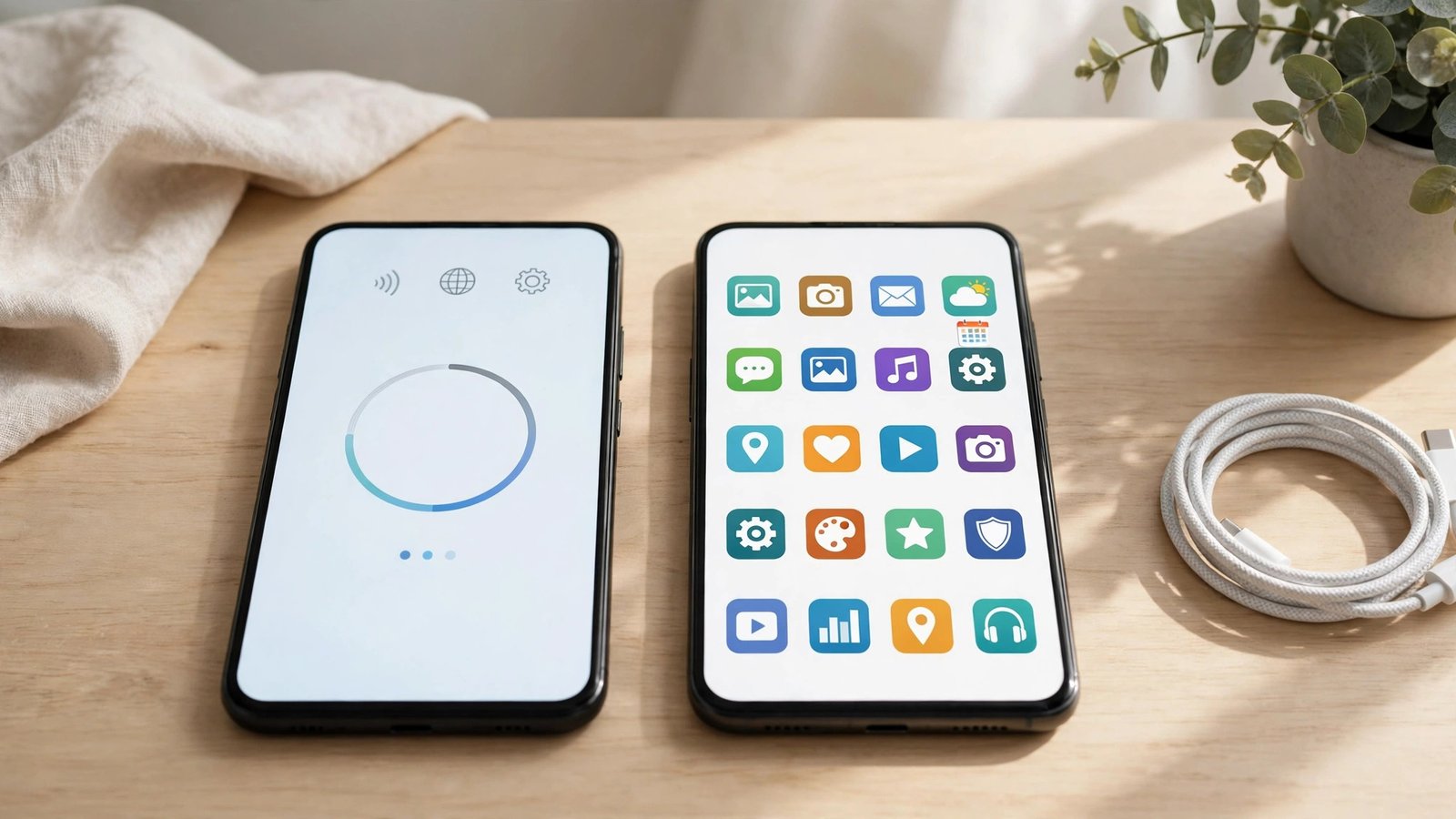
Moving from one iPhone to another is the easiest switch of all, thanks to Quick Start. Place the two phones next to each other and switch on the new iPhone. A prompt should appear on the old phone offering to set up the new one.
You will then be offered a choice: transfer directly from the old phone, or restore from an iCloud backup. Direct transfer is usually faster and moves the most complete copy of your data. Follow the on screen steps, keep the phones close together, and wait for the transfer to finish. Your apps will download from the App Store afterwards.
Android to Android: cable or Google backup
Moving between Android phones is also simple, and you have two good options. The cable method is the most complete. During setup on the new phone, you will be asked if you want to copy apps and data from your old phone. Connect the two phones with a cable, using an adapter if the plugs differ, and follow the prompts.
The backup method works if you do not have a cable. Make sure the old phone has a recent Google backup, then sign in to the same Google account during setup on the new phone and choose to restore from that backup. Photos and files in Google Photos and Google Drive come back once you sign in and let them sync.
Moving between iPhone and Android
Switching platforms takes a little more care, but both directions are covered by official tools. For Android to iPhone, Apple provides the Move to iOS app, which you install on the Android phone from the Play Store. Open the app on the old phone during iPhone setup and follow the steps.
For iPhone to Android, Google provides the Switch to Android app, and a cable connection during setup works too. Contacts, photos, videos and messages come across, though some app data does not, and you will need to download your apps again from the Play Store.
A few things never move automatically between platforms. Check your banking apps, authenticator apps and any app that holds tickets or passes, and sign in to each one again. For authenticator apps, transfer your codes before you wipe the old phone, or you can lock yourself out.
Moving WhatsApp chats
WhatsApp deserves its own step, because chats do not move with the normal phone transfer unless you use the built in tool. On the old phone, open WhatsApp, go to Settings, then Chats, and look for the option to move chats to the new phone. Keep both phones on, keep them close together, and do not interrupt the process.
SIM and eSIM in the UK
Once your data is across, sort out your mobile connection. If your new phone uses the same size SIM as the old one, you can simply move the physical SIM across. Switch both phones off first, move the SIM, and switch the new phone on.
Many newer phones use eSIM instead, which is a digital SIM built into the phone. The main UK networks, EE, O2, Vodafone and Three, all support eSIM. To move one, you usually need a new eSIM from your network, which you can request in the network app or by scanning a QR code from your account pages.
Keep your old SIM or eSIM active until the new one is working. Do not wipe the old phone until you have made a test call and sent a text from the new one. If the new SIM does not connect, restart the phone and contact your network if it still fails.
First settings worth doing on day one
With the move done, spend ten minutes on the settings that matter most. Set a passcode, and switch on Face ID, Touch ID or fingerprint unlock. This is the single most useful security step on any new phone, and it also makes Apple Pay and Google Pay work.
Turn on automatic backup. On iPhone, check that iCloud Backup is on. On Android, check that Google backup is on. Switch on Find My on iPhone, or Find Hub on Android. If the phone is ever lost, this lets you locate, lock or erase it.
Check for a software update. New phones often ship with an older version installed. Set up Apple Pay or Google Pay if you use contactless payments. Add your cards in the Wallet app.
Frequently Asked Questions
How long does it take to set up a new phone?
A direct transfer between two phones usually takes between 30 minutes and an hour, depending on how much data you have. Restoring from a cloud backup can take longer, since apps and photos download afterwards over Wi-Fi. Large photo libraries can take hours to finish syncing.
Do I need to keep my old phone after the transfer?
Yes, keep it until you have checked everything on the new phone. Open your photos, your messages, WhatsApp and your banking apps, and confirm they all work. Only wipe the old phone once you are sure nothing is missing.
Can I transfer my WhatsApp chats from iPhone to Android?
Yes. WhatsApp has a built in chat transfer for moving between iPhone and Android, using a cable or Wi-Fi depending on the direction. Use the Move Chats option in WhatsApp Settings on the old phone. Back up your chats first, and do not wipe the old phone until the transfer has finished.


Post Comment