How to Set Up an eSIM on iPhone and Android in Australia
An eSIM is a SIM card built into your phone. There is no plastic card to insert, nothing to lose, and nothing to wait for in the post. Most recent iPhones and Android phones sold in Australia support eSIM, and the major carriers now let you activate one in minutes. This guide explains how to check your phone, get an eSIM from your carrier, activate it, and fix the problems that come up most often.
What an eSIM is and why it helps
A normal SIM is a small plastic chip that tells the network who you are. An eSIM does the same job with a chip that is soldered into the phone, and the carrier details are downloaded onto it instead. You can hold more than one plan on the same phone, for example a work number and a personal number, or an Australian plan and a travel plan, and switch between them in Settings.
For most people, the gain is convenience. You can join a new carrier or add a second number without a trip to a shop, and you can move your number to a new phone by scanning a code instead of prising out a tiny tray.
Check your phone supports eSIM
On an iPhone, open Settings, tap General, then About, and look for an EID number. If you can see one, the phone supports eSIM. iPhones from the iPhone XS onwards support eSIM, and newer models support two active eSIMs at once.
On Android, open Settings and search for eSIM or SIM manager. Samsung phones show the option under Settings, Connections, SIM manager, while Google Pixel phones show it under Settings, Network and internet, SIMs. A phone locked to one carrier will only accept that carrier's eSIM until it is unlocked, and some cheaper handsets sold in Australia do not include the chip, so check the model first.
Get an eSIM from your carrier
Telstra, Optus and Vodafone all offer eSIMs in Australia, and so do many smaller providers, including Amaysim, Aldi Mobile and Boost Mobile. If you are already with a carrier, you can usually switch your physical SIM to an eSIM from the carrier app or website, or by asking in a store. If you are joining a new carrier, choose the eSIM option during sign-up instead of a physical SIM.
The carrier will give you a QR code to scan or an activation link inside the carrier app. Keep the QR code somewhere safe, because you will need it again if you reset the phone.
Activate the eSIM
The steps are nearly the same on iPhone and Android. On an iPhone, open Settings, tap Mobile Service, tap Add eSIM, then tap Use QR Code. Point the camera at the code your carrier gave you. The phone will download the eSIM profile and ask you to label the plan, for example Personal or Work, and choose which line handles calls, texts and mobile data.
On Android, open Settings, go to Connections or Network and internet, open SIM manager or SIMs, and tap Add eSIM or Download a SIM instead. Scan the QR code, wait for the download to finish, then choose the labels and the default line for calls, texts and data.
Once the eSIM is active, your old physical SIM usually stops working. That is expected. Restart the phone if the signal does not appear within a few minutes, and check that the new line shows up under your SIM settings.
Use two numbers with dual SIM
One of the best reasons to use an eSIM is dual SIM. You can keep your Australian number on the eSIM and add a second plan, or keep a physical SIM for one number and an eSIM for another. On an iPhone, open Settings, Mobile Service, and choose which line is the default for calls, texts and mobile data.
On Android, the same controls live under SIM manager or SIMs in Settings. Pick the default line for calls, texts and data, and decide whether both lines stay active or one stays silent until you need it.
Transfer an eSIM to a new phone
Moving an eSIM to a new phone is not the same as moving a physical SIM. You cannot just take the chip out. On an iPhone, the easiest way is during setup, when the phone offers to transfer your number from your old iPhone. Both phones need to be nearby, signed into the same Apple ID, and on Wi-Fi or Bluetooth. In most recent versions of iOS, you can also transfer it later under Settings, Mobile Service, and Transfer from Nearby iPhone.
On Android, the steps depend on the brand, but the common path is to ask your carrier for a new QR code and scan it on the new phone. The old phone's eSIM stops working once the new one is active, so do not erase the old phone until the new one is making calls.
Fix the most common eSIM problems
If the QR code will not scan, check that the code is not a screenshot of a screenshot, and type in the manual activation details the carrier gave you instead. Carriers usually print a long SM-DP+ address and an activation code beside the QR code, and you can enter those by hand.
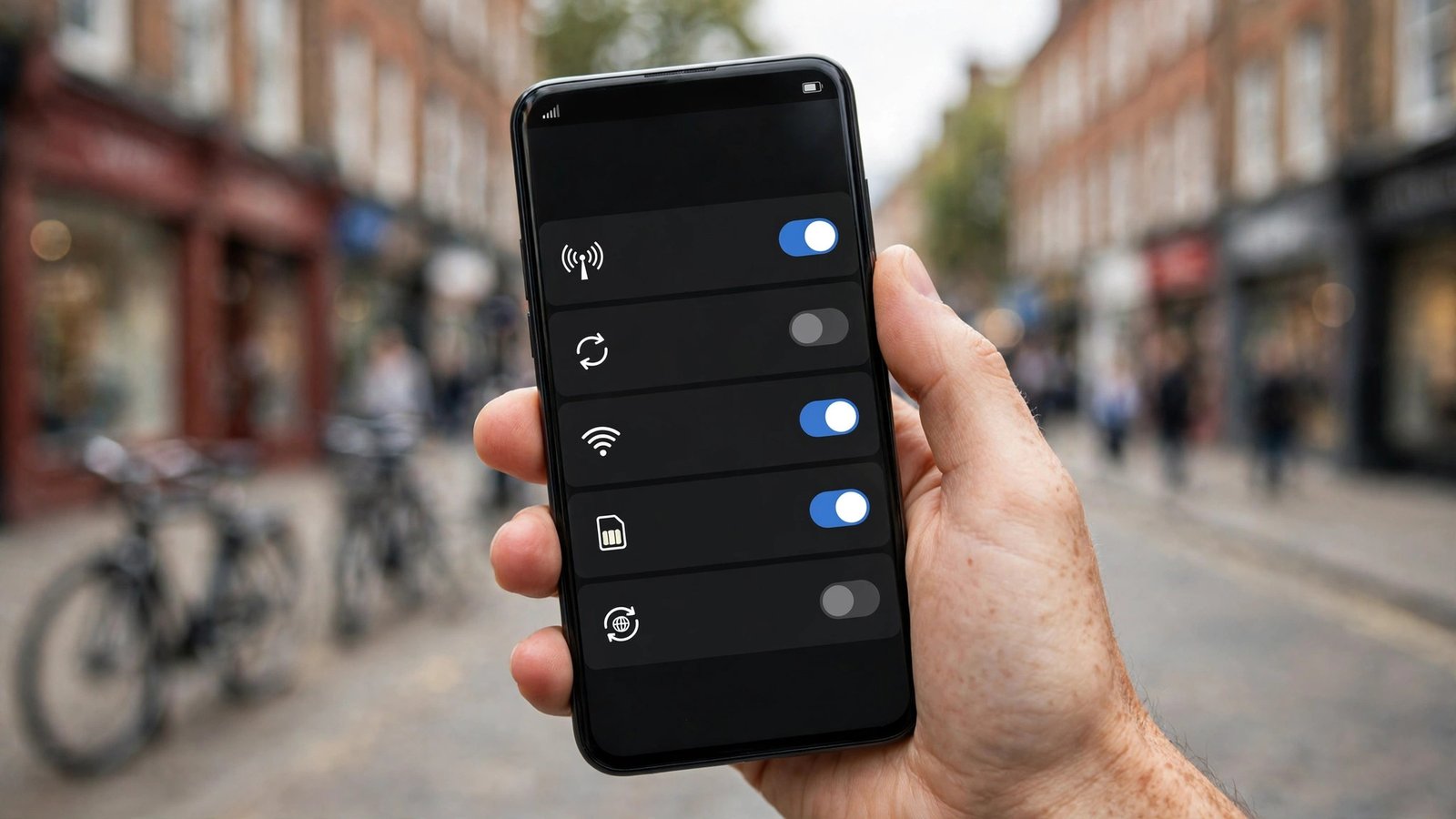
If the eSIM downloads but shows no service, restart the phone first. Then check that the right line is chosen for mobile data, and that mobile data is switched on. If it still shows no service, call the carrier, because the eSIM profile may not have linked to your number yet.
Frequently Asked Questions
Do I need to pay extra for an eSIM in Australia?
Most major Australian carriers do not charge extra for an eSIM on a standard mobile plan, and switching from a physical SIM to an eSIM with the same carrier is usually free.
Can I keep my phone number when I switch to an eSIM?
Yes. Moving to an eSIM does not change your number. Your carrier moves the same number from the physical SIM to the eSIM profile, and your contacts will still reach you on it once the eSIM is active.
Can I use an eSIM and a physical SIM at the same time?
Yes, on most recent phones. You can run one number on the physical SIM and another on the eSIM, or two eSIMs on phones that support it. Choose which line handles calls, texts and data in your SIM settings, and switch between them at any time.




Post Comment