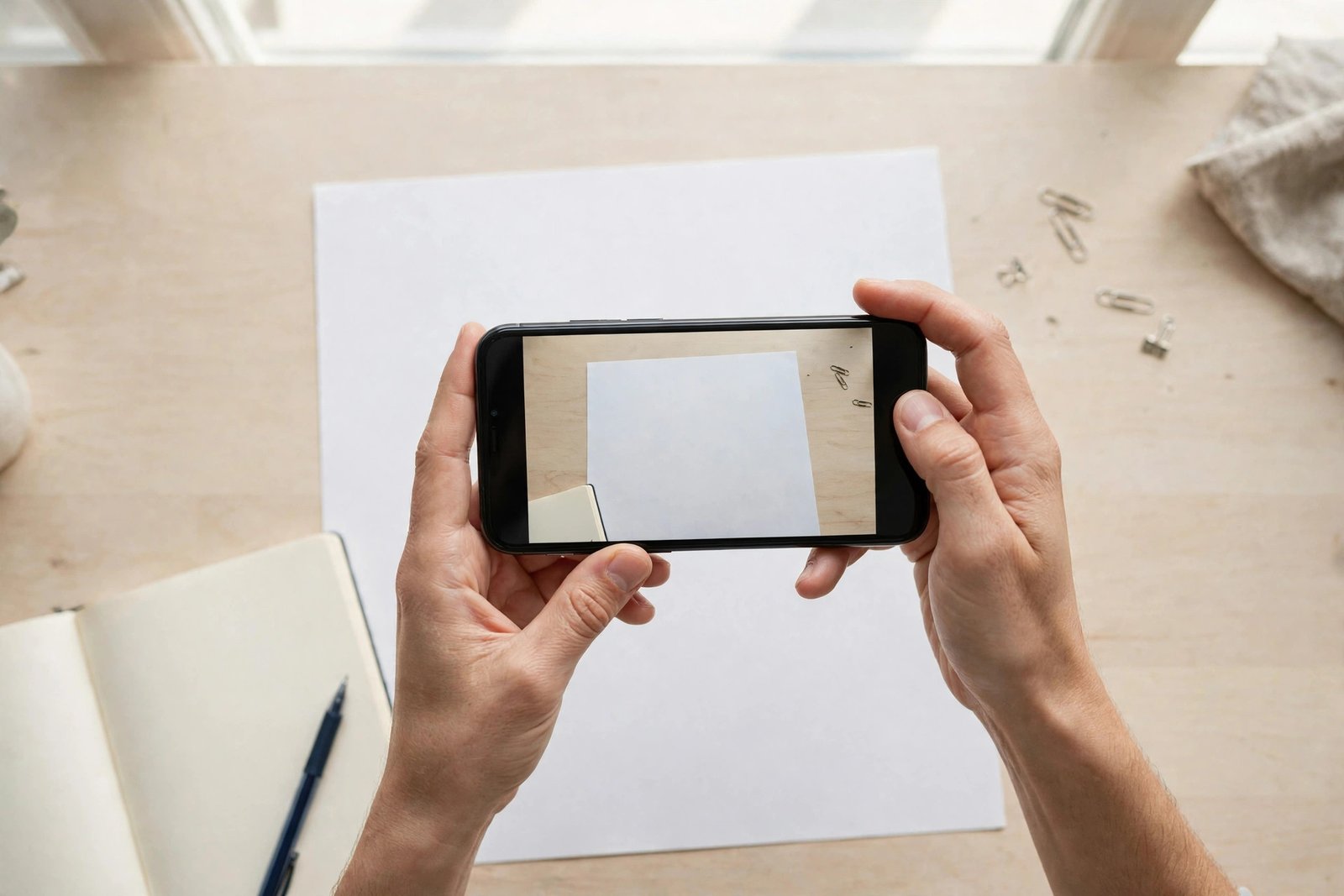
How to Scan Documents With Your Phone and Send Them as a PDF (iPhone and Android)
You need to send a signed form to your accountant, email your ID to a rental agency, or get a receipt to your boss, and the nearest scanner is nowhere in sight. Your phone can do it. Modern phones have document scanning built in, and the results look every bit as clean as a flatbed scanner. This guide shows you how on both iPhone and Android, and how to get the finished PDF to whoever needs it.
Scanning on iPhone
The iPhone's Notes app has a surprisingly good scanner built in. Here is how to use it:
1. Open the Notes app and create a new note (or open an existing one). 2. Tap the camera icon at the bottom of the note, then tap Scan Documents. 3. Hold your phone over the document. The phone automatically detects the page edges and captures it. 4. Keep going to add more pages. Tap Save when you are done.
The scan is saved inside the note as a document. From there, tap the scanned document, then the share button, and choose Save to Files or share it directly. If you want to turn it into a standalone PDF, share the document and choose a PDF destination, or print it to PDF from the Files app.
There is an even faster way. In the Files app, tap the three dots in the top corner and choose Scan Documents. The scanned file is saved straight into Files as a PDF, ready to send.
A few tips for a clean scan: put the document on a flat, contrasting surface, work in good light, and keep your shadow off the page. The phone does the edge detection, but it can only work with what the camera sees.
Scanning on Android
On Android, the easiest scanner is inside the Google Drive app, and it is free:
1. Open the Google Drive app. 2. Tap the plus button, then choose Scan. 3. Hold your phone over the document. The app detects the edges automatically. 4. Add more pages with the plus button, then tap Save.
The finished scan is saved to your Google Drive as a PDF, and the app usually gives it a sensible name based on the date and location. You can rename it by tapping the three dots next to the file.
Some Android phones also have scanning in other apps. Samsung's camera app can detect and scan documents in some versions, and third-party apps exist, but the Google Drive scanner works on almost every Android phone, so it is the safest default. Menus can differ slightly between Android versions and phone brands, but the flow is the same: open the scanner, point, capture, save as PDF.
Making the scan look professional
A scan that looks sharp and readable gets processed faster and makes a better impression. Before you send:
– Straighten up. If the automatic edge detection missed, crop and rotate the pages before saving. – Check readability. Zoom in on the saved scan and make sure small text is legible. If it is not, rescan in better light. – Merge multi-page documents. Contracts and forms usually belong in a single PDF, not five separate files. Both the iPhone and Android scanners let you add pages before saving. – Name the file properly. "Smith_RentalApplication.pdf" is infinitely more useful to the recipient than "Scan_240ct.pdf". Rename before you send.
Sending the PDF
Once the scan looks good, getting it to someone is the easy part. For email, attach the PDF directly from your files or from inside the email app's attachment picker. For messaging apps like WhatsApp, use the attachment or document button and pick the PDF from your files.
If the file needs to reach several people or is too big for email, share a cloud link instead. Upload the PDF to Google Drive, iCloud Drive or OneDrive, generate a share link, and send the link. Check the sharing settings first: make sure the recipient can actually open it. A link set to "restricted" will bounce, so for documents that are not sensitive, "anyone with the link" is usually what you want.
And one rule that saves real money and stress: if the scan is for something official, an ID, a tax document, a rental application, send it only to the address or number you were given, and delete the file from your downloads or chat app afterwards if it contains personal details.
Frequently Asked Questions
Is a phone scan accepted as a proper document?
For most everyday purposes, yes: rental applications, job forms, school paperwork and expense claims are routinely accepted as phone scans. Some legal and government processes still require certified copies or originals, so check the requirements first. When in doubt, ask the recipient before you scan.
Which is better for scanning: iPhone Notes or a third-party app?
For most people, the built-in scanner is the better choice. It is free, it works offline, and the quality matches dedicated apps. Third-party scanners can add features like text recognition and batch processing, but they often come with subscriptions or watermarks. Try the free built-in option first.
How do I scan multiple pages into one PDF?
Both built-in scanners support multi-page scans. On iPhone, keep tapping the shutter to capture more pages before tapping Save in the Notes scanner. In Google Drive on Android, use the plus button inside the scan to add pages. The pages are combined into a single PDF when you save.

Post Comment