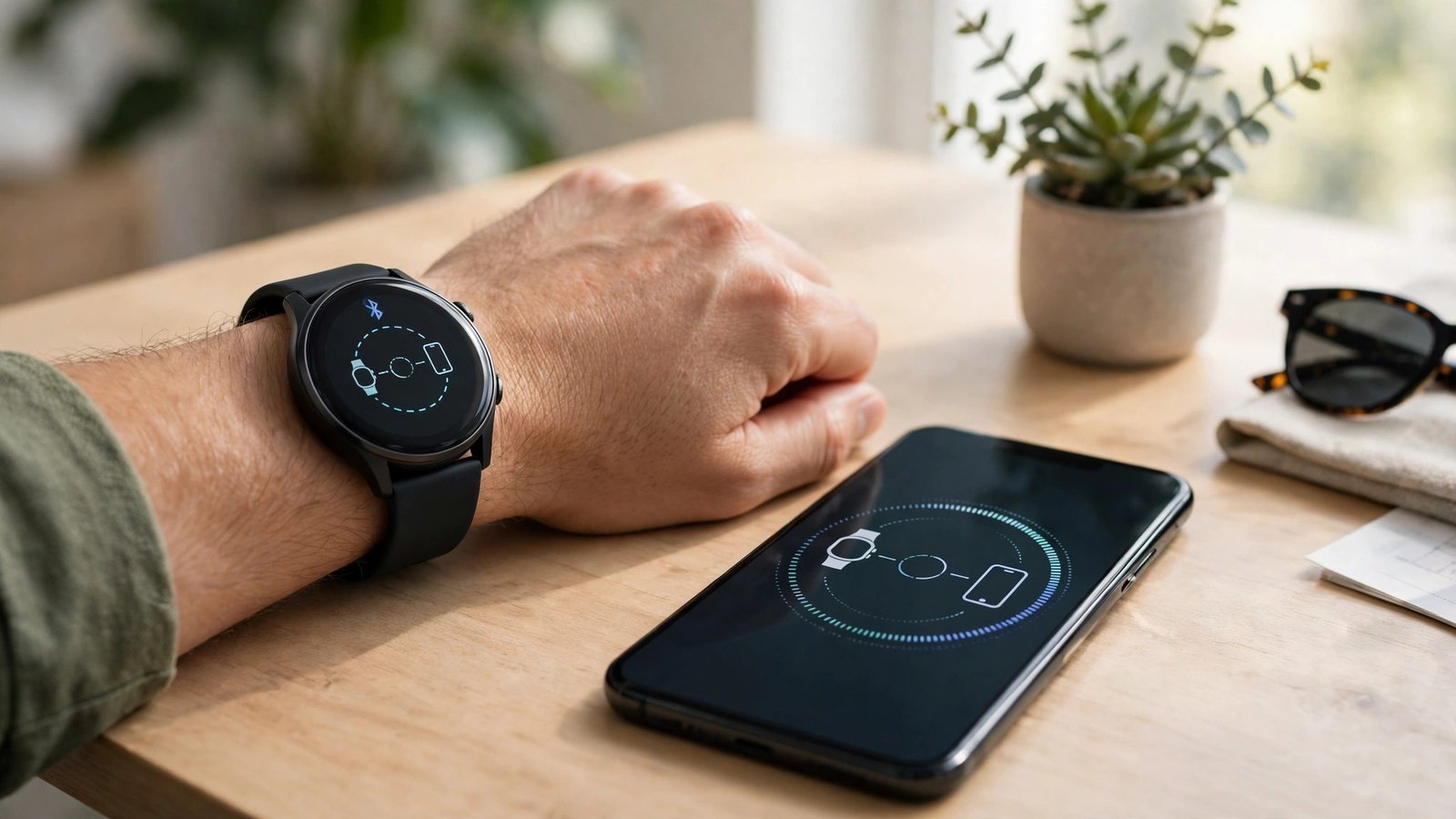
How to Pair a Smartwatch With Your Phone in the US
A smartwatch is at its best when it is properly paired with your phone. That pairing is what lets calls, messages, and app alerts reach your wrist, keeps your health data in sync, and lets you answer or dismiss notifications without digging your phone out of a pocket. The good news is that pairing usually takes only a few minutes. The confusing part is that Apple and Android watches follow different paths, and a watch that was paired to another phone needs a reset first.
This guide covers the two most common setups in the US: an Apple Watch with an iPhone, and a Wear OS or Galaxy watch with an Android phone. It also covers the fixes for the problems that most often stop pairing in its tracks.
Before you start
Charge both devices to at least half, and keep them close together during setup. Turn on Bluetooth on your phone, and connect your phone to Wi-Fi or mobile data, since setup often downloads updates or restores a backup. Update your phone to a recent software version if it prompts you, because an old phone version is a common cause of a watch that refuses to pair.
If the watch was used before, check whether it is still paired to another phone. A watch can usually be paired to only one phone at a time. If you see a previous owner's setup screen, or if the watch asks for a passcode you do not know, you will need to erase it first. On most watches, that option lives under Settings, then General or System, then Reset. Only do this if the watch is yours, or if the previous owner has removed it from their account, since an activation lock can block setup otherwise.
Step 1: Pair an Apple Watch with an iPhone
Put your Apple Watch on your wrist and press and hold the side button until the Apple logo appears. Bring your iPhone near the watch. In most recent versions of iOS, a setup card should appear on the iPhone automatically. Tap Continue, then hold your iPhone over the watch so the watch face appears inside the on screen frame. If that camera pairing does not work, tap Pair Manually and enter the code shown on the watch.
Next, choose whether to set up the watch as new or restore it from a backup. Restoring brings back your watch faces, app layout, and many settings, and it is the best choice if you are replacing an older Apple Watch. If this is your first watch, choose Set Up as New. Follow the prompts to sign in with your Apple ID, agree to the terms, and choose settings for location, Siri, and app installation.
Keep the two devices close until the sync finishes. This can take a few minutes, and it is normal for the watch to restart once during setup. Do not turn off Bluetooth or walk away with your phone during this stage, since an interrupted sync is the most common reason people have to start over.
Step 2: Pair a Wear OS or Galaxy watch with an Android phone
For most Android watches, start by installing the companion app on your phone. Samsung Galaxy watches use the Galaxy Wearable app, often with the Galaxy Watch plugin. Most other Wear OS watches use the Wear OS app from Google. Download the app from the Google Play Store, not from a link in a text message or a random website.
Open the companion app, sign in if asked, and tap to add a new watch. Put the watch in pairing mode if it is not already there, usually by turning it on and following the on screen setup. The app should find the watch by Bluetooth. When a pairing code appears on both screens, confirm that the codes match, then tap Pair on both devices.
As with Apple Watch, you will be offered a restore from backup or a fresh setup. Restoring is handy if you are moving from an older Wear OS watch on the same Google account. Then work through permissions for notifications, calls, contacts, and health data. Saying yes to notification access is what lets messages and alerts actually reach the watch, so do not skip that prompt and wonder later why the watch stays silent.
Step 3: Check notifications and health permissions
Pairing alone is not enough. Open the companion app and confirm that notifications are turned on for the apps you care about. On an iPhone, go to the Watch app, then Notifications, and turn on mirroring for messages, calls, and your most used apps. On Android, go to the companion app's notification settings and grant notification access if the phone asks.
Health permissions deserve a separate check. If you want step counts, heart rate, sleep, and workouts to sync to Apple Health or Google Fit, or to Samsung Health on a Galaxy phone, grant health access when prompted. If you denied it during setup, you can turn it on later in your phone's privacy or health settings, under the companion app's permissions. Without this, the watch may track a workout but never show it in your phone's health app.
Step 4: Test the connection
Send yourself a test message, or ask a friend to call you, and watch for the alert on your wrist. Try replying from the watch if your model supports it. Open the health app on your phone and check that today's steps or heart rate appear. If alerts arrive but health data does not sync, the fix is usually a permission, not a broken watch, so revisit Step 3 before resetting anything.



Post Comment