How to Mute, Leave and Manage Group Chats on iPhone and Android in Canada
Group chats are useful until they are not. One family group, one work group, and one friends group can turn a quiet phone into a stream of pings at dinner and in the middle of the night. You do not have to delete a group to get peace back: on iPhone and Android, muting, leaving, archiving, and customising each do a different job.
The steps below work in most recent versions of WhatsApp, iPhone Messages, and Android Messages. Menu names can vary a little by phone, so look for the closest match.
Step 1: Mute a group chat without leaving it
Muting is the best first move when you still want to stay in the group. You will stop getting sound and vibration for new messages, but you can open the chat any time and catch up when you are ready.
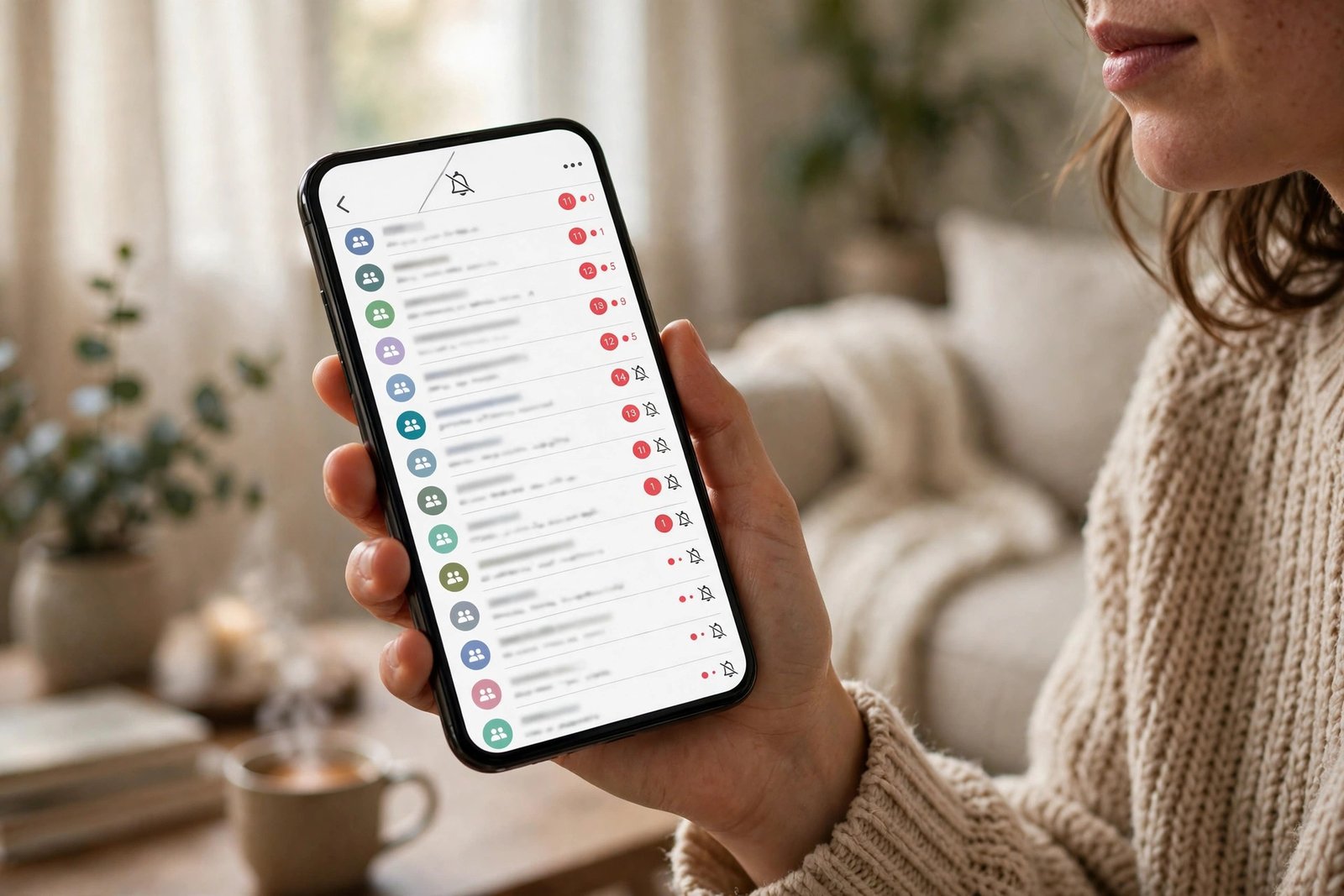
On WhatsApp, open the group, tap the group name at the top, then tap Mute notifications. Choose how long to mute it for, such as 8 hours, 1 week, or Always. On iPhone, you can also swipe left on the chat in the list, tap More, then tap Mute, or in some versions tap the bell icon.
On iPhone Messages, open the group, tap the group name at the top, then turn on Hide Alerts. On Android Messages, press and hold the group in the list and tap the muted bell icon, or open it and use Details to turn notifications off. Muting does not tell other members anything.
Step 2: Leave a group chat when you are done with it
Leaving is right when a group has served its purpose, such as a one-off event, a school project, or a team that has disbanded. The steps differ by app, and so does what other members see.
On WhatsApp, open the group, tap the group name, scroll down, and tap Exit group, then confirm. You can also delete the chat after exiting if you want it gone from your list. Other members will see in the chat that you left, though WhatsApp no longer makes a big announcement of it in the same way older versions did.
On iPhone Messages, open the group, tap the group name, scroll down, and tap Leave this Conversation. This only appears when the group has at least three other people besides you and everyone is using iMessage. If it is missing, the group may include someone on SMS, so mute it or ask to be removed instead. On Android Messages, open the group and look for Leave group under the three dots. If leaving is not offered, muting plus archiving gives almost the same calm.
Step 3: Set different notifications for important groups
Not every group deserves the same treatment. A family emergency group should probably still ping you, while a hobby group can wait until the weekend. Custom notifications let you keep the important ones loud and the rest quiet.
On WhatsApp, open the group, tap the group name, then tap Custom notifications or Notification tone, depending on your phone. Pick a distinct tone for a group you need to notice, or set it to silent for one you do not. You can also control whether message previews show on your lock screen from your phone settings.
On iPhone, use Hide Alerts for a single group, or pin it to the top of your list so you can find it fast without a ping for every message. On Android, open the group, tap Details, and set the conversation as priority or silent.
Step 4: Archive groups you want to keep but not see daily
Archiving is the middle ground between muting and leaving. An archived chat disappears from your main list but is not deleted, so you can bring it back later with its full history intact.
On WhatsApp, press and hold the group in the chat list and tap Archive, or swipe left on iPhone and tap Archive. To find it again, scroll to the top of the chat list and open Archived, or search for the group name.
On iPhone Messages, swipe left and tap Archive. On Android Messages, press and hold the conversation and tap Archive. Archived groups will not ping you in most setups. This works well for seasonal groups: unarchive when the season starts again and you are back in without asking anyone to re-add you.
Step 5: Clean up members, admins, and your own messages
If you run a group, a little admin work prevents most noise problems before they start. On WhatsApp, open the group, tap the group name, and review the member list. You can remove someone who no longer belongs, make another trusted person an admin before you leave, and change group settings so only admins can send messages during quiet periods.
For your own messages, press and hold a message and choose Delete for me, or in WhatsApp, Delete for everyone within the time window the app allows. Be careful with the second option, since it removes the message from other people's chats too. If a group keeps adding you back after you leave, block the person who keeps re-adding you. If a group turns hostile, report it through the app and keep screenshots before leaving.
Mute the groups you like but cannot follow all day, leave the ones that are finished, and archive the ones you may need again.
Frequently Asked Questions
Will other people know if I mute a group chat?
No. Muting only changes notifications on your own phone. Other members cannot see that you muted the group, and you can still read and reply whenever you open the chat.
What happens when I leave a WhatsApp group?
You stop receiving new messages from that group, and other members can see in the chat that you left. If you want the chat gone from your phone too, delete it after exiting. You can only rejoin if an admin adds you back or shares a new invite link.
Why can I not leave a group on iPhone Messages?
The leave option only appears for iMessage groups with at least three other people. If the group includes someone using SMS, or if there are too few people left, the option is hidden. In that case, mute the conversation and archive it, or ask another member to start a new group without you.




Post Comment