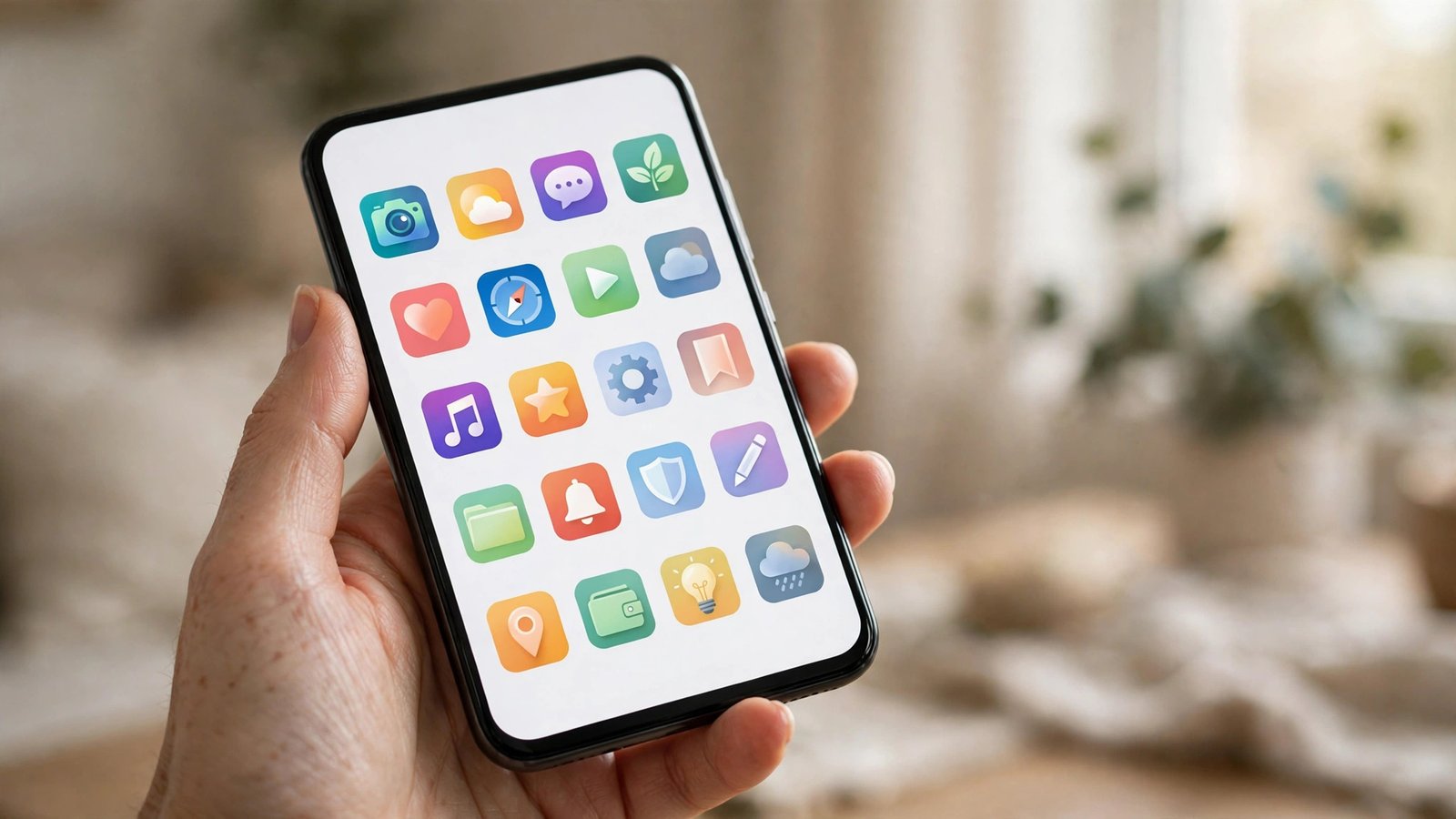
How to Hide Apps on iPhone and Android in the UK
Sometimes you want a cleaner Home Screen, or you want to keep certain apps out of sight without deleting them. Maybe a banking app, a dating app, a work app or a game you only open now and then is cluttering your phone. Both iPhone and Android let you hide apps in different ways, and none of the methods below deletes your data. The app stays installed, and you can bring it back in a few taps whenever you need it.
It helps to know the difference between hiding and deleting. Hiding removes the icon from the main screens, but the app still works, still sends notifications unless you silence it, and still appears in search or in your full app list. Deleting removes the app itself, though your account data usually survives with the service. If you only want tidiness or a little privacy from someone glancing at your screen, hiding is the gentler option.
Hide apps on iPhone
On iPhone, the simplest method is to remove an app from the Home Screen while keeping it in the App Library. Touch and hold the app icon until a menu appears, then tap Remove App, then Remove from Home Screen. The app disappears from that screen, but it stays in the App Library, which you reach by swiping left past your last Home Screen page.
You can also hide a whole Home Screen page, which is handy if you keep a folder of apps together. Touch and hold an empty area of the Home Screen until the icons jiggle, tap the row of dots near the bottom of the screen, untick the page you want to hide, then tap Done. The page and every app on it are hidden at once, and you can tick the page again later to bring it all back.
If you want an app to be harder to stumble across, you can also keep it out of Siri suggestions and search results. Go to Settings, find the app in the list, and switch off the options for showing it on the Home Screen, in search and in Siri suggestions. In most recent versions of iOS the labels vary slightly, so look for the Siri and Search section inside the app’s own settings page. This does not hide the app from the App Library, but it stops it popping up when you search or when Siri suggests apps.
Hide apps on Android
Android varies more by phone maker, so the exact menu names change between Samsung, Google Pixel and other brands. The core idea is the same: most Android phones let you hide apps from the app drawer, or let you disable an app you cannot uninstall.
On a Samsung phone, open the app drawer, tap the three dots menu, choose Settings, then Hide apps. Tick the apps you want to hide, then tap Done. To unhide them, return to the same screen and untick them. On a Google Pixel, there is no built in hide apps switch in the standard launcher in most recent versions. Instead, you can use a different launcher from the Play Store that offers a hidden apps folder, or you can disable an app you do not use. Disabling is different from hiding: it stops the app running, but it can break features that depend on it, so only disable apps you recognise as safe to pause, such as a preinstalled app you never open.
Another option on any Android phone is to remove the icon from the Home Screen. Touch and hold the icon and drag it to Remove, or tap Remove from Home Screen if that option appears. This only clears the Home Screen shortcut. The app remains in the app drawer, ready to open from there.
If you want stronger privacy, check whether your phone has a Secure Folder or a private space feature. Samsung’s Secure Folder keeps a separate, locked copy of apps and files behind a PIN, pattern or fingerprint. Some other Android phones offer a similar private space in Settings under Security and privacy. These tools are better than simple hiding when the goal is keeping an app away from other people who use your phone, because opening the folder needs your unlock method.
Keep notifications and search from giving you away
Hiding an icon does not silence an app. If a hidden banking or messaging app still shows banners on your lock screen, it is not really hidden. On iPhone, go to Settings, then Notifications, tap the app, and switch off Allow Notifications, or turn off the lock screen option while keeping banners on the Home Screen. On Android, go to Settings, then Notifications, then App notifications, and switch the app off, or long press a notification and choose to silence that channel.
Search is the other giveaway. On both platforms, an app you hid from the Home Screen can still appear when you swipe down and type its name. If that matters to you, use the Siri and Search settings on iPhone, or the search settings in your launcher on Android, to stop the app appearing in results.
What hiding cannot do
Hiding is tidiness and light privacy, not security. It will not stop a determined person who knows how to open the App Library or the app drawer, and it will not protect data inside the app if someone unlocks your phone. For real protection, use a strong phone passcode, Face ID or fingerprint lock, and turn on the lock inside sensitive apps themselves where the app offers one, such as a banking app’s own passcode or biometric lock.
Frequently Asked Questions
Does hiding an app on iPhone delete it?
No. Removing an app from the Home Screen keeps it in the App Library and keeps its data. To delete it fully, touch and hold the icon, tap Remove App, then choose Delete App, and confirm.
Why can I not find a hide apps option on my Pixel phone?
The standard Pixel launcher does not offer a built in hide apps switch in most recent versions. You can remove icons from the Home Screen, use a third party launcher with a hidden apps feature, or disable an app you do not use.
Will a hidden app still send notifications?
Yes, unless you change its notification settings. Hiding only removes the icon. Turn off notifications, or at least lock screen notifications, for any app you want to keep private.



Post Comment