How to Use Google Translate on Your Phone in the UK: Text, Camera and Offline Mode
Google Translate sits quietly on your phone until the day you really need it: a menu in another language, a letter from a foreign office, a conversation with someone who does not speak English. It is free, it works on iPhone and Android, and it can do far more than translate a typed sentence. Here is how to get the most out of it, whether you are travelling abroad from the UK or helping someone who has just arrived here.
Step 1: Install the app and set your languages
Start by downloading Google Translate from the App Store on iPhone or the Play Store on Android. It is free and needs no subscription. Open it and choose your languages. For most people in the UK, the first should be English, and the second the language you translate to or from most often, such as French, Spanish, German or Polish.
You can change the language pair at any time by tapping the language names at the top. The app supports well over a hundred languages, and in most recent versions it can detect the language automatically. Signing in with a Google account syncs your history, but it is not required.
Step 2: Translate typed text and whole conversations
The simplest way to translate is to type. Tap the text box, type or paste what you want translated, and the result appears straight away. Tap the speaker icon to hear it spoken aloud, which is useful if you need to show a phrase to someone.
For a live conversation, tap the Conversation button at the bottom of the screen. The app listens to two people speaking different languages and translates each side in turn. It works best if you speak clearly, one person at a time, and hold the phone between you. It can struggle with fast speech or strong accents, but for ordering food or asking directions, it is genuinely useful.
You can also save phrases you use often by tapping the star next to a translation. Saved phrases live in your phrasebook, so you can find them again without typing. This is handy for asking for the bill, explaining an allergy, or giving your address to a taxi driver.
Step 3: Translate signs, menus and documents with the camera
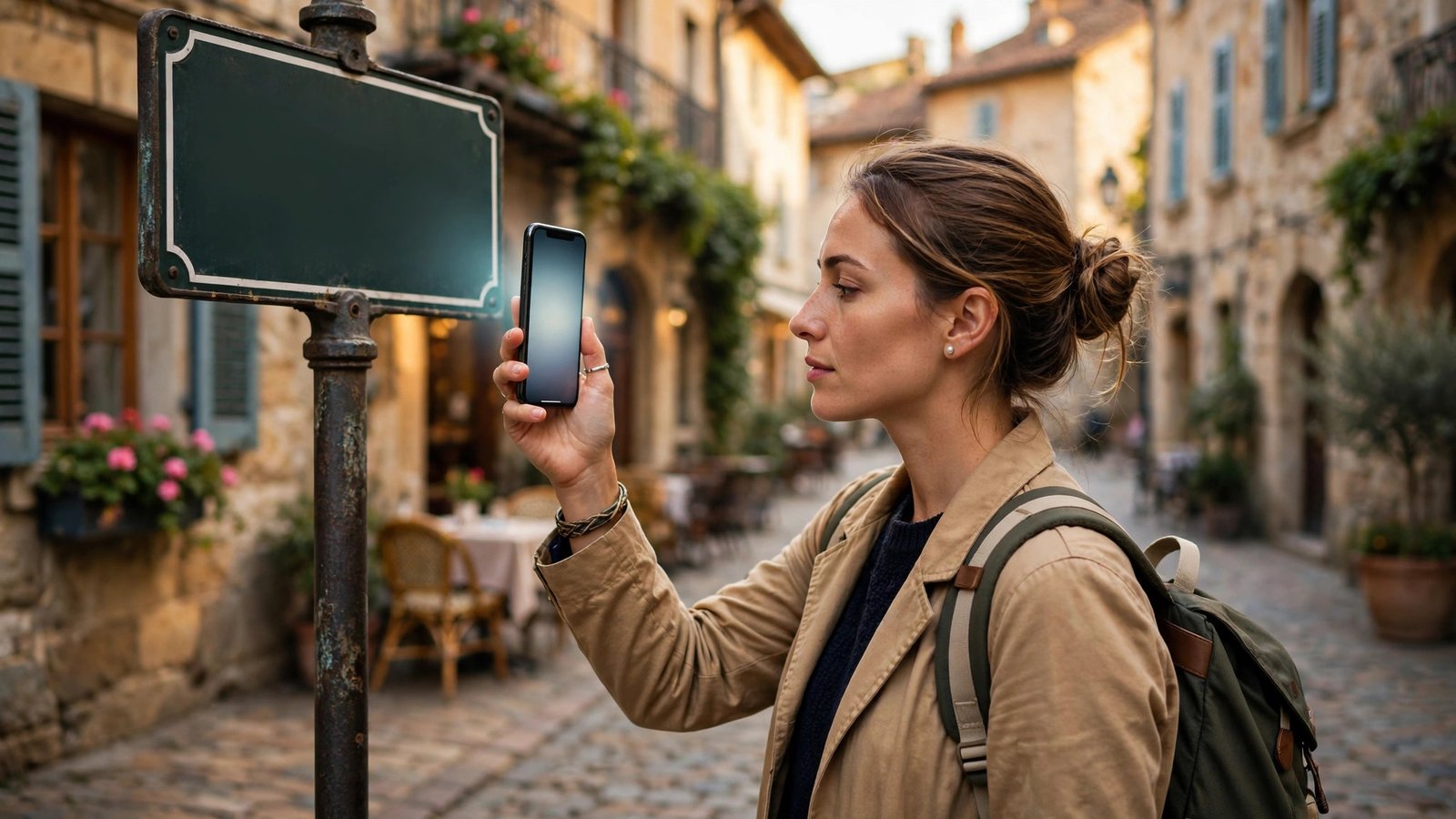
The camera feature is the one most people miss. Tap the camera icon, point your phone at a sign, a menu, a label or a page of text, and the app overlays the translation on the screen in real time. You can also tap the shutter button to freeze the image and tap individual words for a closer look.
This works well on printed text with clear lettering, such as road signs, shop signs and restaurant menus. It struggles with handwriting, very small print, and text on a curved surface. Good light helps a lot, so step closer to a window or switch on your phone torch if the text is hard to read.
For longer documents, take a photo inside the app and let it scan the whole page. You can then highlight sections to translate them one at a time, which is useful for letters and forms in a language you do not read.
Step 4: Download languages for offline use
Do this before you travel, not after you land. Google Translate needs the internet for its best results, but a downloaded language pack works with no signal at all. That matters on a plane, in a rural area, or anywhere abroad where data is expensive or patchy.
To download a language, tap your profile picture or the settings icon, go to Downloaded languages, and tap the download arrow next to the language you need. Each pack is roughly 40 to 50 MB, so download it on Wi-Fi. Once it is on your phone, text and camera translation both work offline, though conversation mode may be limited.
If you are travelling from the UK to Europe, download the language of the country you are visiting, and keep English downloaded too, since the app needs both sides of the pair. Delete old packs you no longer use to free up space.
Step 5: Translate text inside other apps and photos
You do not always need to open Google Translate itself. On Android, copy text in almost any app and a small Translate pop-up appears offering to translate it on the spot. Turn this on under Settings, then "Tap to Translate".
On iPhone, the system has its own translation built in. Select text in Safari, Mail or Notes, tap Translate in the pop-up menu, and iPhone will translate it without leaving the app. In most recent versions you can select text inside a photo in the Photos app and translate it the same way.
Google Translate can also translate the text in photos you already have. Tap the camera icon, then the photo icon, choose an image from your gallery, and tap the words you want translated. This is useful for screenshots and photos of paperwork.
Step 6: Get better results and protect your privacy
Machine translation is good, but it is not magic. Short, simple sentences translate far better than long, complicated ones. If a translation looks odd, try rephrasing the original in plainer words. Avoid slang, idioms and jokes. For anything important, like a medical instruction or a legal letter, use the app as a starting point and get a human to check it.
Be careful what you translate. Do not type passwords, bank details, or highly sensitive personal information into any translation app, and avoid translating private documents on a shared or borrowed phone. Google says it may use translation data to improve its services, so treat it like any other online tool: fine for everyday use, not the place for your most private information.
Frequently Asked Questions
Is Google Translate free on iPhone and Android?
Yes. The app is free on both platforms, with no subscription needed. You only need an internet connection for the best results, unless you have downloaded a language pack.
How do I use Google Translate without internet?
Download the language pack before you go, under Downloaded languages in settings. Once downloaded, text and camera translation work offline.
Can Google Translate translate a conversation in real time?
Yes. Tap the Conversation button, set the two languages, and speak one person at a time. The app translates each side in turn. It works best in a quiet place with clear, slow speech.


Post Comment