How to Use Back Tap on iPhone in the US: Double Tap and Triple Tap Shortcuts
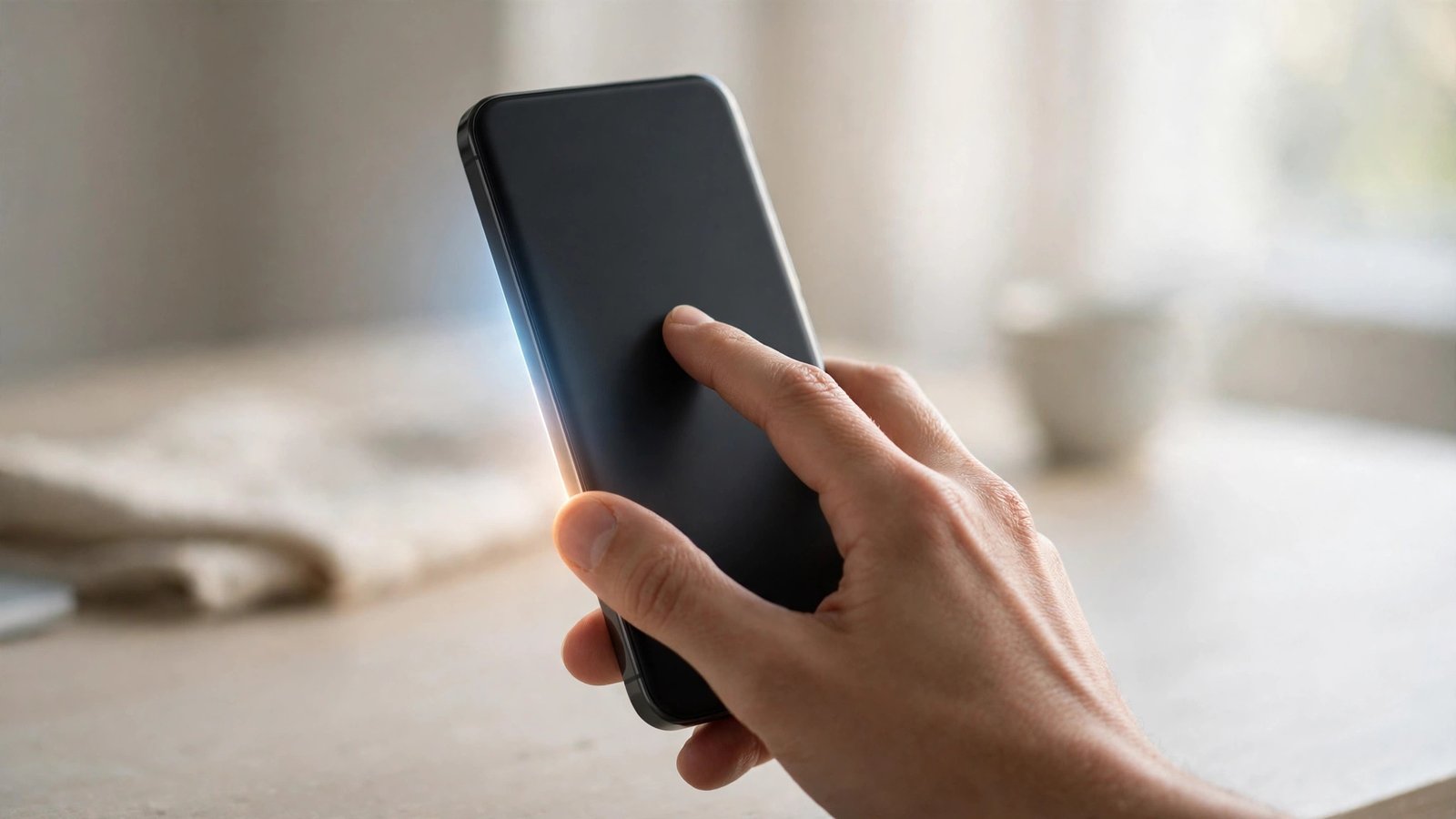
Back Tap is one of the most useful hidden features on the iPhone. It lets you double tap or triple tap the back of your phone to run an action, like taking a screenshot, turning on the flashlight, opening the camera, or locking the screen. This guide shows you how to turn it on, pick your actions, and fix it when it does not respond the way you expect.
Step 1: Check that your iPhone supports Back Tap
Back Tap works on iPhone 8 and newer, running iOS 14 or later. If your iPhone is older than that, the option will not appear in Settings. To check your version, open Settings, tap General, then About, and look at the iOS version. If an update is available, install it first, since newer versions fix bugs that can make Back Tap unreliable.
Back Tap uses the motion sensors inside your phone to detect taps on the back. It works best when you tap near the center, around the Apple logo. It also works through most slim cases, though very thick or rugged cases can muffle the taps.
Step 2: Turn on Back Tap and choose your actions
Open Settings, then tap Accessibility. Scroll down to the Physical and Motor section and tap Touch. Near the bottom of that screen, tap Back Tap. You will see two options: Double Tap and Triple Tap. Tap Double Tap first, then choose an action from the list. Common choices include Screenshot, Flashlight, Camera, Control Center, Home Screen, Lock Screen, Mute, Siri, and Spotlight. You can also pick a Shortcut you have created.
Go back and do the same for Triple Tap, choosing a different action. A popular setup is double tap for Screenshot and triple tap for Flashlight, since those are two things people reach for often. Pick the two actions you would actually use every day, and you can always change them later.
Step 3: Learn the right tapping technique
Back Tap responds to a firm, quick tap, not a gentle touch. Tap twice in a row for a double tap, or three times for a triple tap, with a short pause between each tap, roughly the rhythm of knocking on a door. Tapping too fast can make the phone read it as one tap, and tapping too slowly can make it read two separate double taps.
Practice a few times after you set it up. Double tap the back of the phone and watch for the screenshot flash or the flashlight turning on. If nothing happens, tap a little harder and a little closer to the center. The phone needs to be awake with the screen on for Back Tap to work.
Step 4: Use Back Tap with Shortcuts for more power
The real strength of Back Tap shows up when you pair it with the Shortcuts app. In the Back Tap settings, scroll past the built-in actions to the Shortcuts section and pick any shortcut you have saved. For example, you can set triple tap to run a shortcut that opens your favorite music app and starts a playlist, or one that starts a voice recording, or one that sends your location to a family member.
To build a shortcut, open the Shortcuts app, tap the plus sign, and add the actions you want. Keep it simple at first. A shortcut with one or two actions is easier to test than a long chain. Once it works from the Shortcuts app, assign it to Back Tap and test it with the taps.
Step 5: Pick the best actions for everyday use
If you are not sure what to assign, start with the actions people use most. Screenshot is the top pick, because it saves you from pressing the side button and a volume button at the same time. Flashlight is another favorite, especially at night. Lock Screen is handy when your side button is hard to reach, and Control Center gives you quick access to brightness, volume, and Wi-Fi controls.
For a phone you use for work, consider setting triple tap to open the Camera, so you can catch a whiteboard or a document fast. Try a setup for a few days before you change it. The best actions are the ones you reach for without thinking.
Step 6: Fix Back Tap when it does not work
If Back Tap does nothing at all, go back to Settings, then Accessibility, then Touch, then Back Tap, and confirm that an action is still assigned to Double Tap or Triple Tap. Sometimes an iOS update resets the setting. If the actions are assigned but still do not fire, restart your iPhone. A restart clears temporary glitches that can stop the sensors from responding.
If Back Tap works sometimes but not always, check your case. Thick, heavy, or metal cases can block the taps. Try the phone without the case and see if it improves. Also check your tapping rhythm. Very fast taps can blend together, and very slow taps can be read as separate single taps. Aim for a steady knock, twice or three times.
If Back Tap triggers by accident, for example when you set the phone down on a table, choose a less sensitive action for that tap, or turn off one of the two taps. Some people keep only Double Tap on and leave Triple Tap set to None, which cuts down on accidental triggers.
Frequently Asked Questions
Which iPhones support Back Tap?
Back Tap works on iPhone 8 and newer models running iOS 14 or later. Older iPhones do not have the option in Settings. If your phone qualifies and the option is missing, update iOS to the latest version available for your model.
Does Back Tap drain the battery?
The effect on battery life is tiny. Back Tap uses the motion sensors that are already active in your phone, so it does not add a meaningful drain. If you notice battery problems, the cause is almost certainly something else, like screen brightness or an app running in the background.
Can I use Back Tap with a case on my iPhone?
Yes, in most cases. Slim silicone and plastic cases usually work fine. Very thick, rugged, or metal cases can muffle the taps and make Back Tap unreliable. If it stops working after you put on a new case, try tapping harder or test the phone without the case to confirm.





Post Comment