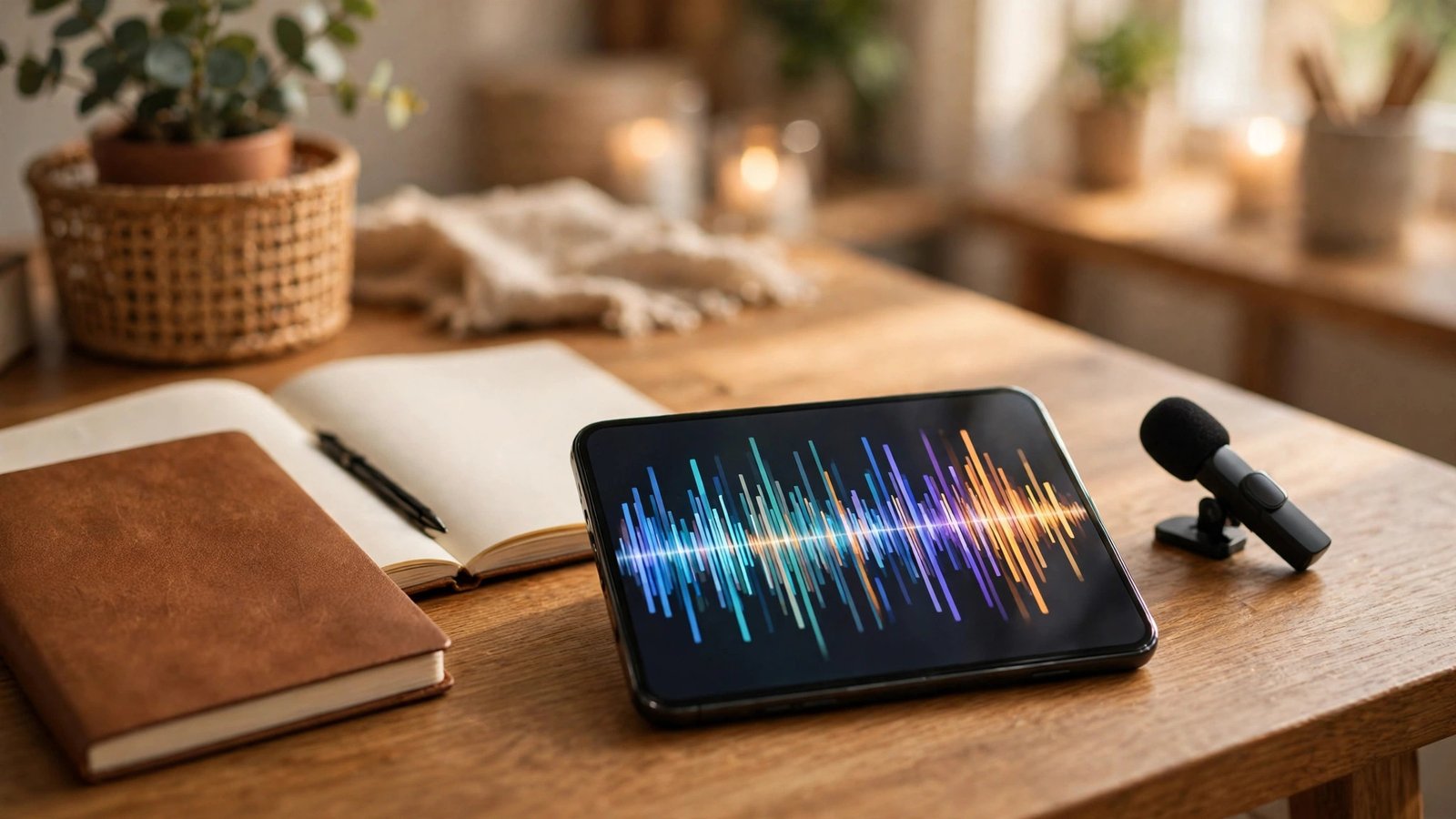
How to Record Voice Memos on iPhone and Android in the UK
A voice memo is the fastest way to capture an idea, a lecture, an interview, or a reminder to yourself. You do not need to buy an app or a separate recorder. Every iPhone and Android phone sold in the UK already has a voice recorder built in, and the better ones can now turn your speech into a written transcript automatically.
Step 1: Record on iPhone with Voice Memos
The iPhone app is called Voice Memos, and it is already on your phone. If you deleted it at some point, download it again free from the App Store. Open it, tap the big red record button, and start talking. Tap the button again to pause, and tap Done when you finish.
Your recording is saved with a name based on your location or the first words you spoke, which is rarely helpful. Tap the name to rename it to something you will find later, such as "Meeting notes 12 November" or "Song idea verse two".
Voice Memos has a few tools worth knowing. The waveform view lets you tap anywhere in the recording to jump to that point. The edit button lets you trim the start and end, replace a section, or speed the playback up or slow it down. There is also a skip-silence option that cuts out long pauses, which is handy for lectures and interviews.
For longer recordings, keep your phone charged and close to the speaker. The microphone is good, but it cannot fix a recording made from across a noisy room.
Step 2: Get a transcript on iPhone
On recent iPhones, Voice Memos can turn your recording into written text. In most recent versions of iOS, open a recording and tap the waveform to open the transcript view, where the text appears synced to the audio so you can tap a word to jump to that moment.
Transcription works in English and a handful of other languages, and it needs a recent iPhone model with a current version of iOS. If you do not see the transcript option, check for a software update in Settings, then General, then Software Update.
Step 3: Record on Android with Recorder or Voice Recorder
Android is a little less uniform, because the app depends on your phone maker. Google Pixel phones come with Recorder, which is the best of the built-in options. Samsung Galaxy phones come with Voice Recorder. Other Android phones usually have a recorder app from their maker, and if yours does not, Google Recorder is free on the Play Store for most recent Android phones.
On a Pixel, open Recorder and tap the red record button. The app transcribes as you speak, showing the words on screen in real time, and it can also identify different speakers in a conversation. That live transcript is the feature that sets it apart, and it works offline on the phone itself.
On a Samsung phone, open Voice Recorder and tap the record button. Samsung's app offers standard, interview and speech-to-text modes, with interview mode using the top and bottom microphones to pick up two people sitting opposite each other.
Whichever app you use, the basics are the same: record in a quiet place, hold the phone close to the sound, and rename the file straight away so you can find it later.
Step 4: Trim, organise and back up your recordings
A raw recording is rarely the finished product. Open it in your recorder app and use the trim tool to cut the dead air at the start and end. On iPhone, tap the edit icon, drag the yellow handles to the part you want to keep, and tap Trim. On Pixel Recorder, tap the three-dot menu on a recording and choose the edit option. On Samsung Voice Recorder, tap the edit icon and drag the handles in the same way.
Organisation matters once you have more than a handful of recordings. Voice Memos on iPhone lets you create folders and mark recordings as favourites. Pixel Recorder lets you search recordings by their transcript text, which is useful when you cannot remember what you called a file.
Back up anything important. On iPhone, Voice Memos syncs through iCloud if you have it turned on. On Android, Recorder files can be backed up to Google Drive. A recording that only exists on one phone is one dropped phone away from being lost.
Step 5: Share a recording and know the rules on recording people
Sharing is simple. In any of these apps, tap the share button on a recording and send it by WhatsApp, email, AirDrop or a cloud link. Large recordings are better sent as a link to a cloud file than as an attachment, because email providers often reject big audio files.
Before you share a recording of someone else, think about consent. In the UK, recording a conversation you are part of for your own personal use is generally lawful. But sharing it, publishing it, or using it in a way that harms the other person can breach privacy law, and recording a conversation you are not part of is a different matter entirely. The safe rule is simple: if other people will hear the recording, tell them you are recording and get their agreement first. That applies to interviews, meetings, lectures and phone calls alike.
For phone calls specifically, neither iPhone nor Android has a built-in call recorder in the UK. If you need a record of a call, put it on speakerphone in a quiet room and record with Voice Memos or Recorder, and tell the other person you are doing so.
Frequently Asked Questions
Is the Voice Memos app free on iPhone?
Yes. Voice Memos is built into every iPhone and is free. If you deleted it, you can download it again free from the App Store. Transcription needs a recent iPhone with a current version of iOS.
Which Android phone has the best voice recorder?
Google Pixel phones have the strongest built-in recorder, because the Recorder app transcribes in real time and can tell speakers apart. Samsung's Voice Recorder is also good, with an interview mode for two-person recordings. Both are free and already installed.
Can I record a phone call with Voice Memos?
Not directly. Voice Memos cannot record a call on its own. You can put the call on speakerphone and record it that way, but you should tell the other person first, and sharing a recording without their agreement can breach privacy law in the UK.


Post Comment