How to Use Visual Intelligence on iPhone in the US: Identify, Translate, and Search What You See
Your iPhone can already look at the world and tell you what it sees. Point it at a restaurant and it can pull up hours and reviews. Point it at a flyer and it can add the event to your calendar. That is Visual Intelligence, Apple's camera and screen search feature, and it is one of the most useful parts of Apple Intelligence. Here is how to check that your phone supports it, how to open it, and what to try first.
What Visual Intelligence can do
Visual Intelligence works in two ways. First, it can look through your camera at the physical world around you. Second, in most recent versions of iOS, it can look at what is already on your screen after you take a screenshot. In both cases it offers a few actions along the bottom of the screen.
The two main buttons are Ask and Search. Ask sends what you are looking at to ChatGPT, so you can ask a question about it in plain language. Search runs a Google image search to find matching pictures and pages. Depending on what is on screen, you may also see extra options. Point the camera at a poster and an Add to Calendar button can appear, ready to create an event from the date and time it reads. Point it at text and you can get a translation or a summary. It can also identify plants, animals, and landmarks, and pull up details about a business, such as its hours.
Check that your iPhone supports it
Visual Intelligence is part of Apple Intelligence, so it needs a newer iPhone. It works on iPhone 15 Pro and iPhone 15 Pro Max, every iPhone 16 model including the iPhone 16e, and every iPhone 17 model including the iPhone Air. Older iPhones will not show the feature even after updating to the latest iOS.
To turn Apple Intelligence on, open Settings, tap Apple Intelligence and Siri, and switch Apple Intelligence on. If you do not see that menu, update your software first under Settings, then General, then Software Update.
Use it through the camera
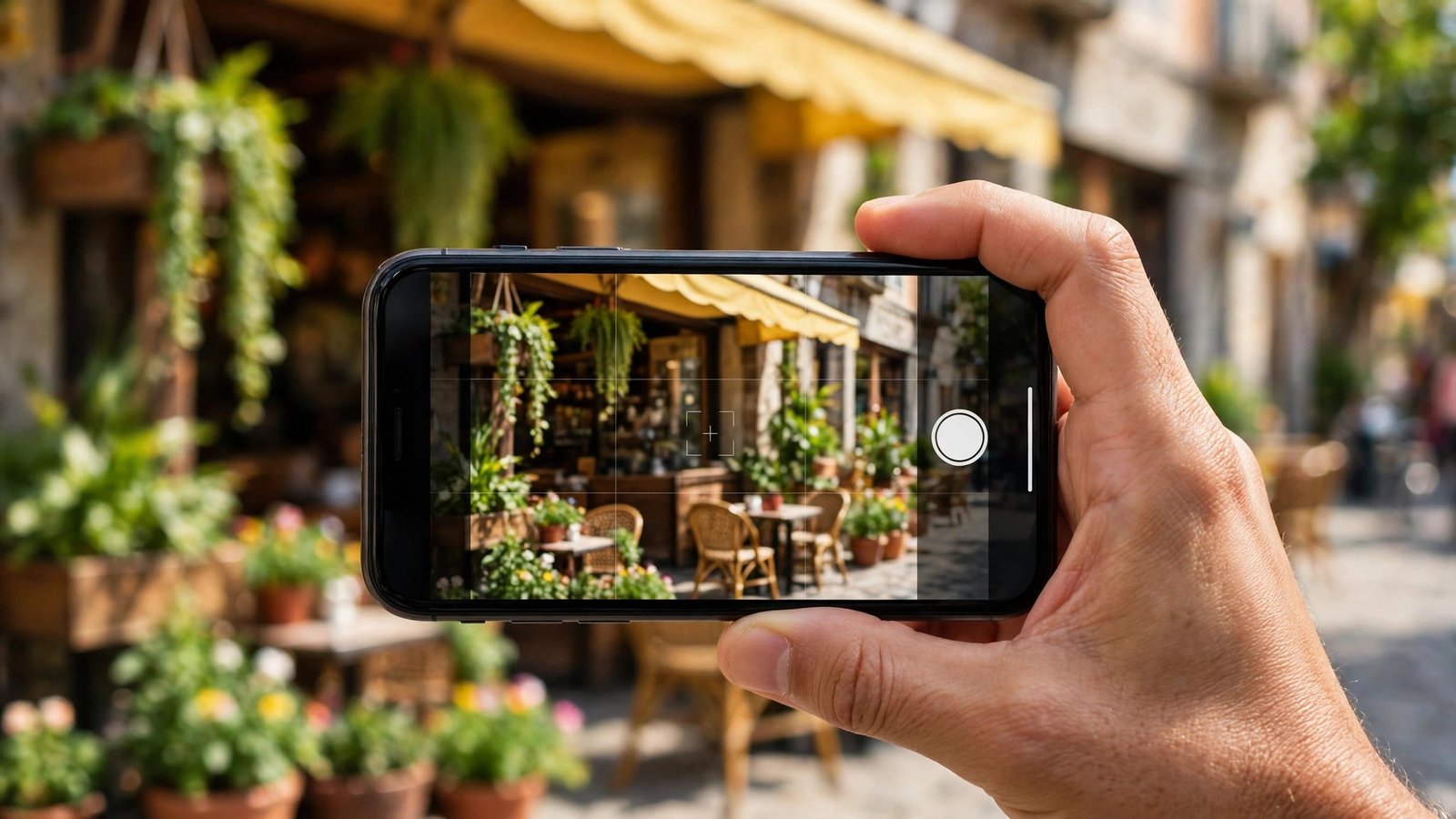
On iPhone 16 and iPhone 17 models, the quickest way to open Visual Intelligence is the Camera Control button on the lower right edge of the phone. Press and hold it and the Visual Intelligence view opens. A quick click is not the same action: a normal click can be set to open a camera app, so you need the longer press. Once it opens, point the phone at what you want to check and tap the round capture button at the bottom to take a picture for it to work with.
On models without Camera Control, the iPhone 15 Pro, iPhone 15 Pro Max, and iPhone 16e, you can open it another way. Add the Visual Intelligence control to Control Center by swiping down from the top right corner and tapping the plus button. You can also assign it to the Action Button under Settings, or add it to the Lock Screen by pressing and holding the Lock Screen and tapping Customize.
Once you have captured an image, three buttons sit along the bottom: Ask on the left, the capture button in the middle, and Search on the right. Tap Ask to question ChatGPT about what you see, or tap Search to look for matching images on Google. If the picture shows a poster with a date, look for the Add to Calendar button and tap it to create the event.
Use it on a screenshot
In most recent versions of iOS, Visual Intelligence also works on anything already on your screen. Take a screenshot by pressing the Side button and the Volume Up button together. In the full-screen preview, the Visual Intelligence tools appear along the bottom. If the Markup tools open first, tap the pen icon at the top to step out of them and the Visual Intelligence options will show.
From here the same Ask and Search buttons apply, now working on the screenshot instead of the camera. There is also a Highlight to Search option: draw with your finger over just the object you want to look up, and the search will focus on that part of the image. The Add to Calendar option works here too, so a screenshot of a flyer or an invitation can become a calendar event in a couple of taps.
Everyday things to try
If you are not sure where to start, try these. At a restaurant, point the camera at the sign or the menu board and ask for the hours or a summary of the reviews. At a store, photograph a product you like and use Search to find it online or compare it with similar items. On a trip, point the camera at a landmark and ask what it is and why it matters. At home, photograph a plant you cannot name and ask for its care instructions.
If it does not work
If Visual Intelligence is missing entirely, check the basics first: your iPhone model, your iOS version, and that Apple Intelligence is switched on in Settings. If holding Camera Control opens the camera but not Visual Intelligence, try opening it from Control Center instead. If the screenshot tools do not appear, update iOS and test with a fresh screenshot. And if Ask returns nothing useful, try Search instead, or rephrase your question. The feature is strongest at identifying things and finding matches, and weaker at guessing from a blurry or distant photo, so get closer and make sure the subject fills the frame.
Frequently Asked Questions
Which iPhones support Visual Intelligence?
It works on iPhone 15 Pro and iPhone 15 Pro Max, every iPhone 16 model including the iPhone 16e, and every iPhone 17 model including the iPhone Air. Older iPhones do not support it.
How do I open Visual Intelligence on an iPhone without Camera Control?
On iPhone 15 Pro, iPhone 15 Pro Max, and iPhone 16e, add the Visual Intelligence control to Control Center, assign it to the Action Button in Settings, or add it to the Lock Screen. You can also use it on a screenshot by pressing the Side button and the Volume Up button together.
Does Visual Intelligence send my photos to anyone?
The Ask and Search features send your image to ChatGPT or Google so they can answer or find matches, and they need an internet connection. If that bothers you, use the feature only on things you are comfortable sharing.





Post Comment