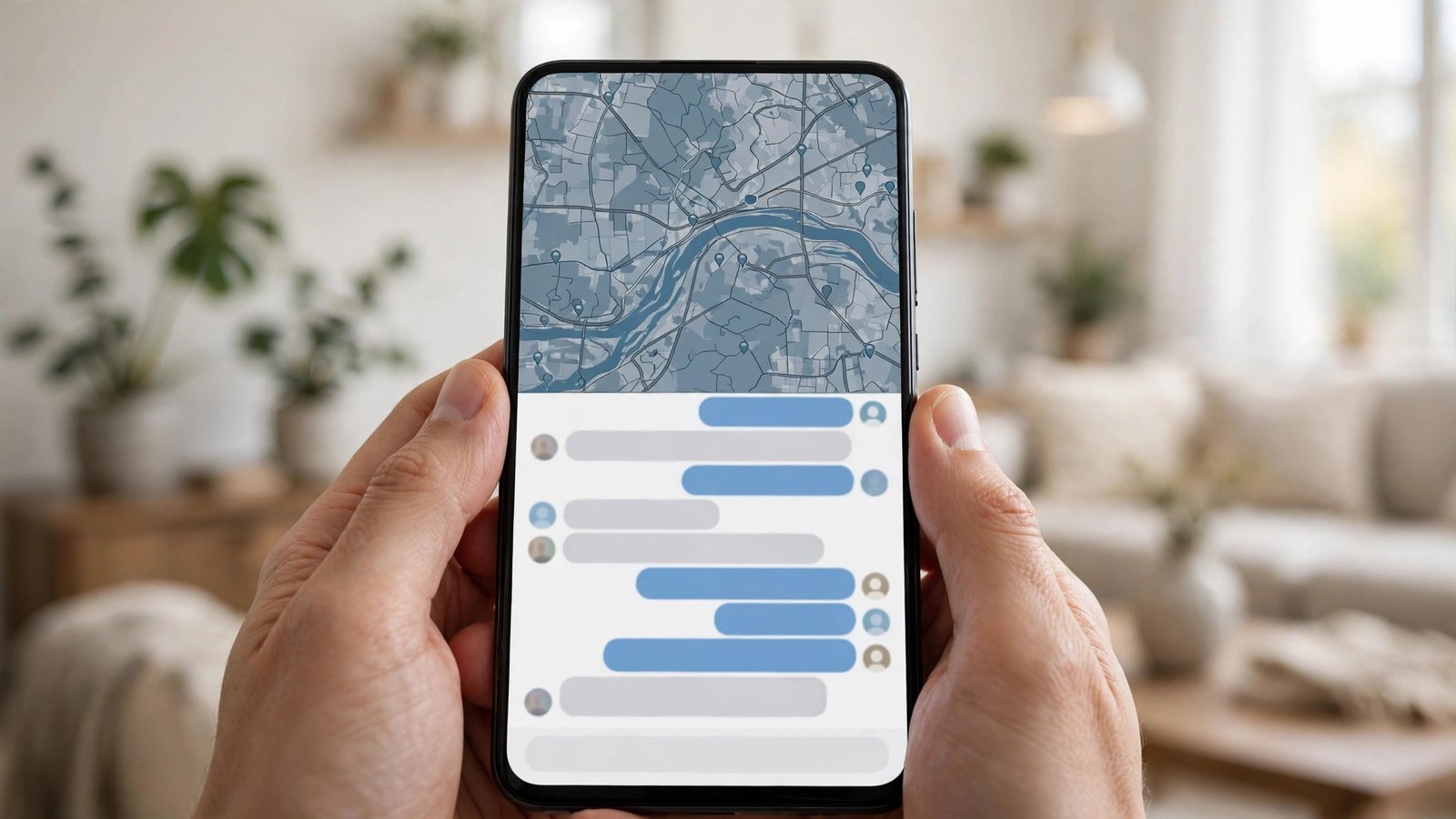
How to Use Split Screen on iPhone and Android in the UK
Split screen lets you run two apps side by side on one phone, so you can follow a recipe while your shopping list stays open, or take notes during a video call without switching back and forth. Android phones have had a proper split screen mode for years, iPads handle it well, and even iPhones have workable ways to juggle two apps at once. This guide walks through each method step by step.
Step 1: Turn on split screen on Android
Start by opening the first app you want to use, then open the second one as well. Swipe up from the bottom of the screen and hold briefly to open the recent apps view. Tap the app icon at the top of the first app's card, not the card itself, and choose Split screen from the menu that appears.
The app you picked will move to the top half of the screen, and the recent apps view will stay open at the bottom. Tap the second app to fill the lower half. You can drag the divider bar between the two apps to give one of them more room, and you can swap them by dragging the bar or by tapping the divider and choosing the swap option on most phones.
To leave split screen, drag the divider all the way to the top or the bottom of the screen, or press the home gesture. The app you drag towards will stay open in full screen, and the other one will close. If the Split screen option is greyed out for a particular app, that app does not support it, and there is no setting that will force it to work.
Step 2: Use split screen on a Samsung phone
Samsung phones add a few extras that make split screen faster to reach. Open the first app, then swipe in from the edge of the screen to open the Edge panel and tap the app you want to pair it with.
You can also save a pair of apps that you use together often. Once both apps are open in split screen, tap the divider bar between them and look for the option to save the pair, which on most recent Samsung phones appears as a star or a "save app pair" button. The pair will then appear in your Edge panel or on the home screen, and one tap will open both apps in split screen together.
Step 3: Use Split View on an iPad
The iPad has the most polished version of split screen, and it is worth using if you own one. Open the first app, then swipe up from the bottom to show the Dock and drag the second app out of the Dock to the left or right edge of the screen. When you see a thin vertical line appear, let go, and the second app will snap into place beside the first.
Drag the divider between the two apps to change how much space each one gets. To replace one side, drag a different app from the Dock onto it, and to close Split View, drag the divider all the way to one edge so the other app takes over the full screen.
Step 4: Juggle two apps on an iPhone
The iPhone does not have a true split screen mode, so you need a different approach. The fastest option is the app switcher. Swipe up from the bottom edge and pause in the middle of the screen to see your open apps as cards, then swipe left or right to find the one you want and tap it. With a bit of practice this takes less than a second, and it is how most iPhone owners move between two apps.
For video, use Picture in Picture. Start playing a video in an app that supports it, such as YouTube, FaceTime or Safari, then swipe up to go to the home screen. The video will shrink into a small floating window that stays on top while you open another app.
If you need to copy text or numbers between two apps, use the clipboard as your bridge. Copy in the first app, switch to the second with the app switcher, and paste.
Step 5: Tips that make split screen actually useful
Pick app pairs that genuinely work together. Maps and messages, a video and a notes app, or a shopping site and your banking app are natural partners. Two apps that both need your full attention will only frustrate you, so choose one app to watch and one to act in.
Watch your battery and data when you run two apps at once, because both stay active. A video playing in one half while maps navigate in the other will drain the battery faster than either app alone, so plug in if you plan to keep the pair open for a long session.
If an app refuses to open in split screen, check whether it needs an update, because developers add support over time. Some apps, especially banking apps and certain games, block split screen on purpose for security or performance reasons, and no setting will change that. If an app freezes in split screen, close both apps from the recent apps view and start again, which clears most temporary glitches.
Frequently Asked Questions
Can I use split screen on any Android phone?
Most Android phones running Android 7 or later support split screen, and it works best on phones with larger screens. The steps vary slightly by brand, but the route through the recent apps view is the same on Pixel, Samsung, Xiaomi and most other makes. Some apps block the feature, and there is no way to force them.
Why does my iPhone not have split screen like Android?
Apple has never added a true split screen mode to the iPhone, reserving it for the iPad, where the larger screen makes two apps side by side practical. On an iPhone you can use Picture in Picture for video and the app switcher to move quickly between apps.
How do I exit split screen on Android?
Drag the divider bar all the way to the top or the bottom of the screen, and the app you drag towards will fill the screen while the other one closes. You can also press the home gesture, which usually leaves the app you were last using in full screen.


Post Comment