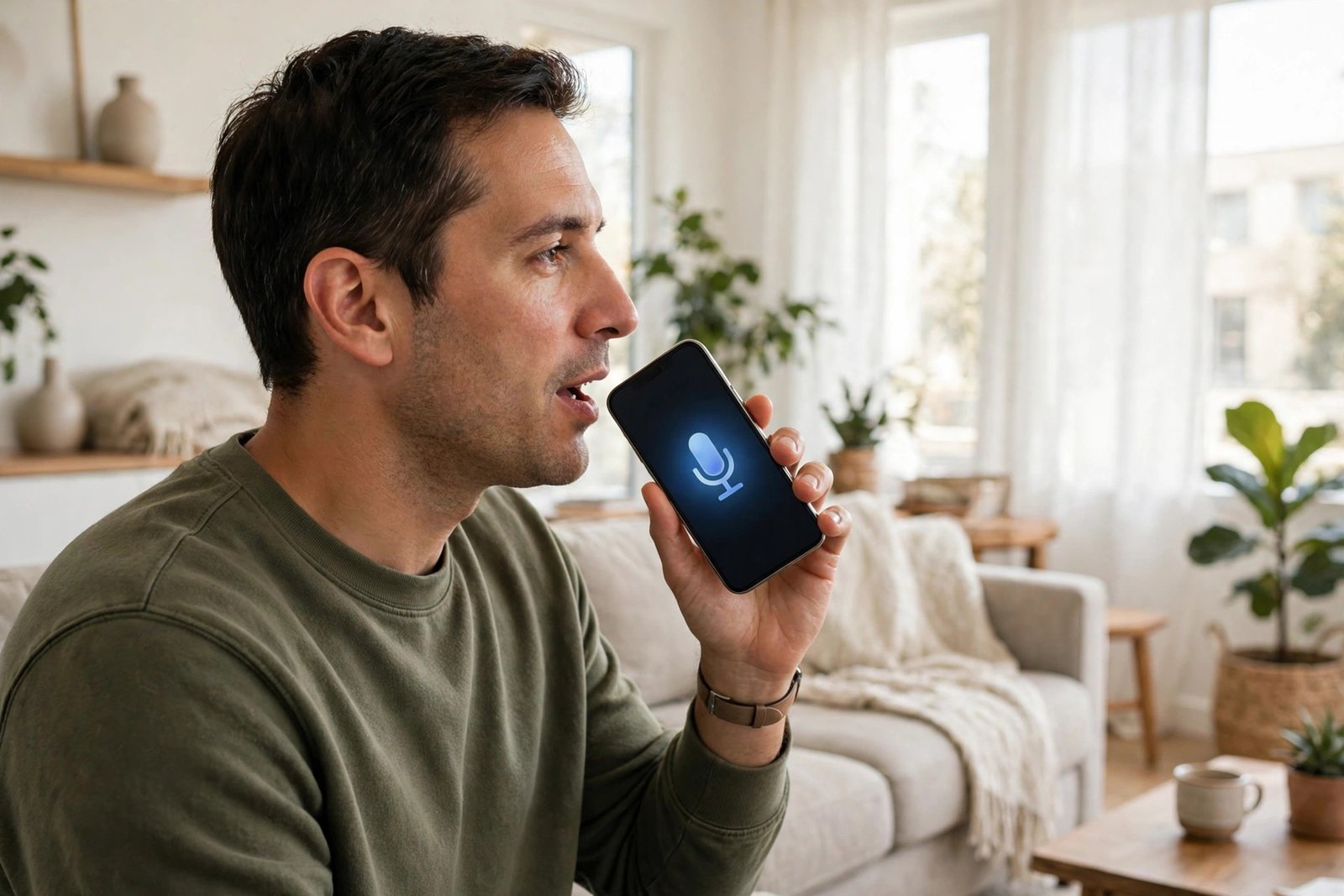
How to Use Voice Typing on iPhone and Android in Australia
Voice typing turns your speech into text, handy when your hands are full or typing on a small screen feels slow. It works for messages, emails, notes and searches, and it is built into most recent versions of iOS and Android, free and ready to use. This guide shows how to set it up on iPhone and Android, how to speak punctuation, and how to fix its mistakes.
What voice typing can and cannot do
Voice typing is best for short messages, quick replies, notes and searches. It handles everyday language well, including Australian place names in most cases, and it keeps getting better. It is less reliable for long documents, technical terms, unusual names and noisy places. It also needs an internet connection in most cases, since your speech is usually processed on a server rather than on the phone itself. For anything private, such as passwords, type it by hand instead.
Step 1: Turn on dictation on iPhone
Dictation is usually switched on by default on iPhone, but it is worth checking. Open Settings, tap General, then Keyboard, and make sure Enable Dictation is switched on. If you see a prompt about sending dictation data to Apple, tap Enable Dictation to confirm.
To use it, open any app where you can type, such as Messages, Notes or Mail, and tap in the text field to bring up the keyboard. Tap the microphone icon at the bottom of the keyboard. The microphone will change colour or show a small sound wave, which means it is listening. Start speaking at a normal pace and your words will appear as text. Tap the microphone icon again, or tap the keyboard icon, to stop.
In most recent versions of iOS, you can keep the keyboard visible while you dictate, so you can type a correction without stopping dictation. If you do not see the microphone icon, check that Enable Dictation is on in Settings.
Step 2: Turn on voice typing on Android
On Android, voice typing comes through Gboard, the keyboard made by Google, which is the default on Pixel phones and many other Android phones. If your phone uses a different keyboard, such as Samsung Keyboard, you can still use voice typing, but the steps differ slightly.
For Gboard, open Settings, tap System, then Languages and input, then On-screen keyboard, then Gboard, then Voice typing, and make sure Use voice typing is switched on. Then open any app where you can type, tap in the text field, and tap the microphone icon at the top of the keyboard. Speak, and your words will appear as text. Tap the microphone again to stop.
On Samsung phones using Samsung Keyboard, open Settings, tap General management, then Samsung Keyboard settings, and make sure Voice input is switched on. Then tap the microphone icon on the keyboard when you want to dictate.
Step 3: Speak your punctuation
Voice typing only works well if you say the punctuation out loud. Otherwise you end up with one long sentence and no full stops. Say "full stop" at the end of a sentence, "comma" for a pause, "question mark" for a question, and "exclamation mark" for emphasis. For a new line, say "new line", and for a new paragraph, say "new paragraph". Other useful commands include "open quotes" and "close quotes", and "hyphen" for a dash between words.
It feels strange at first, but it quickly becomes habit. A short message like "Hi Sarah comma can you pick up milk full stop thanks exclamation mark" comes out as "Hi Sarah, can you pick up milk. Thanks!"
Step 4: Fix mistakes without starting over
Voice typing will mishear you sometimes, especially with names, place names and words that sound alike. The fastest fix is usually to tap the wrong word and type the correction, or to tap the word and pick from the suggestions above the keyboard. On iPhone, you can also tap the backspace key to remove the last few words and try again.
If the same word keeps coming out wrong, try saying it more slowly, or spell it out. If dictation keeps failing in a particular app, try it in Notes first. If it works there, the problem is with the app, not with your phone.
Step 5: Set the language to English (Australia)
On iPhone, go to Settings, then General, then Keyboard, then Keyboards, and make sure English (Australia) is listed. If it is not, tap Add New Keyboard and choose it. Dictation will then use Australian English, which improves recognition of local words and place names.
On Android with Gboard, open Settings, tap System, then Languages and input, then On-screen keyboard, then Gboard, then Languages, and make sure English (Australia) is selected. If your phone is set to another variety of English, voice typing will still work, but Australian place names may be recognised less reliably.
Tips for better results
Speak at a normal pace and volume, as if you were talking to someone beside you. There is no need to shout or to speak like a robot. Hold the phone about 30 centimetres from your mouth, and try to dictate somewhere reasonably quiet. Wind, traffic and background television are the most common reasons for garbled text.
Keep messages short. Dictating one or two sentences at a time gives the system a better chance of getting them right than a long monologue. If you are writing a long email, dictate it in chunks and check each one before moving on. And always read the text before you send it.
Frequently Asked Questions
Is voice typing free on iPhone and Android?
Yes. Dictation on iPhone and voice typing through Gboard on Android are built into the phone and cost nothing to use. They do use mobile data if you are not on Wi-Fi, since your speech is usually processed on a server, so a long dictation session on a small data plan can eat into your allowance.
Does voice typing work without the internet?
In most cases, no. On iPhone and on most Android phones, dictation needs an internet connection because your speech is processed on a server. For reliable results, use voice typing when you have Wi-Fi or a mobile data connection.
Why does voice typing keep getting my words wrong?
The most common causes are background noise, speaking too fast or too quietly, and the wrong language setting. Move somewhere quieter, slow down slightly, and check that English (Australia) is selected. Unusual names are the hardest for the system, so spell those out.




Post Comment