How to Delete and Offload Apps on iPhone and Android in Canada
Every phone fills up eventually. One day there is plenty of room, and the next the camera refuses to take a photo because the storage is full. Apps are usually the biggest reason: games, social media and streaming apps quietly grow over months, and most of us keep dozens unopened for a year.
Deleting an app is the fastest fix, but it is not always the right one. On an iPhone you can also offload an app, which removes the app itself while keeping your data. On Android you can archive an app, which works in a similar way. This guide explains when to use each option, and how to avoid losing anything you care about.
Check what is actually taking up space
Before deleting anything, look at the numbers. On an iPhone, open Settings, then General, then iPhone Storage. On Android, the path depends on your phone, but in most recent versions it is Settings, then Storage, then Apps. Both list apps from largest to smallest, with the app size and its stored data shown separately.
Pay attention to the apps at the top of the list. A game you finished months ago or a streaming app with downloaded shows you already watched are easy wins, and an app you have not opened in six months is a strong candidate for removal.
Delete apps on iPhone
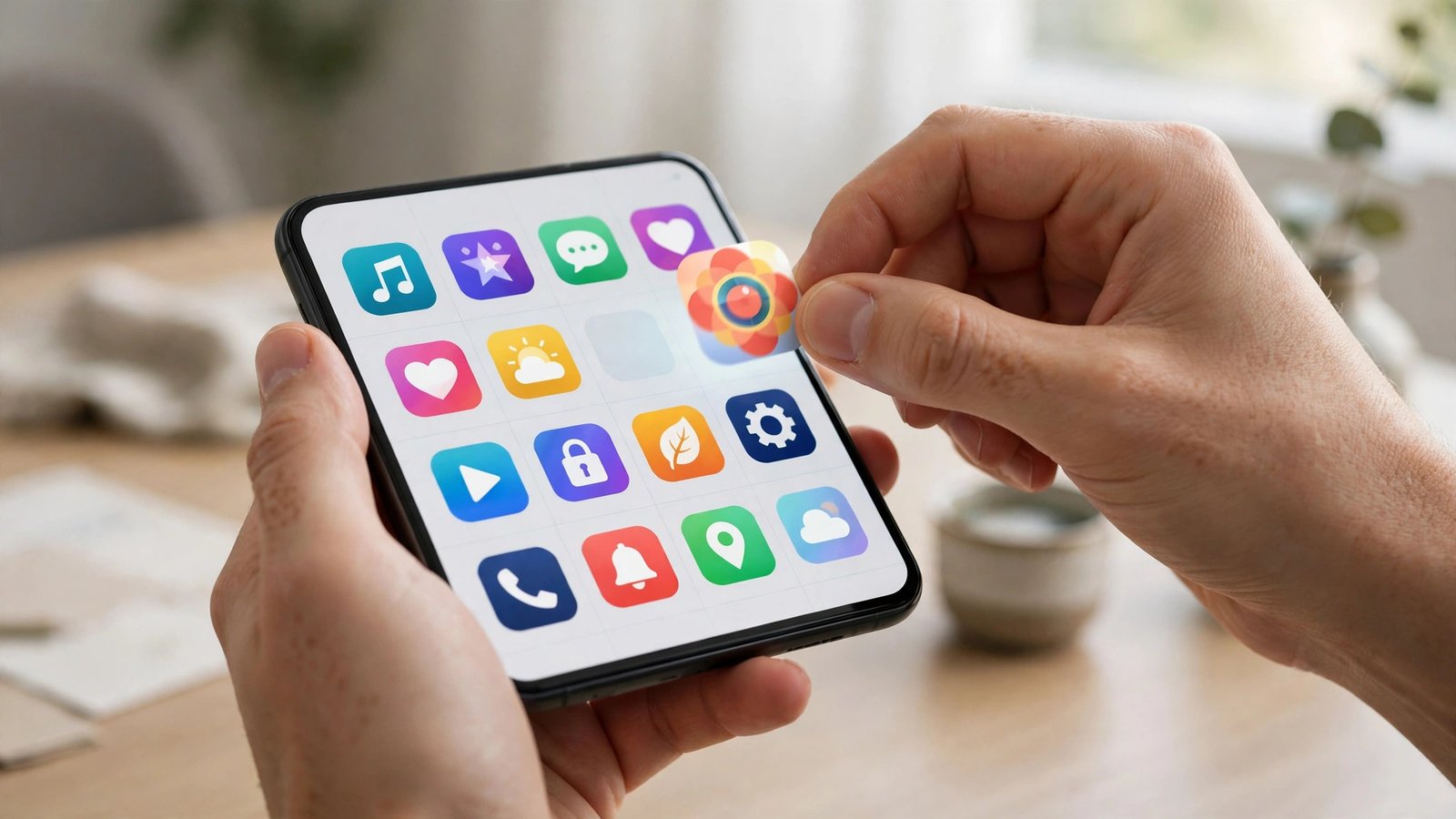
The quickest way to delete an app on an iPhone is from the Home Screen: press and hold the app icon, tap Remove App, then tap Delete App to confirm. If the app is only in the App Library, press and hold it there and choose Delete App the same way.
You can also delete from Settings, which is better when you are clearing out several apps at once. Go to Settings, General, iPhone Storage, tap an app, then tap Delete App to see exactly how much space you will get back.
Deleting an app removes its local data: saved files inside the app, downloaded content, and game progress stored only on the phone will be gone. If the app syncs to an account or to iCloud, your data will come back when you reinstall and sign in again. If it does not sync anywhere, it is gone for good, so check whether an important app backs up first.
Offload apps on iPhone instead of deleting
Offloading is the gentler option, and it is the one many iPhone owners never discover. When you offload an app, the phone deletes the app itself but keeps its documents and data, and tapping the icon later reinstalls the app as you left it.
To offload a single app, go to Settings, General, iPhone Storage, tap the app, then tap Offload App. To let the phone do it automatically, go to Settings, App Store, and turn on Offload Unused Apps. The phone will then offload apps you have not used in a while whenever storage runs low.
Offloading is the right choice for apps you might need again, like a travel app you only use on holiday. It is not the right choice when you want the space back permanently, because the app's data stays on the phone. If an app's data is the problem rather than the app itself, deleting is the better option.
Delete apps on Android
On Android, press and hold an app icon on the Home Screen or in the app drawer, then tap Uninstall and confirm. You can also go to Settings, Apps, tap the app, then tap Uninstall. Google Play keeps a record of every app you have installed, so you can find deleted apps later under Play Store, then your profile icon, then Manage apps and device.
Some apps cannot be uninstalled because they came with the phone, usually apps from the manufacturer or your carrier, and the Uninstall button will be greyed out or missing. For those, tap Disable instead, which stops the app from running and hides it.
Deleting an app on Android removes its local data, just as on iPhone. Check first whether the app syncs to your Google account or its own account. WhatsApp chats, for example, are only safe if you have a backup turned on. Photos in a gallery app are usually safe, but downloaded files inside a streaming app will be lost.
Archive apps on Android to save space
Newer Android phones offer app archiving, the Android version of offloading. Archiving removes most of the app's files but keeps your data and the app icon, and tapping the icon later downloads the app again with your data intact.
You can turn on automatic archiving in the Play Store: tap your profile icon, then Settings, then General, and turn on Automatically archive apps. The phone will then archive apps you have not used recently whenever space gets tight. To archive a single app, go to Settings, Apps, tap the app, and look for the Archive option.
Clear the cache before you delete anything
Sometimes you do not need to delete an app at all. A large part of what an app stores is cache, temporary data the app can rebuild, such as preview images in a social media feed. On Android, go to Settings, Apps, tap the app, then Storage and cache, then Clear cache. This frees space without touching your logins or saved content. Never tap Clear storage or Clear data unless you mean it.
Frequently Asked Questions
Will deleting an app delete my photos or messages?
No, not usually. Photos live in your Photos or Gallery app and messages live in your messaging app, so deleting a different app does not touch them. The exception is content stored inside the app itself, such as downloaded shows or game progress stored only on the phone. Check whether the app backs up to an account before you delete it.
What is the difference between deleting and offloading an app on iPhone?
Deleting removes the app and all of its data, and the space is freed completely. Offloading removes only the app itself and keeps its data, so the app can be reinstalled later as you left it, but the stored data still takes up room. Offload apps you might use again; delete the rest.
Why is the Uninstall button missing for some Android apps?
Some apps come pre-installed by the phone maker or your carrier, and Android does not allow them to be fully uninstalled. You can usually disable them instead, which stops them from running and hides them from your app list.


Post Comment