How to Use the Health App on iPhone and Android in the US: Steps, Sleep and Medical ID
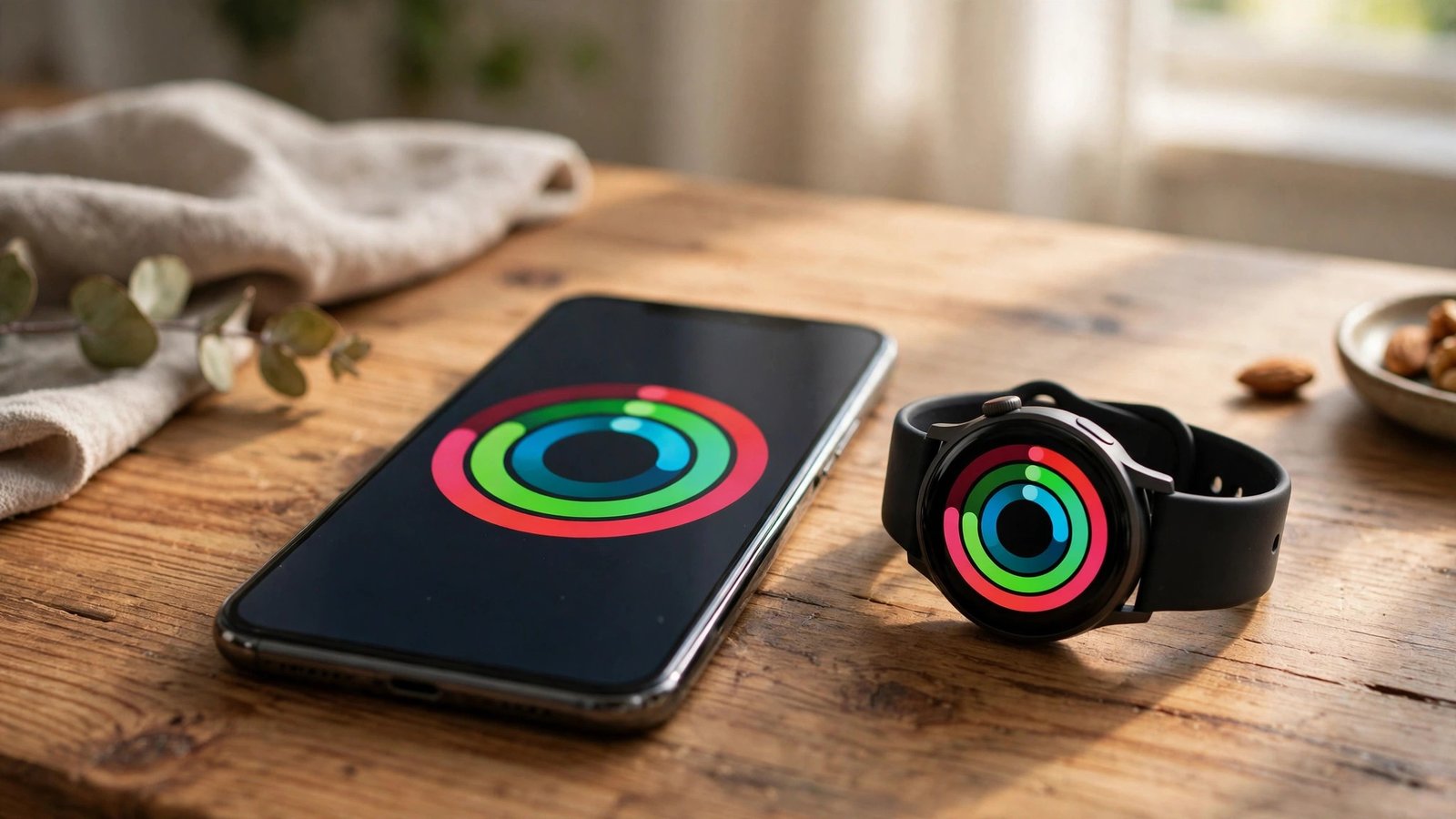
Your phone is already keeping track of your health. On iPhone it is the Health app, and on Android it is usually Google Fit or Health Connect. Both count your steps, log your sleep, and gather readings from a watch or fitness band. This guide shows you how to find the app and set it up properly.
Step 1: Find the Health app and check what it already knows
On an iPhone, look for the Health app on your home screen. It has a white icon with a pink heart. Open it and tap Browse at the bottom to see categories like Activity, Heart and Sleep, or tap Summary for your recent numbers at a glance. Your iPhone has been counting steps with its built-in motion sensor, so you will probably see months of step history already there.
On an Android phone, open Google Fit if it is installed, or search for Health Connect in the Play Store and install it. Health Connect is the hub where your health apps share data, and it works with Fitbit, Samsung Health, and many other apps. Open it, tap through the welcome screens, and grant the permissions it asks for. If you use a Fitbit or a Galaxy Watch, make sure its app is connected to Health Connect so the readings flow into one place.
Step 2: Set up your health profile and your goals
A health app works better when it knows a little about you. On iPhone, tap your profile picture in the top right of the Health app, then tap Health Details, and fill in your date of birth, sex, height and weight. On Android, open your health app's profile or settings and enter the same details.
Next, set a step goal that fits your real life. The default is often 10,000 steps a day, but that is a round target, not a medical rule. If you currently walk 4,000 steps a day, set the goal to 6,000 and raise it later. A goal you can actually hit beats a goal that makes you give up. On iPhone, set activity goals in the Fitness app, which shares data with Health. On Android, set the goal in Google Fit under Profile.
Step 3: Track your sleep without buying anything new
Your phone can estimate your sleep with no extra hardware, though a watch makes it more accurate. On iPhone, open the Health app, tap Browse, then Sleep, and tap Set Up Sleep. Choose your bedtime and wake time, and turn on the sleep schedule. Your phone will dim the screen and silence most notifications at bedtime. It logs sleep from the hours your phone stays still and dark.
On Android, open the Clock app, tap the Bedtime tab, and set your sleep and wake times. Google Fit and Health Connect will show the sleep data the next morning. If you wear a watch to bed, the readings get much better, because the watch can sense when you are actually asleep rather than just lying still. Check your sleep duration first; the stage labels are estimates in most recent versions.
Step 4: Watch your heart rate the right way
Heart rate is the number people check most and misunderstand most. A single reading tells you almost nothing. What matters is the trend over weeks. On iPhone, open Health, tap Browse, then Heart, and look at Resting Heart Rate. On Android, find the heart rate section in your health app, which usually comes from a connected watch or band.
A resting heart rate between 60 and 100 beats per minute is normal for most adults, and fitter people often sit below 60. If the app flags a persistently high or irregular rhythm over days, that is worth showing to your doctor, not worth diagnosing yourself. If you wear an Apple Watch, turn on irregular rhythm notifications in the Watch app under Heart. On Android, the setting lives in your watch or band app.
Step 5: Set up Medical ID, the feature that matters in an emergency
This is the most useful setting in the whole app, and most people never turn it on. On iPhone, open Health, tap your profile picture, then Medical ID, and fill in your name, emergency contacts, blood type, allergies and medications. Turn on Show When Locked so first responders can see it from your lock screen without your passcode. Anyone can then open it by tapping Emergency on the lock screen, then Medical ID.
On Android, open Settings, then Safety and Emergency, and look for Medical Information or Emergency Information, depending on your phone. Fill in the same details and add your emergency contacts. This information can be shown on the lock screen in an emergency.
Step 6: Share data with your doctor, and keep the rest private
You can export your health data to show a doctor. On iPhone, tap your profile picture in the Health app, then tap Export All Health Data. The file is a large XML document, so send it by email or AirDrop. On Android, the export option sits in your health app's settings, and the format depends on the app.
Health data is sensitive, so only grant access to apps you trust, and review the permissions once in a while. On iPhone, go to Health, then tap your profile picture, then Apps, to see which apps can read or write health data. On Android, open Health Connect and tap App Permissions to do the same. Remove any app you no longer use.
Frequently Asked Questions
Is the Health app free on iPhone and Android?
Yes. The Health app is built into every iPhone at no cost, and Google Fit and Health Connect are free downloads from the Play Store on Android. You do not need a subscription to count steps, track sleep, or set up Medical ID.
Does my phone count steps accurately without a watch?
Yes, well enough to track trends. Your phone's motion sensor counts steps whenever you carry it, but it misses steps when the phone sits on a desk or in a bag. A watch counts more steps because it stays on your wrist, so expect slightly higher numbers if you add one.
Can my health data be shared with my insurance company?
No, not unless you choose to share it. Apple and Google do not send your health data to insurers. The data stays on your phone unless you export it or connect an app that shares it, so check each app's privacy policy before linking it.




Post Comment