How to Create a QR Code on Your Phone in Canada: Wi-Fi, Links and Contacts
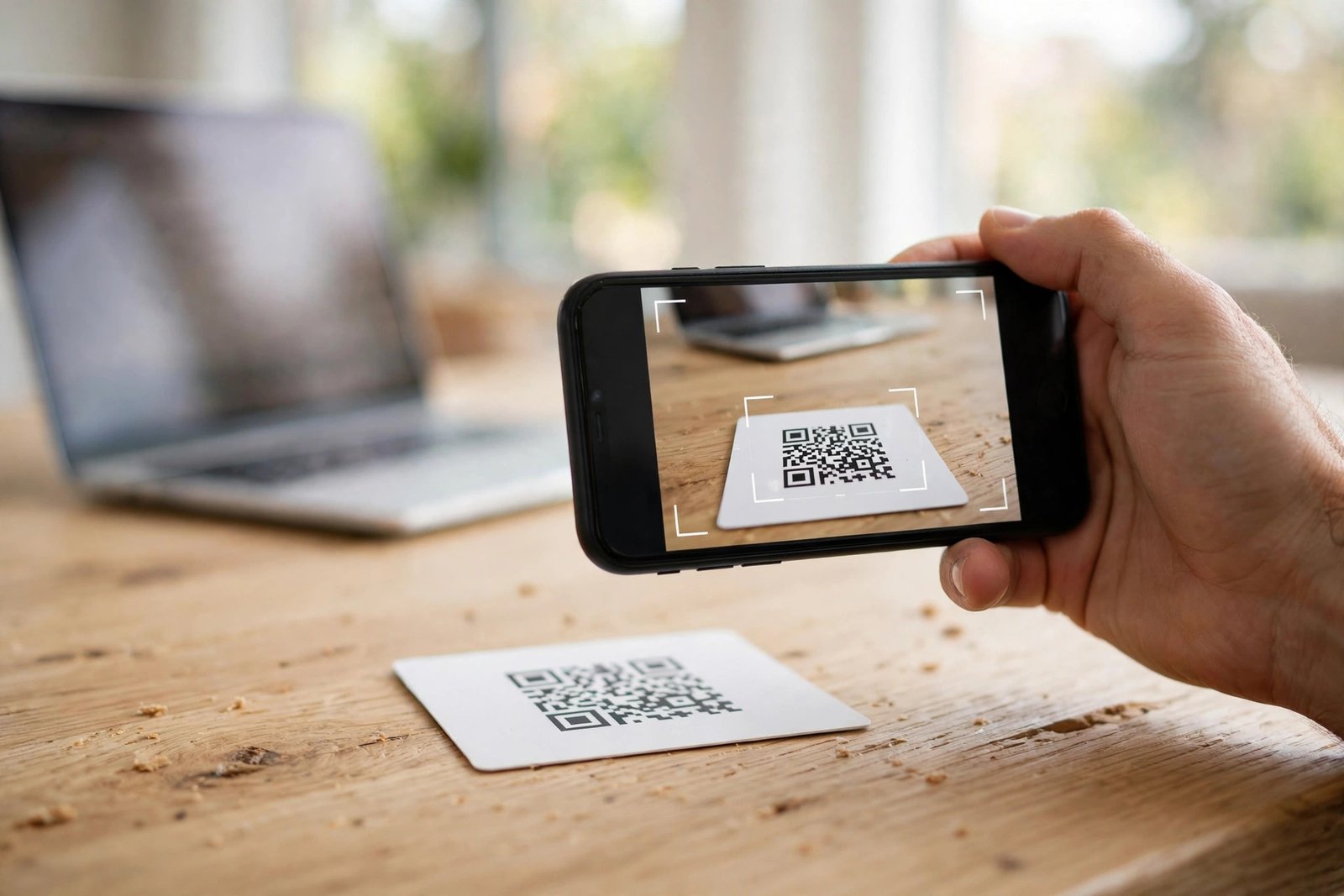
A QR code is a quick way to share something without typing it out. Point a phone camera at the square pattern and it opens a website, joins a Wi-Fi network, or saves a contact. Shops use them on menus and posters, but you can make your own in under a minute for a party invite, a home Wi-Fi password, or a link to your portfolio. This guide shows the simplest methods on iPhone and Android, plus how to test a code before you share it.
You do not need a paid app for basic QR codes. Your phone browser and free generator websites can do the job. Menu names can vary a little by phone, so look for the closest match.
Step 1: Decide what your QR code should do
Before you generate anything, decide what should happen when someone scans the code. The most common choices are a website link, a Wi-Fi network name and password, a block of text, or a contact card with your name, phone number, and email.
A link code is best for a website, a form, a video, or a social profile. A Wi-Fi code is best when guests visit your home and you do not want to read a long password aloud. A contact code is best for a business card or a networking event, since the other person can save your details without typing them.
Avoid putting sensitive information in a code you plan to print or post publicly. A home Wi-Fi code is fine for a trusted guest in person, but not for a public poster.
Step 2: Make a QR code for a website link in Chrome
Chrome on iPhone and Android has a built-in QR code maker, and it is the fastest option for a link. Open Chrome, go to the page you want to share, and tap Share. In the share sheet, look for QR Code. Chrome will show a QR code for that page, and you can tap Download to save it as an image, or Share to send it to someone.
If you do not see a QR Code option, update Chrome, then try again, or paste the link into a free QR generator website and download the image. Stick to well-known generator sites, and skip any site that asks you to pay for a basic black-and-white code. Save the image to your photos. A plain code on a white background scans most reliably, so avoid placing it over a busy photo.
Step 3: Make a QR code for your Wi-Fi network
Sharing Wi-Fi with a QR code saves a lot of spelling and retyping, especially for long passwords. On many Android phones, go to Settings, then Network and internet, then Wi-Fi, and tap the network you are connected to. Tap Share, confirm with your fingerprint, PIN, or face unlock, and your phone will show a QR code for that network. A guest can scan it with their camera and join without typing the password.
On iPhone, use a trusted QR generator website and choose the Wi-Fi type. Enter the network name exactly as it appears, choose the security type shown on your router, usually WPA or WPA2, and enter the password exactly, including capital letters. Test it with a second phone before you rely on it.
If the network name or password changes later, the old code will stop working. Make a new code after any router change, and delete old copies so guests do not keep trying a code that no longer connects.
Step 4: Make a QR code for your contact details
A contact QR code, sometimes called a vCard code, lets someone save your details in one scan. Use a free QR generator website and choose the contact or vCard option. Enter only the details you are happy to share, such as your name, phone number, email, and website. Leave out your home address and any private numbers.
Generate the code and download the image. Test it with your camera: it should offer to add a new contact with the details you entered. Check the spelling of your name, number, and email before you print it, since a typo in a QR code is easy to miss. Many contacts apps also offer a share or QR option for a contact, but the generator method works just as well.
Step 5: Test, print, and share your code safely
Testing is the step most people skip, and it is the one that prevents embarrassment. Scan your code with a different phone if you can, not just the phone that made it. Check that it opens the right page, joins the right network, or saves the right contact. Try it in normal room light and from a normal reading distance, about 20 to 30 centimetres away.
For printing, use a code at least 3 to 4 centimetres across for a card, and larger for a poster scanned from farther away. Keep a white border around it, and do not stretch the image. Anyone who sees a code can use it, so do not post a Wi-Fi code publicly. For public codes, link to a page you control, so you can update the page later without reprinting.
A QR code you make yourself is a small tool with many uses. Pick the right type, generate it with your browser or a trusted generator, test it on a second phone, and keep private codes private.
Frequently Asked Questions
Can I create a QR code for free on my phone?
Yes. Chrome's built-in QR code option is free, and many free generator websites make basic codes at no cost. You should not need to pay or create an account for a simple black-and-white code for a link, Wi-Fi network, or contact.
Why will my QR code not scan?
The most common causes are a code that is too small, printed over a busy background, stretched out of shape, or photographed in poor light. Try a larger code with a white border, hold the phone steady at a normal reading distance, and check that the camera lens is clean.
Is it safe to scan a QR code someone else made?
In most cases yes, but check where it leads before you act. Your phone should show the link or action first. Do not enter passwords or payment details on a page you reached only through an unknown code, and avoid codes stuck over other posters or signs, since they may have been tampered with.


Post Comment