How to Download Offline Maps on iPhone and Android in Australia
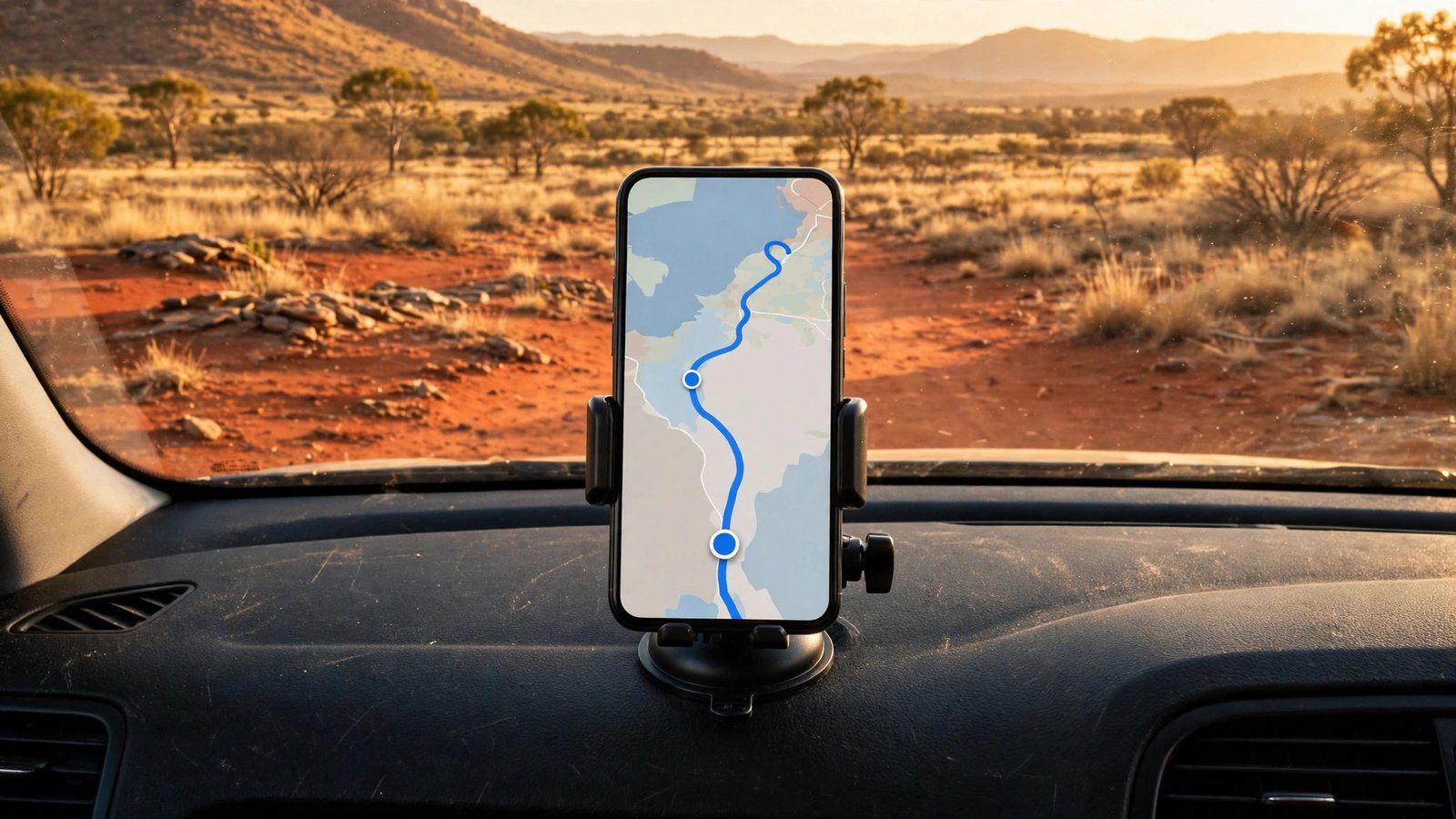
Australia has plenty of places where mobile signal simply disappears: long country highways, national parks, coastal stretches, and outback roads where the next town is hours away. That is exactly when you need a map most, and exactly when a live map can fail. Downloading maps before you leave solves the problem. Your phone stores the roads, place names, and directions for an area, so navigation keeps working even with no bars on screen. Set it up at home on Wi-Fi, and you will travel with a lot more confidence.
Step 1: Pick the right app for your trip
Most people already have what they need. On Android, Google Maps is the natural choice and supports large offline areas. On an iPhone, you can use Google Maps as well, or Apple Maps, which also lets you download maps for offline use in most recent versions. Google Maps tends to cover search and business listings more thoroughly in regional areas, while Apple Maps integrates neatly with CarPlay and Siri on an iPhone. If you travel off road or hike, consider a dedicated offline mapping app as a backup, but for road trips, either of the two main apps will do the job well. Make sure the app is updated before you download anything, so you get the freshest road data available.
Step 2: Download an offline area in Google Maps
Open Google Maps while you are on Wi-Fi. Tap your profile picture or initial in the top corner, then choose Offline maps. Tap the option to select your own map, then zoom and drag the box over the area you need, for example the route between two towns plus a generous margin around it. The app will show the download size before you confirm. Larger areas mean larger files, so keep each download focused on the places you will actually visit, and download two or three smaller areas instead of one huge one if your trip covers a long route. Tap Download and wait for it to finish. Do not rely on a download that is still in progress when you leave home. Once it is done, the map stays on your phone and updates itself when you are on Wi-Fi, in most recent versions, unless you turn automatic updates off.
Step 3: Download an offline map in Apple Maps
On an iPhone, open Apple Maps and tap your profile picture, then Offline Maps. Choose Download New Map, then type a place name or browse the map to find your area. You can adjust the size of the area before confirming, and the app will show how much storage it needs. Tap Download and let it finish on Wi-Fi. Apple Maps offline downloads include roads and navigation for the area, and in most recent versions you can also search for places inside the downloaded area without signal. If you use an Apple Watch or CarPlay, the offline map on your phone helps those devices too, since they draw on the phone for directions. Check that the download completed before you set off, and keep the phone charged, because navigation still uses GPS and the screen even when mobile data is off.
Step 4: Test navigation before you leave coverage
This step saves a lot of stress. While you are still at home, turn on flight mode or turn mobile data off, then open your map app and ask for directions to a place inside your downloaded area. If the route appears and turn by turn guidance starts, your offline map is working. Try searching for a town name and a street address inside the area, since that is what you will need on the road. If a search fails, your downloaded area may be too small or the download may not have finished. Widen the area slightly or download a neighbouring area and test again. Also check that GPS location is on: go to Settings, then Privacy and Security, then Location Services on an iPhone, or Settings, then Location on Android, and make sure the map app is allowed to use your location while using the app.
Step 5: Manage storage, updates, and expiry
Offline maps take up storage, and they can expire if they are not refreshed. In Google Maps, open Offline maps to see each download, its size, and when it was last updated. Delete areas you no longer need, and let the app update the rest on Wi-Fi before a new trip. In Apple Maps, open Offline Maps to see your downloads, remove old ones, and check storage use. As a rule, download fresh maps a day or two before a long trip, rather than relying on a download from months ago, because roads, detours, and place details change. If you are tight on storage, download only the areas for the next leg of the trip and delete each area after you pass through it. Keep a paper map or a written list of key town names as a backup for remote travel, especially in the outback, where a flat battery or a damaged phone can leave you with nothing.
Frequently Asked Questions
Do offline maps work with no mobile signal at all?
Yes, as long as the area is downloaded and GPS is on. GPS works independently of mobile signal, so your phone can still place you on the map and guide you along downloaded roads, even when the signal bars show nothing.
How much storage do offline maps need?
It depends on the size of the area and how much detail it contains. A single town or a short regional route is usually modest, while a large state sized area can be much bigger. The app shows the size before you download, so pick focused areas and delete old ones to keep storage under control.
Will offline maps still give live traffic and rerouting?
No. Live traffic, road closures reported in real time, and public transport times need a data connection. Offline maps give you roads, directions, and place search for the downloaded area, which is enough to keep moving safely until you reach coverage again.





Post Comment