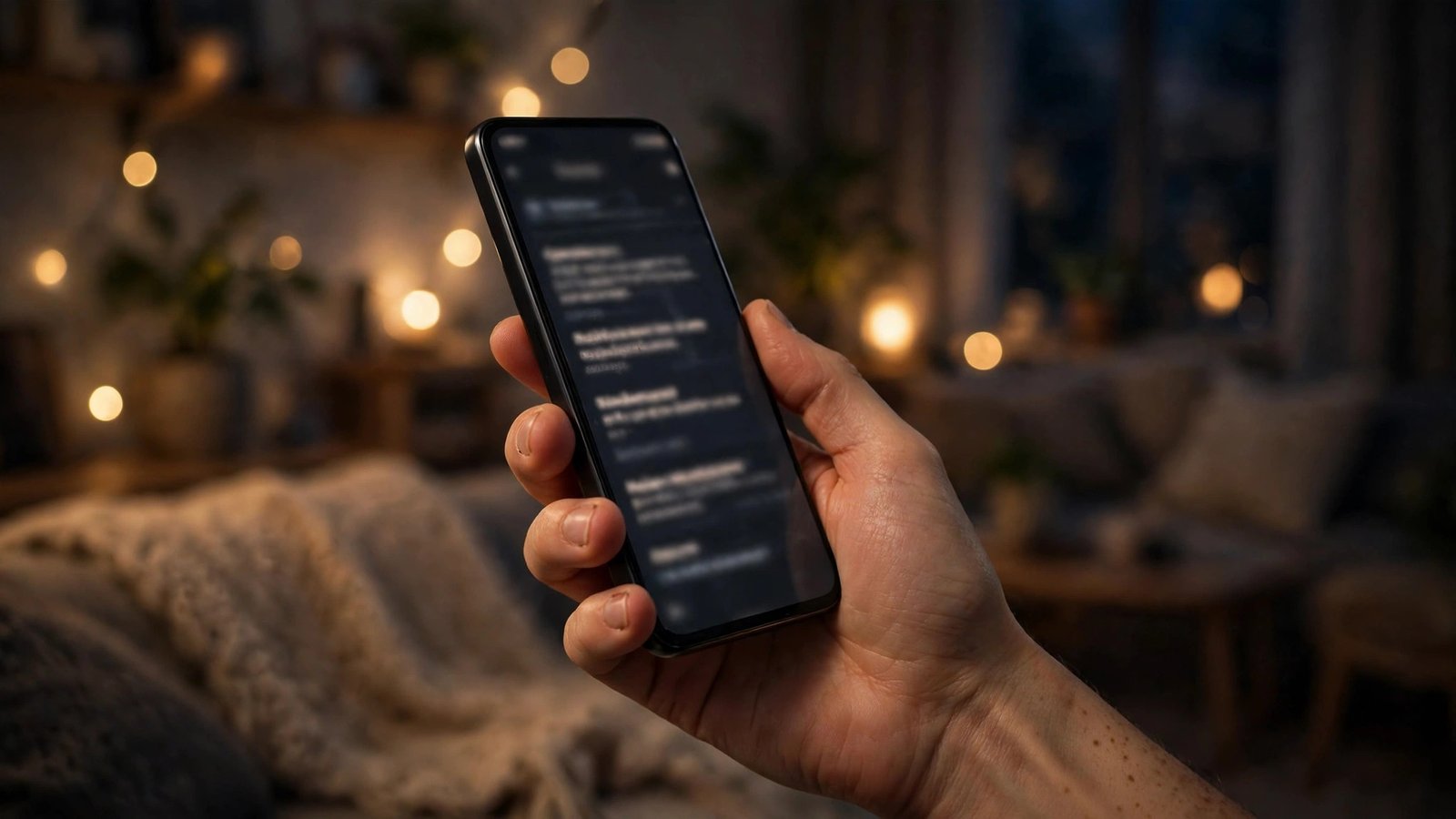
How to Use Dark Mode on iPhone and Android in Australia
Dark mode turns bright white menus into darker backgrounds with lighter text, and it can make your phone far more comfortable to use at night. It can also help some phones save a little battery, especially models with OLED screens where dark pixels use less power. If you have never switched it on, or you turned it on once and then forgot about it, this guide walks through the settings on iPhone and Android, step by step.
The exact menu names can vary slightly between phone makers and software versions. In most recent versions, though, the path is short and the option is easy to find once you know where to look.
Turn on dark mode on iPhone
On iPhone, dark mode is a system wide setting, so most Apple apps and many third party apps will follow it automatically.
Step 1: Open Settings, then tap Display and Brightness. You will see two options at the top, Light and Dark, with a preview of each style.
Step 2: Tap Dark. Your menus, Settings, Messages and other supported apps should switch to a dark background straight away.
Step 3: To make the change automatic, turn on the Automatic switch under the Light and Dark options. Then tap Options and choose Sunset to Sunrise, so your phone uses light mode during the day and dark mode at night. You can also pick Custom Schedule if you want to set your own start and finish times.
Step 4: If you want a quick way to switch back and forth, open Control Centre by swiping down from the top right corner of the screen. Press and hold the brightness slider, then tap the Dark Mode button that appears.
Turn on dark mode on Android
On Android, dark mode is usually called Dark theme, and the location depends on your phone maker. The steps below cover the most common layout, used on Pixel phones and many other Android devices in Australia.
Step 1: Open Settings, then tap Display. Look for Dark theme, or in some versions, Theme or Mode.
Step 2: Turn Dark theme on. Your system menus and supported Google apps should switch to dark backgrounds immediately.
Step 3: For an automatic schedule, tap the Dark theme setting itself rather than just the switch, if your phone offers that option. On Pixel phones, you can choose Schedule and then pick Sunset to sunrise, or set a custom time range. On Samsung Galaxy phones, go to Settings, then Display, then Dark mode settings, where you can set a schedule in a similar way.
Step 4: Many Android phones also offer a quick tile. Swipe down twice from the top of the screen to open Quick Settings, find the Dark theme tile, and tap it to toggle dark mode on or off. If you cannot see it, tap the pencil or edit icon and add it to your Quick Settings panel.
Make your apps follow dark mode
A system setting does not force every app to go dark. Some apps have their own theme setting, and a few older apps do not offer dark mode at all.
First, check the app itself. Open the app, look in its Settings or Profile section, and search for Theme, Appearance or Display. Many popular apps offer Light, Dark or System default. Choosing System default, where available, means the app will follow your phone setting and switch automatically.
Second, check your browser. In Chrome and Safari, dark mode usually follows the system, but older websites may stay white.
Third, be patient with apps that update slowly. Some apps only add dark mode in a later update, so if an app you use every day still looks bright, check for an app update in the App Store or Google Play, and check the app settings again after updating.
Fix common dark mode problems
If dark mode turns on but an app stays bright, that app is probably using its own theme. Open the app settings, look for Appearance or Theme, and switch it to Dark or System default. If there is no such option, the app may not support dark mode yet.
If dark mode switches off on its own, check your schedule. You may have set Sunset to Sunrise or a custom schedule without realising it, so the phone is simply following that timetable. Go back to Display settings and either turn Automatic off or adjust the schedule to suit you.
If text is hard to read in dark mode, check your brightness and accessibility settings. A screen that is too dim can make light text on a dark background harder to read, especially outdoors. Try raising brightness slightly, or turning on Bold Text in accessibility settings if your phone offers it. In most recent versions, you will find this under Settings, then Accessibility, then Display and Text Size on iPhone, or Settings, then Accessibility on Android.
If your phone feels slower or the screen looks odd after switching, restart it. A restart clears temporary display glitches and is a safe first step before changing anything else.
Does dark mode save battery?
The answer depends on your screen type. Phones with OLED screens can save power in dark mode because black pixels on an OLED panel draw very little power. Phones with LCD screens light the whole panel regardless, so the saving is much smaller or close to zero.
Either way, dark mode is mainly a comfort feature. It reduces glare at night and can feel easier on the eyes in a dark room. If battery life is your main concern, lowering screen brightness and shortening the screen timeout will usually make a bigger difference than dark mode alone.
Frequently Asked Questions
How do I turn on dark mode on iPhone in Australia?
Open Settings, tap Display and Brightness, then tap Dark. Turn on Automatic and choose Sunset to Sunrise if you want it to switch on its own at night.
How do I turn on dark mode on Android in Australia?
Open Settings, tap Display, then turn on Dark theme. On many phones you can also set a schedule, such as sunset to sunrise, and add a Dark theme tile to Quick Settings for fast switching.
Why do some apps stay bright when dark mode is on?
Some apps use their own theme setting instead of following the system. Open the app settings, look for Theme or Appearance, and choose Dark or System default. Apps without a dark mode option will stay bright until the developer adds one.



Post Comment