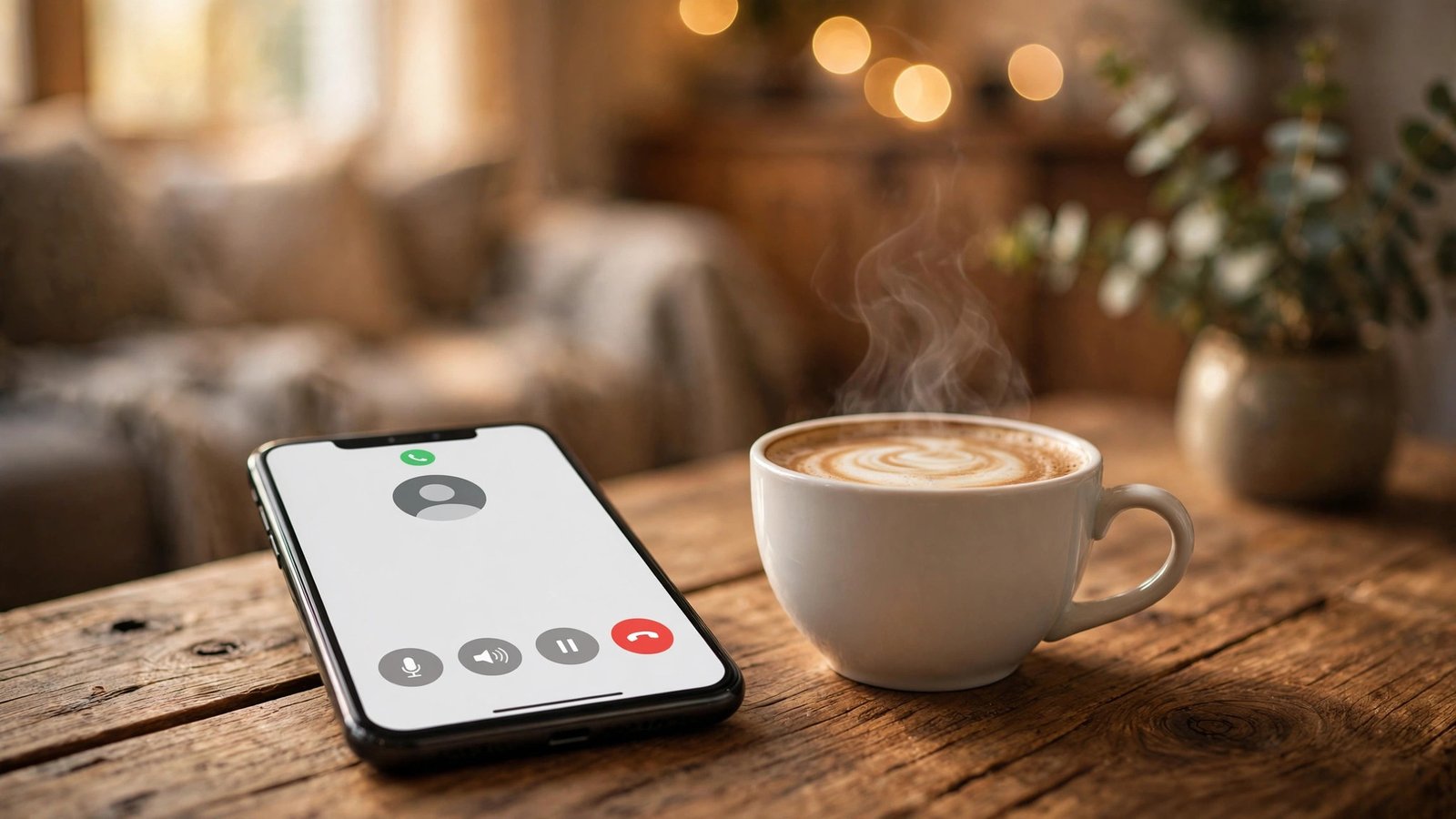
How to Turn On Wi-Fi Calling on iPhone and Android in the US
If your phone shows one bar at home, in an office basement, or in a rural spot with good broadband but weak cell coverage, Wi-Fi Calling can save the day. It routes your regular phone calls and texts over a Wi-Fi network instead of a cell tower. You use the same phone number, the same Phone app, and the same contacts. The person you call does not need to do anything different. This guide walks through the setup on iPhone and Android in the US, plus the checks to run if the option is missing or calls still drop.
Before you start, know two things. First, most major US carriers support Wi-Fi Calling, but the feature must be enabled on your account as well as on your phone. Second, Wi-Fi Calling usually needs a US address on file for emergency calls, because a call over Wi-Fi does not give emergency services your location in the same way a cell call does. Your carrier will ask you to confirm an emergency address during setup. Keep it up to date if you move.
Step 1: Check that your carrier and plan support it
Open your carrier app or account page and look for Wi-Fi Calling in your plan features. In most cases it is included at no extra charge on current plans, and calls made over Wi-Fi to US numbers are treated like regular calls. Calls to international numbers may still be billed as international calls, so check your plan before dialing abroad. If you use a prepaid plan or a smaller carrier, support can vary, so a quick check now avoids a frustrating setup later.
Also make sure your phone software is up to date. On iPhone, go to Settings, then General, then Software Update. On Android, go to Settings, then System, then Software update, though the exact menu names vary by maker. Updates can add carrier settings that make Wi-Fi Calling appear. Restart your phone after an update, then try the steps below again if the option was missing before.
Step 2: Turn on Wi-Fi Calling on iPhone
On an iPhone, go to Settings, then Phone, then Wi-Fi Calling. Turn on Wi-Fi Calling on This iPhone. If you are asked to enter or confirm an emergency address, enter the address where you most often use Wi-Fi Calling, such as your home address, and confirm it. Some carriers also ask you to agree to terms about emergency calling. Read that screen carefully, because it explains that emergency services may receive the address you entered rather than your live location.
Step 3: Turn on Wi-Fi Calling on Android
Android menus differ by phone maker, so use these paths as a starting point and look for similar wording on your device. On a Google Pixel, open the Phone app, tap the three dots in the top corner, tap Settings, then Calling accounts or Calls, then Wi-Fi calling, and turn it on. On a Samsung Galaxy phone, go to Settings, then Connections, then Wi-Fi Calling, and turn it on. On many other Android phones, go to Settings, then Network and Internet, then Mobile network, then look for Wi-Fi Calling.
As with iPhone, you may be asked to enter an emergency address. Enter it carefully and confirm it. Some carriers show a separate switch for Wi-Fi Calling and for preferring Wi-Fi over cellular. If you see a preference setting, choose Wi-Fi preferred if your main problem is weak cell signal at home. That tells the phone to use Wi-Fi first when a good Wi-Fi connection is available. After setup, connect to Wi-Fi and make a test call from a weak signal spot. Your status bar may show a Wi-Fi Calling icon during the call.
Step 4: Test it properly before you rely on it
A quick test in a strong signal area will not tell you much, because the phone may simply use the cell network. Instead, test in the place where you actually need it. Turn on airplane mode, then turn Wi-Fi back on, so the phone is forced to use Wi-Fi only. Then make a call and send a text. If both go through, Wi-Fi Calling is working. Turn airplane mode off when you are done testing, so you are back on the normal network.
Step 5: Fix it if Wi-Fi Calling will not turn on
Start with the simple checks. Confirm you are connected to Wi-Fi and that other apps can load pages. Restart your phone. Remove and reinsert your SIM card if you use a physical SIM, or check that your eSIM is active in Settings. Then open the carrier settings update screen if your phone offers one. On iPhone, go to Settings, then General, then About, and wait a few seconds for a carrier settings update prompt if one is available. On Android, a system update check often pulls in new carrier settings as well.
If the switch is still missing, contact your carrier and ask two questions: is Wi-Fi Calling enabled on my line, and is my emergency address on file? A support agent can often fix an account side block in minutes. Also check whether you are using a VPN, because some VPN setups can interfere with Wi-Fi Calling. Try turning the VPN off for a test call.



Post Comment