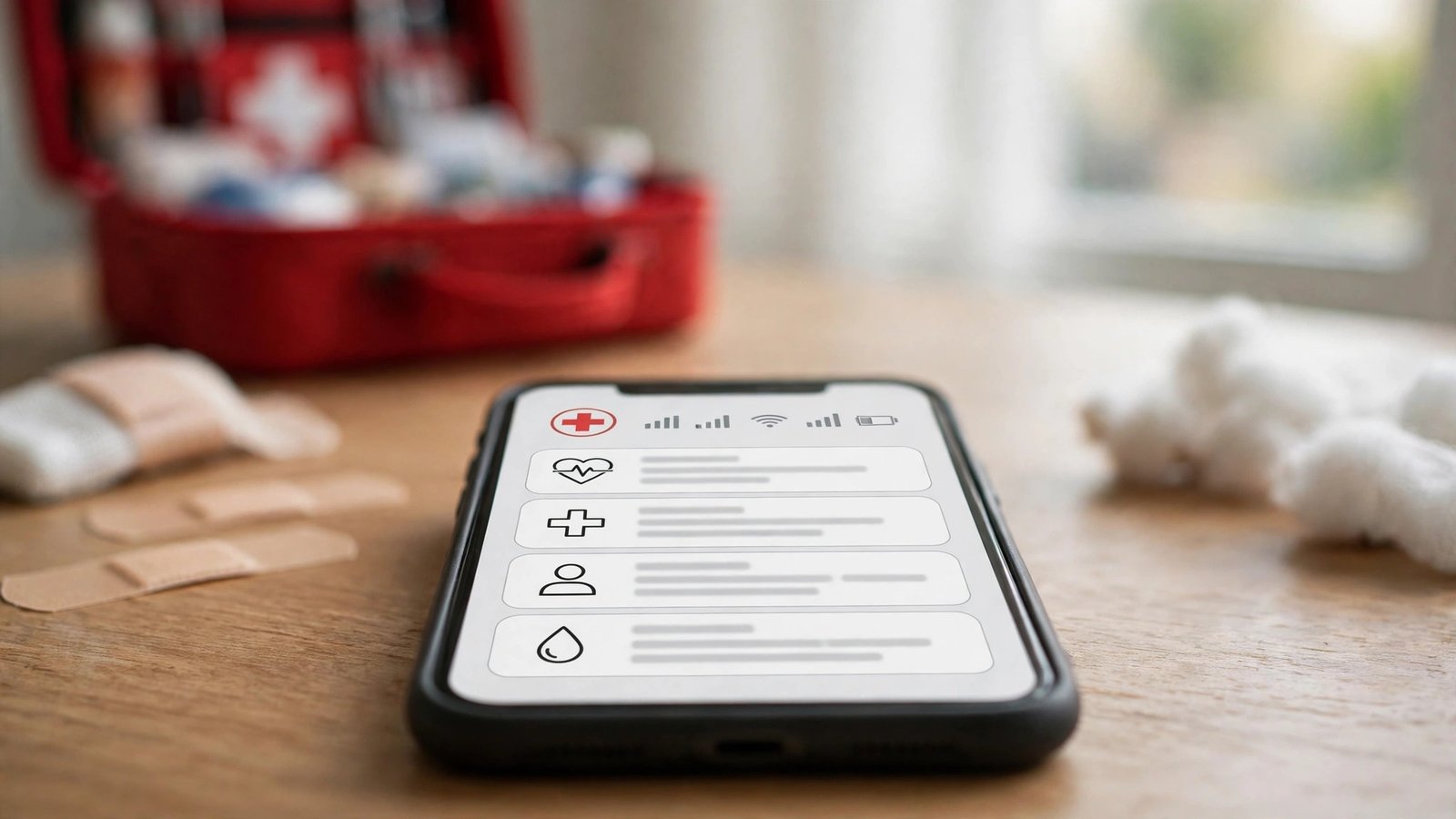
How to Set Up Medical ID and Emergency Information on Your Phone in the US
If you are ever in an accident or a medical emergency and cannot speak for yourself, your phone can speak for you. Both iPhone and Android let you store medical details and emergency contacts that first responders can see from the lock screen, without unlocking your phone. It takes about five minutes to set up, and it is one of the most useful settings most people never turn on.
Medical ID is not a replacement for a medical bracelet or for telling your doctor about your conditions. It is a backup for the moment when you cannot talk, your wallet is not nearby, or nobody with you knows your history. Paramedics are trained to look for this information, so putting it in the right place can save precious time.
Step 1: Decide what to include, and what to leave out
Keep the information short, clear, and useful in an emergency. Good details include allergies, especially to medicines, major medical conditions such as diabetes, asthma, epilepsy, or a heart condition, current medicines that matter in an emergency, your blood type if you know it, and any implants or devices. Add one or two emergency contacts with their relationship to you.
Leave out anything a stranger does not need. Do not put your Social Security number, full address, insurance details, or long medical history in this field. First responders need the facts that change treatment in the first minutes. Everything else can wait until you are in care and can share it through normal channels.
Step 2: Set up Medical ID on iPhone
On iPhone, open the Health app, then tap your profile picture or initials in the top right. Tap Medical ID, then Edit. Fill in the fields you want to share: medical conditions, allergies, medicines, blood type, weight and height if you wish, and emergency contacts. Add contacts from your address book so their phone numbers are correct.
Make sure the option to show Medical ID when locked is turned on. That is the whole point of the feature. Without it, a responder would need your passcode to see the information. Once you save, test it. Lock your phone, swipe to the emergency call screen, and tap Medical ID. You should see the details you just entered. If you see a blank screen, go back and check that the lock screen option is on.
On most recent versions of iOS, you can also reach Medical ID from Settings, then Health, then Medical ID, or by searching for Medical ID in Settings. The exact path can vary slightly by version, but the Health app route works on most recent iPhones. While you are there, check that your emergency contacts are still current, since old numbers are a common problem.
Step 3: Set up emergency information on Android
Android phones vary by maker, so the exact menu names differ, but the idea is the same. On many Android phones, open Settings, then Safety and emergency, then Medical information, and add your details and emergency contacts. On Samsung phones, look under Settings, then Safety and emergency, then Medical info. On Google Pixel phones, the same Safety and emergency section holds medical information and emergency contacts.
If your phone does not show a medical information option, try Settings, then About phone, then Emergency information. Some older Android versions put it there. Fill in allergies, conditions, medicines, blood type, and contacts, then make sure the option to show this information on the lock screen is on. As with iPhone, test it from the lock screen emergency call screen to confirm a stranger can actually see it.
Step 4: Add emergency contacts and test emergency calling
Emergency contacts do two jobs. First, they appear on your Medical ID screen so a responder can call them. Second, on many phones, they can be called from the lock screen emergency screen. Add people who will actually answer, and tell them you have listed them. A contact who does not know they are your emergency contact may ignore an unknown call from a hospital.
In the US, also check your phone's Emergency SOS feature while you are in these settings. On iPhone, Emergency SOS can call 911 and notify your emergency contacts after a countdown or a button press pattern, depending on your model. On Android, the Safety and emergency section usually offers Emergency SOS with similar options. You do not need to test a real 911 call. Just confirm the feature is on and that it points to the right contacts.
Review this setup twice a year, and after any major change: a new medicine, a new allergy diagnosis, a new phone, or a change in who your emergency contact should be. Phones change hands and numbers change, and an outdated Medical ID can mislead a responder at the worst moment.
Step 5: Think about privacy before you fill it in
Medical ID is visible without your passcode, by design. That is what makes it useful, and it is also why you should keep it minimal. Anyone who finds your phone could read what you put there. Do not include details you would not want a stranger to see, and do not include information about other people.
If you are uncomfortable with lock screen medical details, a middle path is to include only allergies, one key condition, and one emergency contact, and leave medicines and blood type out. That still gives responders the most time critical facts. What you should not do is leave the whole feature blank because of privacy worries. A short, accurate entry helps far more than no entry at all.
Frequently Asked Questions
Can first responders see my Medical ID without unlocking my phone?
Yes, when you turn on the lock screen option. On iPhone, it appears from the emergency call screen. On Android, it appears from the lock screen emergency section on most recent phones. That is why you should keep the entry short and limited to emergency facts.
What medical details should I put in Medical ID?
Include allergies, major conditions, key medicines, blood type if you know it, and one or two emergency contacts. Leave out your Social Security number, address, insurance details, and long medical history.
Does Medical ID replace a medical bracelet?
No. A bracelet is visible even if your phone is lost, broken, or out of battery. Medical ID is a helpful backup that carries more detail than a bracelet, but the two work best together for serious allergies or conditions.


Post Comment